
1. บทนำ
Welcome to the user manual for your Bmax Y13 Pro 2-in-1 Touchscreen Laptop. This device combines the functionality of a laptop with the versatility of a tablet, featuring a 13.3-inch Full HD IPS touch display and a 360-degree flip design. Powered by an Intel 12th Gen N100 processor, 16GB DDR5 RAM, and a 512GB SSD, it is designed for efficient performance in various tasks, from work and study to daily entertainment. This manual provides essential information for setting up, operating, maintaining, and troubleshooting your device.
2. เนื้อหาบรรจุภัณฑ์
โปรดตรวจสอบว่าสินค้าทั้งหมดมีอยู่ในแพ็คเกจของคุณ:
- Bmax Y13 Pro 2-in-1 Touchscreen Laptop
- อะแดปเตอร์ไฟฟ้า/เครื่องชาร์จ
3. สินค้าหมดview
The Bmax Y13 Pro is designed for flexibility and performance. Below are key features and components.

รูปที่ 3.1: The Bmax Y13 Pro 2-in-1 Touchscreen Laptop, showcasinด้วยหน้าจอขนาด 13.3 นิ้วและการออกแบบที่ทันสมัย
3.1 คุณสมบัติหลัก
- Intel 12th Gen N100 Processor: Efficient performance for daily computing.
- 13.3" FHD IPS Touch Display: Vibrant visuals and interactive control.
- 360° Flip Design: Transforms between laptop, tablet, tent, and stand modes.
- 16GB DDR5 RAM & 512GB SSD: Fast multitasking and ampที่เก็บของ
- แป้นพิมพ์พร้อมไฟแบ็คไลท์: Enhanced typing experience in low-light conditions.
- การเชื่อมต่อ: Dual-band WiFi 5, Bluetooth 4.2, USB Type-C ports, Micro SD slot.
3.2 โปรเซสเซอร์และประสิทธิภาพ

รูปที่ 3.2: Diagram illustrating the Intel 12th Gen N100 Processor with its 4 cores, 4 threads, 6M cache, 6W power consumption, and 3.40GHz turbo frequency.
The laptop is equipped with an Intel 12th Gen N100 processor, featuring 4 cores and 4 threads, designed for balanced power and energy efficiency. It operates at up to 3.4GHz, suitable for everyday computing tasks.
3.3 หน่วยความจำและที่เก็บข้อมูล

รูปที่ 3.3: Visual representation of the laptop's 16GB LPDDR5 RAM and 512GB SSD storage, highlighting M.2 2280 expansion capability.
With 16GB LPDDR5 RAM and a 512GB SSD, the Bmax Y13 Pro offers substantial capacity for multitasking and rapid data access. Storage can be expanded via a microSD card.
3.4 Display and Convertible Design

รูปที่ 3.4: Details of the 13.3-inch FHD 1920x1080 IPS display, featuring a slim 5mm bezel and 81.7% screen-to-body ratio.
The 13.3-inch FHD (1920x1080) IPS touchscreen display provides clear and vibrant visuals. Its slim bezel design enhances the viewing experience. The 360° flip design allows for multiple usage modes:

รูปที่ 3.5: The Bmax Y13 Pro shown in laptop, tent, stand, and tablet modes, demonstrating its 360° convertible functionality.
- โหมดแล็ปท็อป: Traditional laptop use for typing and productivity.
- โหมดเต็นท์: เหมาะสำหรับการนำเสนอหรือรับชมวิดีโอในพื้นที่จำกัด
- โหมดสแตนด์บาย: Perfect for media consumption or video calls.
- โหมดแท็บเล็ต: พับกลับไปด้านหลังจนสุดเพื่อใช้งานกับหน้าจอสัมผัส
3.5 คีย์บอร์ดและทัชแพด
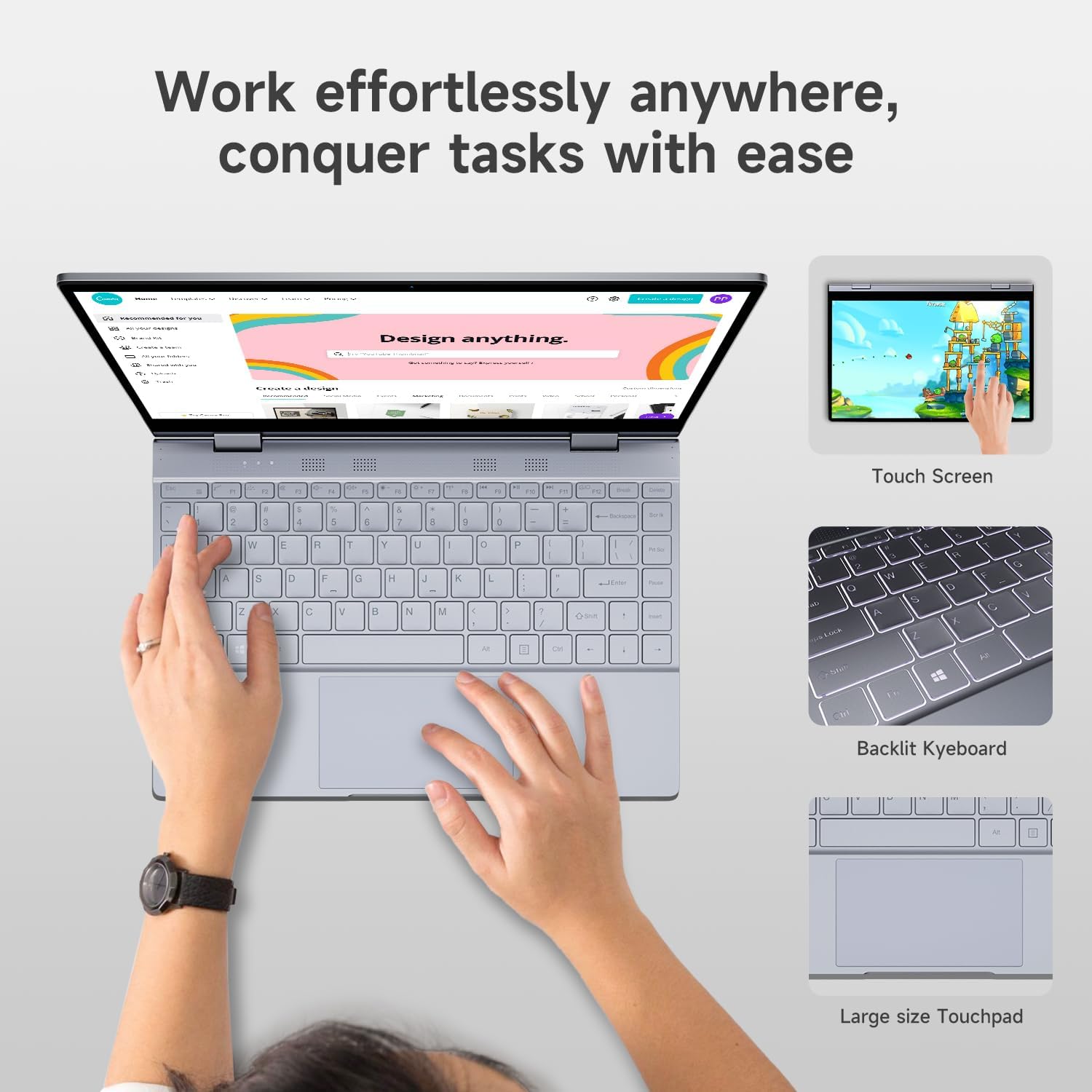
รูปที่ 3.6: Close-up of the Bmax Y13 Pro's backlit keyboard and large touchpad, designed for comfortable input.
The laptop features a backlit keyboard for comfortable typing in various lighting conditions and a large touchpad for precise navigation.
3.6 พอร์ตและการเชื่อมต่อ

รูปที่ 3.7: รายละเอียด view of the laptop's ports, including two Type-C ports (one full-featured, one for data transmission), a 3.5mm headset jack, a Micro SD slot, and the power button.
The Bmax Y13 Pro includes multiple ports for diverse connectivity needs:
- 2 x USB Type-C ports (one full-featured, one for data transmission)
- 1 x 3.5mm Headset Jack
- 1 x ช่องเสียบไมโครเอสดี
Wireless connectivity is provided by Dual-band WiFi 5 and Bluetooth 4.2.
4. การตั้งค่า
4.1 การชาร์จเริ่มต้น
Before first use, connect the provided power adapter to the laptop's Type-C charging port and a power outlet. Allow the device to charge for at least 30 minutes, or until the battery indicator shows sufficient charge, before powering it on.
4.2 การเปิดเครื่องและการตั้งค่าเริ่มต้น
- Press and hold the Power Button (located on the side, near the Micro SD slot) until the screen illuminates.
- Follow the on-screen prompts to complete the Windows operating system setup. This typically includes selecting your language, region, connecting to a Wi-Fi network, and creating a user account.
- Ensure your device is connected to the internet to download necessary updates during the setup process.
5. คู่มือการใช้งาน
5.1 การใช้หน้าจอสัมผัส
The 13.3-inch display supports multi-touch gestures. You can interact with the operating system and applications directly on the screen using your fingers. Common gestures include:
- แตะ: เทียบเท่ากับการคลิกเมาส์
- แตะค้างไว้: เทียบเท่ากับการคลิกขวา
- บีบเพื่อซูม: ใช้สองนิ้วเพื่อซูมเข้าหรือออก
- ปัด: Navigate through content or activate system functions (e.g., opening Action Center).
5.2 การสลับโหมด
The 360° hinge allows you to seamlessly switch between laptop, tent, stand, and tablet modes. Simply rotate the screen to your desired configuration. The operating system may automatically detect the mode change and adjust the display and input methods accordingly (e.g., enabling Tablet Mode in Windows).
5.3 ฟังก์ชั่นคีย์บอร์ด
The keyboard includes standard keys and function keys (F1-F12) that can be activated with the Fn key for special functions like adjusting brightness, volume, or enabling/disabling Wi-Fi. The keyboard backlight can typically be toggled using a dedicated function key combination (refer to keyboard icons).
5.4 การเชื่อมต่ออุปกรณ์ต่อพ่วง
- USB Type-C: Use the Type-C ports to connect compatible devices, external displays, or for charging.
- แจ็คหูฟังขนาด 3.5 มม.: เชื่อมต่อหูฟังหรือลำโพงภายนอก
- สล็อตไมโคร SD: Insert a Micro SD card for expanded storage.
- บลูทูธ: Pair Bluetooth devices (e.g., mice, keyboards, headphones) through Windows settings.
- ไวไฟ : เชื่อมต่อกับเครือข่ายไร้สายผ่านการตั้งค่าเครือข่าย Windows
6. การบำรุงรักษา
6.1 การทำความสะอาดแล็ปท็อปของคุณ
- หน้าจอ: ใช้ผ้านุ่มไม่เป็นขุยเช็ดเล็กน้อยampล้างออกด้วยน้ำหรือน้ำยาทำความสะอาดหน้าจอ หลีกเลี่ยงสารเคมีรุนแรง
- แป้นพิมพ์และตัวเครื่อง: ใช้ผ้าเนื้อนุ่ม สำหรับคราบฝังแน่น ให้เช็ดเบาๆamp ผ้าใช้ได้ ตรวจสอบให้แน่ใจว่าไม่มีของเหลวเข้าไปในช่องเปิด
- พอร์ต: ใช้ลมอัดเพื่อเป่าฝุ่นออกจากพอร์ตอย่างอ่อนโยน
6.2 การดูแลแบตเตอรี่
- หลีกเลี่ยงอุณหภูมิที่สูงเกินไป เพราะอาจทำให้แบตเตอรี่มีอายุการใช้งานลดลง
- เพื่อให้แบตเตอรี่มีอายุการใช้งานยาวนานที่สุด ควรหลีกเลี่ยงการปล่อยแบตเตอรี่จนหมดอย่างต่อเนื่องหรือชาร์จเพียง 100% เป็นเวลานาน
- If storing the laptop for a long time, charge it to about 50-60% before turning it off.
6.3 การอัปเดตซอฟต์แวร์
Regularly check for and install operating system updates (Windows Update) and driver updates to ensure optimal performance and security.
7 การแก้ไขปัญหา
หัวข้อนี้จะกล่าวถึงปัญหาทั่วไปที่คุณอาจพบเจอ
7.1 ปัญหาเกี่ยวกับพลังงานและการชาร์จ
- โน๊ตบุ๊คไม่เปิด: Ensure the laptop is charged. Connect the power adapter and wait a few minutes before attempting to power on again.
- โน๊ตบุ๊คไม่ชาร์จ: Verify the power adapter is securely connected to both the laptop and the power outlet. Try a different outlet. Ensure the Type-C port used for charging is functional.
- Laptop gets hot while charging: It is normal for laptops to generate some heat during charging or heavy use. If the heat is excessive or causes discomfort, ensure proper ventilation and avoid using the laptop on soft surfaces that block vents.
7.2 ปัญหาเกี่ยวกับหน้าจอแสดงผลและหน้าจอสัมผัส
- หน้าจอว่างเปล่า: Ensure the laptop is powered on. Try adjusting screen brightness. Connect to an external monitor to check if the issue is with the laptop's display.
- หน้าจอสัมผัสไม่ตอบสนอง: Restart the laptop. Ensure there are no physical obstructions or excessive dirt on the screen. Check for updated display drivers.
7.3 ปัญหาการเชื่อมต่อ
- Wi-Fi ไม่เชื่อมต่อ: ตรวจสอบว่าเปิดใช้งาน Wi-Fi ในการตั้งค่า Windows แล้วหรือไม่ รีสตาร์ทเราเตอร์และแล็ปท็อป ตรวจสอบให้แน่ใจว่าคุณป้อนรหัสผ่าน Wi-Fi ถูกต้อง
- อุปกรณ์บลูทูธไม่จับคู่: Ensure Bluetooth is enabled on both the laptop and the device. Place devices close to each other. Try removing and re-pairing the device.
7.4 ปัญหาประสิทธิภาพโดยทั่วไป
- ประสิทธิภาพช้า: Close unnecessary applications. Check for sufficient free storage space. Run a virus scan. Ensure Windows and drivers are up to date.
- System crashes/freezes: Perform a system restart. Check for recent software installations that might be causing conflicts.
8. ข้อมูลจำเพาะ
| คุณสมบัติ | ข้อมูลจำเพาะ |
|---|---|
| ยี่ห้อ | บีแม็กซ์ |
| ชื่อรุ่น | Y13 โปร |
| ขนาดการแสดงผลหน้าจอยืน | 13.3 นิ้ว |
| ความละเอียดหน้าจอ | 1920 x 1080 พิกเซล (FHD IPS) |
| โปรเซสเซอร์ | Intel 12th Gen N100 (up to 3.4 GHz) |
| แรม | แรม 16GB DDR5 |
| ฮาร์ดไดรฟ์ | SSD ความจุ 512GB |
| โคโปรเซสเซอร์กราฟิก | กราฟิก Intel UHD |
| ระบบปฏิบัติการ | OS |
| ประเภทไร้สาย | 802.11a/b/g/n/ac (WiFi 5) |
| บลูทูธ | 4.2 |
| จำนวนพอร์ต USB 3.0 | 2 (ประเภท C) |
| น้ำหนักสินค้า | 2.75 ปอนด์ |
| ขนาดสินค้า | 12 x 8.1 x 0.57 นิ้ว |
| แบตเตอรี่ | 38.0Wh Lithium Polymer (up to 6-8 hours usage) |
| คุณสมบัติพิเศษ | Backlit Keyboard, Memory Card Slot (Micro SD) |
9. ข้อมูลการรับประกัน
The Bmax Y13 Pro laptop typically comes with a 12-month repair period นับจากวันที่ซื้อ นอกจากนี้ ยังมี นโยบายการคืนสินค้าภายใน 30 วัน may apply, subject to the retailer's terms and conditions. Please retain your proof of purchase for warranty claims. For specific warranty details and terms, refer to the documentation included with your product or contact Bmax customer support.
10. การสนับสนุน
For further assistance, technical support, or inquiries regarding your Bmax Y13 Pro laptop, please refer to the following resources:
- การสนับสนุนทางออนไลน์: Visit the official Bmax webเว็บไซต์นี้รวบรวมคำถามที่พบบ่อย (FAQ) ข้อมูลการดาวน์โหลดไดรเวอร์ และข้อมูลการติดต่อฝ่ายสนับสนุน
- การสนับสนุนผู้ค้าปลีก: Contact the retailer from whom you purchased the device for return or exchange policies.
- การสนับสนุนทางอีเมล์: Check the Bmax website for dedicated email support channels.
Bmax offers 24-hour online support for after-sales service.