
1. บทนำ
The Phomemo M950 Label Maker is a versatile, portable thermal label printer designed for both home and office use. It offers dual printing modes: direct input via its integrated keyboard and wireless printing via Bluetooth connection to a mobile application. This device utilizes thermal printing technology, eliminating the need for ink cartridges, and supports various label tape types for diverse labeling needs.
2. ข้อมูลด้านความปลอดภัย
- ควรเก็บอุปกรณ์ให้ห่างจากน้ำและความชื้นสูง เพื่อป้องกันไฟฟ้าช็อตหรือความเสียหาย
- อย่าถอดแยกชิ้นส่วนหรือพยายามซ่อมแซมอุปกรณ์ด้วยตนเอง ติดต่อฝ่ายสนับสนุนลูกค้าเพื่อขอความช่วยเหลือ
- Use only Phomemo-approved label tapes to ensure optimal performance and prevent damage to the print head.
- เก็บให้พ้นจากมือเด็ก
- หลีกเลี่ยงการวางอุปกรณ์ให้ถูกแสงแดดโดยตรงหรืออุณหภูมิที่สูงเกินไป
- Charge the device using a compatible Type-C USB power adapter.
3. เนื้อหาบรรจุภัณฑ์
Please check the package contents upon unboxing. If any items are missing or damaged, contact your retailer or Phomemo customer support.
- เครื่องทำฉลาก Phomemo M950
- 12mm Label Tape Roll (pre-installed or included separately)
- สายชาร์จแบบ USB Type-C
- คู่มือการใช้งาน (เอกสารนี้)
4. สินค้าหมดview
Familiarize yourself with the components of your Phomemo M950 Label Maker.

Image: Phomemo M950 Label Maker showing its main features including no ink, one-touch key, keyboard editing, app editing, 203 DPI resolution, backlight support, Type-C recharge, and built-in cutter.
คุณสมบัติหลัก:
- คีย์บอร์ดอินพุต: Integrated QWERTY keyboard for direct label creation.
- การเชื่อมต่อบลูทูธ: Connects to smartphones for advanced label design via the Phomemo app.
- การพิมพ์ด้วยความร้อน: No ink required, uses thermal label tapes.
- หน้าจอมีแสงพื้นหลัง: ช่วยให้มองเห็นได้ชัดเจนในสภาพแสงน้อย
- เครื่องตัดในตัว: For clean and precise label cutting.
- แบตเตอรี่แบบชาร์จไฟได้: Integrated 1200mAh battery, rechargeable via Type-C port.
5. การตั้งค่า
5.1. การชาร์จอุปกรณ์
Before first use, fully charge the label maker.
- Connect the provided USB Type-C cable to the charging port on the side of the label maker.
- ต่อปลายอีกด้านของสายเคเบิลเข้ากับอะแดปเตอร์แปลงไฟ USB ที่ใช้งานร่วมกันได้ (ไม่ได้รวมอยู่ในชุด) หรือพอร์ต USB ของคอมพิวเตอร์
- ไฟแสดงสถานะการชาร์จจะแสดงสถานะการชาร์จ เมื่อชาร์จเต็มแล้ว ไฟแสดงสถานะจะเปลี่ยนสีหรือดับลง

Image: Phomemo M950 Label Maker highlighting the Type-C charging port and its compact dimensions.
5.2. การติดเทปฉลาก
Ensure the device is powered off before loading or replacing tape.
- Open the tape compartment cover located on the top or back of the device.
- Insert the label tape roll with the label side facing up, ensuring it sits securely in the compartment.
- Feed the end of the label tape through the tape guide until it protrudes slightly from the output slot.
- Close the tape compartment cover firmly.
5.3. การเปิด/ปิดเครื่อง
Press and hold the Power button (usually marked with a power symbol) for a few seconds to turn the device on or off.
6. คู่มือการใช้งาน
The Phomemo M950 offers two primary methods for creating labels.

Image: Phomemo M950 Label Maker illustrating the two usage modes: direct printing from the keyboard and printing via a mobile device using the 'Print Master' app.
6.1. Keyboard Printing
This mode allows you to create labels directly on the device without needing a smartphone.
- เปิดเครื่อง: Turn on the label maker. The screen will illuminate.
- Type Text: Use the QWERTY keyboard to type your desired label text. The text will appear on the display.
- ปรับแต่ง: Use the function keys (e.g., 'Fn', 'Shift', 'Symbol', 'Caps', 'Accent') to access various customization options such as font styles, sizes, symbols, and borders. The device supports multiple languages, borders, and symbols.
- พรีview: Use the 'Preview' button to see how your label will look before printing.
- พิมพ์: Press the 'Print' button to print the label. The built-in cutter will automatically cut the label after printing.

Image: Phomemo M950 Label Maker showcasing its extensive features including support for 23+ languages, 103+ borders, and 790+ symbols and icons for label customization.
6.2. Bluetooth App Printing
For more advanced design options, connect your label maker to the 'Print Master' mobile app.
- ดาวน์โหลดแอพ: Download the 'Print Master' app from your mobile device's app store (App Store for iOS, Google Play for Android).
- เปิดใช้งานบลูทูธ: Ensure Bluetooth is enabled on your mobile device and the Phomemo M950.
- เชื่อมต่อ: Open the 'Print Master' app and follow the on-screen instructions to connect to your M950 label maker via Bluetooth.
- Design Label: Use the app's interface to design your label. The app offers massive templates, additional fonts, borders, and icons.
- พิมพ์: Once your design is complete, tap the print icon in the app to send the label to the M950 for printing.

Image: Phomemo M950 Label Maker demonstrating the use of the 'Print Master' app with numerous templates, 270+ borders, 110+ fonts, 1500 icons, and 14+ languages for creative label design.
6.3. การปรับความหนาแน่นของการพิมพ์
For optimal print quality, especially with ribbon tapes, adjust the print density.
- Press the 'Fn' key, then select 'Pinter Densities' (Printer Densities).
- Choose 'High' for clearer prints, particularly when using ribbon tapes.

Image: Step-by-step guide on how to set the print density to 'High' on the Phomemo M950 Label Maker for clear prints, especially for ribbon tapes.
7. การบำรุงรักษา
7.1. การทำความสะอาดหัวพิมพ์
Regular cleaning ensures consistent print quality.
- Turn off the label maker and open the tape compartment.
- เช็ดหัวพิมพ์เบาๆ ด้วยผ้าเนื้อนุ่มที่ไม่เป็นขุยampเคลือบด้วยแอลกอฮอล์ไอโซโพรพิล
- Allow the print head to dry completely before closing the compartment and powering on the device.
7.2. Tape Storage
Store label tapes in a cool, dry place away from direct sunlight to preserve their quality and adhesive properties.
8 การแก้ไขปัญหา
If you encounter issues with your Phomemo M950, refer to the following common problems and solutions.
| ปัญหา | สาเหตุที่เป็นไปได้ | สารละลาย |
|---|---|---|
| ไม่มีไฟฟ้า | แบตเตอรี่เหลือน้อย; ปิดเครื่อง | Charge the device; Press and hold power button to turn on. |
| คุณภาพการพิมพ์ไม่ดี | Print head dirty; Incorrect print density; Low battery | Clean print head; Adjust print density to 'High'; Charge device. |
| Label not feeding | Tape incorrectly loaded; Tape jammed; Out of tape | Re-load tape correctly; Clear any jams; Replace tape roll. |
| การเชื่อมต่อบลูทูธล้มเหลว | Bluetooth off; Device not paired; App issue | Ensure Bluetooth is on for both devices; Re-pair in app; Restart app/device. |
| เครื่องตัดไม่ทำงาน | Tape jammed; Cutter mechanism obstructed | Clear any tape jams; Ensure no debris is blocking the cutter. |
9. ข้อมูลจำเพาะ
| คุณสมบัติ | รายละเอียด |
|---|---|
| ชื่อรุ่น | M950 |
| ยี่ห้อ | โฟเมโม |
| เทคโนโลยีการพิมพ์ | เทอร์มอล |
| เทคโนโลยีการเชื่อมต่อ | Bluetooth, Keyboard |
| เอาท์พุตเครื่องพิมพ์ | เอกรงค์ |
| ความละเอียดการพิมพ์สูงสุด | 203 จุดต่อนิ้ว |
| ขนาดสื่อสูงสุด | 12มม. * 4000มม. |
| อุปกรณ์ที่รองรับ | สมาร์ทโฟน |
| พลัง | 10 วัตต์ |
| ประเภทแบตเตอรี่ | ลิเธียมไออน 1200mAh ในตัว |
| พอร์ตชาร์จ | ยูเอสบี ไทป์ ซี |
| ขนาดสินค้า | 15.2 x 5.4 x 11.2 ซม. |
| น้ำหนักสินค้า | 490 กรัม |
| สี | สีขาว |
| คุณสมบัติพิเศษ | Portable, Backlight Screen, Built-in Cutter |
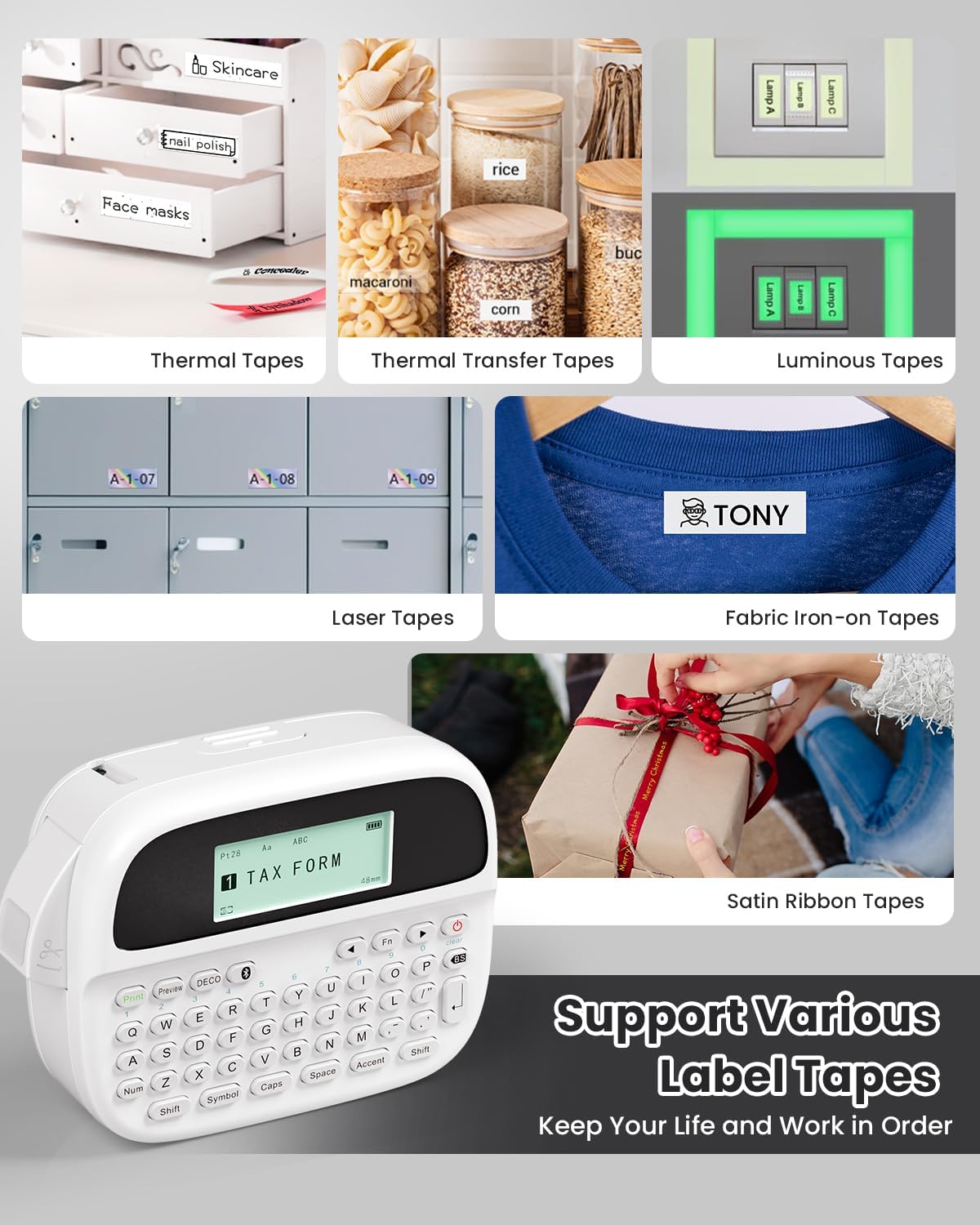
Image: Phomemo M950 Label Maker supporting various label tape types including Thermal, Thermal Transfer, Luminous, Laser, Fabric Iron-on, and Satin Ribbon tapes.

Image: Phomemo M950 Label Maker demonstrating its backlight screen feature, allowing for comfortable use even at night.
10. การรับประกันและการสนับสนุน
สำหรับข้อมูลการรับประกัน การสนับสนุนทางเทคนิค หรือสอบถามเกี่ยวกับบริการ โปรดดูที่เว็บไซต์ทางการของ Phomemo webหรือติดต่อฝ่ายบริการลูกค้าโดยตรง โปรดเก็บใบเสร็จรับเงินไว้เป็นหลักฐานการซื้อสำหรับการเรียกร้องการรับประกัน
Phomemo Official Webเว็บไซต์: Visit Phomemo Store