
MEIZE D106
MEIZE Android 14 Tablet D106 User Manual
Comprehensive Guide for Your MEIZE 10-inch Octa-Core Tablet
การแนะนำ
Welcome to the user manual for your new MEIZE Android 14 Tablet D106. This guide provides detailed instructions on setting up, operating, maintaining, and troubleshooting your device. Please read this manual thoroughly to ensure optimal performance and longevity of your tablet.

ภาพ: ด้านหน้า view of the MEIZE Android 14 Tablet D106, displaying its vibrant screen with various application icons and a dynamic wallpaper. The tablet features a sleek design with a dark gray finish.
มีอะไรอยู่ในกล่อง
Upon unboxing your MEIZE Tablet, please verify that all the following items are included:
- MEIZE Android 14 Tablet D106
- สายชาร์จ USB
- อะแดปเตอร์แปลงไฟ
- คู่มือการใช้งาน (เอกสารนี้)
- เครื่องมือถอดซิมการ์ด (ถ้ามี)
คู่มือการติดตั้ง
1. การชาร์จครั้งแรก
Before first use, it is recommended to fully charge your tablet. Connect the provided USB charging cable to the tablet's charging port and the power adapter, then plug the adapter into a wall outlet. The battery indicator on the screen will show charging progress.
2. การเปิด/ปิดเครื่อง
- การเปิดเครื่อง: Press and hold the Power button (usually located on the side) until the MEIZE logo appears on the screen.
- วิธีปิดเครื่อง: กดปุ่มเปิด/ปิดค้างไว้จนกว่าเมนูตัวเลือกการเปิด/ปิดจะปรากฏขึ้น เลือก "ปิดเครื่อง" แล้วยืนยัน
- ในการรีสตาร์ท: จากเมนูตัวเลือกพลังงาน เลือก "รีสตาร์ท" และยืนยัน
3. การติดตั้งซิมการ์ดและการ์ด SD
Your tablet supports dual 4G cellular connectivity and expandable storage via a microSD card.
- หาช่องใส่ซิมการ์ด/การ์ด SD ที่ด้านข้างของแท็บเล็ต
- เสียบเครื่องมือถอดซิมเข้าไปในรูเล็กๆ ข้างถาด แล้วค่อยๆ ดันจนกว่าถาดจะหลุดออกมา
- Carefully place your Nano SIM card(s) and/or microSD card into the designated slots on the tray, ensuring correct orientation.
- ค่อยๆ ดันถาดกลับเข้าไปในแท็บเล็ตจนกระทั่งล็อคเข้าที่
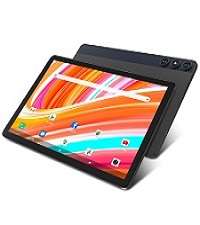
Image: Close-up of a SIM and SD card tray, showing the slots for Nano SIM cards and a microSD card, along with a SIM ejector tool.
4. ตัวช่วยการตั้งค่าเริ่มต้น
เมื่อคุณเปิดแท็บเล็ตเป็นครั้งแรก ระบบจะแนะนำขั้นตอนการตั้งค่าเบื้องต้น ทำตามคำแนะนำบนหน้าจอเพื่อ:
- เลือกภาษาของคุณ
- เชื่อมต่อกับเครือข่าย Wi-Fi
- ลงชื่อเข้าใช้ด้วยบัญชี Google ของคุณหรือสร้างบัญชีใหม่
- ตั้งค่าล็อคหน้าจอ (PIN, รูปแบบ, รหัสผ่าน)
- Review และยอมรับข้อกำหนดและเงื่อนไข
การใช้งานแท็บเล็ตของคุณ
1. การนำทางพื้นฐาน
Your MEIZE tablet uses a capacitive touchscreen for interaction:
- แตะ: การเลือกสินค้าหรือเปิดแอป
- แตะค้างไว้: การเข้าถึงเมนูบริบทหรือย้ายไอคอน
- ปัด: การเลื่อนดูหน้าหรือรายการ
- บีบเพื่อซูม: การซูมเข้าหรือออกจากภาพหรือ web หน้า
2. การเชื่อมต่อกับ Wi-Fi
To connect to the internet via Wi-Fi:
- ไปที่ การตั้งค่า > เครือข่ายและอินเตอร์เน็ต > ไวไฟ.
- สลับ Wi-Fi เป็นเปิด
- เลือกเครือข่ายที่คุณต้องการจากรายการ
- ป้อนรหัสผ่านหากได้รับแจ้งและแตะ เชื่อมต่อ.

Image: Visual representation of the tablet's connectivity features, including 5G/2.4G WiFi, Bluetooth 5.0, Octa-Core Processor, and Dual 4G Cellular capabilities.
3. การจับคู่บลูทู ธ
วิธีเชื่อมต่ออุปกรณ์บลูทูธ (เช่น หูฟัง ลำโพง):
- ไปที่ การตั้งค่า > อุปกรณ์ที่เชื่อมต่อ > บลูทูธ.
- สลับเปิดบลูทูธ
- ตรวจสอบให้แน่ใจว่าอุปกรณ์ Bluetooth ของคุณอยู่ในโหมดจับคู่
- เลือกอุปกรณ์จากรายการ "อุปกรณ์ที่ใช้งานได้" และทำตามคำแนะนำบนหน้าจอเพื่อทำการจับคู่ให้เสร็จสมบูรณ์
4. การใช้กล้องถ่ายรูป
Your tablet is equipped with a 13MP rear camera and an 8MP front camera for photos and videos.
- เปิด กล้อง แอป.
- แตะปุ่มชัตเตอร์เพื่อถ่ายภาพ
- สลับระหว่างโหมดภาพถ่ายและวิดีโอตามต้องการ
- แตะไอคอนสวิตช์กล้องเพื่อสลับระหว่างกล้องหน้าและกล้องหลัง

Image: Depiction of the tablet's dual camera system, highlighting the 13MP HD rear camera and 8MP HD front camera, with a visual of the tablet displaying a vibrant image of a surfer.
5. การจัดการพื้นที่จัดเก็บข้อมูล
The tablet comes with 128GB of internal storage and supports up to 512GB additional expansion via microSD card. To manage your storage:
- ไปที่ การตั้งค่า > พื้นที่จัดเก็บ ถึง view การใช้พื้นที่จัดเก็บข้อมูล
- You can free up space by uninstalling unused apps, deleting old photos/videos, or moving fileลงในการ์ด SD

Image: A graphic illustrating the tablet's memory capabilities, including 128GB of large memory, 14(8+6)GB of running memory, and support for 512GB of additional expansion. Multiple tablets are shown displaying diverse content, emphasizing storage capacity.
6. การจัดการแบตเตอรี่
Your tablet features an 8000mAh lithium polymer battery. To optimize battery life:
- ปรับความสว่างหน้าจอ
- ปิดแอปที่ไม่ได้ใช้ที่ทำงานอยู่เบื้องหลัง
- ปิด Wi-Fi, Bluetooth หรือ GPS เมื่อไม่ได้ใช้งาน
- เปิดใช้งานโหมดประหยัดแบตเตอรี่ในการตั้งค่า
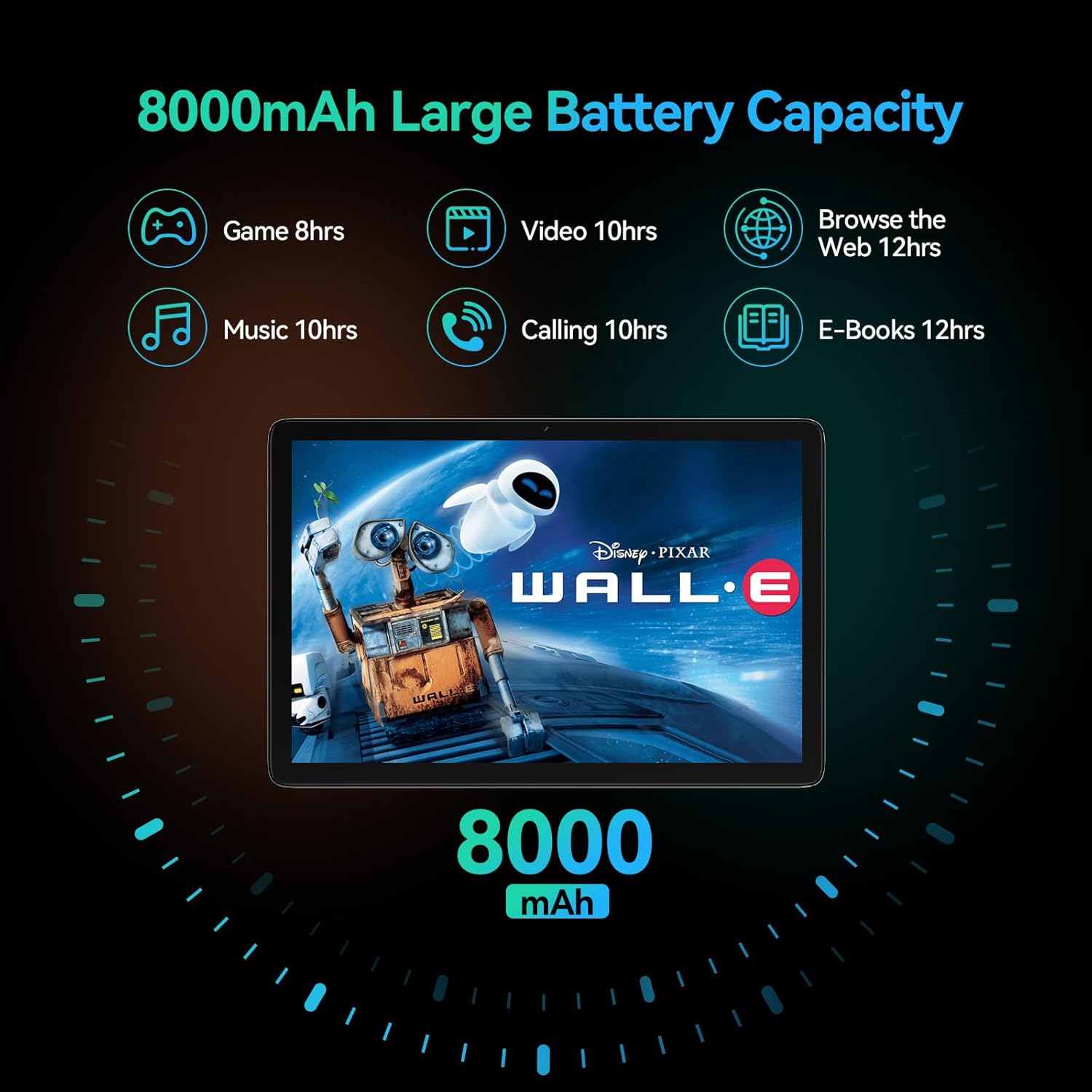
Image: A visual representation of the tablet's 8000mAh battery capacity, detailing estimated usage times for various activities such as gaming (8 hours), video playback (10 hours), music (10 hours), calling (10 hours), e-books (12 hours), and web การท่องเว็บ (12 ชั่วโมง)
7. 4G Cellular Function
With a compatible Nano SIM card, your tablet supports 4G calls and mobile data. Ensure your SIM card is properly installed and activated by your service provider. The tablet supports 2G GSM full band, WCDMA: B1\B2\B4\B5\B8, and 4G full frequency band: B1\B2\B3\B4\B5\B7\B8\B12\B17\B19\B20\B28A\B28B\B66\B38\B39\B40\B41.
การซ่อมบำรุง
1. การทำความสะอาดอุปกรณ์
เพื่อให้แท็บเล็ตของคุณสะอาดและอยู่ในสภาพดี:
- ใช้ผ้านุ่มที่ไม่เป็นขุยเช็ดหน้าจอและตัวเครื่อง
- สำหรับรอยเปื้อนฝังแน่น ให้เช็ดออกเล็กน้อยampชุบผ้าด้วยน้ำหรือน้ำยาทำความสะอาดหน้าจอ
- หลีกเลี่ยงการใช้สารเคมีรุนแรง วัสดุที่มีฤทธิ์กัดกร่อน หรือความชื้นที่มากเกินไป
2. การอัปเดตซอฟต์แวร์
ตรวจสอบและติดตั้งการอัปเดตซอฟต์แวร์เป็นประจำ เพื่อให้แน่ใจว่าแท็บเล็ตของคุณมีคุณสมบัติล่าสุด การแก้ไขช่องโหว่ด้านความปลอดภัย และการปรับปรุงประสิทธิภาพอยู่เสมอ
- ไปที่ การตั้งค่า > ระบบ > การอัพเดทระบบ.
- ปฏิบัติตามคำแนะนำบนหน้าจอเพื่อดาวน์โหลดและติดตั้งการอัพเดตที่มีอยู่
3. การจัดการการจัดเก็บข้อมูล
รีเป็นระยะๆview your tablet's storage to prevent it from becoming full, which can affect performance. Delete unnecessary files, clear app caches, and uninstall apps you no longer use.
การแก้ไขปัญหา
| ปัญหา | วิธีแก้ปัญหาที่เป็นไปได้ |
|---|---|
| แท็บเล็ตเปิดไม่ติด | Ensure the battery is charged. Connect to the charger for at least 30 minutes. Try holding the Power button for 10-15 seconds to force a restart. |
| หน้าจอไม่ตอบสนองหรือค้าง | Force restart the tablet by holding the Power button for 10-15 seconds. If the issue persists, try a factory reset (data will be lost). |
| ปัญหาเกี่ยวกับการเชื่อมต่อ Wi-Fi หรือ Bluetooth | Toggle Wi-Fi/Bluetooth off and on. Restart your router/Bluetooth device. Forget the network/device and reconnect. |
| แอปขัดข้องหรือทำงานช้า | Clear app cache (Settings > Apps > [App Name] > Storage & cache > Clear cache). Update apps. Free up storage space. Restart the tablet. |
| Tablet is not charging. | Check the charging cable and adapter for damage. Try a different outlet. Ensure the charging port is clean and free of debris. |
| คุณภาพกล้องไม่ดี | Ensure the camera lens is clean. Check lighting conditions. Update camera app or system software. |
รีเซ็ตเป็นค่าเริ่มต้นจากโรงงาน (วิธีสุดท้าย)
If you encounter persistent issues that cannot be resolved by other troubleshooting steps, a factory reset may be necessary. คำเตือน: การดำเนินการนี้จะลบข้อมูลทั้งหมดบนแท็บเล็ตของคุณ โปรดสำรองข้อมูลสำคัญก่อนดำเนินการต่อ
- ไปที่ การตั้งค่า > ระบบ > ตัวเลือกการรีเซ็ต.
- เลือก ลบข้อมูลทั้งหมด (รีเซ็ตเป็นค่าโรงงาน).
- ยืนยันการตัดสินใจของคุณและป้อน PIN/รูปแบบ/รหัสผ่านของคุณหากได้รับแจ้ง
- แท็บเล็ตจะรีสตาร์ทและเริ่มกระบวนการรีเซ็ต
ข้อมูลจำเพาะ
Key technical specifications for the MEIZE Android 14 Tablet D106:

Image: An infographic highlighting the core specifications of the MEIZE tablet, including Android 14, 128GB storage, 14(8+6)GB RAM, 8000mAh battery, 13MP+8MP cameras, 10.1-inch display, GPS, and an Octa-core processor.
| คุณสมบัติ | รายละเอียด |
|---|---|
| ชื่อรุ่น | D106 |
| ระบบปฏิบัติการ | แอนดรอยด์ 14 |
| โปรเซสเซอร์ | หน่วยประมวลผลแปดคอร์ ความเร็ว 1.6 GHz |
| แรม | 14GB (ขยาย 8GB + 6GB) |
| การจัดเก็บข้อมูลภายใน | รอม 128GB |
| พื้นที่เก็บข้อมูลแบบขยายได้ | มากถึง 512GB ผ่าน microSD |
| ขนาดหน้าจอ | 10.1 นิ้ว |
| ความละเอียดหน้าจอ | 1920 x 1200 pixels (HD Display) |
| กล้องหลัง | 13MP |
| กล้องหน้า | 8MP |
| ความจุของแบตเตอรี่ | 8000mAh ลิเธียมโพลิเมอร์ |
| การเชื่อมต่อ | Dual 4G Cellular, 5G WiFi, Bluetooth 5.0, GPS |
| ขนาด (กxยxส) | 10 x 7 x 0.3 นิ้ว |
| น้ำหนักสินค้า | 2.09 ปอนด์ |
| สี | สีเทา |
การรับประกันและการสนับสนุน
MEIZE is committed to providing high-quality products and excellent customer service. Your MEIZE Tablet D106 comes with a standard manufacturer's warranty. Please refer to the warranty card included in your product packaging for specific terms and conditions, including warranty period and coverage details.
For technical support, troubleshooting assistance, or warranty claims, please contact MEIZE customer service through the following channels:
- อีเมล: Refer to your product packaging or the official MEIZE webโปรดเยี่ยมชมเว็บไซต์เพื่อดูที่อยู่อีเมลฝ่ายสนับสนุนล่าสุด
- การสนับสนุนทางออนไลน์: Visit the official MEIZE webเว็บไซต์นี้รวบรวมคำถามที่พบบ่อย แหล่งข้อมูลสนับสนุน และแบบฟอร์มติดต่อ
- ร้านค้าอเมซอน: You can also reach out through the MEIZE store page on Amazon for product-related inquiries: MEIZE Amazon Store
When contacting support, please have your tablet's model number (D106) and purchase information readily available.
Ask a question about this manual
Ask about setup, troubleshooting, compatibility, parts, safety, or missing instructions. Manuals+ will review the question and use this page’s manual context to help answer it.