
การแนะนำ
This manual provides detailed instructions for the setup, operation, maintenance, and troubleshooting of your ZTE MC888 Ultra 5G Router. The MC888 Ultra is a high-performance 5G router designed to deliver fast and reliable internet connectivity. It supports download speeds up to 3.8 Gbps and upload speeds up to 280 Mbps, features dual Gigabit LAN/WAN ports, and includes an RJ11 port for voice calls via VoIP, VoLTE, or VoNR.
ข้อมูลด้านความปลอดภัย
- อ่านคำแนะนำทั้งหมดอย่างละเอียดก่อนใช้อุปกรณ์
- Do not open or modify the device. Unauthorized modifications can void your warranty and create safety hazards.
- Use only the power adapter and accessories supplied with the router.
- เก็บอุปกรณ์ให้ห่างจากน้ำ ความชื้น และอุณหภูมิที่สูงเกินไป
- ตรวจสอบให้แน่ใจว่ามีการระบายอากาศที่เหมาะสมรอบๆ เราเตอร์เพื่อป้องกันความร้อนสูงเกินไป
- หลีกเลี่ยงการวางเราเตอร์ไว้ใกล้กับสนามแม่เหล็กไฟฟ้าที่มีความรุนแรง
เนื้อหาแพ็คเกจ
ตรวจสอบว่ามีรายการทั้งหมดอยู่ในแพ็คเกจของคุณ:
- เราเตอร์ ZTE MC888 อัลตร้า 5G
- อะแดปเตอร์แปลงไฟ
- สายเคเบิลอีเทอร์เน็ต
- คู่มือเริ่มต้นใช้งานฉบับย่อ (ไม่รวมอยู่ในคู่มือนี้)
อุปกรณ์โอเวอร์view
Familiarize yourself with the ports and indicators on your ZTE MC888 Ultra 5G Router.
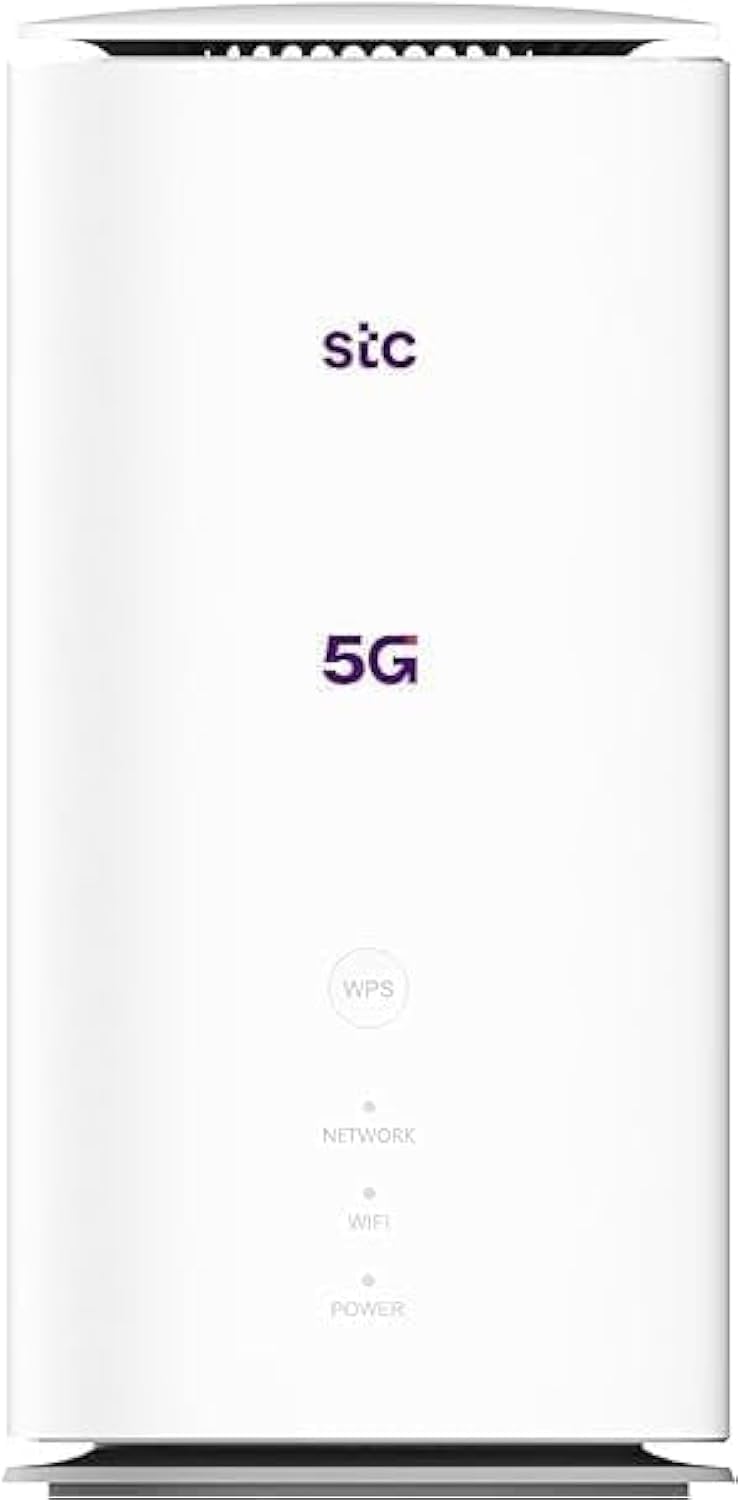
ภาพ: ด้านหน้าและด้านหลัง view of the ZTE MC888 Ultra 5G Router, showing LED indicators, SIM card slot, power port, LAN/WAN ports, and RJ11 port.
ไฟแสดงสถานะแผงด้านหน้า:
- กำลังไฟ LED: บ่งชี้สถานะพลังงาน
- ไฟ LED เครือข่าย: Indicates 5G/4G network connection status.
- LED Wi-Fi: ระบุกิจกรรม Wi-Fi
พอร์ตแผงด้านหลัง:
- พอร์ตไฟ: เชื่อมต่อกับอะแดปเตอร์ไฟ
- LAN/WAN Ports (x2): Gigabit Ethernet ports for wired connections or WAN input.
- พอร์ต RJ11: For connecting a telephone for VoIP, VoLTE, or VoNR calls.
- ช่องใส่ซิมการ์ด: สำหรับใส่ซิมการ์ด 5G/4G ของคุณ
- ปุ่มรีเซ็ต: ใช้เพื่อคืนการตั้งค่าเริ่มต้นจากโรงงาน
การตั้งค่า
1. ใส่ซิมการ์ด
- ตรวจสอบให้แน่ใจว่าเราเตอร์ปิดอยู่
- ค้นหาช่องใส่การ์ด SIM บนแผงด้านหลัง
- Insert a standard Nano-SIM card into the slot with the gold contacts facing down and the notched corner oriented correctly. Push until it clicks into place.
2. เชื่อมต่อพลังงาน
- Connect the supplied power adapter to the router's power port.
- เสียบปลายอีกด้านหนึ่งของอะแดปเตอร์เข้ากับเต้ารับที่ผนัง
3. เปิดเครื่อง
- The router will automatically power on. Wait for the Power LED to turn solid, and the Network LED to indicate a stable 5G/4G connection. This may take a few minutes.
4. เชื่อมต่ออุปกรณ์
- การเชื่อมต่อ Wi-Fi: Find the Wi-Fi network name (SSID) and password printed on the label at the bottom of the router. Select this network on your device (smartphone, laptop, etc.) and enter the password.
- การเชื่อมต่ออีเทอร์เน็ต: Use the provided Ethernet cable to connect your computer or other network device to one of the LAN/WAN ports on the router.
การดำเนินงาน
การเข้าถึง Web อินเทอร์เฟซ
- เปิด web เบราว์เซอร์บนอุปกรณ์ที่เชื่อมต่อกับเราเตอร์
- Enter the router's default IP address (e.g., 192.168.0.1 or 192.168.1.1) into the address bar and press Enter. The exact IP address is usually found on the router's label.
- ป้อนชื่อผู้ใช้และรหัสผ่านเริ่มต้น (ซึ่งสามารถดูได้จากฉลากบนเราเตอร์) เพื่อเข้าสู่ระบบ
Changing Wi-Fi Settings
จาก web interface, navigate to the Wi-Fi settings section to change your SSID, password, security type, or enable/disable guest networks.
RJ11 Voice Call Functionality
The RJ11 port allows you to connect a standard analog telephone. You can manage sending and receiving calls via a configured VoIP account, or through VoLTE or VoNR, depending on your mobile operator's compatibility and SIM card support. Refer to your service provider for specific setup details.
โหมดจุดเข้าใช้งาน
The router supports Access Point (AP) mode, allowing it to extend an existing wired network wirelessly. This feature can be configured through the web interface under network settings.
การซ่อมบำรุง
อัพเดตเฟิร์มแวร์
ตรวจสอบเราเตอร์เป็นระยะ web interface for available firmware updates. Keeping your firmware up-to-date ensures optimal performance, security, and access to new features. Follow the on-screen instructions for safe updating.
การทำความสะอาด
Clean the router with a soft, dry cloth. Do not use liquid cleaners or aerosols. Ensure the device is powered off before cleaning.
รีเซ็ตเป็นค่าโรงงาน
If you experience persistent issues or forget your login credentials, you can perform a factory reset. With the router powered on, use a pin to press and hold the Reset button on the rear panel for approximately 5-10 seconds until the indicators flash. The router will restart with default settings.
การแก้ไขปัญหา
- ไม่มีการเชื่อมต่ออินเทอร์เน็ต: Check the Network LED. If it's off or red, ensure the SIM card is correctly inserted and has an active data plan. Try restarting the router.
- ความเร็ว Wi-Fi ช้า: Ensure your devices are within range. Reduce interference from other electronic devices. Try changing the Wi-Fi channel in the web อินเทอร์เฟซ
- ไม่สามารถเข้าถึง Web อินเทอร์เฟซ: Verify your device is connected to the router via Wi-Fi or Ethernet. Double-check the IP address and login credentials. Try clearing your browser's cache.
- การตัดการเชื่อมต่อ Wi-Fi: Update router firmware. Ensure the router is placed in a central location. Check for conflicting Wi-Fi networks.
ข้อมูลจำเพาะ
| ยี่ห้อ | แซดทีอี |
| ชื่อรุ่น | MC888 Ultra |
| หมายเลขรุ่น | MC888 ULTRA |
| เทคโนโลยีการเชื่อมต่อ | Wi-Fi, 5G/4G Cellular |
| ไร้มาตรฐาน | 802.11ac |
| ระดับย่านความถี่ | ดูอัลแบนด์ |
| ความเร็วในการดาวน์โหลดสูงสุด | 3.8 กิกะบิตต่อวินาที |
| ความเร็วในการอัพโหลดสูงสุด | 280 เมกะบิตต่อวินาที |
| แบนด์วิดท์พอร์ต LAN | 1000 Mbps (กิกะบิต) |
| จำนวนพอร์ต | 2 x Gigabit LAN/WAN, 1 x RJ11 |
| ประเภทเสาอากาศ | ภายใน |
| โปรโตคอลความปลอดภัย | ดับบลิวพีเอส |
| คุณสมบัติพิเศษ | Access Point Mode, RJ11 for VoIP/VoLTE/VoNR |
| แรม | 4GB |
| อุปกรณ์ที่รองรับ | PC, Laptop, Smartphone, Tablet, Gaming Console, Smart TV, Surveillance Camera, Printer, Ethernet-enabled devices |
| ส่วนประกอบที่รวมอยู่ | Router, Ethernet Cable, Charger |
การรับประกันและการสนับสนุน
ข้อมูลการรับประกัน
The ZTE MC888 Ultra 5G Router comes with a 2-year agent warranty. Please retain your proof of purchase for warranty claims. The warranty covers manufacturing defects and malfunctions under normal use. It does not cover damage caused by misuse, accidents, unauthorized repairs, or acts of nature.
การสนับสนุนลูกค้า
For technical assistance, warranty service, or further inquiries, please contact your local ZTE authorized service center or the retailer from whom you purchased the product. You may also visit the official ZTE webไซต์สำหรับทรัพยากรสนับสนุนและคำถามที่พบบ่อย