
การแนะนำ
Thank you for choosing the Thunderobot K87 Wired Mechanical Keyboard. This manual provides essential information for the proper setup, operation, maintenance, and troubleshooting of your new keyboard. Please read this manual thoroughly before using the product to ensure optimal performance and longevity.

รูปที่ 1: มุม view of the Thunderobot K87 Mechanical Keyboard.
การตั้งค่า
เนื้อหาแพ็คเกจ
Before proceeding, please verify that your package contains the following items:
- Thunderobot K87 Wired Mechanical Keyboard
- สาย USB
- คู่มือการใช้งาน (เอกสารนี้)
การเชื่อมต่อคีย์บอร์ด
- Unpack the Thunderobot K87 keyboard and the included USB cable.
- Connect the USB-C end of the cable to the port located on the keyboard.
- เชื่อมต่อปลายสาย USB-A เข้ากับพอร์ต USB ที่ว่างอยู่บนคอมพิวเตอร์ของคุณ
- ระบบปฏิบัติการของคุณจะตรวจจับแป้นพิมพ์โดยอัตโนมัติ โดยปกติแล้วไม่จำเป็นต้องติดตั้งไดรเวอร์เพิ่มเติมสำหรับการใช้งานพื้นฐาน

รูปที่ 2: ด้านล่าง view of the keyboard, illustrating adjustable feet and cable management options.
คำแนะนำการใช้งาน
ฟังก์ชั่นพื้นฐาน
The Thunderobot K87 is a standard 87-key (TKL) layout mechanical keyboard. Simply plug it into your computer, and it is ready for typing. The keyboard features Red mechanical switches, known for their linear feel and quiet operation, making them suitable for both typing and gaming.
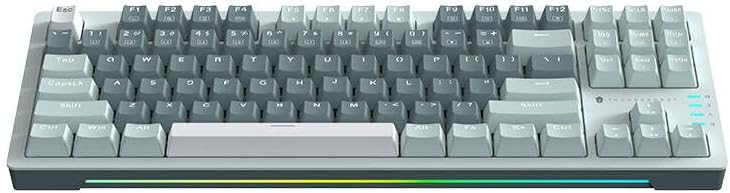
รูปที่ 3: จากบนลงล่าง view of the Thunderobot K87 keyboard layout.
ปุ่มมัลติมีเดียและฟังก์ชัน
The keyboard includes a Function (Fn) key, typically located near the right Alt key. This key, when pressed in combination with the F1-F12 keys, activates various multimedia and system functions. Refer to the keycap legends for specific functions.
- Fn + F1-F12: Typically control media playback, volume, and other system shortcuts.
- กดปุ่ม Fn + ปุ่ม Windows: ล็อก/ปลดล็อกปุ่ม Windows เพื่อป้องกันการกดโดยไม่ตั้งใจขณะเล่นเกม
การควบคุมไฟแบ็คไลท์
The Thunderobot K87 keyboard features customizable RGB backlighting. Specific key combinations allow you to change lighting modes, brightness, and speed. Consult the keyboard's keycap legends or the manufacturer's website for detailed instructions on lighting customization.

รูปที่ 4 : ด้านหน้า view showing the RGB lighting strip.

รูปที่ 5: โปรด้านข้างfile view demonstrating keycap height and keyboard angle.
การซ่อมบำรุง
ทำความสะอาดคีย์บอร์ด
การทำความสะอาดเป็นประจำจะช่วยรักษารูปลักษณ์และการทำงานของแป้นพิมพ์
- การตัดการเชื่อมต่อ: ควรถอดแป้นพิมพ์ออกจากคอมพิวเตอร์ทุกครั้งก่อนทำความสะอาด
- การกำจัดฝุ่น: ใช้กระป๋องลมอัดเป่าฝุ่นและเศษต่างๆ ออกจากระหว่างปุ่มต่างๆ
- การทำความสะอาดพื้นผิว: Gently wipe the keycaps and keyboard surface with a soft, lint-free cloth lightly dampล้างออกด้วยน้ำหรือน้ำยาทำความสะอาดอ่อนๆ ที่ไม่กัดกร่อน หลีกเลี่ยงความชื้นที่มากเกินไป
- หลีกเลี่ยง: Do not use harsh chemicals, solvents, or abrasive materials, as these can damage the keyboard's finish or keycap legends.
พื้นที่จัดเก็บ
When not in use for extended periods, store the keyboard in a dry, cool place away from direct sunlight and extreme temperatures. Consider covering it to prevent dust accumulation.
การแก้ไขปัญหา
If you encounter issues with your Thunderobot K87 keyboard, please refer to the following common solutions:
| ปัญหา | สาเหตุที่เป็นไปได้ | สารละลาย |
|---|---|---|
| แป้นพิมพ์ไม่ตอบสนอง | การเชื่อมต่อ USB หลวม, พอร์ต USB ชำรุด, มีปัญหากับไดรเวอร์ | ตรวจสอบให้แน่ใจว่าเสียบสาย USB แน่นดีแล้ว ลองเสียบเข้ากับพอร์ต USB อื่นบนคอมพิวเตอร์ของคุณ แล้วรีสตาร์ทคอมพิวเตอร์ |
| ปุ่มบางปุ่มใช้งานไม่ได้ | เศษฝุ่นใต้ปุ่มสวิตช์ทำงานผิดปกติ | Use compressed air to clear debris. If the issue persists, contact customer support. |
| ไฟแบ็คไลท์ไม่ทำงานหรือไม่ถูกต้อง | Lighting mode disabled, software conflict. | Check keyboard's lighting control key combinations (Fn + specific keys). Ensure no conflicting software is running. |
| ความหน่วงในการป้อนข้อมูลจากแป้นพิมพ์ | USB port issues, system performance. | Try a different USB port. Close unnecessary background applications. |
If the problem persists after trying these solutions, please contact Thunderobot customer support for further assistance.
ข้อมูลจำเพาะ
| คุณสมบัติ | รายละเอียด |
|---|---|
| หมายเลขรุ่น | JM03NQ002 |
| ยี่ห้อ | ธันเดอร์บอท |
| การเชื่อมต่อ | สาย (USB) |
| ประเภทสวิตซ์ | สวิตช์เชิงกลสีแดง |
| เค้าโครง | แป้นพิมพ์ 87 คีย์ (ไม่มีแป้นตัวเลข) |
| การแบ็คไลท์ | อาร์จีบี |
| ผู้ผลิต | ธันเดอร์บอท |
| ASIN | B0CWS77B83 |
| การรับประกัน | 2 years manufacturer |
ข้อมูลการรับประกัน
The Thunderobot K87 Wired Mechanical Keyboard (Model JM03NQ002) comes with a การรับประกันจากผู้ผลิต 2 ปี from the date of purchase. This warranty covers defects in materials and workmanship under normal use. It does not cover damage caused by accident, misuse, abuse, neglect, unauthorized modification, or improper installation.
To claim warranty service, please retain your proof of purchase. For detailed warranty terms and conditions, or to initiate a warranty claim, please contact Thunderobot customer support.
สนับสนุน
For technical assistance, product inquiries, or warranty claims, please visit the official Thunderobot website or contact their customer support team. Please have your product model number (JM03NQ002) and proof of purchase ready when seeking support.
Official Thunderobot Webเว็บไซต์: www.thunderobot.com (โปรดทราบ: นี่เป็นเพียงตัวอย่างชั่วคราว) URL เนื่องจากไม่มีการสนับสนุนเฉพาะเจาะจง URL was provided in the product data. Refer to your product packaging or official Thunderobot documentation for the correct support contact information.)