
GoorDik J3
GoorDik Mini USB C Wireless Lavalier Microphone
รุ่น : J3
การแนะนำ
The GoorDik Mini USB C Wireless Lavalier Microphone (Model J3) is designed to provide superior audio quality for content creators, vloggers, podcasters, and anyone needing clear sound recording on the go. Featuring advanced Active Denoise technology, this microphone ensures crystal-clear audio even in noisy environments. Its plug-and-play design, long battery life, and wide compatibility with USB-C and USB devices make it an ideal tool for various recording scenarios.

Image: Sound Quality Comparison. This image illustrates the significant improvement in audio clarity when using the GoorDik wireless microphone compared to a phone's built-in microphone. The "Before" image shows a person holding a phone with "Distant & Muffled Phone Sound" indicated, while the "After" image shows a person wearing the GoorDik microphone with "Clear & Crisp Wireless Audio" indicated.

Image: Superior USB-C Microphone. This image highlights the GoorDik USB-C microphone, emphasizing its upgraded DSP noise cancellation chip for excellent audio. It shows sound waves being processed, indicating noise reduction capabilities.
มีอะไรอยู่ในกล่อง
Your GoorDik Mini USB C Wireless Lavalier Microphone kit includes the following components:
- 2 x Wireless Microphone Transmitters
- 1 x Wireless Microphone Receiver
- สายชาร์จ USB 1 เส้น
- 4 x Foam Microphone Covers
- 2 x Furry Outdoor Microphone Windscreens
- 1 x USB Adapter (USB-C to USB-A)
- 1 x คู่มือผู้ใช้

Image: Kit Contents. This image displays all the items included in the GoorDik wireless microphone package: two transmitters with furry windscreens, one receiver, a USB-C to USB-A adapter, a Lightning adapter, a charging cable, and additional foam microphone covers.
การตั้งค่า
Setting up your GoorDik wireless microphone is a straightforward plug-and-play process:
- เชื่อมต่อเครื่องรับ: Plug the wireless microphone receiver directly into the USB-C port of your recording device (iPhone 15, Android phone, tablet, or PC). If your device uses a standard USB-A port, use the included USB-C to USB-A adapter.
- เปิดใช้งานตัวส่งสัญญาณ: Press and hold the power button on each wireless microphone transmitter until the indicator light illuminates. The transmitters will automatically pair with the receiver.
- เชื่อมต่อไมโครโฟน: Clip the microphone transmitter securely to your clothing, ensuring the microphone capsule is facing towards your mouth for optimal sound capture. The rotatable clip allows for easy adjustment of direction.
- Android OTG Activation (if needed): For some Android phones, you may need to enable the OTG (On-The-Go) function in your phone's settings to allow external audio devices. Refer to your phone's manual for specific instructions.
- PC/Laptop Settings (if needed): When connecting to a computer, ensure the GoorDik microphone is selected as the default input device in your sound settings.
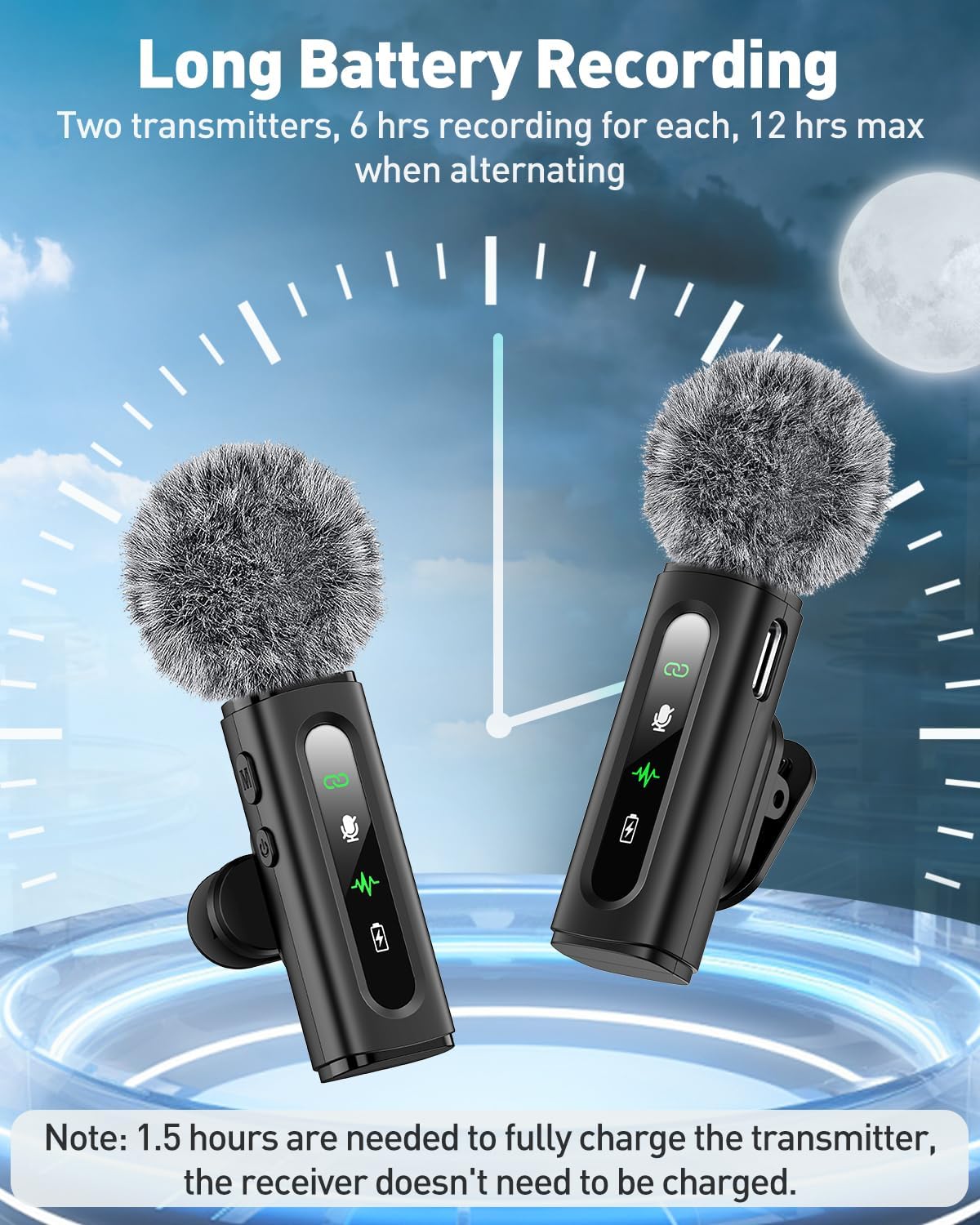
Image: Device Compatibility. This image illustrates the broad compatibility of the GoorDik microphone system, showing its connection to Type-C phones (Samsung Galaxy, Google Pixel, iPhone 15/16), iPhones via a Lightning adapter (iPhone 14/13/12/11/XR/X/8/6), and laptops/PCs via a USB-A adapter.
คำแนะนำการใช้งาน
The GoorDik microphone features an intuitive interface with clear indicators for easy operation:
- เปิด/ปิดเครื่อง: Press and hold the power button (marked with a power symbol) on the transmitter to turn it on or off.
- ฟังก์ชั่นปิดเสียง: Briefly press the mute button (marked with a microphone symbol) on the transmitter to mute or unmute the microphone. The mute indicator light will change accordingly.
- โหมดลดเสียงรบกวน: The microphone offers two noise reduction modes. Press the noise reduction button (marked with a waveform) to cycle between active noise reduction and original sound mode.
- ไฟแสดงสถานะ:
- สถานะการเชื่อมต่อ: Indicates if the transmitter is successfully paired with the receiver.
- ตัวบ่งชี้ปิดเสียง: Shows whether the microphone is currently muted.
- การลดเสียงรบกวน: Indicates when noise reduction is active.
- ไฟแสดงสถานะพลังงาน: แสดงระดับแบตเตอรี่ของเครื่องส่งสัญญาณ

Image: At-a-glance Status. This image details the various LED indicators on the GoorDik microphone transmitter, including Connection Status, Mute Indicator, Noise Reduction status, and Power Indicator, providing instant feedback on the microphone's operational state.
The GoorDik microphone offers a wireless range of up to 20 meters (65 feet), providing ample freedom for movement during recording.

Image: Freedom to Create. This image illustrates the wireless range of the GoorDik microphone, showing two individuals recording outdoors with the microphones clipped to their shirts, emphasizing stable and clear audio from up to 65 feet (20 meters) away.
การซ่อมบำรุง
Charging the Transmitters
Each GoorDik microphone transmitter is equipped with a 60 mAh battery, providing 6 to 12 hours of use on a single charge. A full charge takes approximately 1.5 hours. The receiver does not require charging as it draws power from the connected device.
- Use the included 1-to-2 USB charging cable to charge both transmitters simultaneously.
- Connect the USB charging cable to a standard USB power adapter (not included) or a computer USB port.
- The power indicator light on the transmitter will show charging status.

Image: Long Battery Recording. This image visually represents the extended battery life of the GoorDik microphone transmitters, showing two transmitters and a clock indicating up to 6 hours of recording per transmitter, or 12 hours maximum when alternating. A note specifies that 1.5 hours are needed to fully charge the transmitter.
การทำความสะอาดและการเก็บรักษา
- การทำความสะอาด: Gently wipe the microphone and receiver with a soft, dry cloth. Do not use liquid cleaners or abrasive materials.
- กระจกบังลม: Regularly clean or replace the foam microphone covers and furry windscreens to maintain optimal sound quality and hygiene.
- พื้นที่จัดเก็บ: Store the microphone kit in a cool, dry place away from direct sunlight and extreme temperatures. When not in use for extended periods, ensure the transmitters are fully charged before storage.
การแก้ไขปัญหา
If you encounter issues with your GoorDik wireless microphone, please refer to the following common troubleshooting steps:
| ปัญหา | สาเหตุที่เป็นไปได้ / วิธีแก้ไข |
|---|---|
| ไม่มีเสียงออก |
|
| คุณภาพเสียงไม่ดี / เสียงรบกวนพื้นหลัง |
|
| ไมโครโฟนไม่ชาร์จ |
|
| การเชื่อมต่อไม่ต่อเนื่อง |
|
ข้อมูลจำเพาะ
| คุณสมบัติ | รายละเอียด |
|---|---|
| ยี่ห้อ | GoorDik |
| หมายเลขรุ่น | J3 |
| ปัจจัยรูปแบบไมโครโฟน | ไมโครโฟนของจักรยาน |
| เทคโนโลยีการเชื่อมต่อ | ไร้สาย |
| ประเภทขั้วต่อ | USB Type-C, Micro-USB (for charging cable) |
| รูปแบบขั้ว | รอบทิศทาง |
| การตอบสนองความถี่ | 20 เฮิรตซ์ - 20 กิโลเฮิรตซ์ |
| อัตราส่วนสัญญาณต่อเสียงรบกวน | 65 เดซิเบล |
| แหล่งพลังงาน | ใช้พลังงานจากแบตเตอรี่ |
| ประเภทแบตเตอรี่ | ลิเธียมไออน (มี 2 อัน) |
| Battery Capacity (each transmitter) | 60 มิลลิแอมป์ |
| อายุการใช้งานแบตเตอรี่ | 6-12 hours (per transmitter) |
| Charging Time (transmitters) | ประมาณ 1.5 ชั่วโมง |
| ช่วงสาย | สูงถึง 20 เมตร (65 ฟุต) |
| วัสดุ | สแตนเลส, พลาสติก |
| น้ำหนักสินค้า | 70 กรัม |
| ขนาด (กว้าง x ยาว x สูง) | 13.2 x 9.7 x 1.7 ซม. |
| อุปกรณ์ที่รองรับ | Personal Computer, Laptop, Smartphone, Tablet |
| คุณสมบัติพิเศษ | Clip, Mute Function, Noise Reduction, Battery Indicator Light |
การรับประกันและการสนับสนุน
GoorDik is committed to providing high-quality products and excellent customer service. While specific warranty details are not provided in this manual, our dedicated customer service team is always available to assist you with any questions, concerns, or technical support needs regarding your GoorDik Mini USB C Wireless Lavalier Microphone.
โปรดดูรายละเอียดจากบรรจุภัณฑ์ของผลิตภัณฑ์หรือคำแนะนำจากผู้ค้าปลีก website for any specific warranty information or return policies.
For assistance, please contact GoorDik customer support through the platform where you purchased the product.
Ask a question about this manual
Ask about setup, troubleshooting, compatibility, parts, safety, or missing instructions. Manuals+ will review the question and use this page’s manual context to help answer it.