
1. บทนำ
The ACASIS Mac mini Dock (Model TBU405 Plus) is a versatile 6-in-1 expansion hub designed to enhance your computing experience. It integrates a high-speed 40Gbps M.2 NVMe SSD enclosure with comprehensive connectivity options, including dual DisplayPort 1.4 outputs for extended display setups, and multiple USB 3.1 ports for peripherals. This dock is engineered for efficient heat dissipation and broad compatibility, making it an ideal solution for users seeking expanded storage, display capabilities, and interface options for their Mac mini, MacBook, iPad Pro, and other compatible devices.

Figure 1.1: ACASIS Mac mini Dock with connected cables.
2. คุณสมบัติของผลิตภัณฑ์
- ฟังก์ชันการใช้งาน 6 ใน 1: Combines a 40Gbps NVMe enclosure with a docking station featuring 2x DisplayPort 1.4, 2x USB-A 10Gbps, and 1x USB-C 10Gbps ports.
- Dual Monitor Display: Supports single-screen resolutions up to 8K@60Hz and dual-screen resolutions up to 4K@60Hz, ideal for multitasking and multimedia.
- การกระจายความร้อนที่มีประสิทธิภาพ: Equipped with built-in cooling fans and an aluminum alloy body with metal thermal conduction slots to maintain optimal operating temperatures.
- Internal Storage Expansion: Supports M.2 SSDs up to 8TB with read/write speeds up to 2800MB/s. Compatible with 2230, 2242, 2260, and 2280 M.2 SSD sizes.
- เข้ากันได้สากล: Works with M1/M2 Pro/Max Mac devices, iPad Pro, Windows, macOS, and Linux operating systems. Compatible with USB4, USB 3.2, USB 3.1, USB 3.0, and USB 2.0 standards.

Figure 2.1: Port layout and specifications.

รูปที่ 2.2: เกินview of 2-in-1 functionality.
3. คู่มือการติดตั้ง
3.1 การติดตั้ง M.2 NVMe SSD
- Carefully open the SSD enclosure section of the dock.
- Insert your M.2 NVMe SSD into the designated slot. Ensure it is fully seated.
- Secure the SSD using the provided rubber anchor pin.
- Apply the appropriate heat transfer pad(s) to the SSD for optimal thermal performance. Two different thicknesses may be provided; choose the one that ensures good contact with the thermal conduction plate.
- ปิดกล่องให้แน่นหนา

รูปที่ 3.1: ภายใน view and SSD installation area.
3.2 Connecting the Dock
- Connect the provided Thunderbolt/USB4 cable from the dock's 40Gbps port to your host device (e.g., Mac mini, MacBook, iPad Pro).
- If external power is required or recommended for stable operation, connect a DC 5V/3A power adapter (not included, but port available) to the dock's DC 5V port.
- Connect your monitors to the DisplayPort 1.4 outputs on the dock.
- Connect any USB peripherals (e.g., keyboard, mouse, external drives) to the USB-A 10Gbps or USB-C 10Gbps ports.
4. คู่มือการใช้งาน
4.1 Dual Monitor Setup
The ACASIS dock supports extending your display to up to two external monitors. For optimal performance, ensure your monitors and cables support the desired resolutions.
- จอภาพเดี่ยว: Up to 8K@60Hz resolution.
- จอภาพคู่: Up to 4K@60Hz resolution per monitor.
After connecting your monitors, configure display settings in your operating system:
- MacOS: Go to System Settings (or System Preferences) > Displays. You can arrange displays, set resolutions, and choose between extended desktop (Mode: ABC) or mirrored displays (Mode: AAA/AAB).
- หน้าต่าง: Right-click on the desktop and select Display settings. You can detect, arrange, and set resolutions for multiple displays. Choose between Extend these displays (Mode: ABC) or Duplicate these displays (Mode: AAB).
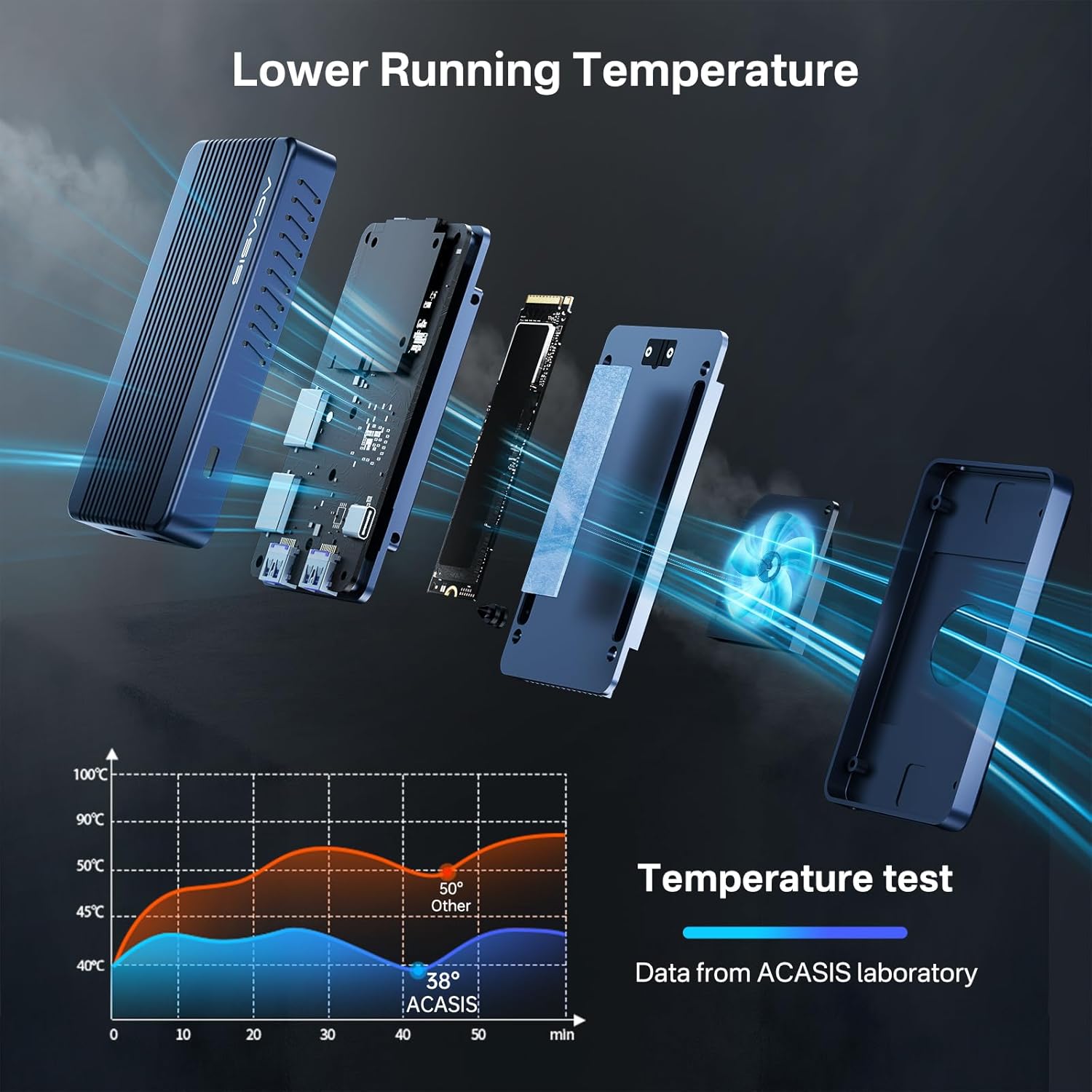
Figure 4.1: Dual monitor display capabilities.

Figure 4.2: macOS Display Modes.

Figure 4.3: Windows Display Modes.
4.2 การถ่ายโอนและจัดเก็บข้อมูล
The integrated M.2 NVMe SSD enclosure supports high-speed data transfer, making it suitable for large fileและแอปพลิเคชันที่ต้องการประสิทธิภาพสูง
- ความเร็ว SSD: Up to 2800MB/s read and write speeds for the internal NVMe SSD.
- พอร์ต USB: USB-A and USB-C ports offer 10Gbps data transfer rates for connected peripherals.

Figure 4.4: 8TB SSD support.

Figure 4.5: High-speed data transfer.
4.3 สถานการณ์การใช้งาน
The ACASIS dock is designed for a variety of applications:
- การใช้งานระดับมืออาชีพ: Chart design, video meetings, and STEM applications.
- ความบันเทิง: Computer gaming, family movies, and general multimedia consumption.
- ผลผลิต: Expanding interfaces for tablets and smartphones.

รูปที่ 4.6: สถานการณ์การใช้งานที่หลากหลาย
5. การบำรุงรักษา
5.1 การทำความสะอาด
To maintain optimal performance and appearance, regularly clean the exterior of the dock with a soft, dry, lint-free cloth. Avoid using abrasive cleaners or solvents.
5.2 การกระจายความร้อน
The ACASIS dock features a built-in cooling fan and an aluminum alloy body designed for efficient heat dissipation. To ensure proper airflow:
- Ensure the dock is placed on a flat, stable surface with adequate ventilation.
- Do not block the ventilation grilles or fan opening.
- Periodically check for dust accumulation in the fan area and gently clean if necessary using compressed air (ensure the fan is not spinning during cleaning).

Figure 5.1: Heat dissipation design.
6 การแก้ไขปัญหา
If you encounter issues with your ACASIS Mac mini Dock, please refer to the following common troubleshooting steps:
- No Display Output / Display Issues:
- Ensure all DisplayPort cables are securely connected to both the dock and the monitors.
- Verify that your monitors are set to the correct input source (DisplayPort).
- Check your operating system's display settings to ensure the external displays are detected and configured correctly (extended or mirrored).
- Try using different DisplayPort cables or monitors to rule out cable/monitor issues.
- Some portable monitors may require external power; ensure they are adequately powered. The dock does not provide power delivery to the host or external monitors.
- Slow NVMe SSD Speed:
- Ensure the M.2 NVMe SSD is properly installed and secured with the rubber anchor pin.
- Verify that the heat transfer pads are correctly applied to ensure good thermal contact, as overheating can throttle SSD performance.
- Confirm that your host device's port (e.g., Thunderbolt 4/USB4) is capable of 40Gbps speeds.
- Check the health and firmware of your M.2 NVMe SSD.
- เสียงดังผิดปกติหรือการทำงานผิดปกติของพัดลม:
- Ensure the dock's ventilation grilles are not obstructed.
- If the fan is excessively loud or not spinning, contact ACASIS customer support.
- อุปกรณ์ USB ไม่ได้รับการรู้จัก:
- ตรวจสอบให้แน่ใจว่าอุปกรณ์ USB เชื่อมต่อกับพอร์ต USB ของแท่นวางอย่างถูกต้องแล้ว
- Try connecting the USB device directly to your host computer to confirm it functions independently.
- รีสตาร์ทคอมพิวเตอร์หลักและด็อกกิ้งสเตชั่น
If these steps do not resolve your issue, please contact ACASIS customer support for further assistance.
7. ข้อมูลจำเพาะ
| คุณสมบัติ | ข้อมูลจำเพาะ |
|---|---|
| หมายเลขรุ่น | TBU405 Plus |
| Memory Storage Capacity (SSD) | สูงสุด 8TB |
| อุปกรณ์ที่รองรับ | Mac mini, MacBook Pro/Air (M1/M2 Pro/Max), iPad Pro, Windows PCs, Linux PCs |
| ปัจจัยรูปแบบฮาร์ดดิสก์ | M.2 (2230/2242/2260/2280) |
| Max Number of Supported Displays | 2 |
| Data Transfer Rate (Host) | 40 Gigabits Per Second (Thunderbolt/USB4) |
| Data Transfer Rate (USB Ports) | 10 กิกะบิตต่อวินาที (USB 3.1) |
| SSD Read/Write Speed | สูงถึง 2800 MB/วินาที |
| ฮาร์ดแวร์อินเตอร์เฟซ | Solid State Drive, USB, USB Type C, DisplayPort |
| วัสดุ | อลูมิเนียม |
| ขนาดสินค้า | 3.94 x 2.36 x 0.79 นิ้ว |
| น้ำหนักสินค้า | 7.1 ออนซ์ (200 กรัม) |
| ยูพีซี | 781108279337 |
8. การรับประกันและการสนับสนุน
ACASIS is committed to providing high-quality products and excellent customer service. We strive to bring a better user experience for digital product users.
8.1 การรับประกัน
ACASIS offers a 365-day money-back guarantee, allowing you to try our products with confidence. Please retain your proof of purchase for warranty claims.
8.2 การสนับสนุนลูกค้า
For any inquiries, technical assistance, or support needs, please contact our dedicated customer service team:
- อีเมล: support@acasis.com
- เวลาให้บริการ : 7x24 hours online service available anytime.


Figure 8.1: ACASIS After-Sales Service and Customer Commitment.