
1. บทนำ
Thank you for choosing the A4TECH F.STYLER FBK11 Wireless Bluetooth Keyboard. This versatile keyboard offers dual connectivity modes (Bluetooth and 2.4 GHz wireless) and supports pairing with up to four devices simultaneously. It is designed for seamless use across various operating systems, including Windows, macOS, Android, and iOS. This manual provides detailed instructions to help you set up, operate, and maintain your new keyboard.

รูปที่ 1 : ด้านหน้า view of the A4TECH F.STYLER FBK11 Wireless Bluetooth Keyboard, showcasinด้วยดีไซน์ที่กะทัดรัดและการจัดวางปุ่มกดที่ลงตัว
2. คุณสมบัติของผลิตภัณฑ์
- การเชื่อมต่อแบบคู่: Supports both Bluetooth and 2.4 GHz wireless modes for flexible connection options.
- การจับคู่หลายอุปกรณ์: Connect and switch between up to 4 devices (3 via Bluetooth, 1 via 2.4G wireless) seamlessly.
- ปุ่มลัดมัลติมีเดีย: Dedicated shortcut keys for quick access to media controls and other functions.
- ความเข้ากันได้ของระบบปฏิบัติการ: Compatible with Windows, macOS, Chrome OS, Android, and iOS devices.
- การออกแบบกะทัดรัดและพกพาสะดวก: Lightweight and easy to carry for on-the-go productivity.
- Arabic/English Layout: Features a dual-language key layout for broader usability.
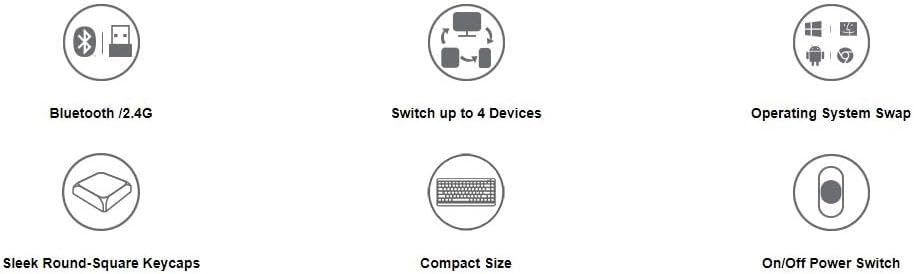
Figure 2: Visual representation of key features including Bluetooth/2.4G connectivity, multi-device switching, OS swap, sleek keycaps, compact size, and on/off power switch.
3. เนื้อหาบรรจุภัณฑ์
กรุณาตรวจสอบแพ็คเกจสำหรับรายการต่อไปนี้:
- A4TECH F.STYLER FBK11 Wireless Bluetooth Keyboard
- 2.4 GHz USB Nano Receiver
- แบตเตอรี่อัลคาไลน์ 2 x AAA
- คู่มือการใช้งาน (เอกสารนี้)

Figure 3: The keyboard shown with its included accessories: the USB receiver and two AAA batteries.
4. การตั้งค่า
4.1. การติดตั้งแบตเตอรี่
- ค้นหาช่องใส่แบตเตอรี่ที่ด้านล่างของแป้นพิมพ์
- เปิดฝาช่องใส่แบตเตอรี่
- Insert the two AAA alkaline batteries, ensuring correct polarity (+/-).
- ปิดฝาช่องใส่แบตเตอรี่ให้แน่น
4.2. เปิด/ปิดเครื่อง
Slide the power switch, located on the top right edge of the keyboard, to the 'ON' position to power on the keyboard. Slide it to 'OFF' when not in use to conserve battery life.
5. คู่มือการใช้งาน
5.1. โหมดการเชื่อมต่อ
The FBK11 keyboard supports two connectivity modes: Bluetooth and 2.4 GHz wireless.
5.1.1. การเชื่อมต่อไร้สาย 2.4 GHz
- Insert the 2.4 GHz USB Nano Receiver into an available USB port on your computer or device.
- เปิดคีย์บอร์ด
- The keyboard should automatically connect to the receiver. The 2.4G indicator light on the keyboard will illuminate briefly.
5.1.2. การเชื่อมต่อบลูทู ธ
แป้นพิมพ์สามารถเชื่อมต่อกับอุปกรณ์ Bluetooth ได้สูงสุดสามเครื่อง (BT1, BT2, BT3)
- เปิดคีย์บอร์ด
- กดปุ่มค้างไว้ Fn key and then press one of the Bluetooth keys (BT1, BT2, หรือ BT3) for 3-5 seconds until the corresponding Bluetooth indicator light starts blinking rapidly. This indicates the keyboard is in pairing mode.
- บนอุปกรณ์ของคุณ (คอมพิวเตอร์ แท็บเล็ต สมาร์ทโฟน) ไปที่การตั้งค่าบลูทูธ และค้นหาอุปกรณ์ใหม่
- Select "A4TECH FBK11" or a similar name from the list of available devices.
- ทำตามคำแนะนำบนหน้าจอเพื่อทำการจับคู่ให้เสร็จสมบูรณ์ ไฟแสดงสถานะจะหยุดกะพริบและติดสว่างอยู่สองสามวินาทีเมื่อเชื่อมต่อแล้ว
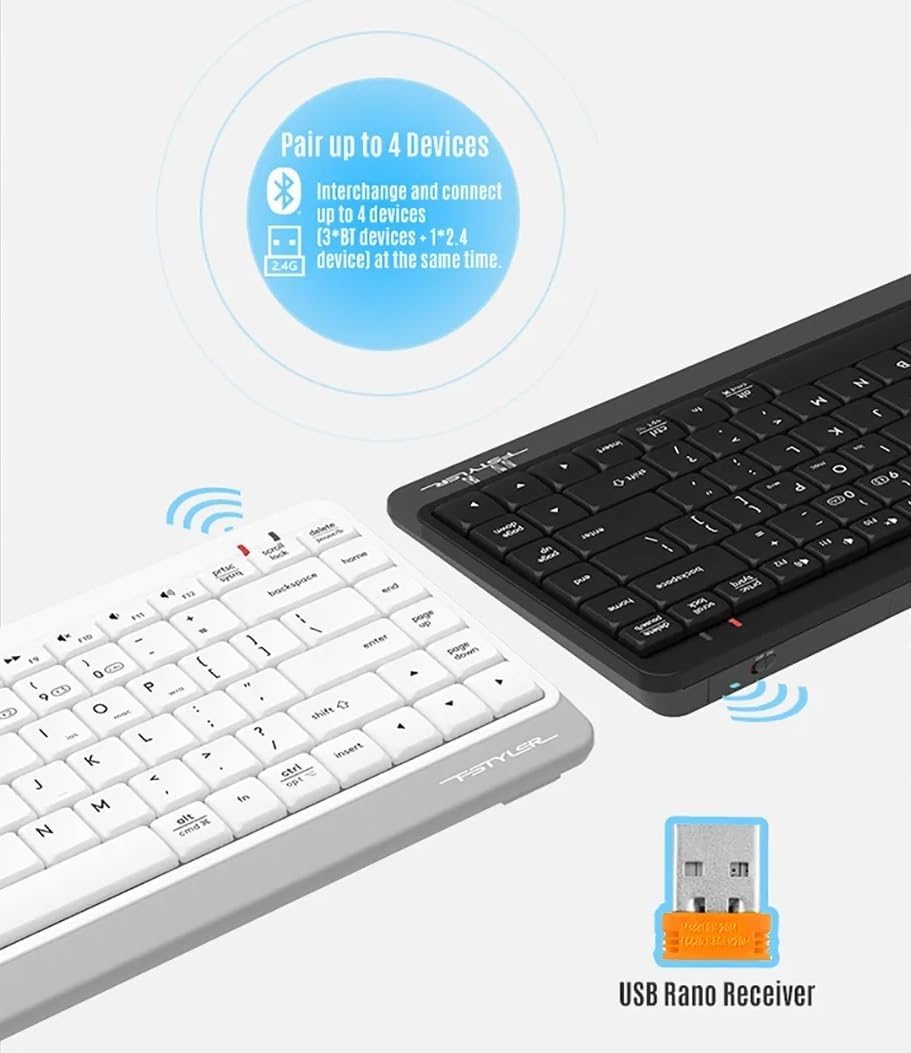
Figure 4: The keyboard demonstrating its dual connectivity options, including the USB Nano Receiver for 2.4G wireless and Bluetooth pairing capabilities.
5.2. การสลับอุปกรณ์หลายเครื่อง
หากต้องการสลับระหว่างอุปกรณ์ที่เชื่อมต่ออยู่:
- กด เอฟเอ็น + 2.4จี to switch to the device connected via the 2.4 GHz USB receiver.
- กด เอฟเอ็น + บีที1 to switch to the first Bluetooth-paired device.
- กด เอฟเอ็น + บีที2 to switch to the second Bluetooth-paired device.
- กด เอฟเอ็น + บีที3 to switch to the third Bluetooth-paired device.

Figure 5: Diagram illustrating how the keyboard can be paired with up to four different devices simultaneously, including a smartphone, tablet, laptop, and desktop computer.
5.3. Operating System Switching
The keyboard features dedicated keys to optimize its layout for different operating systems:
- กด เอฟเอ็น+คิว for Android/iOS mode.
- กด Fn + ว สำหรับโหมด Windows
- กด Fn + อี for macOS mode.
5.4. Multimedia Hotkeys and FN Lock Mode
The keyboard includes 12 multimedia and internet hotkeys (F1-F12) that can be accessed directly or by using the Fn key.

รูปที่ 6: เกินview of the keyboard's main functions, highlighting FN Locking Mode, Multimedia & Internet Hotkeys, Multi-Device Switch, Operating System Swap, and PC/MAC Dual-Function Keys.
5.4.1. FN Lock Mode
By default, after pairing, the FN shortcut is locked in FN mode. This means you can use the multimedia functions (F1-F12) directly without pressing the Fn key.
- ล็อคโหมด Fn: No need to press the Fn key for multimedia functions.
- ปลดล็อกโหมด Fn: กด Fn + ESC to switch back to standard F1-F12 key functions, requiring the Fn key to access multimedia shortcuts.
The locking FN mode is memorized when switching devices and shutting down.

Figure 7: Detailed explanation of how to lock and unlock the FN mode, allowing direct access to multimedia functions.
6 การแก้ไขปัญหา
| ปัญหา | สาเหตุที่เป็นไปได้ | สารละลาย |
|---|---|---|
| แป้นพิมพ์ไม่ตอบสนอง | Low battery; Keyboard is off; Incorrect connection mode; Device Bluetooth is off. | Replace batteries; Turn on keyboard; Switch to correct connection mode (2.4G/BT1/BT2/BT3); Enable Bluetooth on your device. |
| ไม่สามารถจับคู่ผ่านบลูทูธได้ | Keyboard not in pairing mode; Device is too far; Interference. | Ensure keyboard is in pairing mode (blinking light); Move keyboard closer to device; Remove potential sources of interference. |
| 2.4G connection issues | USB receiver not properly inserted; Interference. | Re-insert USB receiver; Try a different USB port; Move keyboard closer to receiver; Remove potential sources of interference. |
| ปุ่มมัลติมีเดียไม่ทำงาน | FN Lock mode is off. | กด Fn + ESC to toggle FN Lock mode. |
7. ข้อมูลจำเพาะ
- แบบอย่าง: เอฟบีเค11
- การเชื่อมต่อ: บลูทูธ 5.0, ไร้สาย 2.4 GHz
- ช่วงการทำงาน: สูงถึง 10 เมตร (33 ฟุต)
- ประเภทแบตเตอรี่: แบตเตอรี่อัลคาไลน์ 2 x AAA
- วัสดุ: พลาสติก
- สี: สีดำ
- ขนาด : ขนาดประมาณ 36.1 x 15.3 x 4.4 ซม
- น้ำหนัก: น้ำหนักประมาณ 363 กรัม
- ระบบปฏิบัติการที่รองรับ: Windows, macOS, Chrome OS, Android, iOS
- คุณสมบัติพิเศษ: Lightweight, Portable, Multi-functional, Multi-device support
8. การบำรุงรักษา
- การทำความสะอาด: Use a soft, dry cloth to clean the keyboard. For stubborn dirt, a slightly damp สามารถใช้ผ้าเช็ดทำความสะอาดได้ แต่ต้องระวังอย่าให้ความชื้นเข้าไปในแป้นพิมพ์
- พื้นที่จัดเก็บ: เก็บแป้นพิมพ์ไว้ในที่แห้งและเย็น หลีกเลี่ยงแสงแดดโดยตรงและอุณหภูมิที่สูงหรือต่ำเกินไป
- การดูแลแบตเตอรี่ ถอดแบตเตอรี่ออกหากจะไม่ได้ใช้งานแป้นพิมพ์เป็นเวลานานเพื่อป้องกันการรั่วไหล
- หลีกเลี่ยงของเหลว: อย่าให้แป้นพิมพ์โดนน้ำหรือของเหลวอื่นๆ
- จัดการด้วยความระมัดระวัง: ควรหลีกเลี่ยงการทำแป้นพิมพ์ตกหรือกระแทกอย่างแรง
9. การรับประกันและการสนับสนุน
This product comes with a standard manufacturer's warranty. For detailed warranty terms and conditions, please refer to the warranty card included with your purchase or contact your local A4TECH distributor or retailer.
For technical support, troubleshooting assistance, or inquiries about your A4TECH F.STYLER FBK11 keyboard, please visit the official A4TECH website or contact their customer service department. Contact information can typically be found on the product packaging or the A4TECH webเว็บไซต์.