
1. บทนำ
Thank you for choosing the PNI Voyager S2600 WiFi 4K Ultra HD Car DVR Camera. This device is designed to record high-quality video footage of your journeys, providing security and evidence in case of incidents. It features 4K Ultra HD recording, Wi-Fi connectivity for smartphone control, parking monitoring, and a G-sensor for automatic incident detection.

Image 1.1: PNI Voyager S2600 Dash Cam installed in a vehicle, showcasing its key features: 4K Ultra HD recording, Wi-Fi connectivity, and Parking Monitoring.
2. ข้อมูลด้านความปลอดภัย
โปรดอ่านและปฏิบัติตามคำแนะนำด้านความปลอดภัยเหล่านี้ เพื่อให้มั่นใจได้ว่าอุปกรณ์จะทำงานได้อย่างถูกต้อง และป้องกันความเสียหายต่ออุปกรณ์หรือการบาดเจ็บ
- อย่าวางอุปกรณ์ไว้ในที่ที่มีอุณหภูมิสูงหรือต่ำเกินไป แสงแดดส่องโดยตรงเป็นเวลานาน หรือความชื้นสูง
- ตรวจสอบให้แน่ใจว่าอุปกรณ์ติดตั้งอย่างแน่นหนาและไม่กีดขวางทัศนวิสัยของคนขับ view หรือรบกวนการควบคุมรถ
- Use only the provided power cable and accessories. Using unauthorized accessories may damage the device and void the warranty.
- อย่าพยายามถอดประกอบหรือซ่อมแซมอุปกรณ์ด้วยตนเอง โปรดติดต่อเจ้าหน้าที่บริการที่ได้รับอนุญาตเพื่อขอความช่วยเหลือ
- รักษาเลนส์ให้สะอาดเพื่อให้ได้ภาพที่คมชัด
- Always format the microSD card regularly to maintain optimal recording performance.
3. เนื้อหาบรรจุภัณฑ์
ตรวจสอบว่ามีรายการทั้งหมดอยู่ในแพ็คเกจ:
- PNI Voyager S2600 Car DVR Camera
- Power cord with cigarette lighter plug (12V/24V compatible)
- ที่ยึดกระจกหน้ารถ
- คู่มือการใช้งาน

Image 3.1: The PNI Voyager S2600 dash cam, its magnetic mount, and the power cable with a cigarette lighter adapter.
4. สินค้าหมดview
Familiarize yourself with the components of your PNI Voyager S2600 dash cam.
4.1. เค้าโครงอุปกรณ์
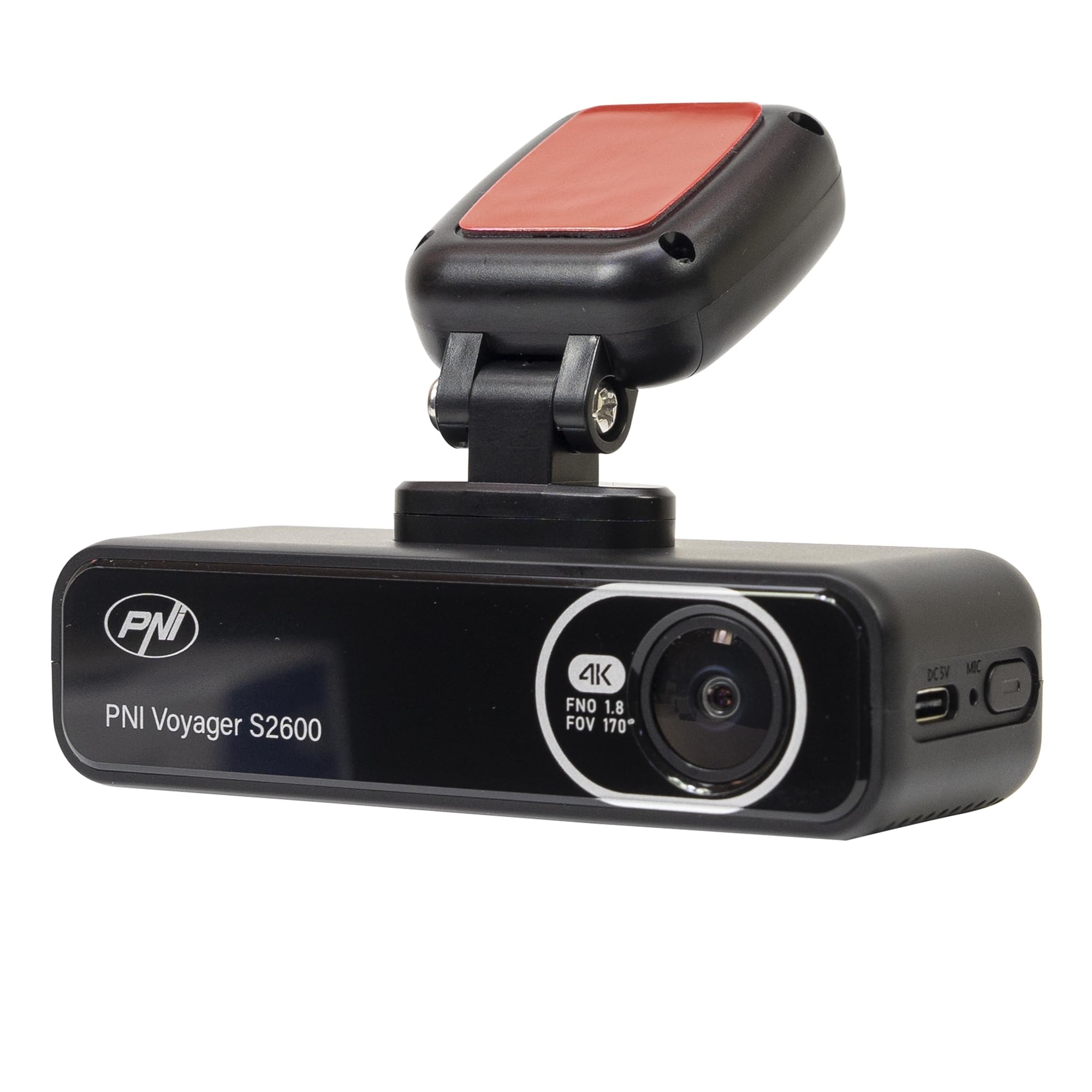
ภาพที่ 4.1: ด้านหน้า view of the PNI Voyager S2600, displaying the camera lens with 4K FNO 1.8 FOV 170° markings, the PNI brand logo, and the model name.

ภาพที่ 4.2: รายละเอียด view of the side of the dash cam, highlighting the USB-C power input (DC 5V) and the microphone opening.
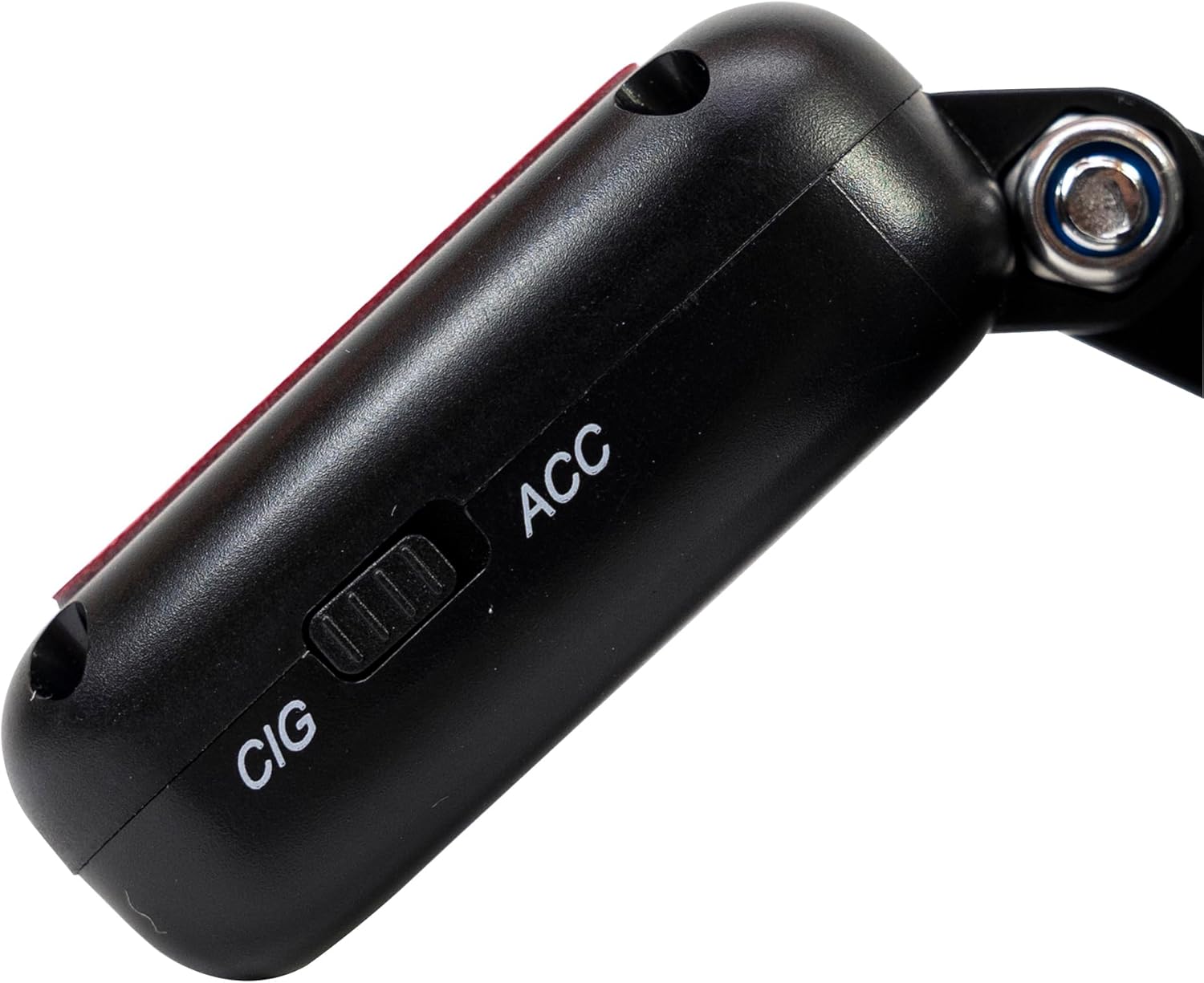
ภาพที่ 4.3: ด้านข้าง view of the magnetic mount, featuring a switch to select between 'CIG' (cigarette lighter power) and 'ACC' (accessory power) modes.
4.2. คุณสมบัติหลัก
- 4K Ultra HD Video Recording: Captures video at 3840x2160 resolution at 30FPS, or 2560x1440 at 30FPS, and 1920x1080 at 60FPS/30FPS.
- การเชื่อมต่อ Wi-Fi: Connects to your smartphone via the Viidure-Dashcam Viewแอป er สำหรับการถ่ายทอดสด view, video download, and settings adjustment.
- การตรวจสอบที่จอดรถ: Activates the camera to record when vibration or movement is detected while the vehicle is parked.
- จีเซ็นเซอร์: Automatically locks the current video file in case of a collision to prevent overwriting.
- เลนส์มุมกว้าง: 170 องศา viewใช้มุมกล้องที่หลากหลายเพื่อเก็บภาพมุมมองกว้างของถนน
- การบันทึกแบบวนซ้ำ: เขียนทับ foo ที่เก่าที่สุดtagเช่น เมื่อการ์ดหน่วยความจำเต็ม เพื่อให้สามารถบันทึกได้อย่างต่อเนื่อง
- จีพีเอสในตัว: Records speed and coordinates, which can be displayed on recorded videos.
5. การตั้งค่า
5.1. การใส่การ์ด MicroSD
- ตรวจสอบให้แน่ใจว่ากล้องติดรถยนต์ปิดอยู่
- ค้นหาช่องเสียบการ์ด microSD บนอุปกรณ์
- Insert a high-speed (Class 10 or higher) microSD card (up to 512GB) into the slot until it clicks into place.
- To remove, gently push the card in until it clicks, then release. The card will eject.
สำคัญ: Format the microSD card within the app or on a computer before first use and periodically thereafter to ensure stable recording.
5.2. การติดตั้งและการเชื่อมต่อไฟฟ้า
- ทำความสะอาดบริเวณกระจกหน้ารถที่คุณต้องการติดตั้งกล้องติดรถยนต์ ตรวจสอบให้แน่ใจว่าไม่มีสิ่งใดกีดขวางการมองเห็นของคุณ view.
- Attach the windshield mount to the dash cam. The mount is magnetic for easy attachment.
- Peel off the protective film from the adhesive pad on the mount and firmly press it onto the chosen spot on your windshield for at least 30 seconds.
- Connect the power cable to the USB-C port on the mount.
- Route the power cable neatly along the windshield and dashboard to the vehicle's cigarette lighter socket.
- Plug the cigarette lighter adapter into the vehicle's 12V/24V power outlet.
- Select the appropriate power mode on the mount's switch: 'CIG' for continuous power from the cigarette lighter, or 'ACC' for power only when the vehicle's ignition is on.

Image 5.1: The PNI Voyager S2600 dash cam detached from its magnetic mount, illustrating the contact points for secure attachment.
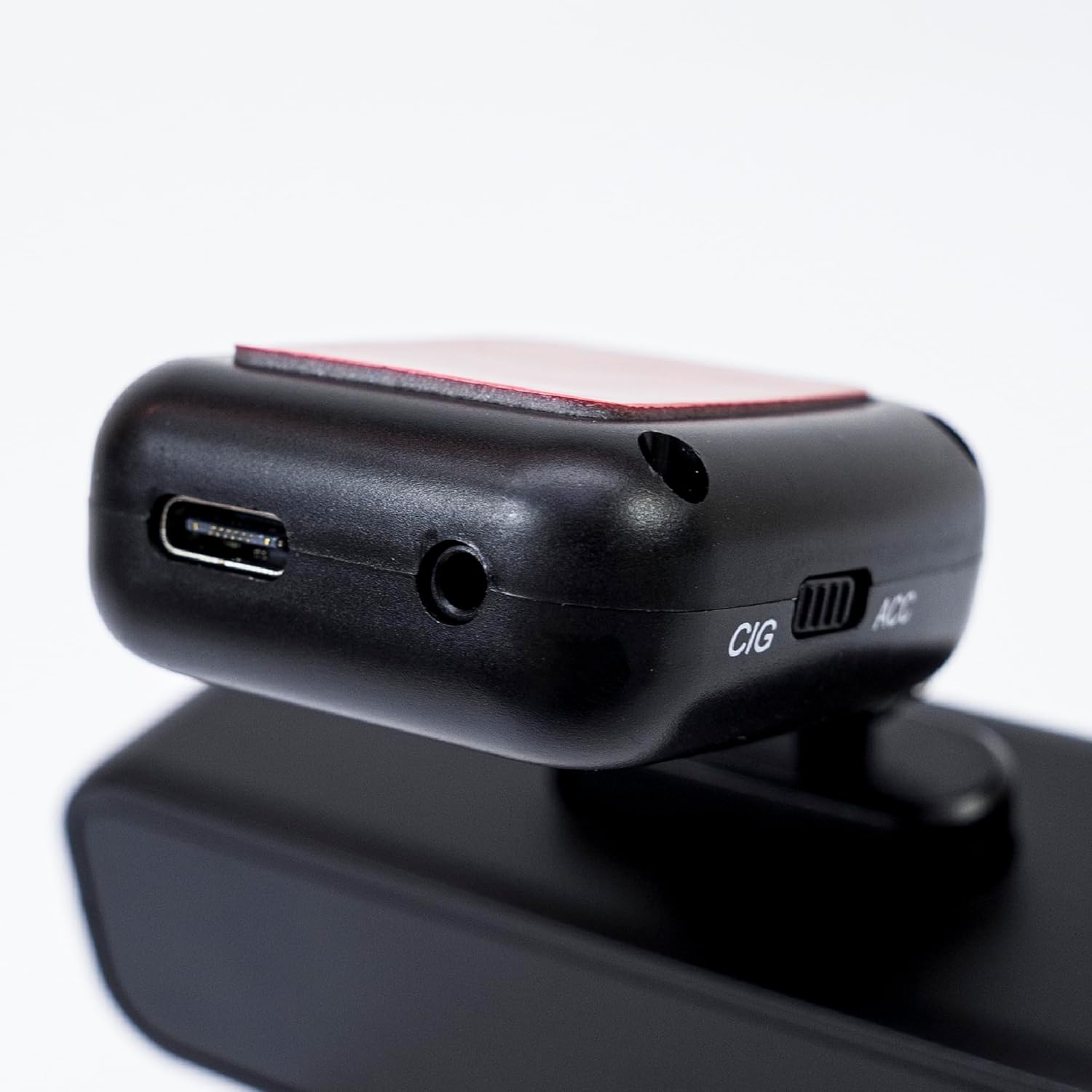
Image 5.2: The top of the dash cam mount, featuring the USB-C port for power input and the CIG/ACC switch for power mode selection.
5.3 การติดตั้งแอปและการเชื่อมต่อ Wi-Fi
- ดาวน์โหลด Viidure-Dashcam Viewer ดาวน์โหลดแอปจาก App Store (iOS) หรือ Google Play Store (Android)
- เปิดกล้องหน้ารถ
- On your smartphone, go to Wi-Fi settings and connect to the dash cam's Wi-Fi network. The network name (SSID) and password can usually be found in the dash cam's settings (if it has a screen) or in the manual.
- Open the Viidure-Dashcam Viewer app. The app should automatically detect and connect to the dash cam.
- ผ่านแอปคุณสามารถ view อยู่ footage, adjust settings, download recorded videos, and format the microSD card.

Image 5.3: A smartphone showing the Viidure-Dashcam Viewer application, demonstrating the wireless connection and control over the PNI Voyager S2600 dash cam.
6. คู่มือการใช้งาน
6.1. การบันทึกอัตโนมัติ
Once powered on and with a valid microSD card inserted, the PNI Voyager S2600 will automatically begin loop recording. Video files are saved in segments (e.g., 1, 3, or 5 minutes) to the microSD card.
6.2. เซ็นเซอร์ G (การบันทึกฉุกเฉิน)
เซ็นเซอร์ G ในตัวจะตรวจจับแรงกระแทกฉับพลันหรือการเร่ง/ลดความเร็วอย่างรวดเร็ว เมื่อตรวจจับได้ ระบบจะล็อกส่วนวิดีโอปัจจุบันโดยอัตโนมัติ ป้องกันไม่ให้ถูกบันทึกทับด้วยการบันทึกแบบวนซ้ำ อุปกรณ์ฉุกเฉินเหล่านี้ files are stored in a separate folder on the microSD card.
6.3. การตรวจสอบที่จอดรถ
When the vehicle is parked and the dash cam is powered (either continuously via CIG mode or with a hardwire kit), the parking monitor function activates. If the G-sensor detects a collision or motion detection is enabled and detects movement, the dash cam will automatically power on and record a short video segment. This feature helps protect your vehicle when unattended.

Image 6.1: Visual representation of the Parking Monitor feature, showing the dash cam detecting an impact while the car is parked.
6.4. Wi-Fi and App Usage
The Viidure-Dashcam Viewer app allows you to:
- สด View: See what the camera is recording in real-time on your smartphone.
- การเล่นวิดีโอ: Review recorded videos directly from the microSD card.
- Download Videos: Transfer important video files from the dash cam to your smartphone.
- การปรับการตั้งค่า: Configure various dash cam settings, such as video resolution, G-sensor sensitivity, loop recording duration, and parking monitor options.
- ฟอร์แมตการ์ด SD: Erase all data on the microSD card.
6.5. ฟังก์ชัน GPS
The integrated GPS receiver records your vehicle's speed and location data. This information can be overlaid on the video footage during playback via the app or compatible desktop software, providing additional context for your recordings.
7. การบำรุงรักษา
7.1. การทำความสะอาดอุปกรณ์
Use a soft, dry cloth to clean the dash cam body. For the lens, use a specialized lens cleaning cloth to avoid scratches. Do not use chemical cleaners or abrasive materials.
7.2. MicroSD Card Formatting
It is recommended to format the microSD card every 2-4 weeks to prevent data corruption and ensure optimal recording performance. This can be done through the Viidure-Dashcam Viewเอ่อแอพ
7.3. การอัปเดตเฟิร์มแวร์
Periodically check the PNI website or the Viidure-Dashcam Viewer app for available firmware updates. Firmware updates can improve performance, add new features, or fix bugs. Follow the instructions provided with the update carefully.
8 การแก้ไขปัญหา
If you encounter issues with your PNI Voyager S2600, refer to the following common problems and solutions:
| ปัญหา | สาเหตุที่เป็นไปได้ | สารละลาย |
|---|---|---|
| กล้องติดรถยนต์ไม่สามารถเปิดได้ | No power supply; faulty cable; incorrect power mode. | Check power cable connection; ensure cigarette lighter socket is active; verify CIG/ACC switch setting. |
| การบันทึกหยุดหรือหยุดนิ่ง | MicroSD card error; card full; low-speed card. | Format microSD card; replace with a high-speed (Class 10 U3) card; ensure sufficient storage. |
| Wi-Fi connection unstable or fails. | Interference; incorrect password; app issue. | Ensure dash cam Wi-Fi is enabled; re-enter password; restart app and dash cam; try connecting in a different location. |
| คุณภาพวิดีโอไม่ดี | Dirty lens; incorrect resolution setting. | Clean the camera lens; check video resolution settings in the app. |
| ระบบตรวจสอบการจอดรถไม่ทำงาน | Incorrect power mode; feature disabled. | Ensure dash cam is receiving continuous power (CIG mode or hardwire kit); enable parking monitor in app settings. |
If the problem persists, please contact PNI customer support.
9. ข้อมูลจำเพาะ
Detailed technical specifications for the PNI Voyager S2600 Car DVR Camera:
| คุณสมบัติ | คำอธิบาย |
|---|---|
| หมายเลขรุ่น | PNI-S2600 |
| ความละเอียดวิดีโอ | 4K (3840x2160@30FPS), 2K (2560x1440@30FPS), FHD (1920x1080@60FPS/30FPS) |
| เซ็นเซอร์รับภาพ | SONY335 (5MP, 2592x1944px) |
| Viewอิงแองเกิล | 170 องศา |
| รูปแบบวิดีโอ | MP4, H.264 |
| รูปแบบภาพถ่าย | เจพีเจ |
| ความละเอียดภาพถ่ายสูงสุด | 8MP (3264x2448) |
| พื้นที่จัดเก็บ | MicroSD card slot, up to 512GB (Class 10 or higher recommended) |
| การเชื่อมต่อ | Wi-Fi, GPS (integrated) |
| คุณสมบัติพิเศษ | G-Sensor, Parking Monitoring, Motion Detection, Loop Recording |
| แหล่งจ่ายไฟ | 5V/2A (via 12V/24V car adapter) |
| แบตเตอรี่ | Super capacitor 1.5 UF |
| อุณหภูมิในการทำงาน | -26°C ~ +80°C |
| ขนาด (กว้าง x ยาว x สูง) | 105มม. x 35มม. x 27มม. |
| น้ำหนัก | 88 กรัม |
| ประเภท USB | ประเภทซี |
10. การรับประกันและการสนับสนุน
10.1. ข้อมูลการรับประกัน
The PNI Voyager S2600 Car DVR Camera comes with a รับประกัน 24 เดือน from the date of purchase. This warranty covers manufacturing defects under normal use. It does not cover damage caused by misuse, accidents, unauthorized modifications, or improper installation. Please retain your proof of purchase for warranty claims.
10.2. การสนับสนุนลูกค้า
For technical assistance, troubleshooting, or warranty inquiries, please contact PNI customer support. You can find more information and support resources on the official PNI webเว็บไซต์:
ผู้ผลิต: ONLINESHOP SRL
Address: Olteniei 26A, Piatra Neamt, Neamt, 610206, Romania