
Bmax Y13
Bmax Y13 13.3-inch Convertible Laptop User Manual
รุ่น : Y13
การแนะนำ
This manual provides essential information for setting up, operating, maintaining, and troubleshooting your Bmax Y13 13.3-inch Convertible Laptop. Please read this guide thoroughly to ensure proper use and to maximize the performance and longevity of your device.
การตั้งค่า
แกะอุปกรณ์ของคุณ
นำส่วนประกอบทั้งหมดออกจากบรรจุภัณฑ์อย่างระมัดระวัง กล่องควรมีรายการต่อไปนี้:
- Bmax Y13 Laptop
- 24W DC Power Adapter with replaceable plugs (US, UK, EU standards)
- คู่มือการใช้งาน (เอกสารนี้)
- บัตรรับประกัน
- เอกสารความปลอดภัย

The Bmax Y13 laptop in a convertible configuration, showcasing ด้วยการออกแบบที่ยืดหยุ่น
การชาร์จและเปิดเครื่องครั้งแรก
- Connect the power adapter to the laptop's charging port and then to a power outlet. Allow the laptop to charge for at least 30 minutes before first use.
- Press the power button, typically located on the side or top right of the keyboard, to turn on the laptop.
- ทำตามคำแนะนำบนหน้าจอเพื่อทำการตั้งค่า Windows 10 ครั้งแรกให้เสร็จสมบูรณ์ รวมถึงการเลือกภาษา ภูมิภาค การเชื่อมต่อเครือข่าย และการสร้างบัญชีผู้ใช้
คำแนะนำการใช้งาน
การจัดการพลังงาน
- เปิดเครื่อง: กดปุ่มเปิด/ปิด
- โหมดสลีป: กดปุ่มเปิด/ปิดเครื่องสั้นๆ หรือปิดฝาเครื่อง
- ปิดระบบ: คลิกปุ่มเริ่ม จากนั้นคลิกเปิด/ปิดเครื่อง > ปิดเครื่อง
โหมดแปลงร่าง
The Bmax Y13 features a 360-degree hinge, allowing it to transform into various modes:
- โหมดแล็ปท็อป: การกำหนดค่าแล็ปท็อปมาตรฐานสำหรับการพิมพ์และการทำงาน
- โหมดเต็นท์: พับหน้าจอกลับให้เป็นรูปตัว "V" กลับหัว เหมาะสำหรับการชมวิดีโอหรือการนำเสนอในพื้นที่จำกัด
- โหมดสแตนด์บาย: Fold the screen back further, resting the keyboard face down, suitable for touch-based interaction.
- โหมดแท็บเล็ต: Fold the screen completely back against the base, converting the device into a tablet for portable use.
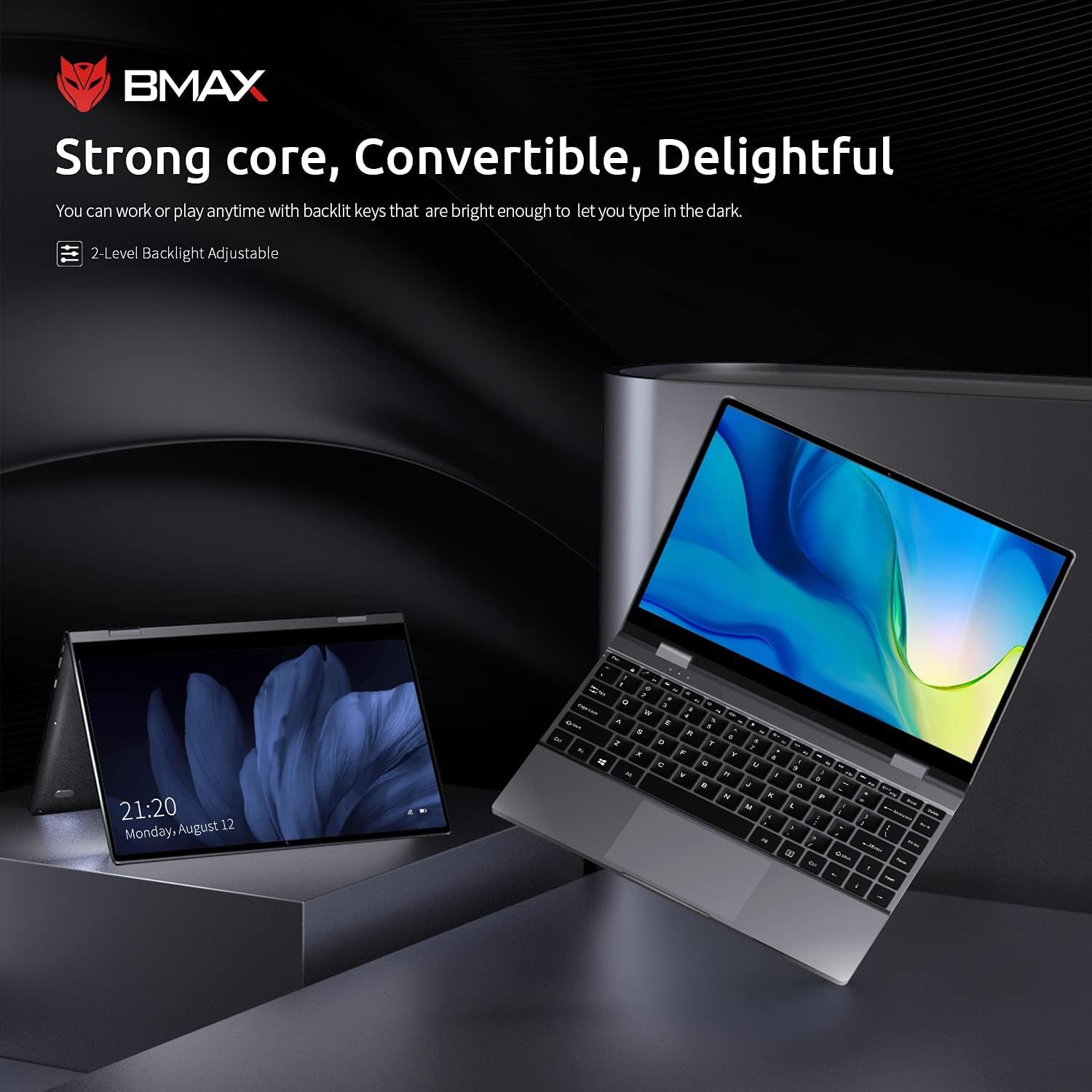
The Bmax Y13 laptop shown in both traditional laptop and tent modes, demonstrating its 2-in-1 versatility.
การทำงานของหน้าจอสัมผัส
The 13.3-inch FHD IPS display supports 10-point multi-touch. Use gestures similar to a smartphone or tablet for navigation, zooming, and interaction with applications.
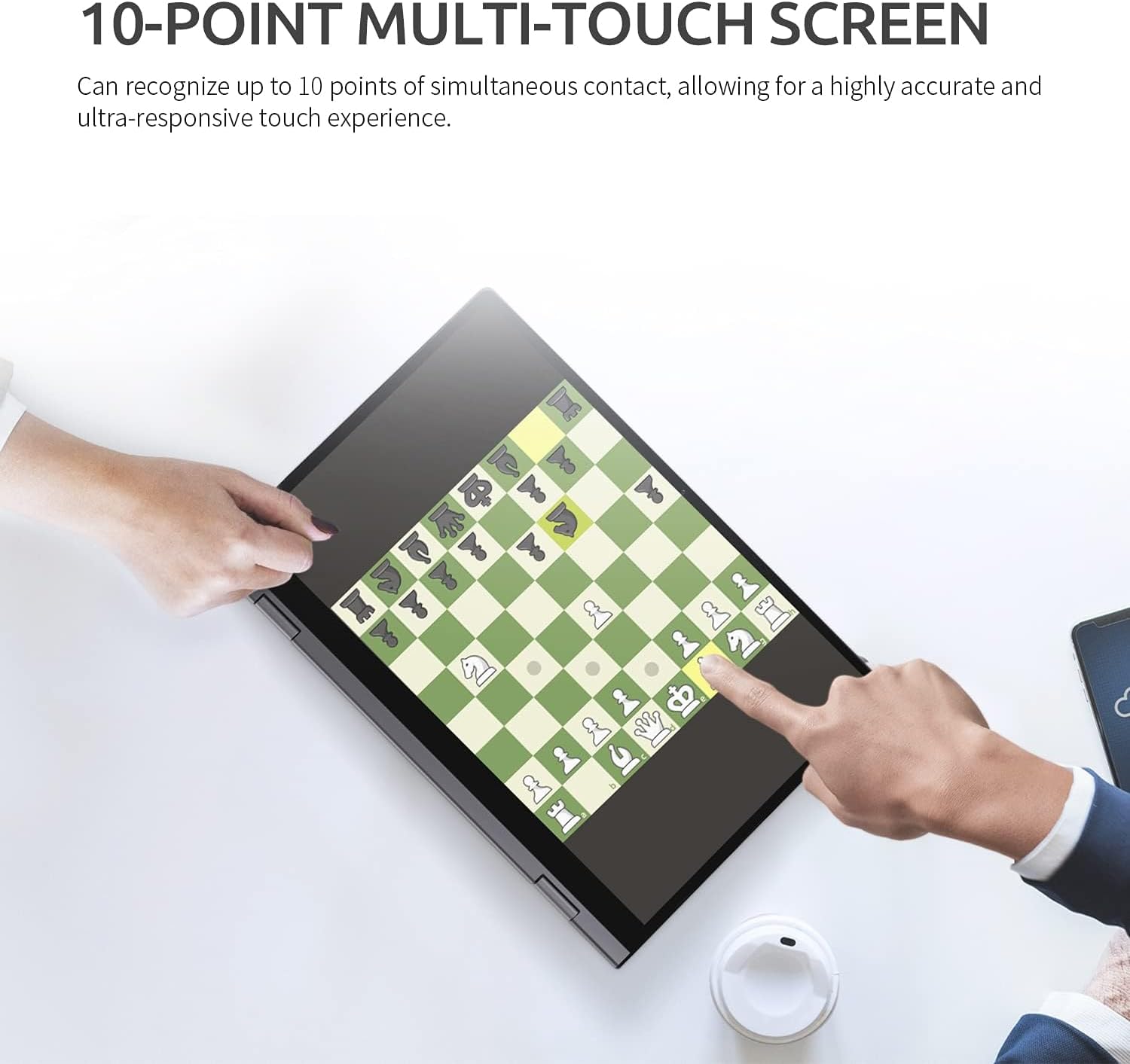
A user interacting with the Bmax Y13's 10-point multi-touch screen, playing a chess game, to demonstrate touch responsiveness.
คีย์บอร์ดและทัชแพด
- แป้นพิมพ์พร้อมไฟแบ็คไลท์: กดปุ่ม Fn+F2 keys to adjust the 2-level backlight brightness or turn it off.
- ทัชแพด: รองรับการใช้งานมัลติทัชสำหรับการเลื่อน การซูม และฟังก์ชันอื่นๆ โปรดดูการตั้งค่าของ Windows สำหรับการปรับแต่งเพิ่มเติม
การเชื่อมต่ออุปกรณ์ต่อพ่วง
The laptop is equipped with various ports:
- พอร์ต USB-C (x2): One port supports Power Delivery, HDMI output, and USB 3.0 data transfer. The second port supports USB 3.0 data transfer.
- เครื่องอ่านการ์ด SD: Insert an SD card for expanded storage or data transfer.
- แจ็คเสียงแบบคอมโบ: เชื่อมต่อหูฟังหรือชุดหูฟังที่มีไมโครโฟน
การเชื่อมต่อแบบไร้สาย
- ไวไฟ : Supports 802.11a/b/g/n/ac for high-speed wireless internet access. Configure through Windows network settings.
- Bluetooth 4.2: Connect wireless accessories such as mice, keyboards, or headphones. Enable and pair devices through Windows Bluetooth settings.
การซ่อมบำรุง
การทำความสะอาดแล็ปท็อปของคุณ
- หน้าจอ: ใช้ผ้านุ่มไม่เป็นขุยเช็ดเล็กน้อยampล้างออกด้วยน้ำหรือน้ำยาทำความสะอาดหน้าจอ หลีกเลี่ยงสารเคมีรุนแรง
- แป้นพิมพ์และตัวเครื่อง: ใช้ผ้านุ่มและแห้ง สำหรับคราบฝังแน่น ให้เช็ดเบาๆamp สามารถใช้ผ้าได้เพื่อให้แน่ใจว่าไม่มีของเหลวเข้าไปในช่องเปิด
- พอร์ต: ใช้ลมอัดเพื่อเป่าฝุ่นออกจากพอร์ตอย่างอ่อนโยน
การดูแลแบตเตอรี่
- หลีกเลี่ยงการปล่อยแบตเตอรี่จนหมดบ่อยครั้ง
- อย่าวางแล็ปท็อปไว้ในที่ที่มีอุณหภูมิสูงหรือต่ำเกินไป
- หากจะเก็บแล็ปท็อปไว้เป็นเวลานาน ควรตรวจสอบให้แน่ใจว่าแบตเตอรี่มีประจุอยู่ประมาณ 50-70%
การดูแลทั่วไป
- ป้องกันหน้าจอจากรอยขีดข่วนโดยการปิดฝาเครื่องอย่างเบามือและหลีกเลี่ยงการวางสิ่งของใดๆ บนแป้นพิมพ์
- Avoid dropping or subjecting the laptop to strong impacts.
การแก้ไขปัญหา
If you encounter issues with your Bmax Y13 laptop, refer to the following common problems and solutions:
- แล็ปท็อปไม่สามารถเปิดเครื่องได้:
- ตรวจสอบให้แน่ใจว่าอะแดปเตอร์ไฟฟ้าเชื่อมต่อกับแล็ปท็อปและเต้ารับไฟฟ้าที่ใช้งานได้แน่นหนา
- ตรวจสอบว่าเต้ารับไฟฟ้าใช้งานได้โดยเสียบอุปกรณ์อื่น
- หากแบตเตอรี่หมดเกลี้ยง ให้ชาร์จแบตเตอรี่ทิ้งไว้สักระยะก่อนที่จะลองเปิดเครื่องอีกครั้ง
- Display issues (e.g., no image, flickering):
- รีสตาร์ทแล็ปท็อป
- ตรวจสอบการตั้งค่าการแสดงผลใน Windows เพื่อให้แน่ใจว่าความละเอียดและอัตราการรีเฟรชถูกต้อง
- หน้าจอสัมผัสไม่ตอบสนอง:
- รีสตาร์ทแล็ปท็อป
- Ensure there are no physical obstructions or dirt on the screen.
- Check for updated touchscreen drivers in Device Manager.
- Wi-Fi or Bluetooth connectivity problems:
- ตรวจสอบให้แน่ใจว่า Wi-Fi/Bluetooth ได้เปิดใช้งานอยู่ในการตั้งค่า Windows
- รีสตาร์ทเราเตอร์/โมเด็มของคุณเนื่องจากปัญหา Wi-Fi
- ถอดและจับคู่อุปกรณ์บลูทูธใหม่อีกครั้ง
- อัพเดตไดร์เวอร์ไร้สาย
- ประสิทธิภาพช้า:
- ปิดแอปพลิเคชันที่ไม่จำเป็นซึ่งทำงานอยู่เบื้องหลัง
- Check available storage space; a full drive can impact performance.
- รันการสแกนไวรัส
หากขั้นตอนเหล่านี้ไม่สามารถแก้ไขปัญหาของคุณได้ โปรดดูที่ส่วนการสนับสนุนเพื่อขอความช่วยเหลือเพิ่มเติม
ข้อมูลจำเพาะ
The following table outlines the key technical specifications for the Bmax Y13 laptop:

Diagram illustrating the Intel Core m5-6Y54 processor, highlighting its role in the laptop's performance.
| คุณสมบัติ | รายละเอียด |
|---|---|
| โปรเซสเซอร์ | Intel Core m5-6Y54 (up to 2.70GHz with Turbo Boost, 4MB Cache) |
| ระบบปฏิบัติการ | Windows 10 Pro 64 บิต |
| กราฟฟิก | กราฟิก Intel HD 515 แบบบูรณาการ |
| แรม | 8 GB DDR4 2133 MHz (Onboard) |
| พื้นที่จัดเก็บ | 256 GB M.2 2280 SATA SSD |
| แสดง | 13.3-inch FHD (1920 x 1080) IPS Glossy Multi-touch (10-point) |
| กล้อง | กล้อง HD 720p |
| เสียง | Built-in Two-channel Speaker |
| อายุการใช้งานแบตเตอรี่ | Up to 6 hours (FHD) |
| ขนาด (กว้าง x ลึก x สูง) | 307.5 x 208 x 14.7 มม. (12.1 x 8.2 x 0.6 นิ้ว) |
| น้ำหนัก | 1.25 กก. (2.75 ปอนด์) |
| การเชื่อมต่อ | 802.11a/b/g/n/ac Wi-Fi, บลูทูธ 4.2 |
| พอร์ต | 1x USB-C (Power Delivery, HDMI, USB 3.0), 1x USB-C (USB 3.0), 1x SD Card Reader, Audio Combo Jack |

Close-up of the Bmax Y13 display, emphasizing its 13.3-inch FHD IPS panel with 10-point touch precision and thin bezel.
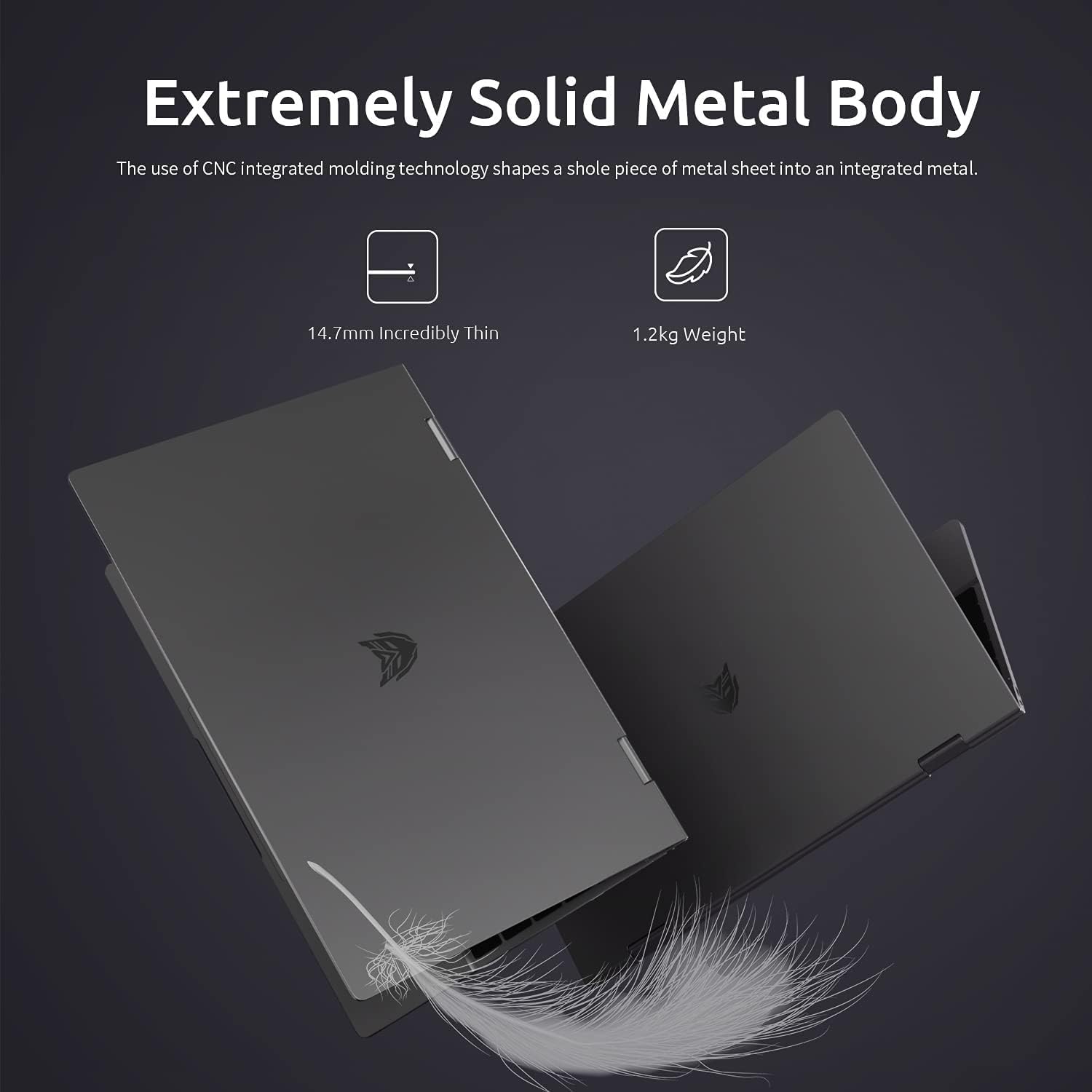
Two Bmax Y13 laptops shown from the side, illustrating their thin profile (14.7mm) and lightweight design (1.2kg).
การรับประกันและการสนับสนุน
ข้อมูลการรับประกัน
Your Bmax Y13 laptop comes with a standard manufacturer's warranty. Please refer to the included Guarantee Card for specific terms, conditions, and duration of your warranty coverage. Keep your proof of purchase for warranty claims.
การสนับสนุนลูกค้า
For technical assistance, service inquiries, or further information, please visit the official Bmax website or contact their customer support channels as detailed on your Guarantee Card or product packaging. When contacting support, please have your product model (Y13) and serial number ready.
Ask a question about this manual
Ask about setup, troubleshooting, compatibility, parts, safety, or missing instructions. Manuals+ will review the question and use this page’s manual context to help answer it.