
การแนะนำ
This manual provides detailed instructions for the installation, operation, and maintenance of your EsaSam Double Din Car Stereo Multimedia Radio. Please read this manual thoroughly before using the product to ensure proper function and safety.
This multimedia radio is designed for Toyota Camry models from 2006 to 2011. It features a 9-inch touchscreen, GPS navigation, MP5 player, DSP, RDS FM radio, Carplay, and Android Auto capabilities.
สินค้าเกินview
The EsaSam Car Stereo is an advanced in-dash multimedia system. Key features include:
- Android 11 Operating System (or Android 12 based on specific batch)
- 9-inch Capacitive Multi-Touch IPS Screen (1024*600 or 1280*720 resolution)
- Built-in GPS Navigation with support for online and offline maps
- Carplay ไร้สายและ Android Auto
- บลูทูธ 4.0 สำหรับการโทรแบบแฮนด์ฟรีและการสตรีมเพลง
- วิทยุ FM/AM/RDS
- Built-in WiFi and 4G LTE support (SIM card slot)
- รองรับการควบคุมพวงมาลัย
- Includes AHD Rear View กล้อง
- Various RAM/ROM configurations (e.g., 8 core m400s 4GB RAM + 64GB ROM)
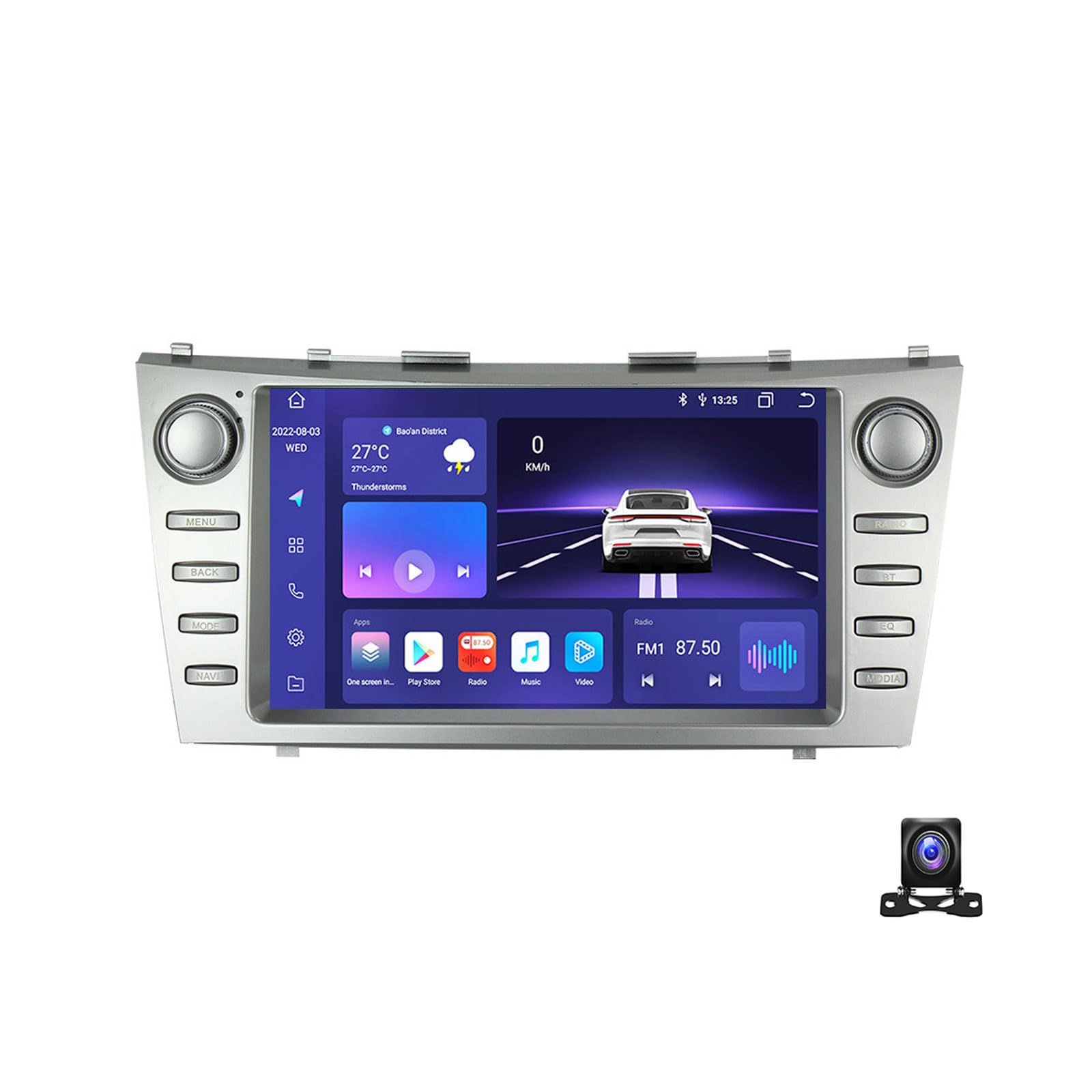
Figure 1: EsaSam Double Din Car Stereo Unit. This image shows the front view of the car stereo with its 9-inch touchscreen display.
ความเข้ากันได้ของยานพาหนะ
This unit is compatible with Toyota Camry models manufactured between 2006 and 2011. Before installation, verify that your vehicle's original center console matches the product's design to ensure proper fitment.

Figure 2: Comparison of original Toyota Camry dashboard radio and the EsaSam unit installed. The top left shows the original radio, top right shows the EsaSam unit, and the bottom image shows the EsaSam unit installed in the dashboard.
การติดตั้งและการตั้งค่า
แนะนำให้ติดตั้งโดยช่างผู้เชี่ยวชาญ โปรดตรวจสอบให้แน่ใจว่าได้ถอดแบตเตอรี่รถยนต์ออกก่อนเริ่มการติดตั้ง
การเชื่อมต่อสายไฟ
Connect the provided wiring harness to the corresponding ports on the car stereo and your vehicle's wiring system. Pay close attention to the power, speaker, and accessory connections.
- สายไฟ: Connect the yellow wire (constant 12V), red wire (accessory 12V), and black wire (ground).
- สายลำโพง: เชื่อมต่อสายลำโพงแต่ละเส้นเข้ากับขั้วบวกและขั้วลบที่ตรงกัน
- เสาอากาศ GPS: เชื่อมต่อเสาอากาศ GPS และวางไว้ในตำแหน่งที่ชัดเจน view ของท้องฟ้า
- เสาอากาศ 4G: If applicable, connect the 4G antenna for cellular data connectivity.
- หลัง View กล้อง: เชื่อมต่อ AHD ด้านหลัง view ต่อกล้องเข้ากับช่องรับสัญญาณเฉพาะ ตรวจสอบให้แน่ใจว่าสายไฟสำหรับทริกเกอร์ถอยหลังเชื่อมต่ออยู่กับวงจรไฟถอยหลังของรถยนต์
- สาย USB: Connect the USB extension cables for external storage or device charging.

Figure 3: Wiring connections and accessories for the EsaSam car stereo. This image illustrates various cable connections including RCA, audio out, reversing camera, microphone, GPS antenna, and 4G antenna. It also shows detailed wiring for AUX-IN, AMP control, cooling fan, and video outputs.
การเปิดเครื่องครั้งแรกและการกำหนดค่า
- After all connections are secure, reconnect the vehicle's battery.
- Turn on the vehicle's ignition. The stereo should power on.
- ทำตามคำแนะนำบนหน้าจอสำหรับการตั้งค่าเริ่มต้น รวมถึงการเลือกภาษาและโซนเวลา
- ระบบควบคุมพวงมาลัย (SWC): To configure SWC, navigate to system settings and follow the on-screen instructions to map your vehicle's steering wheel buttons. This may involve learning or configuring the CANBUS protocol.
- รหัสผ่านโรงงาน: For M200S~M800S models, the factory password is 3368. For M100S~M150S models, the factory password is 8888.

Figure 4: Initial setup steps for the car stereo. This image shows connecting the unit, navigating to device sound settings, and confirming the cooling fan operation, alongside features like Carplay, 4G LTE, and 5GHz WiFi.
คำแนะนำการใช้งาน
อินเทอร์เฟซหน้าจอสัมผัส
The unit features a responsive 9-inch IPS touchscreen. Navigate through menus and applications by tapping, swiping, and pinching (for zoom, where applicable).
ระบบนำทาง (GPS)
The stereo comes with built-in GPS. You can use pre-installed offline maps (requires WiFi for initial download) or online navigation apps (e.g., Google Maps) via WiFi or 4G connection.
- To use offline maps, connect to WiFi and download the desired map regions.
- For online navigation, ensure the unit is connected to the internet via WiFi or a 4G SIM card.
Figure 5: GPS Navigation interface. This image displays the navigation screen with map data and supported GPS systems like GPS, BDS, and GLONASS.
ฟังก์ชั่นบลูทูธ
เชื่อมต่อสมาร์ทโฟนของคุณผ่านบลูทูธ 4.0 เพื่อการโทรแบบแฮนด์ฟรีและการสตรีมเสียง
- เข้าไปที่การตั้งค่าบลูทูธในเครื่องเสียงรถยนต์
- เปิดใช้งาน Bluetooth บนสมาร์ทโฟนของคุณและค้นหาอุปกรณ์ที่มีอยู่
- Select the stereo's Bluetooth name (e.g., "CarBT") from your phone's list and pair.
- เมื่อจับคู่แล้ว คุณสามารถโทรออก/รับสาย และเล่นเพลงผ่านลำโพงรถยนต์ได้

Figure 6: Bluetooth function interface. This image shows the Bluetooth menu with options for music, contacts, and call records, along with an illustration of hands-free calling.
Carplay / Android Auto
The unit supports wireless Carplay and Android Auto. Connect your smartphone to access compatible apps, navigation, and media directly on the stereo screen.
- การเชื่อมต่อแบบไร้สาย: Ensure your phone's WiFi and Bluetooth are enabled. Follow the on-screen instructions on the stereo to connect.
- การเชื่อมต่อแบบใช้สาย (ถ้ามี): Connect your phone via a USB cable to the designated USB port.
Figure 7: Carplay and Android Auto interface. This image shows the Carplay and Android Auto screens, detailing connection steps for both wireless and wired methods.
วิทยุ FM/AM/RDS
Access the radio function to listen to FM and AM stations. RDS (Radio Data System) provides additional information like station name and song title where available.
- ใช้ฟังก์ชั่นสแกนเพื่อค้นหาและบันทึกสถานีที่มีอยู่โดยอัตโนมัติ
- ปรับจูนตามความถี่ที่ต้องการด้วยตนเอง
- บันทึกสถานีโปรดของคุณเป็นค่าที่ตั้งไว้ล่วงหน้าเพื่อการเข้าถึงที่รวดเร็ว
หลัง View กล้อง
When the vehicle is shifted into reverse, the display will automatically switch to the rear view camera feed, providing a clear image for safe parking and maneuvering.
Figure 8: AHD Reversing Camera view. This image illustrates the clear picture quality of the AHD rear-view camera, showing the vehicle's rear perspective on the stereo screen.
การซ่อมบำรุง
การทำความสะอาดหน้าจอ
ใช้ผ้านุ่มไม่เป็นขุยเช็ดหน้าจอสัมผัสเบาๆ สำหรับรอยเปื้อนฝังแน่น ให้เช็ดเบาๆampชุบผ้าด้วยน้ำหรือน้ำยาทำความสะอาดที่ปลอดภัยต่อหน้าจอ หลีกเลี่ยงวัสดุที่มีฤทธิ์กัดกร่อนหรือสารเคมีรุนแรง
การอัพเดตซอฟต์แวร์
Periodically check for software updates to ensure optimal performance and access to new features. Updates can typically be performed via WiFi connection.
การแก้ไขปัญหา
| ปัญหา | สาเหตุที่เป็นไปได้ | สารละลาย |
|---|---|---|
| เครื่องไม่เปิด | การเดินสายไฟไม่ถูกต้อง ฟิวส์ขาด การเชื่อมต่อหลวม | Check power connections (yellow, red, black wires). Inspect vehicle's fuse box for blown fuses. Ensure all connectors are securely seated. |
| ไม่มีเสียงออกจากลำโพง | Speaker wires incorrectly connected, volume too low, mute activated. | ตรวจสอบสายลำโพง เพิ่มระดับเสียง ตรวจสอบว่าปิดเสียงเครื่องแล้วหรือไม่ |
| สัญญาณ GPS อ่อนหรือไม่แม่นยำ | GPS antenna improperly placed, obstructions. | ย้ายเสาอากาศ GPS ไปยังตำแหน่งที่มีทัศนวิสัยชัดเจน view ของท้องฟ้า (เช่น แผงหน้าปัดรถยนต์ ใต้กระจกหน้ารถ) |
| ปัญหาการเชื่อมต่อบลูทูธ | Phone not discoverable, incorrect pairing process. | Ensure Bluetooth is enabled on both devices. Restart both the stereo and your phone. Re-attempt pairing. |
| การควบคุมพวงมาลัยไม่ทำงาน | SWC not configured, incorrect CANBUS settings. | Go to system settings and reconfigure the Steering Wheel Control function. Consult a professional if issues persist. |
ข้อมูลจำเพาะ
| คุณสมบัติ | รายละเอียด |
|---|---|
| แบบอย่าง | 8 core m400s 4g+64g |
| ระบบปฏิบัติการ | Android 11 (or Android 12, depending on specific batch) |
| ขนาดหน้าจอ | 9 นิ้ว |
| ความละเอียดหน้าจอ | 1024*600 or 1280*720 (Capacitive Multi-Touch IPS) |
| โปรเซสเซอร์ | 8-core (Specifics vary by model, e.g., Unisoc UIS8581A for M200S/M400S) |
| แรม | แรม 4GB DDR3 |
| รอม | 64GB |
| เวอร์ชันบลูทูธ | 4.0 (or 5.0 for some models) |
| ไวไฟ | Built-in WiFi (Support 5GHz WiFi 802.11 b/g/n) |
| 4จีแอลทีอี | Supported (with SIM card slot) |
| เครื่องรับวิทยุ | FM/AM/RDS (FM: 87.5-108.5MHz, AM: 520-1700 Hz) |
| จีพีเอส | Built-in, supports online/offline maps (GPS, BDS, GLONASS) |
| คาร์เพลย์/แอนดรอยด์ออโต้ | ไร้สาย |
| รองรับรูปแบบวิดีโอ | HD 1080P |
| เอาท์พุตเสียง | AUX-IN, Subwoofer audio output |
| อุปกรณ์เสริมที่รวมอยู่ด้วย | Frame, Power Adapter, AHD Rear View Camera, GPS Antenna, 4G Antenna (for 4G models) |

Figure 9: Car multimedia player parameter table. This table provides a detailed comparison of different models (M100CP, M200S, M300S, M400S, M500S, M600S, M700S, M800S) including their internet connectivity, OS, core processor, RAM/ROM, Carplay/Android Auto support, Bluetooth version, resolution, screen type, cooling fan, DSP, and RDS features.
การรับประกันและการสนับสนุน
For warranty information and technical support, please refer to the documentation provided with your purchase or contact EsaSam customer service. Keep your purchase receipt for warranty claims.
Additional accessories like DVR, TPMS, DAB+, and OBD2 require separate purchase and are not included with the standard unit.

Figure 10: Optional accessories and UI designs. This image shows additional features like ADAS DVR, OBD II, and TPMS (sold separately), along with various user interface designs.