
การแนะนำ
This manual provides comprehensive instructions for setting up, operating, maintaining, and troubleshooting your ATTACK SHARK AKS068 Wired Mechanical Gaming Keyboard. Designed with an ergonomic Alice layout, hot-swappable switches, and customizable RGB backlighting, this keyboard offers a superior typing and gaming experience. Please read this manual carefully to ensure optimal performance and longevity of your device.
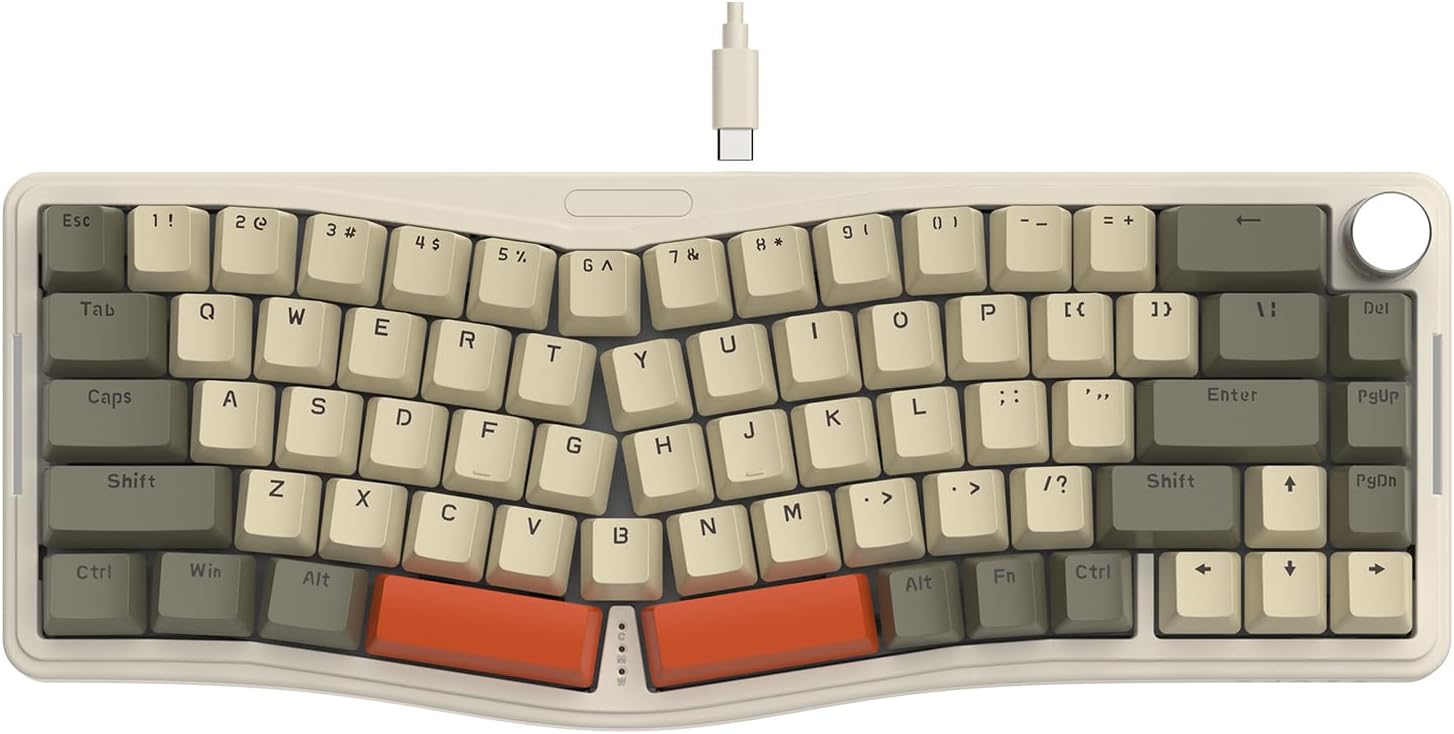
Figure 1: ATTACK SHARK AKS068 Wired Mechanical Gaming Keyboard (Gray/Red Switch variant)
1. การตั้งค่า
1.1 อะไรอยู่ในกล่อง
- ชุดคีย์บอร์ด
- Switches (Pre-lubed AS Red Switch)
- Keycaps (Tri-color ABS OEM keycaps)
- สาย USB Type-C แบบถอดได้
- ตัวดึงกุญแจ
- ตัวดึงสวิตช์
- สวิตช์เสริม
1.2 การประกอบทางกายภาพ
The AKS068 keyboard comes as a kit requiring simple assembly of switches and keycaps. Follow these steps:
- Place the keyboard kit on a stable surface.
- Carefully install the attached switches into the switch holes on the PCB. Ensure the two small copper contacts on each switch align with the holes in the socket. Apply firm, even pressure until the switch clicks into place.
- Install the attached keycaps onto the corresponding switch stems. Refer to the product images for the correct layout if needed.
- Connect the detachable Type-C USB cable to the keyboard's Type-C port and to your computer.
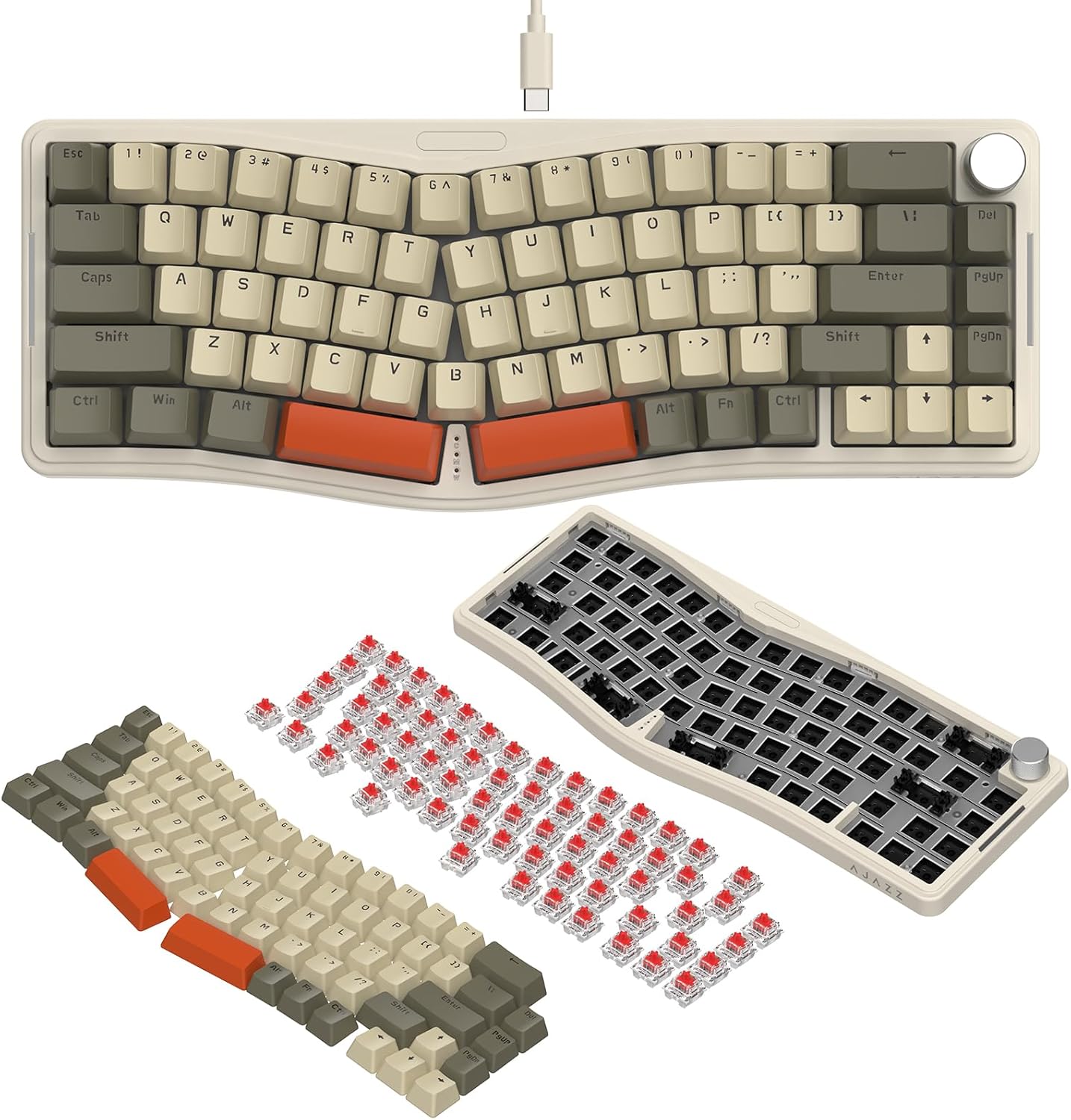
Figure 2: Step-by-step assembly of switches and keycaps onto the keyboard kit.
The keyboard features a double-layer adjustable stand on the underside, allowing you to set two levels of incline for ergonomic comfort. Simply flip out the desired stand level.

รูปที่ 3: ด้านล่าง view showing the double-layer adjustable stand and Type-C port.
1.3 Software Setup (VIA Programming)
The ATTACK SHARK AKS068 keyboard supports VIA software for advanced customization, including key remapping, lighting mode adjustments, and macro creation. To use VIA, you will need to download the software and the corresponding JSON file for the AKS068 model.
- Download the VIA software and JSON file from the official link: bit.ly/4amBzF8.
- Open the VIA software and load the downloaded JSON file.
- Ensure your keyboard is connected via the Type-C cable for VIA programming.
Video 1: This video demonstrates how to program the keyboard using VIA software, including loading JSON files and remapping keys.

Figure 4: Visual representation of the keyboard's compatibility with VIA software for customization.
2. คู่มือการใช้งาน
2.1 การใช้คีย์บอร์ดพื้นฐาน
The AKS068 features a 68-key TKL Alice layout, designed for ergonomic comfort. The split layout follows the natural resting position of your hands, reducing wrist tension.
- ป้องกันการกดซ้ำแบบเต็มปุ่ม: All keys support anti-ghosting, ensuring every keystroke is registered accurately, even during rapid typing or complex gaming commands.
- Windows/Mac Compatibility: The keyboard is compatible with both Windows and Mac operating systems. Use the switch located on the top edge of the keyboard to toggle between Win and Mac modes. Note that FN combination key functions may differ between systems.
2.2 ฟังก์ชันการทำงานของปุ่มหมุน
The anodized metal volume knob provides convenient control over your audio:
- เลี้ยวซ้าย/ขวา: ปรับระดับเสียงของระบบ
- กด: ปิดเสียงหรือเปิดเสียง

Figure 5: Illustration of the multi-functional metal knob and full key anti-ghosting feature.
2.3 RGB แบ็คไลท์
The keyboard features full RGB backlighting with south-facing LEDs, offering vibrant illumination on both the top and sides of the keyboard.
- 18 Backlight Modes (Top): ปรับโดยการกด เอฟเอ็น + \.
- 5 Backlight Modes (Sides): ปรับโดยการกด FN + เดล.
- Adjust Light Color/Brightness: ใช้ เอฟเอ็น + ← / →.
- Turn On/Off Top/Side Backlight: ใช้ FN + Z / X.
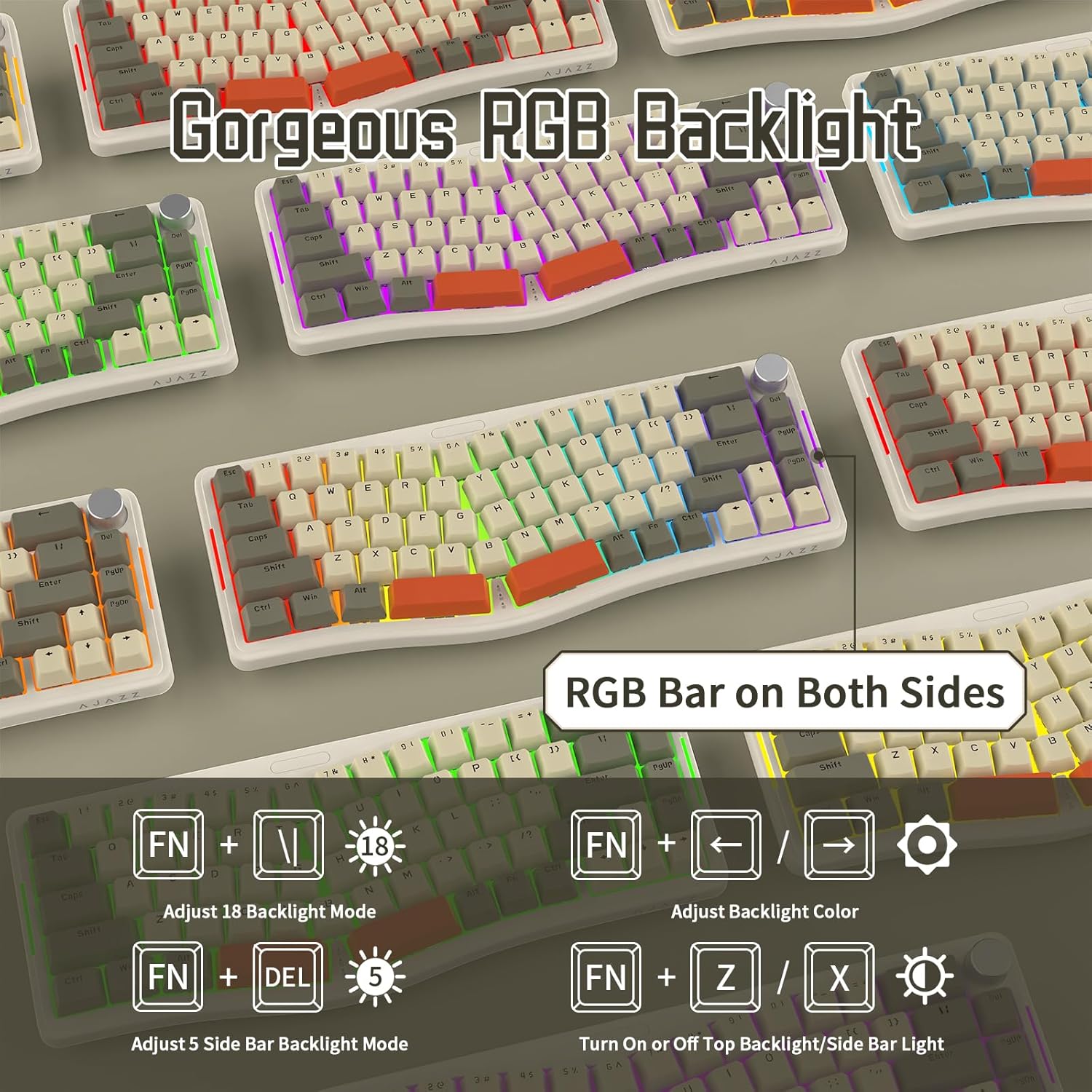
รูปที่ 6: เกินview of the RGB backlighting features and control shortcuts.
3. การบำรุงรักษา
3.1 การทำความสะอาดคีย์บอร์ดของคุณ
การทำความสะอาดเป็นประจำจะช่วยรักษารูปลักษณ์และฟังก์ชันการทำงานของแป้นพิมพ์:
- Use a soft, dry cloth to wipe down the keycaps and keyboard body.
- For deeper cleaning, you can remove keycaps using the provided keycap puller and use compressed air to clear debris from underneath.
- หลีกเลี่ยงการใช้สารเคมีรุนแรงหรือวัสดุที่มีฤทธิ์กัดกร่อน เนื่องจากอาจทำให้ปุ่มกดหรือพื้นผิวเสียหายได้
3.2 สวิตช์แบบ Hot-Swappable
The AKS068 features a hot-swappable PCB, allowing you to easily change switches without soldering. This supports most 3-pin/5-pin mechanical switches (e.g., Cherry MX, Kailh Box, Gateron, Outemu, Glorious, Epomaker, AKKO).
- หากต้องการถอดสวิตช์ ให้ใช้ตัวดึงสวิตช์ที่ให้มาจับด้านบนและด้านล่างของสวิตช์เบาๆ แล้วดึงขึ้น
- To install a new switch, align its pins with the holes on the PCB and press down firmly until it clicks into place. Ensure pins are not bent.
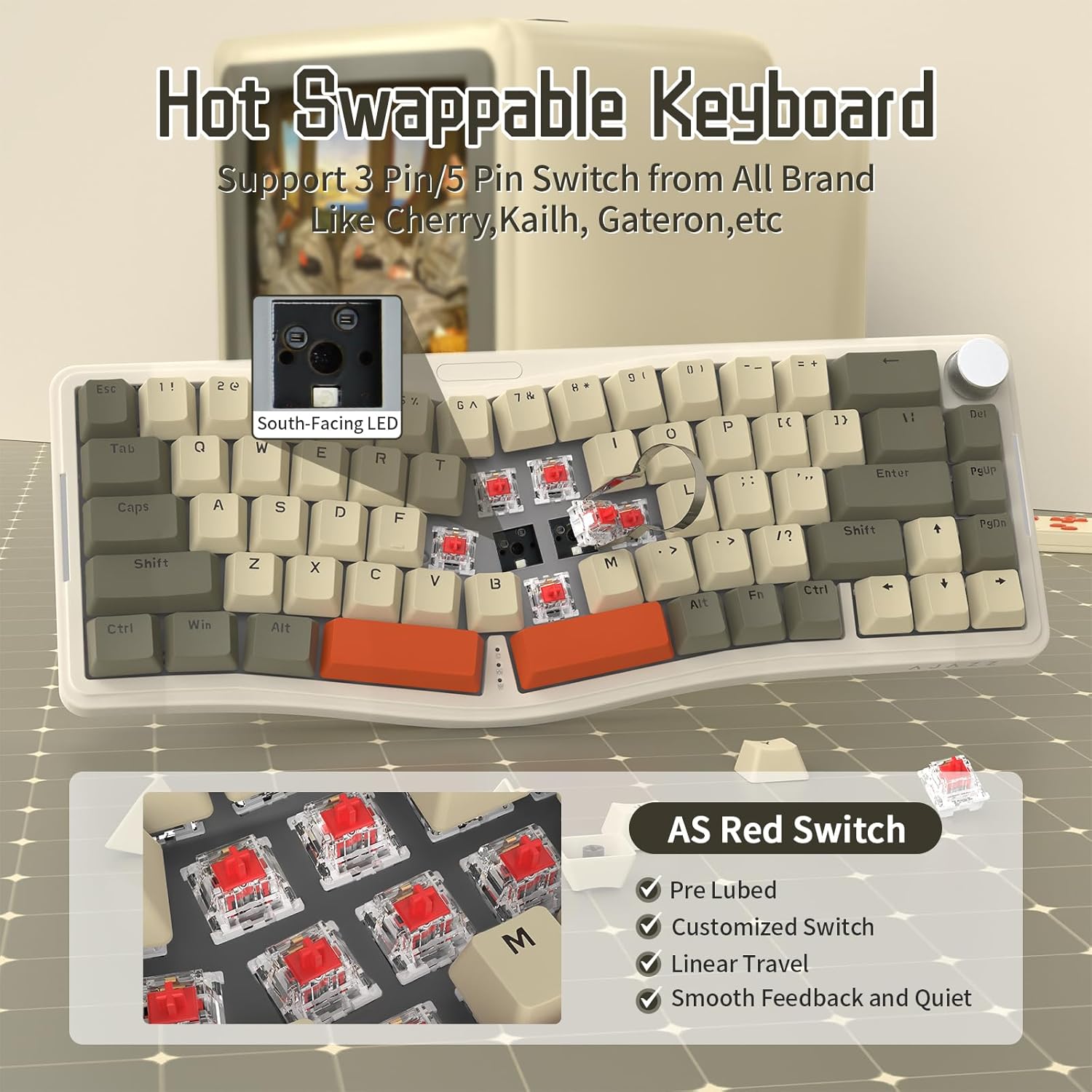
รูปที่ 7: การออกแบบที่สามารถถอดเปลี่ยนได้ขณะทำงาน ช่วยให้สามารถเปลี่ยนสวิตช์เชิงกลได้อย่างง่ายดาย
The keyboard utilizes a gasket mount structure and includes 4 layers of sound absorption material to minimize sound resonance and provide a comfortable typing experience.
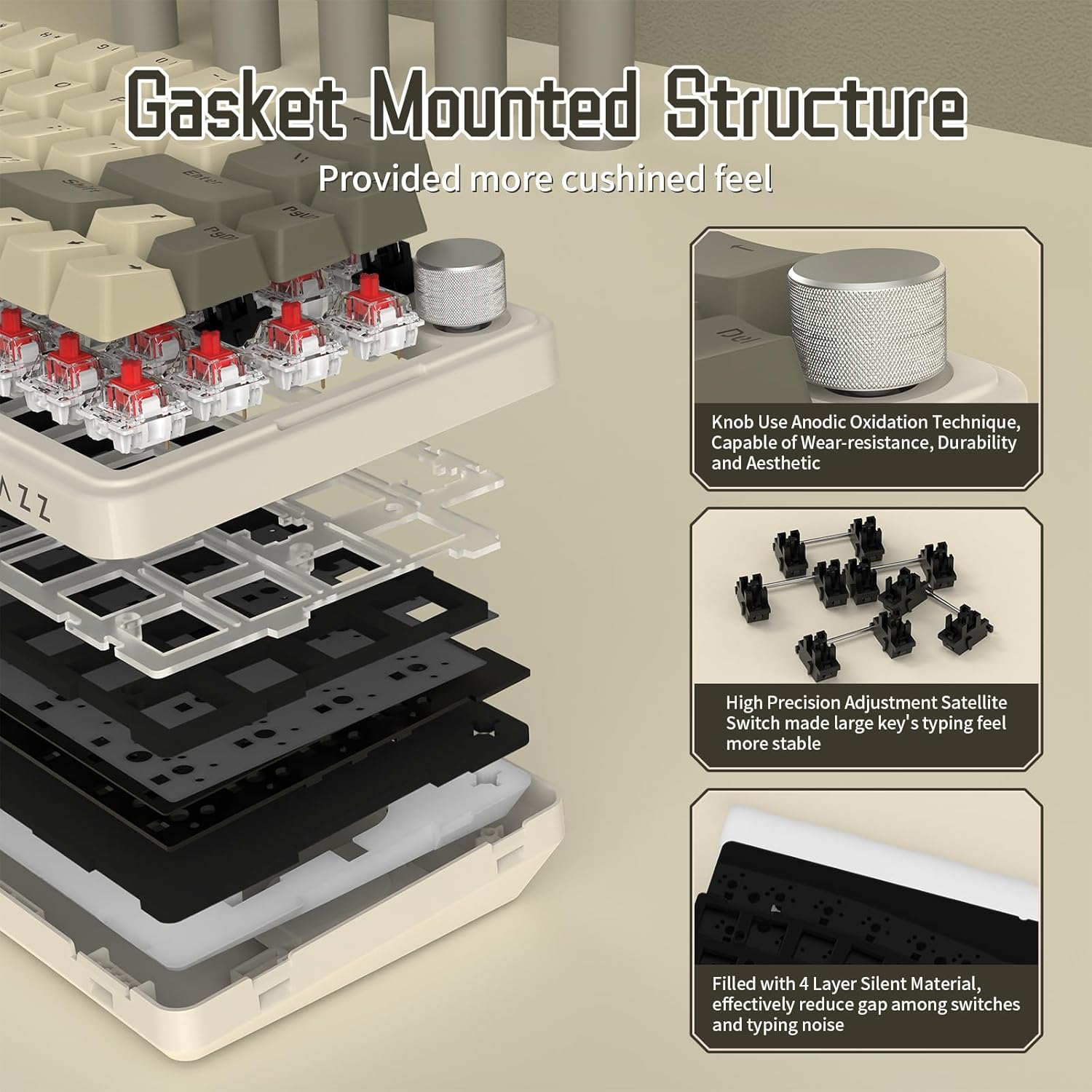
Figure 8: Diagram illustrating the gasket mount and sound absorption layers for enhanced typing feel.
4 การแก้ไขปัญหา
ปัญหาทั่วไปและแนวทางแก้ไข
- แป้นพิมพ์ไม่ตอบสนอง:
- ตรวจสอบให้แน่ใจว่าได้เสียบสาย Type-C เข้ากับแป้นพิมพ์และคอมพิวเตอร์อย่างแน่นหนาแล้ว
- ลองเชื่อมต่อคีย์บอร์ดกับพอร์ต USB อื่นบนคอมพิวเตอร์ของคุณ
- รีสตาร์ทเครื่องคอมพิวเตอร์ของคุณ
- ปุ่มไม่ทำงาน / พิมพ์ซ้ำ:
- Ensure switches are fully seated in their sockets. Gently press down on any loose switches.
- If a specific switch is faulty, replace it with one of the extra switches provided or a compatible replacement.
- RGB Backlight Not Working / Incorrect Colors:
- Check the backlight control shortcuts (เอฟเอ็น + \, FN + เดล, FN + Z / X) to ensure the backlight is enabled and set to the desired mode/brightness.
- If using VIA software, verify lighting settings within the application.
- VIA Software Not Recognizing Keyboard:
- Ensure the keyboard is connected via the Type-C cable. VIA typically requires a wired connection.
- Verify that you have loaded the correct JSON definition file for the AKS068 model in VIA.
- Ensure "Use V2 definitions (deprecated)" is enabled in VIA settings if prompted.
5. ข้อมูลจำเพาะ
| คุณสมบัติ | รายละเอียด |
|---|---|
| ยี่ห้อ | โจมตีฉลาม |
| หมายเลขรุ่น | AKS068 |
| เค้าโครง | 65% Alice Layout (68 Keys) |
| การเชื่อมต่อ | แบบมีสาย Type-C |
| ประเภทสวิตซ์ | AS Pre-lubed Linear Red Switch (Hot-Swappable) |
| วัสดุปุ่มกด | ABS OEM Keycaps |
| รูปแบบการติดตั้ง | ปะเก็นยึด |
| การแบ็คไลท์ | Full RGB (South-facing LEDs, 18 top modes, 5 side modes) |
| ความสามารถในการตั้งโปรแกรมได้ | VIA โปรแกรมได้ |
| คุณสมบัติพิเศษ | Volume Roller Knob, NKRO (N-Key Rollover), Double Layer Adjustable Stand, Sound Absorption Cotton |
| อุปกรณ์ที่รองรับ | แล็ปท็อป, พีซี, Mac |
| น้ำหนักสินค้า | 1.96 ปอนด์ |
| ขนาดแพ็คเกจ | 16.02 x 7.28 x 2.32 นิ้ว |
6. การรับประกันและการสนับสนุน
For warranty information and technical support, please refer to the official ATTACK SHARK brand store or contact their customer service directly. Details regarding product warranty and support channels are typically provided with your purchase or can be found on the manufacturer's official webเว็บไซต์.
Visit the official ATTACK SHARK Store: ร้านค้า ATTACK SHARK