
LC-Power LC-POWER
คู่มือผู้ใช้จอมอนิเตอร์พีซี LC-M27-QHD-180 ขนาด 27 นิ้ว
Brand: LC-Power | Model: LC-POWER
สินค้าเกินview
The LC-M27-QHD-180 is a 27-inch (68.58 cm) PC monitor designed to deliver a high-quality visual experience. It features a QHD resolution of 2560 x 1440 pixels, providing sharp and detailed images. The IPS panel ensures an ultra-fast 1 ms response time, excellent color accuracy, and wide viewing angles. With a refresh rate of 180 Hz, content display is very fluid, making it suitable for fast-paced applications and gaming.
Key features include Adaptive Sync for smooth gameplay, Picture-by-Picture (PbP) and Picture-in-Picture (PiP) for multi-source viewing, and a height-adjustable stand with integrated cable management for ergonomic use. The monitor also supports a pivot feature, allowing it to be rotated 90 degrees for vertical document viewการไอเอ็นจี
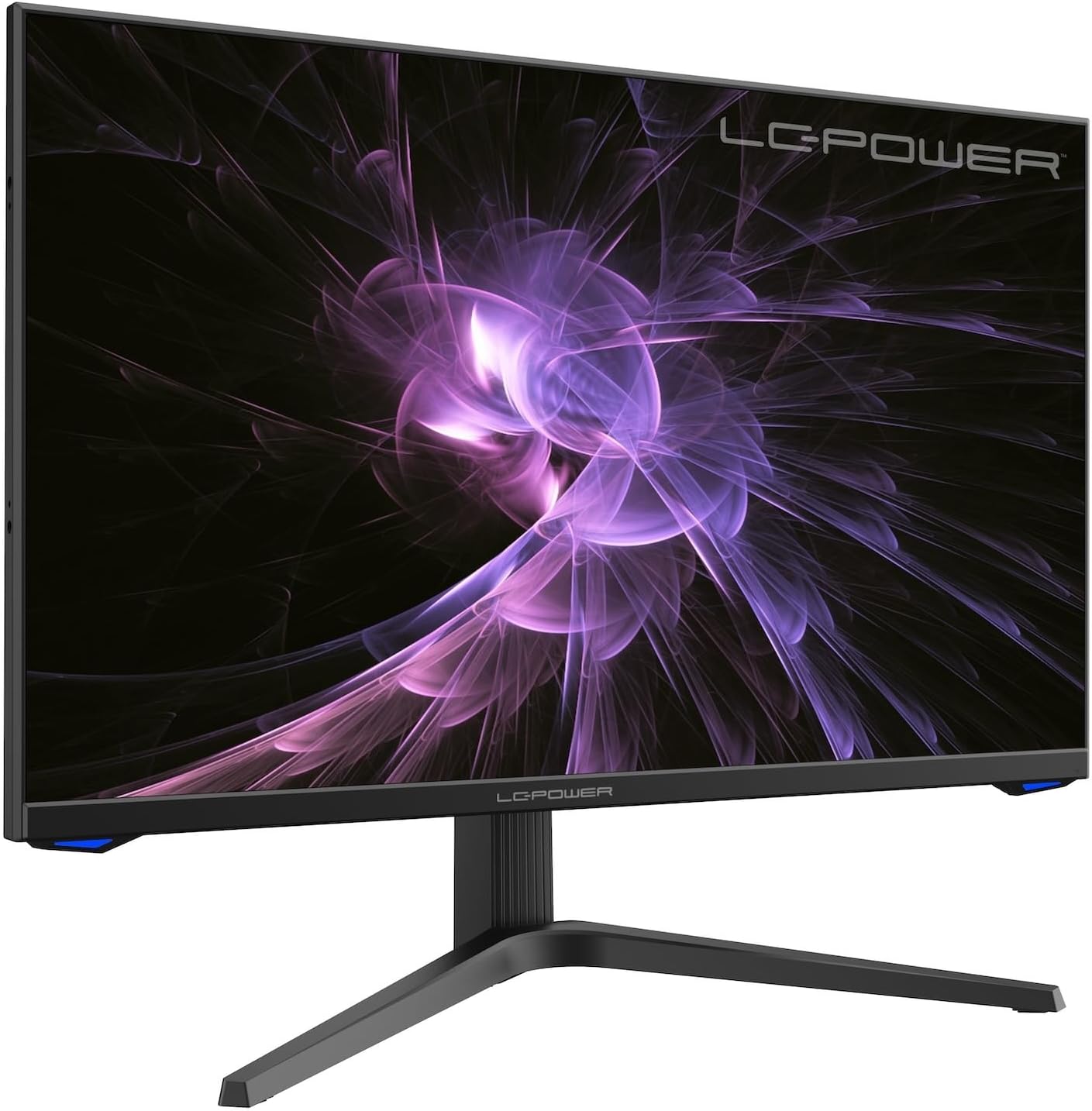
ภาพ: ด้านหน้า view of the LC-M27-QHD-180 monitor, showcasinด้วยการแสดงผลและการออกแบบที่เพรียวบาง
คู่มือการติดตั้ง
1. การแกะกล่องและเนื้อหา
Carefully remove all components from the packaging. Please verify that all items listed below are present:
- LC-M27-QHD-180 Monitor
- ฐานจอภาพ
- สาย HDMI
- อะแดปเตอร์แปลงไฟ
- วัสดุสำหรับติดตั้ง
- คู่มือการใช้งาน (เอกสารนี้)
2. การประกอบ
การติดฐาน:
- วางจอภาพคว่ำหน้าลงบนพื้นผิวที่นุ่มและสะอาดเพื่อป้องกันรอยขีดข่วน
- Align the stand arm with the slot on the back of the monitor.
- ยึดขาตั้งเข้ากับจอภาพโดยใช้สกรูที่ให้มา
- Attach the base plate to the stand arm and tighten the screws.
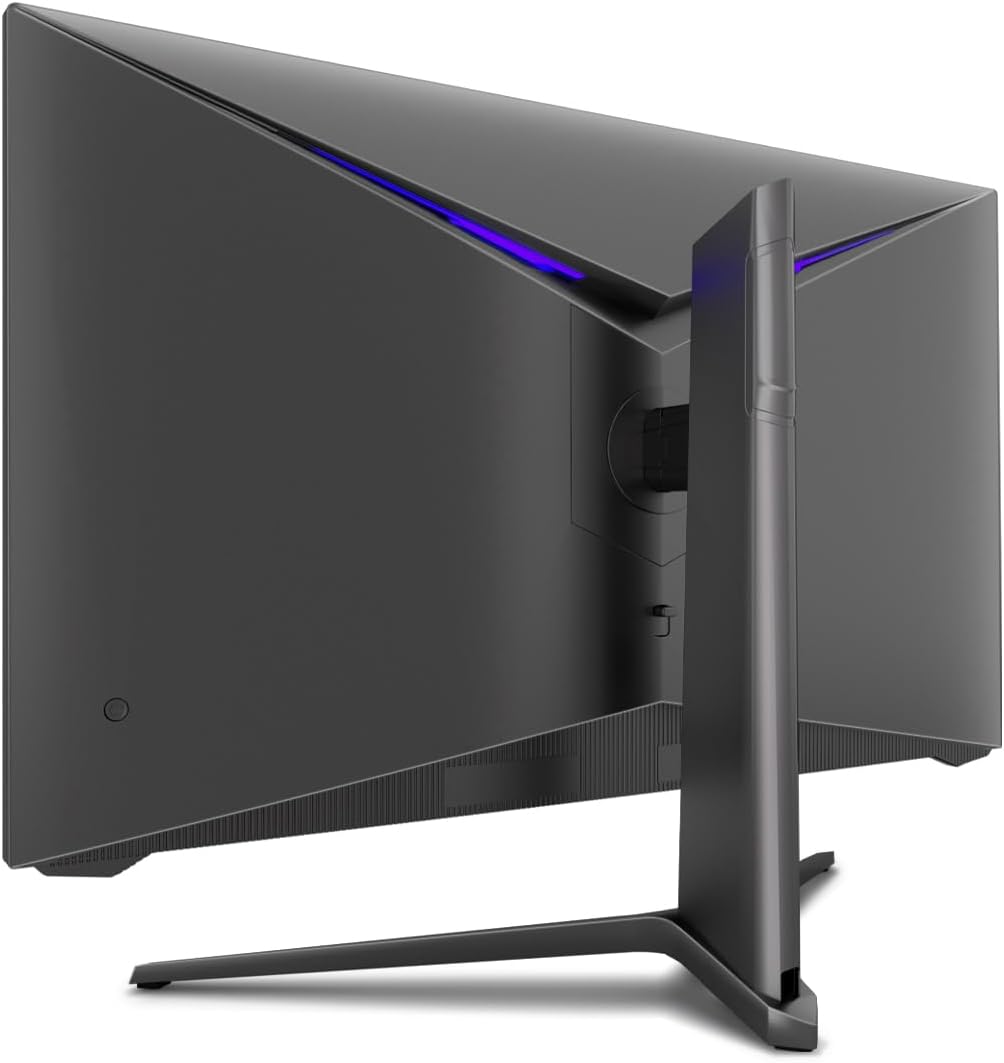
ภาพ: ด้านหลัง view of the monitor, illustrating the stand assembly area and cable management design.
การติดตั้ง VESA: The monitor is VESA compatible. If you intend to use a VESA mount, remove the stand arm after assembly and attach your VESA mount according to its instructions.
3. การเชื่อมต่อจอภาพ
- การเชื่อมต่อไฟฟ้า: Connect the power adapter to the monitor's power input and then plug the power adapter into a wall outlet.
- การเชื่อมต่อวิดีโอ: Connect one end of the provided HDMI cable to the HDMI port on your computer's graphics card and the other end to an HDMI input port on the monitor.
- ตรวจสอบให้แน่ใจว่าการเชื่อมต่อทั้งหมดมีความปลอดภัย
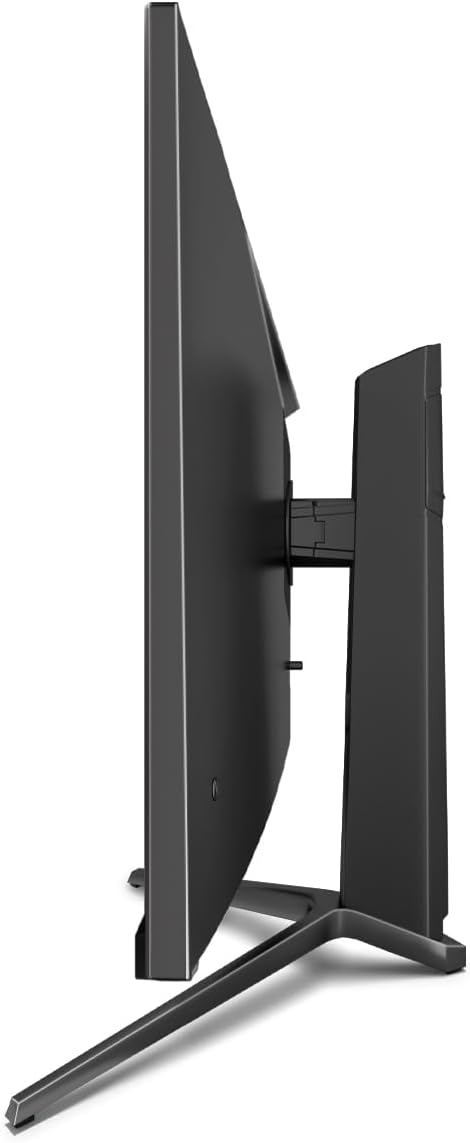
ภาพ: ด้านข้าง view of the monitor, showing its slim design and connectivity ports.
4. เปิดเครื่องครั้งแรก
Press the power button on the monitor. The power indicator light should illuminate. Your computer should automatically detect the new display. If not, adjust display settings in your operating system.
คำแนะนำการใช้งาน
เมนูที่แสดงบนหน้าจอ (OSD)
The monitor features an On-Screen Display (OSD) menu for adjusting various settings. Use the control buttons located on the monitor (typically on the back or bottom edge) to navigate the OSD menu.
คุณสมบัติหลักและการตั้งค่า
- การซิงโครไนซ์แบบปรับได้: This technology synchronizes the monitor's refresh rate with your graphics card's frame rate, reducing screen tearing and stuttering for a smoother gaming experience. Enable this feature in your graphics card settings and on the monitor's OSD if applicable.
- พิกัด: Overdrive pre-calculates and accelerates specific pixels, significantly reducing response times for both black-and-white and color nuance changes, resulting in clearer motion.
- แสงสีฟ้าต่ำ: The Low Blue Light filter reduces the emission of harmful blue light from the screen, minimizing eye strain and fatigue during prolonged use. This feature can be adjusted via the OSD menu.
- Picture-by-Picture (PbP) / Picture-in-Picture (PiP):
- พีบีพี: Allows you to display content from two different input sources side-by-side on the same screen.
- พิพ: Displays the image from a second source as a smaller, scalable window (up to 25% of original size) that can be positioned anywhere on the main screen.
- FPS / RTS Modes: Dedicated display modes optimized for First Person Shooter (FPS) and Real-Time Strategy (RTS) games. These modes enhance visibility and provide a better gaming experience by adjusting display parameters.
- คุณสมบัติเดือย: The monitor can be rotated 90 degrees to a vertical (portrait) orientation. This is particularly useful for reading documents, coding, or web เรียกดู

Image: Diagram illustrating the monitor's ability to pivot 90 degrees for vertical viewการไอเอ็นจี
Note: After physically rotating the monitor, you must adjust the display orientation settings within your operating system (e.g., Windows Display Settings) to match the new physical orientation.
- Height Adjustable Stand & Cable Management: The integrated stand allows for height adjustment to achieve an ergonomic viewing position. Cables can be neatly routed through the stand's built-in cable management system to maintain a tidy workspace.

Image: Close-up of the monitor's stand, highlighting the integrated cable management feature.
การซ่อมบำรุง
เพื่อให้จอภาพของคุณมีอายุการใช้งานยาวนานและมีประสิทธิภาพสูงสุด โปรดปฏิบัติตามคำแนะนำในการบำรุงรักษาดังต่อไปนี้:
- การทำความสะอาดหน้าจอ: เช็ดหน้าจอเบาๆ ด้วยผ้านุ่มไม่เป็นขุยที่ออกแบบมาสำหรับอุปกรณ์อิเล็กทรอนิกส์โดยเฉพาะ สำหรับรอยฝังแน่น ให้เช็ดเบาๆampชุบผ้าด้วยน้ำหรือน้ำยาทำความสะอาดที่ไม่กัดกร่อนและปลอดภัยสำหรับจอภาพ ห้ามฉีดของเหลวลงบนหน้าจอโดยตรง
- การทำความสะอาด Casing: ใช้ผ้าแห้งนุ่มๆ เช็ดทำความสะอาดจอภาพasing. หลีกเลี่ยงการใช้สารเคมีรุนแรงหรือวัสดุที่มีฤทธิ์กัดกร่อน
- การระบายอากาศ : ตรวจสอบให้แน่ใจว่าช่องระบายอากาศบนจอภาพไม่ได้ถูกปิดกั้นเพื่อป้องกันความร้อนสูงเกินไป
- หมดแรง: ควรปิดจอภาพและถอดปลั๊กออกจากเต้าเสียบทุกครั้งก่อนทำความสะอาด หรือหากจะไม่ใช้งานเป็นเวลานาน
- หลีกเลี่ยงแสงแดดโดยตรง: อย่าวางจอภาพไว้ในที่ที่มีแสงแดดส่องโดยตรงหรือในที่ที่มีความร้อนสูงเกินไป
การแก้ไขปัญหา
If you encounter issues with your LC-M27-QHD-180 monitor, please refer to the following common troubleshooting steps:
| ปัญหา | สาเหตุที่เป็นไปได้ | สารละลาย |
|---|---|---|
| ไม่มีภาพบนหน้าจอ | จอภาพไม่ได้เปิดใช้งาน; สายวิดีโอหลวมหรือหลุด; เลือกแหล่งสัญญาณเข้าไม่ถูกต้อง | Ensure power cable is securely connected and monitor is turned on. Check video cable connections (HDMI). Select the correct input source via the OSD menu. |
| ภาพเบลอหรือบิดเบี้ยว | การตั้งค่าความละเอียดไม่ถูกต้อง; ปัญหาเกิดจากสายเคเบิลวิดีโอ | Set the display resolution to 2560 x 1440 pixels in your computer's display settings. Try a different HDMI cable if available. |
| No sound (if monitor has speakers/audio out) | Audio cable not connected; volume too low; incorrect audio output selected on computer. | Ensure audio cable (if used) is connected. Adjust monitor volume via OSD. Select the monitor as the default audio output device in your computer's sound settings. |
| หน้าจอกะพริบ | Refresh rate mismatch; faulty cable; graphics driver issue. | Ensure refresh rate is set to 180 Hz in display settings. Try a different video cable. Update your graphics card drivers. |
For more detailed troubleshooting or persistent issues, please consult the full user manual or contact LC-Power customer support.
ข้อมูลจำเพาะ
| คุณสมบัติ | รายละเอียด |
|---|---|
| หมายเลขรุ่น | LC-POWER (LC-M27-QHD-180) |
| ขนาดหน้าจอ | 27 นิ้ว (68.58 ซม.) |
| ปณิธาน | QHD Wide 1440p (2560 x 1440 pixels) |
| อัตราส่วนภาพ | 16:9 น. |
| อัตราการรีเฟรช | 180 เฮิรตซ์ |
| เวลาตอบสนอง | 1 มิลลิวินาที |
| ประเภทแผง | ไอพีเอส |
| พื้นผิวหน้าจอ | Flach (Flat) |
| ขนาดสินค้า (กว้าง x ยาว x สูง) | 28.74 x 18.9 x 8.66 นิ้ว |
| น้ำหนักสินค้า | 17.73 ปอนด์ |
| ผู้ผลิต | แอลซีพาวเวอร์ |
| ASIN | B0CQJNV3YR |
| วันที่พร้อมใช้งานครั้งแรก | 31 พฤษภาคม 2024 |

Image: EU Energy Label for the LC-M27-QHD-180 monitor. For more details, scan the QR code or visit eprel.ec.europa.eu/qr/1758049.
การรับประกันและการสนับสนุน
The LC-M27-QHD-180 monitor is manufactured by LC Power.
- การรับประกันทั่วไป: The product comes with a 3-year general warranty from the date of purchase.
- Guaranteed Availability of Spare Parts: Spare parts are guaranteed to be available for 7 years from the date of placing the product on the market.
- รับประกันการสนับสนุนผลิตภัณฑ์: Product support is guaranteed for 7 years.
For technical support, warranty claims, or service inquiries, please contact LC-Power customer support through their official channels. Refer to the packaging or the brand's official webไซต์สำหรับข้อมูลการติดต่อที่เฉพาะเจาะจง