
1. บทนำ
This manual provides detailed instructions for the installation, operation, and maintenance of your UNITOPSCI Android Car Stereo, Model A7321A2516KTA3. Please read this manual thoroughly before use to ensure proper functionality and safety.

Figure 1.1: UNITOPSCI Android Car Stereo with accessories.
2. ความเข้ากันได้และหมายเหตุสำคัญ
This UNITOPSCI Android Car Stereo is specifically designed for the following vehicle models:
- Subaru Legacy (2010, 2011, 2012, 2013, 2014)
- Subaru Outback (2010, 2011, 2012, 2013, 2014)
หมายเหตุความเข้ากันได้ที่สำคัญ:
- หน่วยนี้เป็น ไม่เข้ากัน with vehicles equipped with the original Harman Kardon Sound System. If your vehicle has this system, please contact customer support for guidance on suitable wiring harnesses.
- For vehicles without an OEM sound system, the provided wire harness is typically plug-and-play.
- This unit is suitable for vehicles with a small original screen. If your vehicle has a large original screen, a different frame may be required.

Figure 2.1: Vehicle compatibility overview.
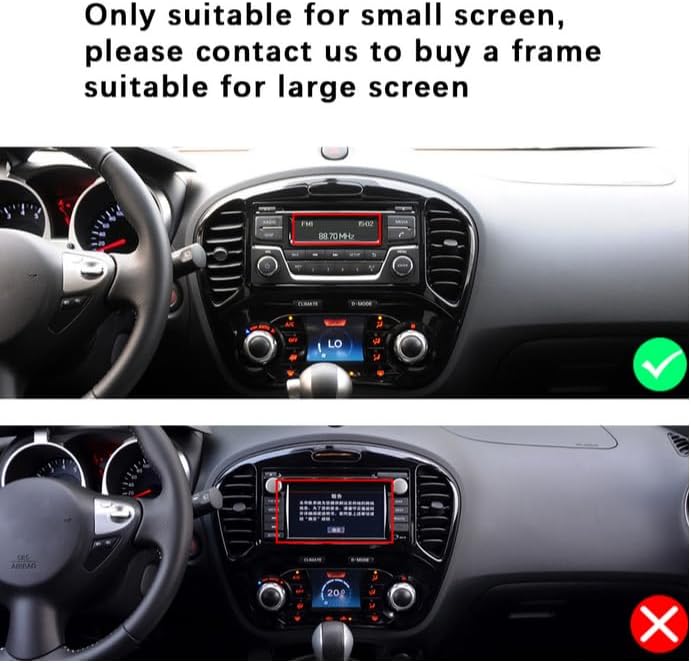
Figure 2.2: Visual guide for screen size compatibility.
3. เนื้อหาบรรจุภัณฑ์
โปรดตรวจสอบว่ารายการทั้งหมดที่ระบุไว้ด้านล่างมีอยู่ในแพ็คเกจของคุณหรือไม่:
- Android Car Stereo Unit (9-inch display)
- หลัง View Camera (12 LEDs, night vision, waterproof, 170-degree angle)
- อาร์ซีเอเคเบิ้ล
- สายไฟ
- เครื่องมือติดตั้ง
- สายเคเบิลอินพุตกล้อง
- เสาอากาศ GPS
- USB Cables (6-pin and 4-pin)
- คู่มือการใช้งาน (เอกสารนี้)

รูปที่ 3.1: ส่วนประกอบภายในบรรจุภัณฑ์และขนาดของผลิตภัณฑ์
4. คู่มือการติดตั้ง
แนะนำให้ติดตั้งโดยช่างผู้เชี่ยวชาญ โปรดตรวจสอบให้แน่ใจว่าได้ถอดแบตเตอรี่รถยนต์ออกก่อนเริ่มการติดตั้ง
4.1. การตรวจสอบก่อนการติดตั้ง
- Verify vehicle compatibility (refer to Section 2).
- ตรวจสอบว่าสิ่งของในบรรจุภัณฑ์ครบถ้วนหรือไม่
4.2. Removal of Original Unit
- Carefully remove the trim panels surrounding the original car stereo.
- Unscrew and detach the original stereo unit.
- Disconnect all wiring harnesses and antenna cables from the original unit.
4.3. Installing the New Unit
- Connect the provided power cable and other necessary harnesses to the UNITOPSCI Android Car Stereo.
- Connect the GPS antenna and route it to a suitable location (e.g., dashboard, A-pillar) for optimal signal reception.
- If installing the backup camera, route its cable from the rear of the vehicle to the head unit's camera input. Refer to Section 4.4 for wiring details.
- ค่อยๆ เลื่อนชุดเครื่องเสียงใหม่เข้าไปในช่องบนแผงหน้าปัดอย่างระมัดระวัง
- Secure the unit with screws and reattach the trim panels.

Figure 4.1: Visual comparison of dashboard before and after installation.

Figure 4.2: Installation comparison for proper fitment.
4.4. ด้านหลัง View แผนภาพการเดินสายไฟของกล้อง
To connect the backup camera:
- Connect the camera's video output to the head unit's 'CAM IN' or 'REVERSE IN' port.
- Connect the camera's power wire (red) to the vehicle's reverse light positive (+12V).
- Connect the camera's ground wire (black) to a suitable chassis ground (GND).
- Connect the trigger wire (labeled 'back' or 'reverse' on the power cable) from the head unit to the reverse light positive. This signals the head unit to switch to the camera view เมื่อเข้าเกียร์ถอยหลัง

รูปที่ 4.3: ด้านหลัง View แผนผังการเดินสายไฟของกล้องถ่ายรูป
5. การตั้งค่าเริ่มต้น
After installation, turn on your vehicle's ignition to power on the stereo. The unit will boot into the Android operating system.
- การตั้งค่าภาษาและเวลา: ไปที่ 'การตั้งค่า' เพื่อตั้งค่าภาษา เขตเวลา และวันที่ที่คุณต้องการ
- การเชื่อมต่อ Wi-Fi: Go to 'Settings' > 'Network & Internet' > 'Wi-Fi' to connect to an available Wi-Fi network. This is necessary for online maps, app downloads, and internet browsing.
- GPS Configuration: Ensure the GPS antenna is properly connected. The system should automatically detect GPS signals. You can verify this in the GPS settings.
- การเรียนรู้การควบคุมพวงมาลัย: If your vehicle supports steering wheel controls, go to 'Settings' > 'Steering Learn' to program the buttons. Follow the on-screen instructions to assign functions to each button.
6. คู่มือการใช้งาน
6.1. ฟังก์ชั่นบลูทูธ
The built-in Bluetooth 4.2 module allows for hands-free calling and audio streaming.
- การจับคู่: On your mobile device, search for Bluetooth devices and select 'UNITOPSCI' (or similar name). Confirm the pairing code if prompted.
- การโทรแบบแฮนด์ฟรี: Once paired, you can make and receive calls directly from the stereo's touch screen. The unit supports automatic phone book download.
- การสตรีมเสียง: Play music from your paired phone through the car stereo speakers.

รูปที่ 6.1: อินเทอร์เฟซบลูทูธสำหรับการโทรและการฟังเพลง

Figure 6.2: Bluetooth handsfree calling in use.
6.2. ระบบนำทาง GPS
The unit comes with built-in GPS and preloaded offline maps. Online navigation is also supported via Wi-Fi.
- แผนที่ออฟไลน์: The stereo includes free offline maps. You can download additional maps via Wi-Fi using applications like 'Here WeGo'.
- การนำทางออนไลน์: Connect to Wi-Fi to use online navigation apps for real-time traffic updates and more detailed mapping.

รูปที่ 6.3: การนำทาง GPS ในการใช้งานจริง

Figure 6.4: Built-in WiFi and GPS Navigation features.
6.3. การเชื่อมต่อ Wi-Fi
Connect the stereo to a Wi-Fi hotspot (e.g., from your phone) to access online features.
- Browse the internet, watch real-time TV shows, use social media, and download apps from the app store.
6.4. ฟังก์ชัน Mirror Link
Mirror Link allows you to display your smartphone's screen on the car stereo.
- For iPhone (iOS): One-way operation via Wi-Fi. The phone screen is mirrored to the stereo.
- สำหรับโทรศัพท์ Android: Two-way operation via Wi-Fi or USB. You can control your phone from the stereo's touch screen.

รูปที่ 6.5: ฟังก์ชันการเชื่อมโยงมิเรอร์

Figure 6.6: Mirror Link for iOS and Android devices.
6.5. วิทยุ FM/RDS
Access local radio stations and enjoy news, music, and weather broadcasts.
- เครื่องนี้รองรับวิทยุ FM พร้อมสถานีที่ตั้งค่าล่วงหน้าได้ 18 สถานี
- RDS (Radio Data System) provides additional information like station name and song title where available.

รูปที่ 6.7: อินเทอร์เฟซวิทยุ FM/RDS
6.6. ระบบควบคุมพวงมาลัย (SWC)
Control basic functions of the stereo using your vehicle's existing steering wheel buttons for convenience and safety.
- Refer to Section 5 for initial setup of SWC.
- Functions typically include volume control, track skipping, mode switching, and answering/ending calls.

รูปที่ 6.8: การตั้งค่าการควบคุมพวงมาลัย
6.7. อินพุตกล้องสำรอง
The included 12LEDs rear view กล้องให้ความคมชัด view ขณะถอยหลัง
- The stereo automatically switches to display the HD reversing image when the vehicle is put into reverse gear.
- Features include night vision, a 170-degree viewing angle, and waterproof design for enhanced parking safety.

รูปที่ 6.9: กล้องสำรอง view บนหน้าจอสเตอริโอ

Figure 6.10: Parking Assistant features.
6.8. EQ Audio Settings
ปรับเอาต์พุตเสียงให้ตรงตามความต้องการของคุณโดยใช้อีควอไลเซอร์ในตัว
- The digital chip allows adjustment of delay time, loudness, equalizer settings (e.g., Jazz, Pop, Rock, Classical), and balance.

Figure 6.11: EQ Sound Settings interface.
6.9. ฟังก์ชั่นแยกหน้าจอ
The unit supports split-screen display, allowing you to run two applications simultaneously.
- เช่นampเช่น ใช้การนำทางด้านหนึ่งและการเล่นเพลงอีกด้านหนึ่ง

รูปที่ 6.12: ฟังก์ชันการแบ่งหน้าจอ
7 การแก้ไขปัญหา
If you encounter issues, please refer to the following common problems and solutions before contacting support.
| ปัญหา | สาเหตุที่เป็นไปได้ | สารละลาย |
|---|---|---|
| Head unit not turning on when car starts | Pink wire or KEY 1 blocking electricity. | Locate the pink wire or KEY 1 wire. Cut it off and ensure it is isolated. This wire may be designed to prevent operation while driving, but can interfere with normal power-on. |
| ไม่มีเสียงออก | Incorrect wiring; volume too low; mute function active; incompatible sound system. | Check all speaker wire connections. Ensure volume is up and not muted. Verify compatibility with your vehicle's sound system (especially Harman Kardon). Check EQ settings. |
| ปัญหาการเชื่อมต่อบลูทูธ | Phone not paired; interference; unit/phone software glitch. | Ensure Bluetooth is enabled on both devices. Delete previous pairings and re-pair. Restart both the stereo and your phone. |
| สัญญาณ GPS อ่อนหรือไม่แม่นยำ | GPS antenna placement; environmental interference. | Ensure the GPS antenna is mounted in a clear, unobstructed location (e.g., dashboard, not under metal). Check antenna connection. |
| กล้องสำรองไม่แสดงผล | Incorrect wiring; camera malfunction. | Verify all camera wiring connections, especially the trigger wire and power supply to the reverse light. Check camera for damage. |
8. ข้อมูลจำเพาะ

Figure 8.1: Core system specifications.
| คุณสมบัติ | รายละเอียด |
|---|---|
| หมายเลขรุ่น | A7321A2516KTA3 |
| ระบบปฏิบัติการ | แอนดรอยด์ |
| ซีพียู | ควอดคอร์ |
| แรม | 1GB |
| รอม | 32GB |
| ขนาดจอแสดงผล | 9 นิ้ว |
| ปณิธาน | 1024 x 600 |
| กำลังขับ | 4x45วัตต์ |
| เวอร์ชันบลูทูธ | 4.2 |
| เทคโนโลยีการเชื่อมต่อ | ไร้สาย (Wi-Fi, Bluetooth) |
| คุณสมบัติพิเศษ | Backup Camera Input, Bluetooth, FM Radio, Mirror Link, Touchscreen, GPS Navigation, Steering Wheel Control |
| โหมดเอาต์พุตเสียง | สเตอริโอ |
| น้ำหนักสินค้า | 3.78 ปอนด์ |
| ขนาดแพ็คเกจ | 16.73 x 13.07 x 4.06 นิ้ว |

Figure 8.2: Display resolution comparison.
9. การรับประกันและการสนับสนุน
UNITOPSCI is committed to providing high-quality products and satisfactory services.
- การรับประกัน: ผลิตภัณฑ์นี้มาพร้อมกับการรับประกัน 1 ปี
- นโยบายการเปลี่ยนทดแทน: สามารถเปลี่ยนสินค้าได้ภายใน 24 เดือน สำหรับสินค้าที่ตรงตามเงื่อนไข
- นโยบายการคืนสินค้า: 60-day no-worry return period.
- การสนับสนุนด้านเทคนิค: Lifetime after-sales consultation and technical support are provided.
- ติดต่อฝ่ายสนับสนุน: For any inquiries or technical assistance, please contact UNITOPSCI customer support via email at UNITOPSCI@126.com. Expect a quick response within 16 hours.

Figure 9.1: UNITOPSCI Customer Support Information.