
1. บทนำ
ขอบคุณสำหรับการซื้อasing the Generic Smart Coffee Table. This innovative furniture piece combines a modern design with advanced functionalities, including a built-in refrigerator, wireless charging, USB ports, and power outlets. This manual provides essential information for safe operation, installation, and maintenance to ensure optimal performance and longevity of your product.

Image 1.1: The Generic Smart Coffee Table in a modern living room. This image shows the table's sleek black design and its integration into a home environment.
2. ข้อมูลด้านความปลอดภัย
To prevent injury to yourself and others, or damage to your appliance, please read all instructions before using this product. Keep this manual in a safe place for future reference.
- ความปลอดภัยทางไฟฟ้า: ตรวจสอบให้แน่ใจว่าเต้ารับไฟฟ้าตรงกับปริมาตรtage requirements of the table. Do not overload the power socket. Always plug the table into a grounded outlet.
- น้ำและความชื้น: Do not expose the table to excessive moisture or rain. Avoid spilling liquids directly onto the charging surfaces or power outlets.
- การระบายอากาศ : Ensure adequate clearance around the table for proper ventilation of the refrigeration unit. Do not block air vents.
- การจัดวาง: Place the table on a stable, level surface to prevent tipping. Keep away from direct sunlight or heat sources.
- เด็กและสัตว์เลี้ยง: Keep children and pets away from moving parts and electrical components.
- การซ่อมบำรุง: ตัดการเชื่อมต่อไฟฟ้าก่อนทำความสะอาดหรือดำเนินการบำรุงรักษาใดๆ
3. การตั้งค่า
3.1 การแกะกล่อง
- Carefully remove the smart coffee table from its packaging.
- Inspect the table for any signs of damage during transit. If damaged, do not plug in and contact customer support.
- ถอดวัสดุบรรจุภัณฑ์ทั้งหมดออก รวมถึงฟิล์มหรือเทปป้องกันด้วย
3.2 การจัดวาง
- Choose a location with a stable, level floor.
- Ensure there is sufficient space around the table for air circulation, especially at the back and sides where vents are located.
- Avoid placing the table near direct heat sources (e.g., radiators, ovens) or in direct sunlight.
3.3 การเชื่อมต่อสายไฟ
- Locate the power cord at the back of the table.
- เสียบสายไฟเข้ากับเต้ารับไฟฟ้าที่มีสายดินให้แน่น
- Allow the refrigeration unit to stand upright for at least 2 hours before plugging it in to allow refrigerants to settle.
4. คู่มือการใช้งาน
4.1 Refrigeration Unit
The smart coffee table features dual refrigerated drawers for convenient storage of beverages and snacks.
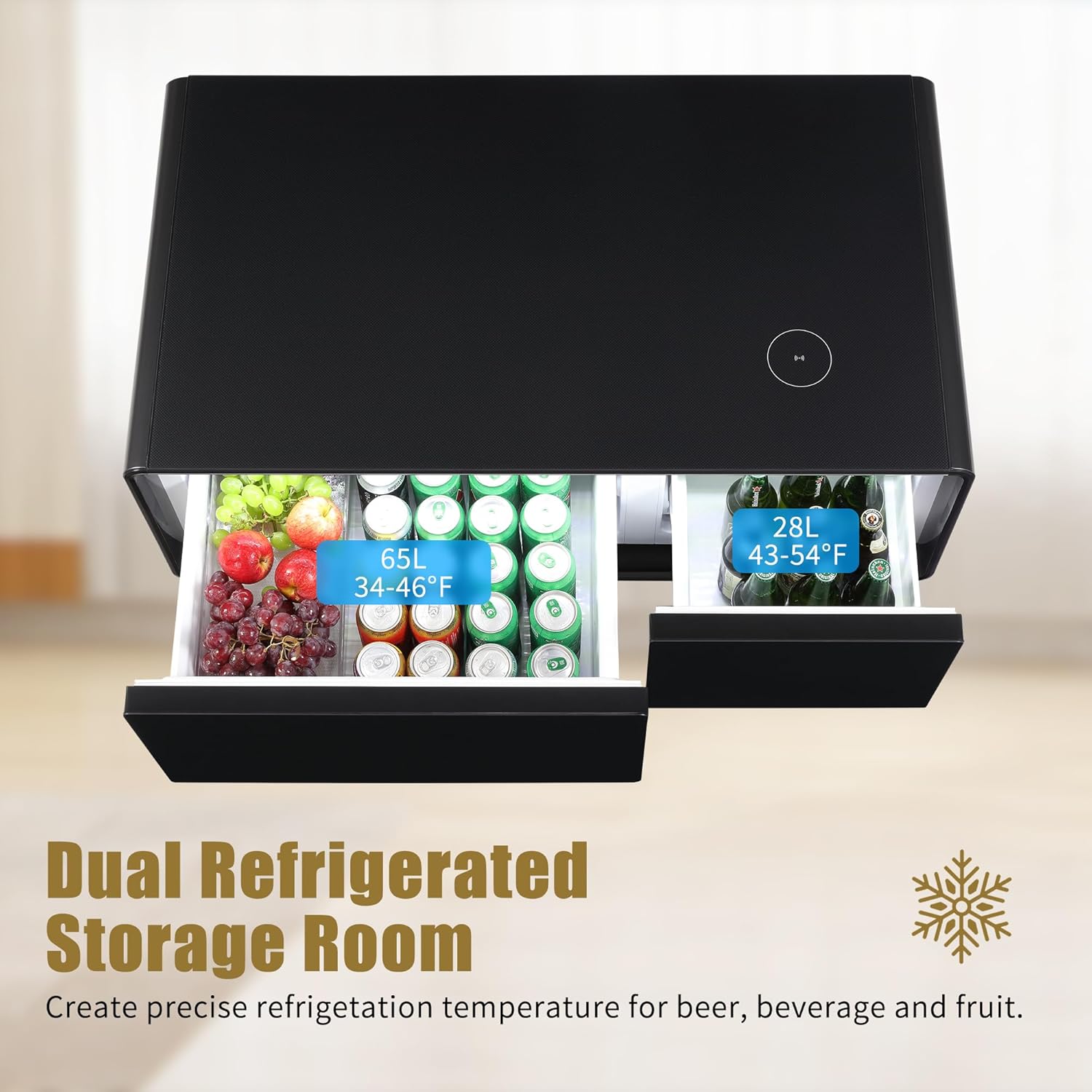
Image 4.1: The dual refrigerated drawers open, displaying their capacity and individual temperature ranges. The left drawer is shown with a capacity of 65L and a temperature range of 34-46°F, while the right drawer has a capacity of 28L and a range of 43-54°F.
- Left Drawer: Offers a temperature range of 34-46°F (1-8°C) for colder items.
- Right Drawer: Offers a temperature range of 43-54°F (6-12°C) for slightly less chilled items.
- การควบคุมอุณหภูมิ: Use the mechanical temperature control knob located on the side of the table to adjust the cooling level for both drawers. Settings typically range from 1 (warmest) to 5 (coldest).

Image 4.2: Close-up of the 5-level temperature control knob on the side of the smart coffee table. This knob allows users to adjust the cooling intensity for the refrigerated drawers.
4.2 การชาร์จแบบไร้สาย
The tabletop features a 10W wireless charging pad for compatible devices.
- Place your Qi-compatible smartphone or device directly onto the designated wireless charging area on the tabletop.
- Ensure the device is centered on the charging pad for optimal performance.
- A charging indicator (if present on your device) will confirm charging has begun.

Image 4.3: A smartphone placed on the tabletop, indicating active 10W wireless charging. This demonstrates the convenience of charging devices directly on the table surface.
4.3 USB Charging Ports and Power Socket
The table is equipped with dual USB charging ports and a power socket for various electronic devices.

Image 4.4: The side panel of the smart coffee table, highlighting the dual USB charging ports and the power socket. A laptop is shown connected to the power socket, illustrating its use as a living room charging station.
- พอร์ต USB: Connect your USB charging cables to power smartphones, tablets, and other USB-powered devices.
- ปลั๊กไฟ: Use the integrated power socket for larger appliances or chargers. The socket includes a safety switch that automatically cuts power if overloaded, protecting your devices and the table.
4.4 ช่องเติมน้ำ
A convenient water inlet is located at the back of the table, allowing for easy connection of small appliances like kettles.

Image 4.5: The rear of the smart coffee table, showing the water inlet port. A small kettle is depicted connected to this port, demonstrating its utility for brewing tea or coffee directly from the table.
- Connect a compatible water-dispensing appliance (e.g., a small electric kettle) to the water inlet for convenient access.
- ตรวจสอบให้แน่ใจว่าการเชื่อมต่อมีความปลอดภัยเพื่อป้องกันการรั่วไหล
5. การบำรุงรักษา
5.1 การทำความสะอาด
- Always unplug the table from the power outlet before cleaning.
- เช็ดพื้นผิวภายนอกด้วยผ้านุ่ม damp ผ้า หลีกเลี่ยงน้ำยาทำความสะอาดที่มีฤทธิ์กัดกร่อนหรือตัวทำละลายที่อาจทำลายพื้นผิวได้
- For the glass tabletop, use a glass cleaner and a microfiber cloth to prevent streaks.
- Clean the interior of the refrigerated drawers with a mild detergent and water. Rinse thoroughly and dry completely before closing.
- Ensure all vents are free from dust and debris to maintain proper airflow for the refrigeration unit.
5.2 การละลายน้ำแข็ง
The refrigeration unit is designed for efficient operation. If ice buildup occurs in the drawers, manually defrost by:
- Unplugging the table from the power source.
- Removing all contents from the drawers.
- Leaving the drawers open to allow ice to melt naturally. Place towels to absorb water.
- Once defrosted, clean and dry the interior before plugging the table back in.
6 การแก้ไขปัญหา
If you encounter issues with your smart coffee table, please refer to the following common problems and solutions:
| ปัญหา | สาเหตุที่เป็นไปได้ | สารละลาย |
|---|---|---|
| Table does not power on. | Not plugged in; power outlet issue; safety switch tripped. | Ensure power cord is securely plugged in. Check if the outlet is functional. Reset the power socket safety switch if tripped. |
| Refrigerator not cooling. | Temperature setting too high; poor ventilation; door not closed properly. | Adjust temperature knob to a colder setting. Ensure adequate space around vents. Check that drawers are fully closed. |
| การชาร์จแบบไร้สายไม่ทำงาน | อุปกรณ์ไม่รองรับ Qi; วางอุปกรณ์ไม่ตรงกลาง; ใช้เคสโทรศัพท์หนา | Verify device compatibility. Reposition device on the charging pad. Remove thick phone cases. |
| USB ports or power socket not working. | Table not powered; safety switch tripped; faulty cable/device. | Ensure table is powered. Check power socket safety switch. Test with different cables/devices. |
| Unusual noise from refrigeration. | Table not level; objects touching compressor; normal operating sounds. | Ensure table is on a level surface. Check for obstructions. Some humming/gurgling sounds are normal for refrigerators. |
หากปัญหายังคงมีอยู่หลังจากพยายามแก้ไขปัญหาเหล่านี้แล้ว โปรดติดต่อฝ่ายสนับสนุนลูกค้า
7. ข้อมูลจำเพาะ
| คุณสมบัติ | รายละเอียด |
|---|---|
| ขนาดสินค้า (ลึก x กว้าง x สูง) | 41.54" x 23.03" x 18.11" |
| ยี่ห้อ | ทั่วไป |
| ชื่อรุ่น | end-tables |
| สี | สีดำ |
| วิธีการทำความเย็น | คอมเพรสเซอร์ |
| ควบคุมอุณหภูมิปรับได้ | Yes (Mechanical) |
| การชาร์จแบบไร้สาย | 10วัตต์ |
| อินเทอร์เฟซ USB | พอร์ตชาร์จ USB คู่ |
| ปลั๊กไฟ | Yes, with Safety Switch |
| อินเทอร์เฟซทางเข้าน้ำ | ใช่ |
8. การรับประกันและการสนับสนุน
This product comes with a standard manufacturer's warranty. For specific warranty details, please refer to the documentation included with your purchase or contact the retailer. For technical support, troubleshooting assistance, or to inquire about replacement parts, please contact Generic customer service through your point of purchase.
Please have your model number (end-tables) and purchase date available when contacting support.