
1. บทนำ
The BoxWave USB-C to USB-A PortChanger adapter is designed to convert a USB Type-C port into a standard USB Type-A port. This enables the connection of various USB Type-A peripherals, such as flash drives, keyboards, and mice, to devices equipped with a USB Type-C port, including the CamPark CE80B. This manual provides instructions for the proper use and maintenance of your PortChanger adapters.
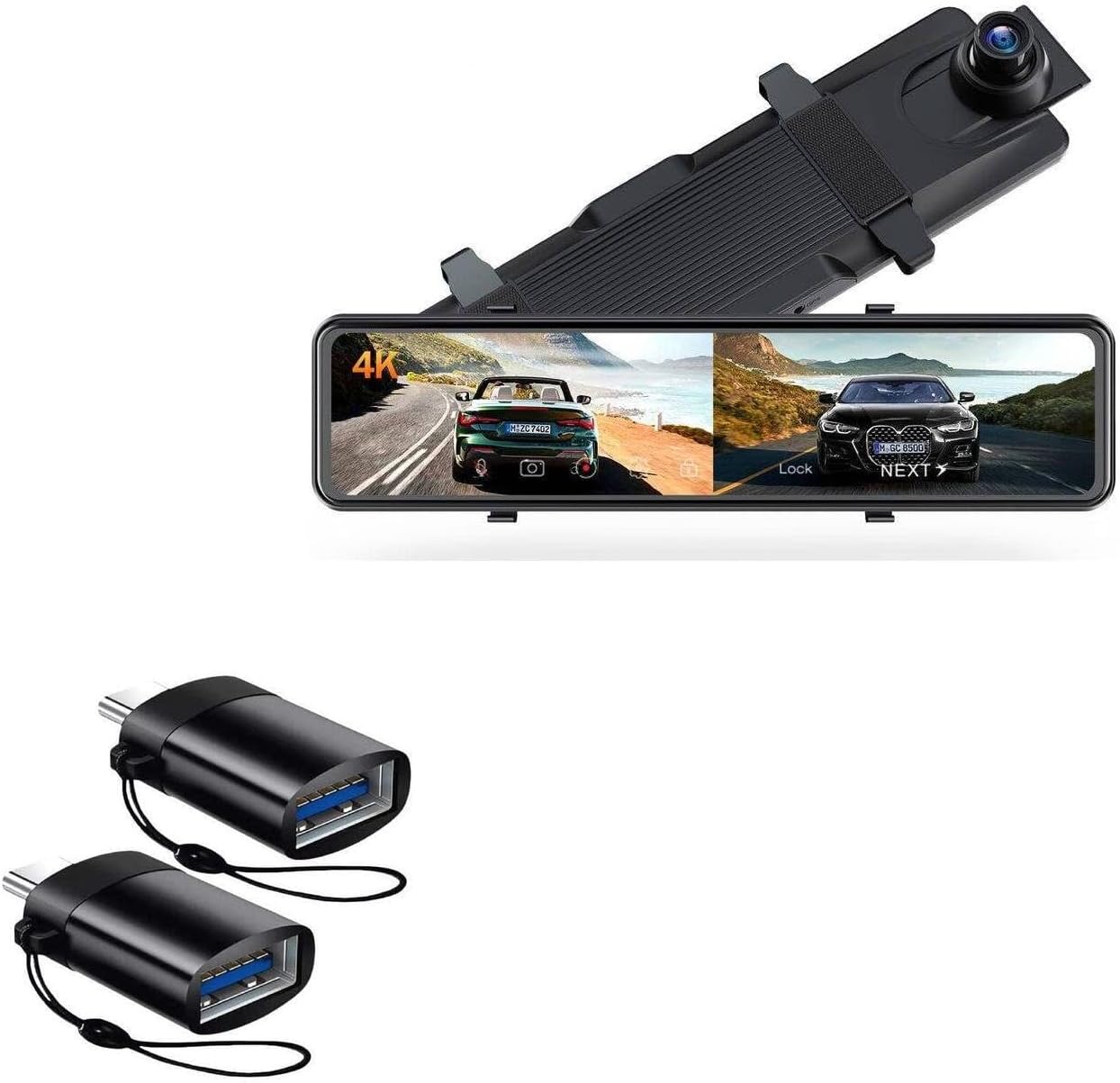
Image 1.1: Two BoxWave USB-C to USB-A PortChanger adapters, showing their compact design.
2. สินค้าหมดview
2.1. เนื้อหาบรรจุภัณฑ์
- 2 x BoxWave USB-C to USB-A PortChanger Adapters
2.2. คุณสมบัติหลัก
- USB Type-C OTG Protocol: Supports On-The-Go (OTG) functionality, allowing your USB-C device to act as a host.
- Port Conversion: Transforms a USB Type-C port into a standard USB Type-A port.
- การออกแบบที่กะทัดรัด: Each adapter measures approximately 1.25 inches in length for portability.
- สายรัด: Includes a strap for secure attachment and easy carrying.
- การเชื่อมต่อที่หลากหลาย: Enables connection of USB-A peripherals such as mice, keyboards, and USB storage devices.

ภาพที่ 2.1: ภาพระยะใกล้ view of the two PortChanger adapters, highlighting the USB-C male connector and the USB-A female port.

Image 2.2: The PortChanger adapters displayed to show both the USB-C input and USB-A output ends.
3. การตั้งค่าและการเชื่อมต่อ
Follow these steps to connect the BoxWave PortChanger adapter to your device and peripherals:
- ระบุพอร์ต: Locate the USB Type-C port on your host device (e.g., CamPark CE80B, smartphone, tablet, laptop).
- เชื่อมต่ออะแดปเตอร์: Insert the USB Type-C male end of the PortChanger adapter firmly into your device's USB Type-C port.
- Connect Peripheral: Insert the USB Type-A male connector of your peripheral (e.g., USB flash drive, mouse, keyboard) into the USB Type-A female port of the PortChanger adapter.
- ตรวจสอบการเชื่อมต่อ: Ensure all connections are secure. Your device should recognize the connected peripheral automatically.

Image 3.1: The PortChanger adapter connected to a laptop's USB-C port, then to a USB hub, demonstrating its role in expanding connectivity.
4. คู่มือการใช้งาน
4.1. การโอนข้อมูล
To transfer data between your device and a USB flash drive:
- Connect the PortChanger adapter to your device's USB-C port.
- Insert a USB flash drive into the PortChanger adapter.
- Access the flash drive through your device's file manager or appropriate application.
- คัดลอกหรือย้าย fileตามความจำเป็น

Image 4.1: A smartphone connected to a USB flash drive via the PortChanger adapter, illustrating data transfer capabilities.
4.2. การเชื่อมต่ออุปกรณ์ต่อพ่วง
To connect a USB-A mouse or keyboard:
- Connect the PortChanger adapter to your device's USB-C port.
- Insert the USB-A connector of your mouse or keyboard into the PortChanger adapter.
- Your device should detect the peripheral, and you can begin using it.

Image 4.2: The PortChanger adapter facilitating the connection of a USB mouse to a laptop's USB-C port.
5. การบำรุงรักษา
To ensure the longevity and proper function of your PortChanger adapters:
- การทำความสะอาด: Use a soft, dry cloth to gently wipe the adapter. Avoid liquid cleaners or abrasive materials.
- พื้นที่จัดเก็บ: Store the adapters in a cool, dry place away from direct sunlight and extreme temperatures.
- การจัดการ: Avoid bending or applying excessive force to the connectors. Always grasp the connector housing when plugging or unplugging.
6 การแก้ไขปัญหา
- อุปกรณ์ต่อพ่วงไม่รู้จัก:
- Ensure the PortChanger adapter is fully inserted into your device's USB-C port.
- Ensure the USB-A peripheral is fully inserted into the PortChanger adapter.
- Verify that your host device supports USB OTG functionality. Refer to your device's manual for compatibility.
- Test the peripheral directly with a standard USB-A port if available, to confirm it is functional.
- การเชื่อมต่อไม่ต่อเนื่อง:
- Check for any debris in the USB-C or USB-A ports.
- Ensure the adapter and peripheral are not being moved or jostled during use.
7. ข้อมูลจำเพาะ
| คุณสมบัติ | รายละเอียด |
|---|---|
| ประเภทสินค้า | อะแดปเตอร์ USB-C ถึง USB-A |
| แบบอย่าง | PortChanger (2-Pack) |
| ยี่ห้อ | บ็อกซ์เวฟ |
| วัสดุ | โพลีคาร์บอเนต |
| สี | สีดำสเลท |
| น้ำหนักสินค้า (ต่อชิ้น) | 0.3 ออนซ์ |
| ความเข้ากันได้ | Devices with USB Type-C port supporting OTG (e.g., CamPark CE80B) |
8. การรับประกันและการสนับสนุน
This product includes limited third-party technical support (up to 3 inquiries via electronic messaging). For support inquiries, please refer to the contact information provided with your purchase or visit the official BoxWave website for customer service options.