
1. สินค้าหมดview
The WITMOTION WTGAHRS3-TTL is an industrial-grade 6-axis inertial navigation GPS-IMU sensor. It integrates an accelerometer, gyroscopes, and angle measurement capabilities, providing precise static (0.05°) and dynamic (0.1°) angle data, along with latitude and longitude information.
This high-performance sensor offers rock-solid data output, including 3-axis acceleration, electronic gyroscope, angle, magnet, air pressure, height, GPS, altitude, longitude, and ground speed. It leverages 8 years of professional attitude measurement solution expertise, integrating dynamic fusion algorithms and Kalman filtering to ensure stable data output, excellent polarization stability, low noise levels, and increased measurement accuracy.
Designed for robustness, the sensor features an integrated accelerometer, magnetometer, gyroscope, barometer, NMEA-0183 standard GPS (UBLOX 6M), and a 32-bit high-performance core processor. Its durable aluminum housing provides IP67 waterproof, dustproof, and shockproof protection, making it suitable for various harsh test environments.
2. คุณสมบัติหลัก
- 6-Axis AHRS IMU: Provides comprehensive motion data including 3-axis acceleration, electronic gyroscope, angle, magnet, air pressure, height, GPS, altitude, longitude, and ground speed.
- Advanced Sensor Fusion: Utilizes dynamic fusion algorithms and Kalman filtering for stable, accurate, and low-noise data output.
- จีพีเอสในตัว: Features NMEA-0183 standard GPS (UBLOX 6M) for precise positioning and navigation.
- Robust Industrial Design: Housed in high-quality aluminum, offering IP67 waterproof, dustproof, and shockproof protection.
- ความแม่นยำสูง: Static angle accuracy of 0.05° and dynamic angle accuracy of 0.1°.
- Multi-Constellation Support: Supports BDS/GPS/QZSS/GLONASS satellite navigation systems.
- การเชื่อมต่อที่หลากหลาย: TTL/232 serial data interface.
- PC Software Included: Provides software for data recording, 3D model display, curve display, dashboard, and configuration.
3. อะไรอยู่ในกล่อง
แพ็คเกจผลิตภัณฑ์โดยทั่วไปประกอบด้วย:
- 1 x WTGAHRS3-TTL Sensor
- 1 x Instruction Card
- สายเชื่อมต่อ 1 เส้น

Image: WTGAHRS3-TTL sensor and its included accessories, such as the instruction card and connection cable, neatly packed in a small box.
4. การตั้งค่าและการติดตั้ง
Follow these steps to set up your WTGAHRS3-TTL sensor:
- Install Serial Driver: Ensure the necessary serial drivers are installed on your computer.
- เชื่อมต่อเซ็นเซอร์: Connect the sensor to your computer or Android smartphone using the provided serial cable and appropriate adapter (USB-TTL cable, Type-C converter). Refer to the PIN definition for correct wiring: VCC to VCC, TX to RX, RX to TX, GND to GND.
- Connect GPS External Antenna: For GPS functionality, connect the external GPS antenna to the sensor. Ensure the antenna has a clear view ของท้องฟ้าเพื่อการรับสัญญาณที่ดีที่สุด
- Confirm COM Port: Verify the assigned COM port in your device manager (for PC) or ensure the device is detected by the phone (only CH340 driver's device can be detected by phone).
- ซอฟต์แวร์โอเพ่นซอร์ส: Launch the WitMotion software (Minimu.exe for PC or the WitMotion APP for Android). Data should appear automatically after the auto-search finishes.
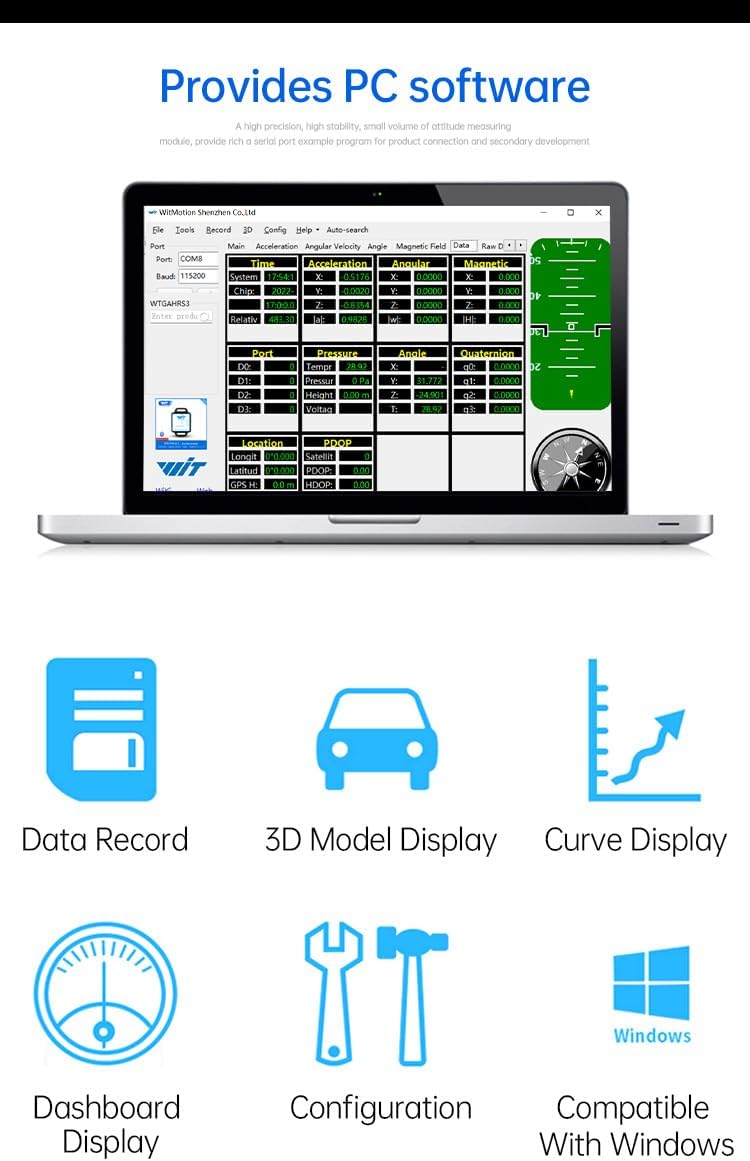
Image: Detailed diagram showing the dimensions of the WTGAHRS3-TTL sensor and its pinout for VCC, RXD, TXD, and GND connections.
Video: Demonstrates how to connect the WTGAHRS2 (similar to WTGAHRS3-TTL) sensor to an Android smartphone and use the WitMotion app for data display and logging. It covers app installation, serial connection, and basic data review.
Video: Instructions on how to use the TTL port of an IP68 accelerometer sensor, which is applicable to the WTGAHRS3-TTL for serial communication setup.
5. คู่มือการใช้งาน
Once connected, the WitMotion software (PC or APP) will display real-time data from the sensor. You can monitor acceleration, angular velocity, angles, magnetic field, and GPS data. The software provides various display modes, including graphical representations and 3D models, to visualize the sensor's attitude and motion.
Ensure the sensor is placed on a stable, non-magnetic surface during operation to avoid interference with magnetic field readings. For GPS functionality, operate the sensor outdoors with a clear view ของท้องฟ้า

Image: Screenshot of the WitMotion PC software interface, showing various data displays including data record, 3D model, curve display, dashboard, configuration, and Windows compatibility.
6. การสอบเทียบ
Accurate calibration is crucial for optimal sensor performance. The WitMotion software provides tools for Acceleration, Magnetic Field, and Angle Reference calibration.
6.1. การสอบเทียบความเร่ง
To decrease acceleration bias, place the sensor horizontally on an even surface and initiate acceleration calibration through the software. The software will guide you through the process, typically requiring the sensor to remain still for a few seconds.
Video: Demonstrates acceleration calibration using the WitMotion Android app. The sensor is placed horizontally, and the calibration function is activated, showing the acceleration values stabilizing.
6.2. Magnetic Field Calibration
Magnetic field calibration compensates for local magnetic disturbances. This process involves rotating the sensor 360° around its X, Y, and Z axes respectively while connected to the software. Ensure no magnetic interference is present during this process.
Video: Shows magnetic field calibration using the WitMotion PC software. The sensor is rotated 360 degrees around each axis to collect data for calibration, ensuring accurate magnetic readings.
Video: Explains three methods of magnetic field calibration: Ellipse Fitting, Dual-Plane, and Octal Calibration. This video is highly relevant for understanding and performing magnetic calibration for the sensor.
6.3. Angle Reference Setting
The angle reference function allows you to define a specific orientation as the zero-degree reference for the X and Y axes. This is useful for applications where a custom reference point is needed.
Video: This video also covers setting the angle reference using the PC software, demonstrating how to define a custom zero-degree orientation for the sensor's X and Y axes.
7. การใช้งานซอฟต์แวร์
The WitMotion software provides a comprehensive interface for interacting with your sensor. It allows for real-time data monitoring, configuration, and data logging.
- บันทึกข้อมูล: Log sensor data to a TXT file เพื่อการวิเคราะห์ในภายหลัง
- 3D Model Display: Visualize the sensor's orientation in a 3D environment.
- จอแสดงผลแบบโค้ง: View real-time sensor data as dynamic graphs.
- จอแสดงผลแดชบอร์ด: An intuitive overview of all sensor attitude motion.
- การกำหนดค่า: Adjust sensor parameters such as baud rate, output rate, and content.
- ความเข้ากันได้ของ Windows: The PC software is compatible with Windows operating systems.

Image: Screenshot of the WitMotion PC software displaying various sensor data in graphical format, including acceleration, gyroscope, angle, and magnetic field data.
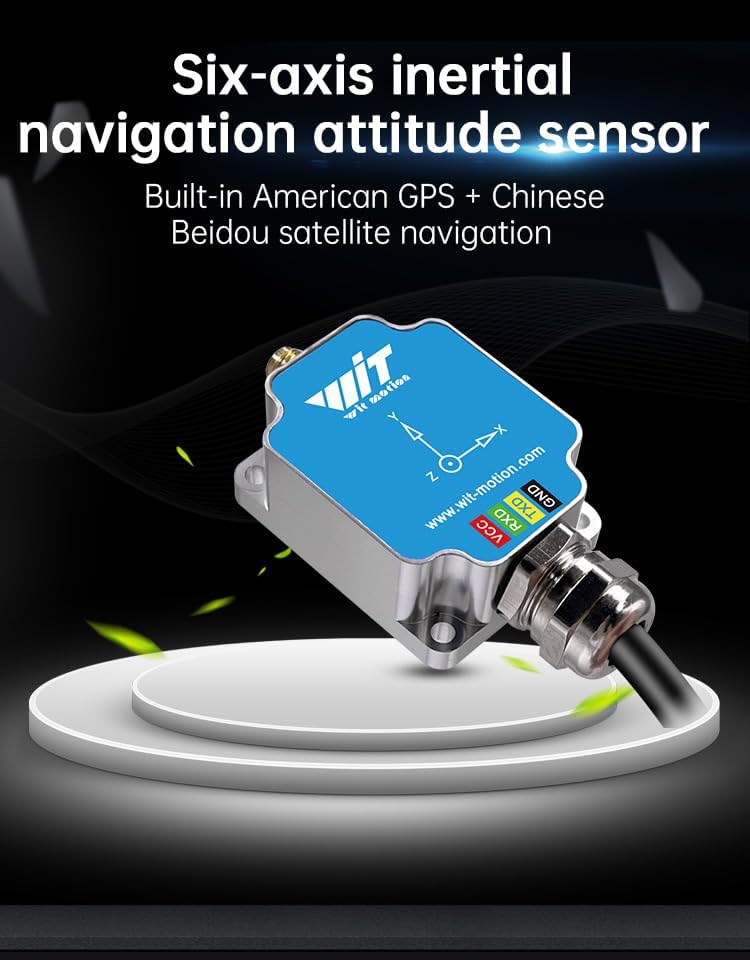
Image: Icons representing the professional inertial navigation sensor's capabilities, including acceleration, gyroscope, angle, longitude, dimension, and ground speed.
8. ข้อมูลจำเพาะ
| คุณสมบัติ | ค่า |
|---|---|
| น้ำหนักสินค้า | 7 ออนซ์ (0.2 กิโลกรัม) |
| ขนาดแพ็คเกจ | 3.15 x 1.97 x 1.97 นิ้ว |
| ชื่อรุ่น | WTGAHRS3-TTL |
| คุณสมบัติพิเศษ | Advanced Sensor Fusion |
| เทคโนโลยีการเชื่อมต่อ | USB (via adapter) |
| ประเภทการติดตั้ง | แผงยึด |

Image: A table detailing the parameters of the WTGAHRS3-TTL sensor, including measurement latitude, measuring range for acceleration, gyroscope, and angle, angle accuracy, output content, data interface, weight, and line length.
9 การแก้ไขปัญหา
- ไม่มีข้อมูลส่งออก:
- Check all physical connections (VCC, TX, RX, GND).
- Verify the correct COM port and baud rate are selected in the software.
- Ensure serial drivers are correctly installed.
- การอ่านค่าที่ไม่ถูกต้อง:
- Perform Acceleration and Magnetic Field calibration as described in Section 6.
- Ensure the sensor is placed on a stable, non-magnetic surface.
- For GPS, ensure the external antenna has a clear view ของท้องฟ้า
- ซอฟต์แวร์ตรวจไม่พบอุปกรณ์:
- Restart the software and reconnect the sensor.
- Check device manager for any driver issues.
10. การรับประกันและการสนับสนุน
The WTGAHRS3-TTL sensor comes with a 12-month warranty. WITMOTION provides lifetime friendly customer service.
For detailed tutorials and support, you can:
- Refer to the tutorial link printed on the guide card inside the package.
- Search wit-motion.com to download the full tutorial and software.
- Contact customer support at support@wit-motion.com for assistance.