
siaviala S2
siaviala S2 14" IPS Triple Monitor Laptop Screen Extender User Manual
รุ่น : S2
Brand: siaviala
1. สินค้าหมดview
The siaviala S2 Laptop Screen Extender is a 14-inch IPS triple monitor designed to expand your laptop's display capabilities, significantly boosting productivity. It features 1080P Full HD resolution and supports various display modes including extended, duplicate, mirroring, landscape, and portrait.
This portable monitor system is engineered for ease of use, offering plug-and-play functionality without the need for additional drivers. It is compatible with a wide range of laptops (13-17.3 inches) and devices, including gaming consoles and Type-C phones, across multiple operating systems.

Image: The siaviala S2 Triple Laptop Screen Extender in use, showcasing its multi-screen setup.
2. อะไรอยู่ในกล่อง
Upon opening your siaviala S2 package, please ensure all the following components are present:
- Laptop Screen Extender (S2 Unit) x 1
- สาย USB-C เป็น USB-C x 2
- สาย USB-A เป็น USB-C x 2
- HDMI to USB-C Cable x 2
- กระเป๋าถือ x 1
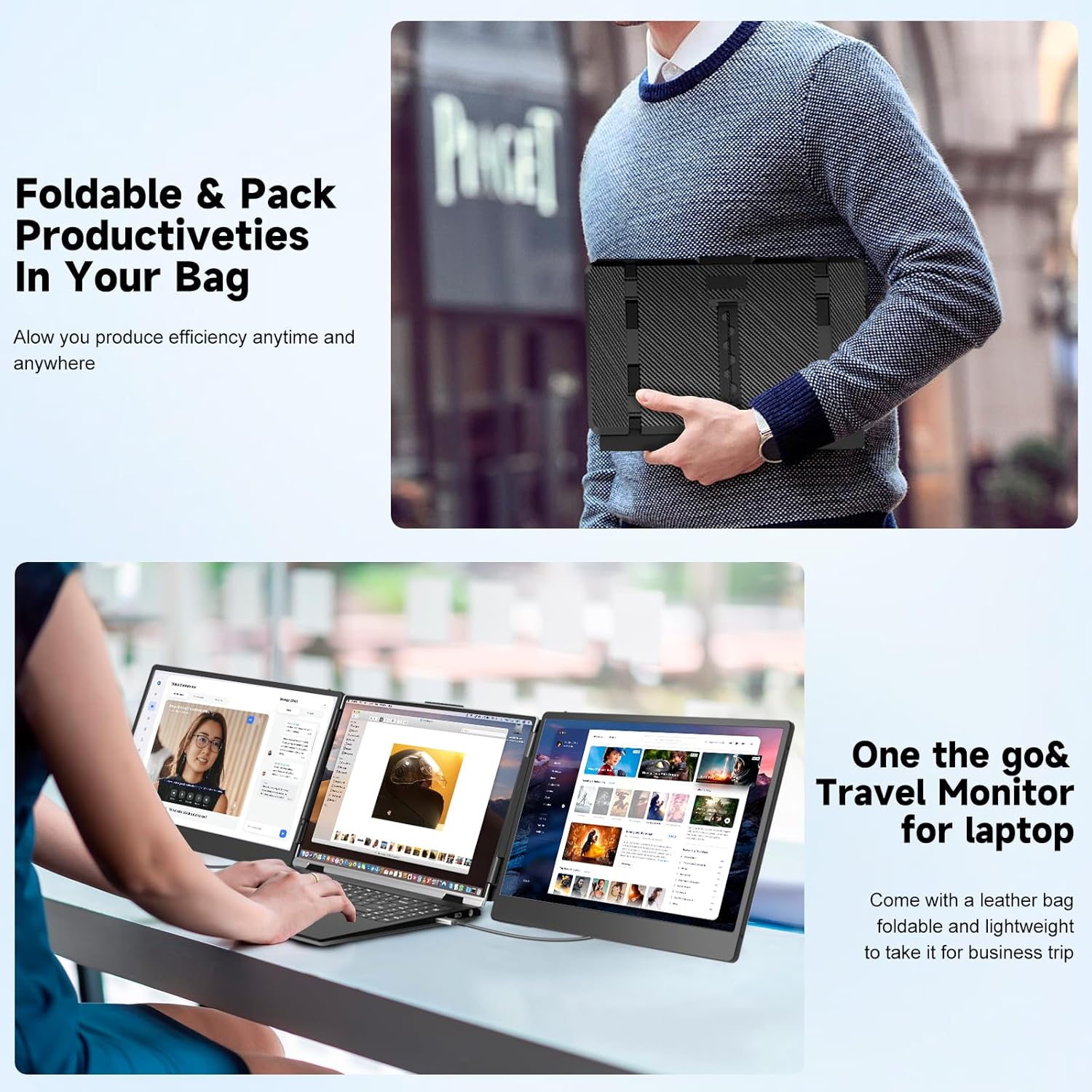
Image: The portable design of the S2 extender, showing it being packed into its carrying bag along with the necessary cables.
3. คู่มือการติดตั้ง
The siaviala S2 is designed for easy plug-and-play setup, requiring no driver installation. Follow these steps to connect your screen extender:
ตัวเลือกการเชื่อมต่อ:
- Option 1: Two Full-featured USB-C Interfaces
If your laptop has two full-featured USB-C ports, connect the S2 directly to your laptop using two USB-C to USB-C cables (one for each screen).
- Option 2: Two HDMI + Two USB-A Interfaces
Connect the screen extender to your laptop using an HDMI to USB-C cable for the display signal and a USB-A to USB-C cable for power for each screen.
- Option 3: One Full-featured USB-C and One HDMI + USB-A Interface
If your laptop has one full-featured USB-C port, a USB-A port, and an HDMI port, use a USB-C to USB-C cable to connect one extender. For the second extender, use an HDMI to USB-C cable for display and a USB-A to USB-C cable for power.
All necessary cables are included in the package for these connection methods.

Image: Visual guide for connecting the S2 extender to your laptop using different port configurations.
4. คู่มือการใช้งาน
The siaviala S2 offers versatile display modes to enhance your workflow and viewการสร้างประสบการณ์
โหมดการแสดงผล:
- โหมดขยาย: Expand your desktop across three screens for enhanced multitasking.
- Duplicate/Mirror Mode: Synchronize content across all screens, ideal for presentations or sharing.
- โหมดแนวนอนและแนวตั้ง: Adjust screen orientation to suit your content needs.

Image: Key display features of the S2, highlighting its IPS panel and Full HD capabilities.
You can individually adjust brightness, contrast, and other display parameters for each screen to optimize your viewการสร้างประสบการณ์
ความเข้ากันได้:
The S2 is compatible with laptops ranging from 13 to 17.3 inches and supports a wide array of devices and operating systems:
- โน๊ตบุ๊ค: 13" to 17.3" (Note: Excludes Apple M1/M2/M3 chip laptops; compatible with M1 Pro/Max, M2 Pro/Max).
- คอนโซลเกม: PS4, PS5, XBOX, Nintendo Switch.
- อุปกรณ์พกพา: Type-C phones.
- ระบบปฏิบัติการ: Windows, MacOS, ChromeOS, Linux, Android.

ภาพ: เหนือview of the S2's broad compatibility with different platforms and devices.
สถานการณ์การใช้งาน:
The siaviala S2 is ideal for various applications, enhancing productivity and collaboration:
- Meetings and Video Conferences
- การถ่ายทอดสด
- การพัฒนาแอพพลิเคชั่น
- Travel and Remote Work
- Data Analysis and Spreadsheet Management

ภาพ: อดีตamples of how the S2 extender can be utilized in different work and personal environments.
วิดีโอสาธิตผลิตภัณฑ์:
Video: A demonstration of the S2 Triple Laptop Portable Monitor, highlighting its portability and ease of setup for various display modes.
5. การบำรุงรักษา
To ensure the longevity and optimal performance of your siaviala S2 Laptop Screen Extender, follow these maintenance guidelines:
- การทำความสะอาด: ใช้ผ้าเนื้อนุ่มที่ไม่เป็นขุยเช็ดพื้นผิวหน้าจอเบาๆ สำหรับคราบสกปรกที่ล้างออกยาก ให้ใช้ผ้าชุบน้ำหมาดๆ เช็ดเบาๆampชุบผ้าด้วยน้ำหรือน้ำยาทำความสะอาดที่ปลอดภัยสำหรับหน้าจอ หลีกเลี่ยงสารเคมีรุนแรงหรือวัสดุที่มีฤทธิ์กัดกร่อน
- พื้นที่จัดเก็บ: When not in use, fold the extender and store it in the provided carrying bag to protect it from dust, scratches, and impacts.
- การจัดการ: Always handle the extender with care. Avoid dropping it or applying excessive force to the screens or hinges.
- สาย: Inspect cables regularly for any signs of wear or damage. Replace damaged cables immediately to prevent connectivity issues.
6 การแก้ไขปัญหา
If you encounter issues with your siaviala S2, please refer to the following common troubleshooting steps:
- No Display on Screen(s):
- Ensure all cables (USB-C, HDMI, USB-A) are securely connected to both the extender and your laptop.
- Verify that your laptop's ports are functioning correctly. Try connecting another device to the same ports.
- Check your laptop's display settings (e.g., Windows Display Settings, macOS System Preferences > Displays) to ensure the external monitors are detected and configured for "Extend" or "Duplicate" mode.
- If using USB-A for power, ensure sufficient power is being supplied. Some laptops may require an external power adapter for the extender if their USB-A ports do not provide enough power.
- Restart your laptop with the extender connected.
- จอภาพกะพริบหรือไม่เสถียร:
- ตรวจสอบการเชื่อมต่อสายเคเบิลว่าหลวมหรือไม่
- Ensure the cables are not damaged. Try using different cables if available.
- Reduce the display resolution of the external monitors in your laptop's display settings to see if it resolves the issue.
- Screens Not Orienting Correctly (Landscape/Portrait):
- Adjust the orientation settings for each monitor in your operating system's display preferences.
- Compatibility Issues with M1/M2/M3 MacBooks:
- Please note that this extender is not compatible with Apple M1/M2/M3 chip laptops. It is compatible with M1 Pro/Max and M2 Pro/Max chips.
If these steps do not resolve your issue, please contact siaviala customer service for further assistance.
7. ข้อมูลจำเพาะทางเทคนิค
| คุณสมบัติ | ข้อมูลจำเพาะ |
|---|---|
| หมายเลขรุ่น | S2 |
| ขนาดหน้าจอ | 14 นิ้ว |
| ปณิธาน | 1920 x 1080 พิกเซล (FHD 1080p) |
| ประเภทแผง | ไอพีเอส |
| อัตราส่วนภาพ | 16:9 น. |
| ความสว่าง | 300 แคนเดลา (นิต) |
| ขนาดสินค้า | 1.5 x 8 x 5 นิ้ว |
| น้ำหนักสินค้า | 2 ปอนด์ |
| พลังงานฉบับtage | 5 โวลต์ |
| พอร์ต USB รวม | 1 (on the main unit for connectivity) |
| พื้นผิวหน้าจอ | มันเงา |
| ผู้ผลิต | Shenzhen Baijiayoupu Technology Co., Ltd |
8. การรับประกันและการสนับสนุน
siaviala is committed to providing high-quality products and excellent customer service. For any inquiries, technical support, or warranty claims, please contact our customer service team.
- บริการลูกค้า: We offer 24-hour customer service to assist you with any problems or questions you may have.
- คู่มือการใช้งาน: For detailed information and additional guides, you can refer to the official PDF user manuals:
We appreciate your purchase and are here to ensure your satisfaction with the siaviala S2 Laptop Screen Extender.
Ask a question about this manual
Ask about setup, troubleshooting, compatibility, parts, safety, or missing instructions. Manuals+ will review the question and use this page’s manual context to help answer it.