
1. บทนำ
Thank you for choosing the MARKLIFE P50 Label Printer. This manual provides detailed instructions for setting up, operating, and maintaining your device. Please read this manual carefully before use to ensure optimal performance and longevity of your label printer.
2. สินค้าหมดview
The MARKLIFE P50 is a compact and portable thermal label printer designed for various labeling needs. It features Bluetooth connectivity for mobile devices and USB connectivity for PC, a built-in 1200mAh battery, and supports Type-C charging.
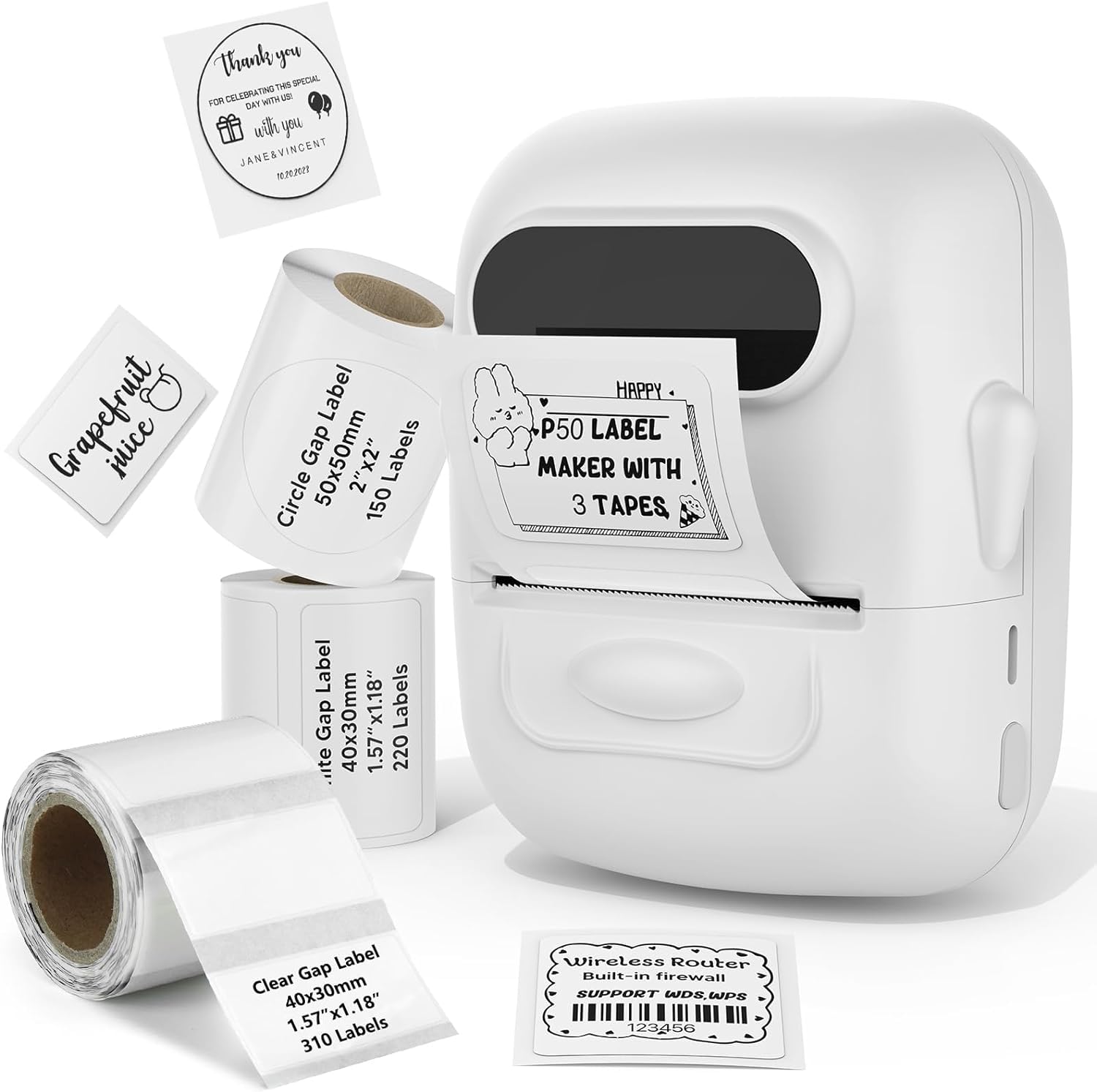
The MARKLIFE P50 Label Printer in white, showcasing การออกแบบที่กะทัดรัด
3. การตั้งค่า
3.1 การแกะกล่องและการชาร์จครั้งแรก
Upon unboxing, ensure all components are present. The package typically includes the P50 label printer and a roll of labels. Connect the printer to a power source using the provided Type-C cable to fully charge the built-in 1200mAh battery before first use.

The compact P50 printer being placed into a handbag, emphasizing its portability, built-in 1200mAh battery, and Type-C charging.
3.2 การโหลดฉลาก
- เปิดฝาช่องใส่ฉลาก
- Insert the label roll with the printing surface facing up.
- Ensure the label is fed smoothly through the guide and slightly protrudes from the output slot.
- ปิดฝาให้แน่น

The P50 printer shown with three rolls of labels: 1.57x1.18 inches (40x30mm) rectangular, 1.57x1.18 inches (40x30mm) rectangular, and 2x2 inches (50x50mm) circular labels, demonstrating label compatibility.
3.3 การติดตั้งแอป/ซอฟต์แวร์
Download the official MARKLIFE app from your mobile device's app store or the dedicated software for PC from the manufacturer's webเข้าไปที่เว็บไซต์ ทำตามคำแนะนำบนหน้าจอเพื่อทำการติดตั้ง
4. คู่มือการใช้งาน
4.1 เปิด/ปิดเครื่อง
Press and hold the power button for a few seconds to turn the printer on or off. The indicator light will illuminate when the device is powered on.
4.2 การเชื่อมต่อกับอุปกรณ์
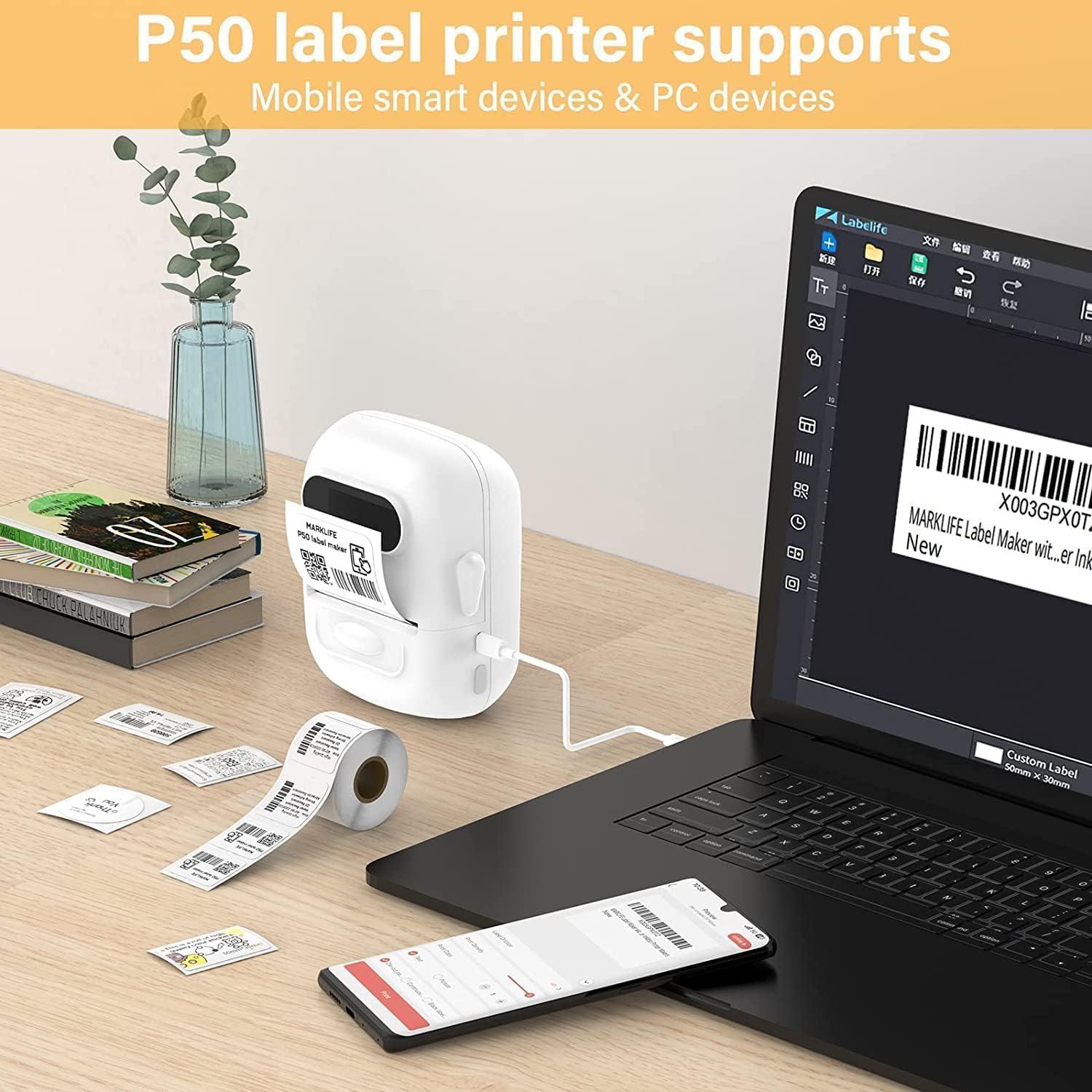
For mobile devices, enable Bluetooth on your phone and open the MARKLIFE app. The app will guide you through pairing with the P50 printer. For PC, connect the printer via USB cable and ensure the software recognizes the device.

The P50 printer connected via USB to a laptop and wirelessly to a smartphone, illustrating its compatibility with both mobile and PC devices for label design and printing.
4.3 การออกแบบและการพิมพ์ฉลาก
- Open the MARKLIFE app/software on your connected device.
- Select your desired label template or create a new design.
- Enter the text, images, or barcodes you wish to print.
- พรีview ติดฉลากเพื่อให้มั่นใจในความถูกต้อง
- Tap the print button to send the job to the P50 printer.

Examples of labels printed by the P50, including a price tag for clothing and a product label for handmade soap.

Demonstration of P50 labels used for personalizing gift boxes and envelopes with 'Thank You' messages.
Examples of P50 labels applied to various containers for organizing toners, shampoos, pantry items like noodles, lentils, and spices.
4.4 การพิมพ์เป็นชุด
The P50 supports batch printing, allowing you to print multiple labels continuously. This feature is ideal for larger labeling tasks and can print up to 100 meters of labels on a single charge.

The P50 printer continuously printing a long roll of labels, highlighting its capability for batch printing up to 100 meters on a single charge.
5. Label Compatibility
The MARKLIFE P50 is compatible with thermal labels ranging in width from 0.59 inches (1.5 cm) to 2.24 inches (5.7 cm). It supports various fixed-size labels, including common dimensions like 1.57x1.18 inches (40x30mm) and 2x2 inches (50x50mm).
.jpg)
An illustration of the P50 printer's label compartment, indicating compatibility with label widths from 0.59 to 2.24 inches (1.5 cm to 5.7 cm), suitable for various fixed-size labels.
6. การบำรุงรักษา
6.1 การทำความสะอาดหัวพิมพ์
To maintain print quality, regularly clean the thermal print head. Use a soft, lint-free cloth lightly dampชุบด้วยไอโซโพรพิลแอลกอฮอล์ เช็ดพื้นผิวหัวพิมพ์เบาๆ ตรวจสอบให้แน่ใจว่าเครื่องพิมพ์ปิดอยู่และเย็นลงก่อนทำความสะอาด
6.2 การดูแลแบตเตอรี่
To prolong battery life, avoid fully discharging the battery frequently. Store the printer in a cool, dry place when not in use for extended periods. Recharge the battery periodically if stored for a long time.
7 การแก้ไขปัญหา
7.1 เครื่องพิมพ์ไม่ตอบสนอง
- Check if the printer is powered on and fully charged.
- Ensure Bluetooth is enabled on your mobile device and the printer is paired correctly.
- If using PC, verify the USB connection and driver installation.
- Restart both the printer and your connected device.
7.2 คุณภาพการพิมพ์ไม่ดี
- Check if the label roll is inserted correctly and not jammed.
- ทำความสะอาดหัวพิมพ์ตามที่อธิบายไว้ในส่วนการบำรุงรักษา
- Ensure you are using compatible thermal labels.
- Adjust print density settings in the app/software if available.
7.3 การป้อนฉลากไม่ถูกต้อง
- Open the cover and re-insert the label roll, ensuring it is aligned with the guides.
- ตรวจสอบดูว่ามีสิ่งกีดขวางใดๆ ในเส้นทางของฉลากหรือไม่
- Ensure the label type and size are compatible with the printer.
8. ข้อมูลจำเพาะ
| หมายเลขรุ่น | P50 |
| ยี่ห้อ | มาร์คไลฟ์ |
| ผู้ผลิต | มาร์คไลฟ์ |
| ขนาด | 11 x 4.4 x 8 ซม. |
| น้ำหนัก | 570 กรัม |
| เทคโนโลยีการเชื่อมต่อ | บลูทูธ, ยูเอสบี |
| พิมพ์เทคโนโลยี | เทอร์มอล |
| สี | สีขาว |
| เอาท์พุตเครื่องพิมพ์ | เอกรงค์ |
| ส่วนประกอบที่รวมอยู่ | ฉลาก |
| สื่อสิ่งพิมพ์ | ฉลาก |
| Max Paper Input Capacity | 50 (sheets/labels) |
| ความเร็วในการพิมพ์ (ขาวดำ) | 300 ฉลากต่อนาที |
| อุปกรณ์ที่รองรับ | Mobile smart devices, PC (via USB) |
| การพิมพ์สองหน้า | No (Manual) |
| แบตเตอรี่ | ความจุภายใน 1200mAh |
9. การรับประกันและการสนับสนุน
Specific warranty information and detailed support contacts are not available in the provided product data. Please refer to the product packaging, the manufacturer's official website, or your point of purchase for warranty details and customer support options.