
1. บทนำ
Thank you for choosing the BOTSLAB 2.5K Front Dash Cam. This device is designed to provide superior video quality and enhanced safety features for your vehicle. With its 2.5K HD resolution, 170° ultra-wide angle lens, and advanced functionalities like 24/7 parking mode, built-in GPS, and driver alerts, it ensures comprehensive coverage and peace of mind on the road. This manual will guide you through the setup, operation, and maintenance of your dash cam.
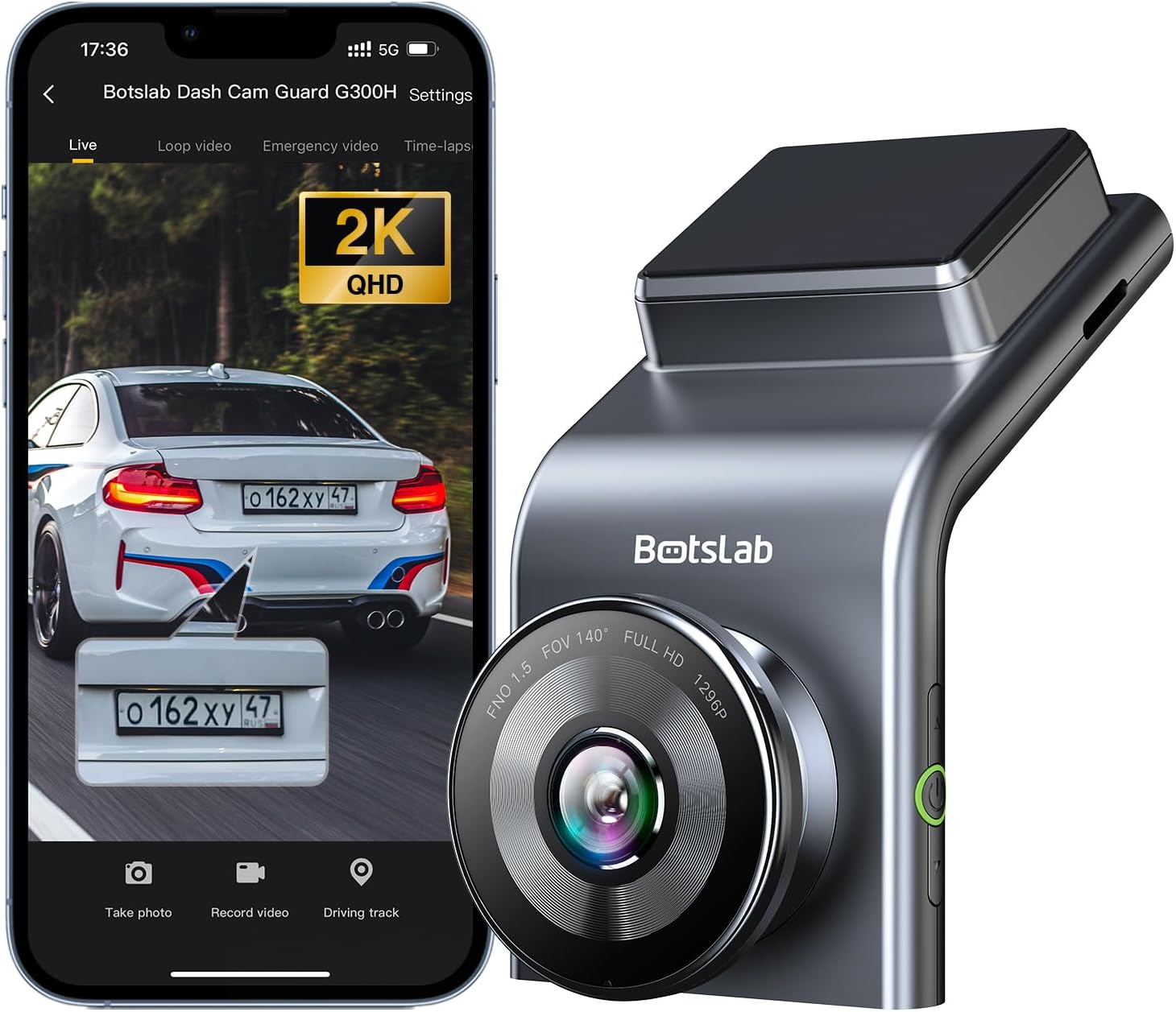
Figure 1: BOTSLAB 2.5K Front Dash Cam Overview
2. อะไรอยู่ในกล่อง
กรุณาตรวจสอบเนื้อหาในแพ็คเกจเพื่อให้แน่ใจว่ามีสินค้าครบทั้งหมด:
- Front Camera (x1)
- ที่ชาร์จแบตในรถ (x1)
- USB Power Cord (x1)
- Installation Pry Bar (x1)
- คู่มือผู้ใช้ (x1)
- Electrostatic Film (x1)

รูปที่ 2: สิ่งของในบรรจุภัณฑ์
3. การตั้งค่าและการติดตั้ง
The BOTSLAB Dash Cam is designed for easy installation with invisible wiring, ensuring a clean and integrated look in your vehicle. Follow these steps for proper setup:
- เลือกสถานที่ติดตั้ง: เลือกตำแหน่งบนกระจกหน้ารถที่ไม่บดบังทัศนวิสัยของคุณ view ของถนน โดยทั่วไปแล้วจะอยู่ด้านหลังview กระจกเงา.
- ทำความสะอาดกระจกหน้ารถ: Ensure the chosen area on the windshield is clean and dry.
- ติดฟิล์มไฟฟ้าสถิต: Peel off the protective layer from the electrostatic film and apply it to the cleaned area on your windshield. Smooth out any air bubbles. This film allows for easy removal of the dash cam mount without leaving residue.
- Attach Dash Cam Mount: Secure the dash cam mount to the electrostatic film. Ensure it is firmly attached.
- ติดตั้งกล้องติดรถยนต์: Slide the dash cam onto its mount until it clicks into place.
- เชื่อมต่อพลังงาน: Connect the USB power cord to the dash cam and route the cable along the edge of the windshield and dashboard to the car charger. Use the installation pry bar to tuck the cable neatly into the gaps for an invisible wiring setup.
- เสียบเข้ากับที่ชาร์จในรถยนต์: เสียบที่ชาร์จในรถยนต์เข้ากับช่องเสียบที่จุดบุหรี่ในรถของคุณ
- ปรับมุม: Power on the dash cam and adjust its angle to ensure the camera captures the road ahead clearly, covering the desired field of view (170° ultra-wide angle).

Figure 3: Easy Installation and Cable Management
4. คู่มือการใช้งาน
4.1. การเปิด/ปิดเครื่องและการบันทึกพื้นฐาน
The dash cam will automatically power on and begin recording when your vehicle starts. It will power off automatically when the vehicle is turned off. Ensure a microSD card (not included, supports up to 256GB) is inserted for recording.

Figure 4: MicroSD Card Slot for Storage
4.2. 2.5K HD Video Quality and Night Vision
Experience 2.5K superior HD video quality with a 170° ultra-wide view angle that fully covers all lanes without blind spots. Coupled with clear Night Vision, you'll have full-color, high-quality videos in any lighting condition.

Figure 5: Enhanced Clarity with 2.5K Resolution
4.3. โหมดจอดรถ 24/7
When used with the G300H dedicated hard-wired kit (ASIN: B0D3QK86TQ, sold separately), the G300H front dash cam can achieve 24/7 uninterrupted recording. Video is recorded any time there is a collision or accident. Benefit from Time-lapse Recording for uninterrupted 24-hour parking monitoring, utilizing minimal memory space. The Loop Recording feature ensures continuous recording, preserving vital clips while overwriting older videos.

รูปที่ 6: ระบบตรวจสอบที่จอดรถตลอด 24 ชั่วโมง
4.4. Enhanced Awareness and Safety Features
Stay in sync with traffic through the Front Vehicle Start Reminder and enhance safety with Pedestrian Collision Alert. These features keep you alert to movement around you, automatically triggering notifications for a seamless and vigilant driving experience.
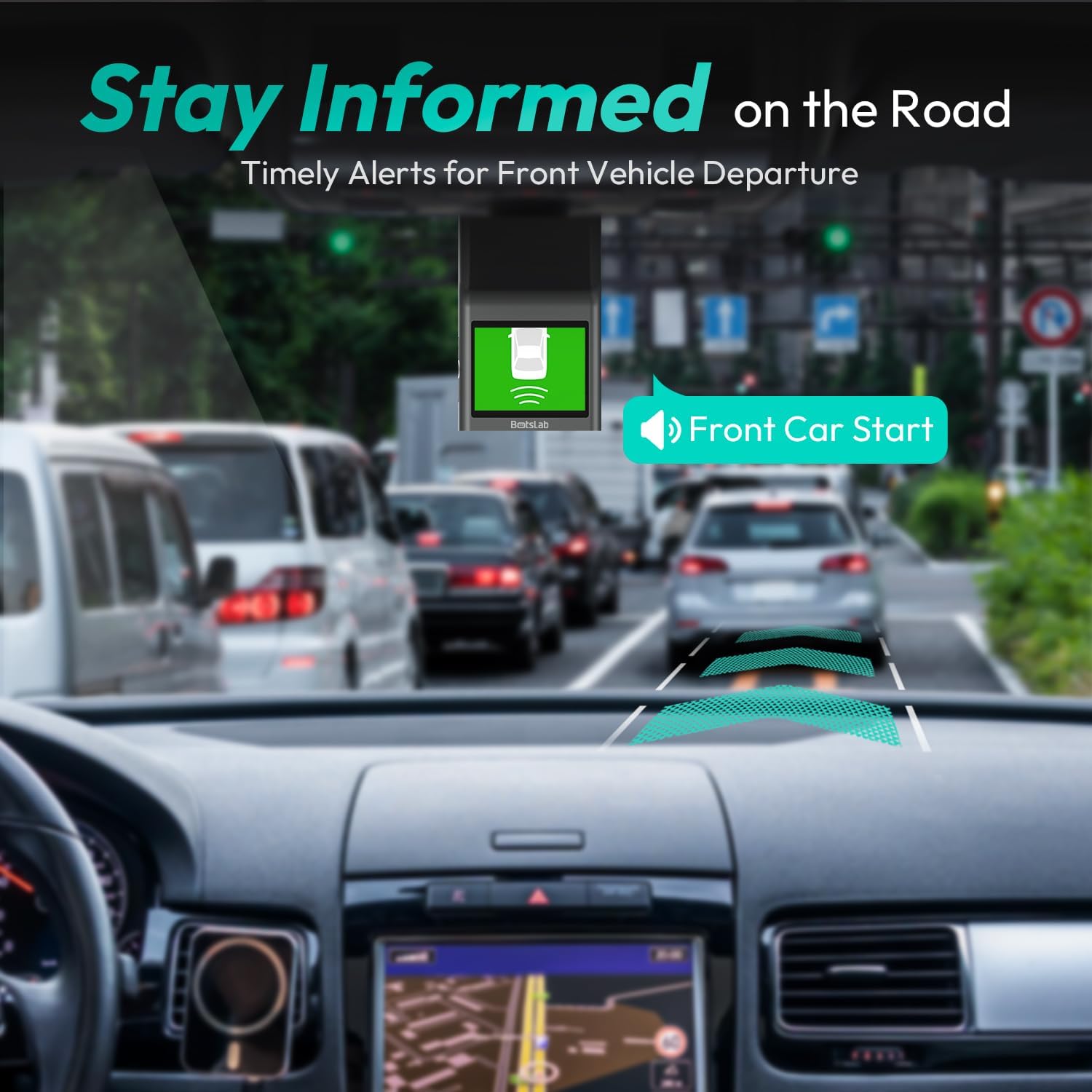
Figure 7: Front Vehicle Start Reminder

Figure 8: Pedestrian Collision Alert
4.5. GPS Integration
Built-in GPS functionality records every detail of your journey, from speed to location. View your personalized routes on Google Maps, right from your phone. It's not just about convenience; it's about keeping your travel data private and secure.

Figure 9: Precise Location Tracking with GPS
4.6. G-Sensor and Emergency Video Protection
In the event of a collision or sudden movement, the G-Sensor automatically locks videos, preventing overwriting. This feature provides the detailed evidence you need for insurance claims or traffic disputes.

Figure 10: Emergency Video Protection
5. การบำรุงรักษา
To ensure the longevity and optimal performance of your BOTSLAB Dash Cam, follow these maintenance guidelines:
- ทำความสะอาดเลนส์: ควรเช็ดเลนส์กล้องด้วยผ้าเนื้อนุ่มที่ไม่เป็นขุยเป็นประจำ เพื่อให้ได้ภาพที่คมชัด หลีกเลี่ยงการใช้สารทำความสะอาดที่มีฤทธิ์กัดกร่อน
- Check MicroSD Card: Periodically check the microSD card for errors or corruption. Format the card monthly to maintain optimal performance and prevent data loss. Back up any important footage ก่อนการจัดรูปแบบ
- อัพเดตเฟิร์มแวร์: Check the BOTSLAB app or website for available firmware updates. Keeping your dash cam's firmware up-to-date ensures you have the latest features and bug fixes.
- การควบคุมอุณหภูมิ: ควรหลีกเลี่ยงการวางกล้องติดรถยนต์ไว้ในที่ที่มีอุณหภูมิสูงหรือต่ำเกินไปเป็นเวลานาน หากจอดรถกลางแดดจัด ควรพิจารณาถอดกล้องติดรถยนต์ออกหรือใช้ที่บังแดด
- การติดตั้งที่ปลอดภัย: Ensure the dash cam remains securely mounted to prevent vibrations that could affect video quality or cause the device to fall.
6 การแก้ไขปัญหา
หากคุณพบปัญหาเกี่ยวกับกล้องติดรถยนต์ โปรดดูปัญหาและวิธีแก้ไขที่พบบ่อยต่อไปนี้:
| ปัญหา | สาเหตุที่เป็นไปได้ | สารละลาย |
|---|---|---|
| กล้องติดรถยนต์ไม่สามารถเปิดได้ | No power supply; faulty car charger/cable. | Check car charger connection and vehicle's power outlet. Try a different USB cable or car charger. |
| การบันทึกหยุดหรือ footage เสียหายแล้ว | MicroSD card full, corrupted, or incompatible. | Format the microSD card regularly. Use a high-quality Class 10 or U3 microSD card. Replace the card if issues persist. |
| ปัญหาการเชื่อมต่อ Wi-Fi | Interference; incorrect app settings. | Ensure you are within range. Restart the dash cam and your smartphone. Reinstall the BOTSLAB app. |
| GPS not tracking location. | Poor satellite signal; dash cam not receiving GPS data. | ตรวจสอบให้แน่ใจว่ากล้องติดรถยนต์มีสัญญาณที่ชัดเจน view of the sky. Move away from tall buildings or tunnels. |
| คุณภาพวิดีโอไม่ดี | เลนส์สกปรก ฟิล์มป้องกันยังอยู่ที่เลนส์ สภาพแสงน้อย | Clean the camera lens. Remove any protective film. Ensure proper lighting for optimal recording. |
หากต้องการความช่วยเหลือเพิ่มเติม โปรดดูที่ส่วนการสนับสนุนหรือติดต่อฝ่ายบริการลูกค้า
7. ข้อมูลจำเพาะ
| คุณสมบัติ | รายละเอียด |
|---|---|
| ขนาดสินค้า | 0.59 x 0.98 x 2.17 นิ้ว |
| น้ำหนักสินค้า | 14.9 ออนซ์ |
| หมายเลขรุ่น | G300H |
| เทคโนโลยีการเชื่อมต่อ | WiFi 2.4GHz |
| คุณสมบัติพิเศษ | Pedestrian Collision Alert, Built-In GPS, 24/7 Parking Monitoring |
| ความละเอียดในการจับภาพวิดีโอ | 2.5K |
| สี | สีฟ้าอ่อน |
| ผู้ผลิต | เครือข่ายอัจฉริยะ 360 |
| วันที่พร้อมใช้งานครั้งแรก | 23 พฤศจิกายน 2023 |
| ปฐมนิเทศ | ด้านหน้า |
| ประเภทบริการยานพาหนะ | Bus, Car, Truck |
| ประเภทการติดตั้ง | ที่ยึดกระจกหน้า |
8. การรับประกันและการสนับสนุน
BOTSLAB is committed to providing high-quality AI-Vision security products and excellent customer service. Your dash cam comes with comprehensive support to ensure your satisfaction.
8.1. ข้อมูลการรับประกัน
The BOTSLAB Dash Cam G300H includes a 365-Day Quality Guarantee. For detailed terms and conditions, please refer to the official warranty documentation or contact customer support.
8.2. การสนับสนุนด้านเทคนิค
เรานำเสนอ Lifetime Technical Help for your product. If you encounter any issues or have questions, please utilize the following support channels:
- แชทสด: Download the Botslab APP, register and sign in, then navigate to 'Me' > 'Support' > 'Live Chat' for 24-hour assistance.
- เป็นทางการ Webเว็บไซต์: เยี่ยม global.botslab.com สำหรับข้อมูลผลิตภัณฑ์ คำถามที่พบบ่อย และแหล่งข้อมูลสนับสนุน
- การสนับสนุนทางอีเมล์: ส่งคำถามของคุณไปที่ Service@botslab.com. We aim for 48 Hours Fast Support.
- ชุมชนผู้ใช้: Join the Botslab Users Group for peer support and discussions.


Figure 11: BOTSLAB Support and Care Information
For a complete digital version of this manual, you can access the คู่มือการใช้งาน (PDF).