
บอทสแล็บ จี500เอช
BOTSLAB G500H Car Dash Cam User Manual
Model: G500H | Brand: BOTSLAB
1. สินค้าหมดview
The BOTSLAB G500H is a dual dash camera system designed to provide comprehensive video surveillance for your vehicle. It features a 3K front camera and a rear camera, offering wide-angle views, advanced night vision, built-in GPS for tracking, and intelligent parking monitoring. This manual provides detailed instructions for setup, operation, and maintenance to ensure optimal performance and safety.

Image: The BOTSLAB G500H Dash Cam, showing the main unit, rear camera, and a smartphone displaying the live view และระบบติดตามด้วย GPS
2. เนื้อหาบรรจุภัณฑ์
โปรดตรวจสอบว่ารายการทั้งหมดที่ระบุไว้ด้านล่างมีอยู่ในแพ็คเกจของคุณหรือไม่:
- Front Camera (1x)
- Rear Camera (1x)
- Car Charger (1x)
- USB Power Cord (1x)
- Installation Pry Bar (1x)
- คู่มือผู้ใช้ (1x)
- Electrostatic Film (1x)

Image: Visual representation of all components included in the BOTSLAB G500H Dash Cam package.
3. การตั้งค่าและการติดตั้ง
3.1 การติดตั้ง Dash Cam
- Clean the area on your windshield where the dash cam will be mounted. Ensure it is free of dust and grease.
- Apply the electrostatic film to the cleaned area. This helps protect your windshield and allows for easier removal.
- Attach the main dash cam unit to the electrostatic film using its adhesive mount. Position it to ensure a clear view ของถนนโดยไม่กีดขวางทัศนวิสัยในการขับขี่ของคุณ

Image: Illustration of the dash cam's wide viewing angles (150° front, 130° rear) for optimal road coverage.
3.2 การต่อสายไฟ
- Connect the USB power cord to the main dash cam unit.
- เสียบที่ชาร์จในรถยนต์เข้ากับช่องเสียบไฟ 12V ของรถยนต์ (ช่องเสียบที่จุดบุหรี่)
- Route the power cable neatly along the windshield and dashboard edges using the provided installation pry bar to tuck it away.
3.3 การติดตั้งกล้องหลัง
- เชื่อมต่อสายเคเบิลกล้องหลังเข้ากับตัวกล้องติดรถยนต์หลัก
- Mount the rear camera on your vehicle's rear windshield, ensuring a clear view. Route the cable discreetly to the front unit.
Video: Official installation guide for the G500H dash cam, demonstrating the setup process for both front and rear cameras.
4. คู่มือการใช้งาน
4.1 Recording Modes (Front & Rear)
The dash cam records continuously once powered on. The front camera captures in crisp 3K resolution, while the rear camera provides optimal coverage. The wide 170° angle ensures comprehensive recording of the road ahead and behind.

ภาพ: อดีตampเลฟูtage demonstrating the clear front (3K) and rear (720P) video quality, ensuring no blind spots.
4.2 Clear Night Vision
Equipped with an F1.5 aperture lens and a single infrared filter, the G500H provides full-color, high-quality video even in low-light conditions. This ensures clear and vivid footage at night, allowing for identification of details like license plates.
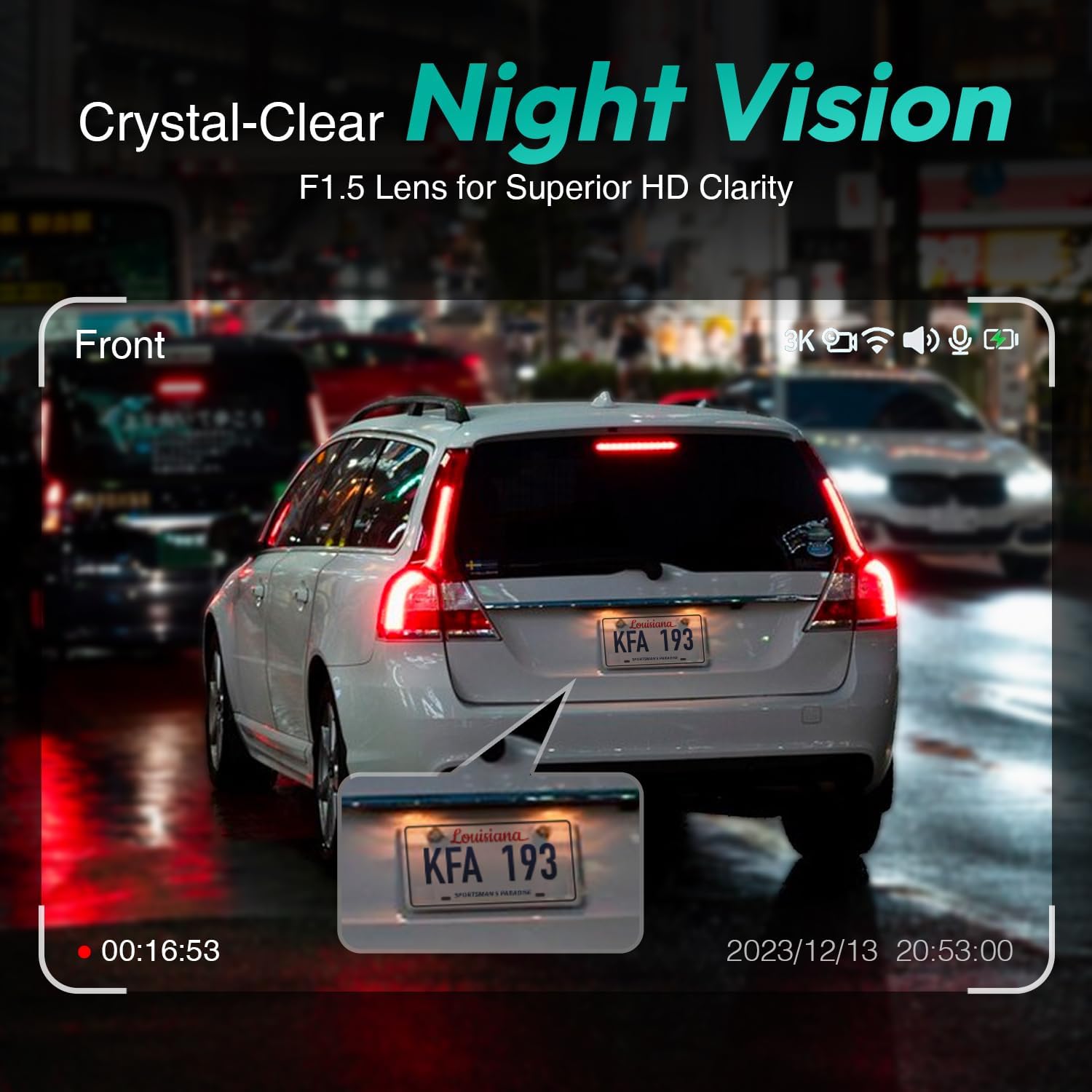
Image: A still from night vision footage, highlighting the clarity of a car's license plate in dark conditions.
4.3 Built-in GPS Integration
The integrated GPS automatically records your driving details, including speed, time, and location. You can view your routes on Google Maps directly from your smartphone, providing secure and personal data tracking.

Image: A smartphone displaying the dash cam's live view integrated with Google Maps, showing precise location tracking.
4.4 Driver Fatigue Reminder
For enhanced safety, the dash cam includes a Driver Fatigue Reminder feature. This system alerts you to potential fatigue, prompting you to take a break during long journeys.

Image: A driver receiving a visual alert for fatigue, emphasizing the safety feature of the dash cam.
4.5 การตรวจสอบที่จอดรถ
When your vehicle is parked, the parking monitoring feature keeps an eye on your car. It can detect motion and impacts, recording events to provide an extra layer of security. Note: A dashcam hardware kit is required for this function, not included in the package.

ภาพ: ภาพทางอากาศ view illustrating the 24/7 parking monitoring feature, showing motion detection around a parked car.
4.6 การบันทึกฉุกเฉิน (เซ็นเซอร์ G)
In the event of a collision or sudden movement, the emergency recording feature automatically activates. It locks the current video footage, preventing it from being overwritten, and captures critical details of the incident. This is invaluable for insurance claims or traffic disputes.

Image: A visual representation of the emergency video protection feature, triggered by a collision, ensuring critical footage ถูกบันทึกไว้แล้ว
4.7 การเชื่อมต่อ Wi-Fi และการควบคุมแอป
The dash cam supports 2.4GHz Wi-Fi connectivity, allowing you to connect it to your smartphone. Through the dedicated app, you can access live view, อีกครั้งview recorded videos, take snapshots, and track driving trajectories, providing real-time insight and control.

Image: A graphic illustrating the stable 2.4GHz Wi-Fi connection between the dash cam and a smartphone for seamless data transfer.

Image: A driver using the smartphone app to view real-time road insight from the dash cam.
4.8 การบันทึกแบบวนซ้ำอย่างต่อเนื่อง
The camera continuously records, automatically replacing the oldest videos with new ones when the memory card is full. Important clips, such as those triggered by the G-Sensor, are locked and will not be overwritten.

Image: A visual metaphor of a continuous film strip, representing the seamless loop recording function of the dash cam.
5. การบำรุงรักษา
5.1 การจัดการการ์ด SD
The BOTSLAB G500H supports up to 128GB Micro SD cards. It is recommended to use a high-speed (Class 10 or higher) Micro SD card for optimal performance. Periodically format the SD card within the dash cam's settings to ensure stable recording and prevent data corruption. Note: Micro SD card is not included.

ภาพ: ภาพระยะใกล้ view of the dash cam highlighting the Micro SD card slot, indicating where to insert the memory card.
5.2 การทำความสะอาด
To maintain clear video quality, regularly clean the dash cam lenses with a soft, lint-free cloth. Avoid using abrasive cleaners or solvents that could damage the lens coating. Keep the dash cam unit free from dust and debris.
6 การแก้ไขปัญหา
| ปัญหา | สาเหตุที่เป็นไปได้ | สารละลาย |
|---|---|---|
| กล้องติดรถยนต์ไม่สามารถเปิดได้ | ไม่มีแหล่งจ่ายไฟ; การเชื่อมต่อหลวม | Check car charger connection to vehicle's 12V outlet and to the dash cam. Ensure vehicle's power outlet is functional. |
| การบันทึกหยุดหรือ footage เสียหายแล้ว | SD card full or corrupted; incompatible SD card. | Format the SD card via the dash cam settings. Replace with a new high-speed (Class 10 or higher) Micro SD card if issues persist. Ensure card is up to 128GB. |
| Poor video quality (blurry/unclear). | เลนส์สกปรก ฟิล์มป้องกันยังคงติดอยู่บนเลนส์ | Clean the camera lenses with a soft cloth. Remove any protective films from the lenses. |
| ปัญหาการเชื่อมต่อ Wi-Fi | Incorrect app settings; interference. | Ensure the dash cam's Wi-Fi is enabled. Restart both the dash cam and your smartphone. Check app permissions. |
| ระบบตรวจสอบการจอดรถใช้งานไม่ได้ | Hardware kit not installed; feature disabled. | Ensure the optional hardwire kit is correctly installed. Verify parking monitoring is enabled in the dash cam settings. |
7. ข้อมูลจำเพาะ
| คุณสมบัติ | รายละเอียด |
|---|---|
| หมายเลขรุ่น | G500H |
| ขนาดสินค้า | 1.9 x 3 x 2.2 นิ้ว |
| น้ำหนักสินค้า | 1.39 ปอนด์ |
| ความละเอียดในการจับภาพวิดีโอ | 1944p (ด้านหน้า) |
| มุมเลนส์ด้านหน้า | มุมกว้าง 150° |
| มุมเลนส์ด้านหลัง | มุมกว้าง 130° |
| เทคโนโลยีการเชื่อมต่อ | ไวไฟ 2.4GHz |
| คุณสมบัติพิเศษ | Parking Monitoring, Driver Fatigue Reminder, Built-In GPS, Loop Recording, G-Sensor |
| ประเภทการติดตั้ง | ที่ยึดกระจกหน้า |
| รองรับการ์ด SD สูงสุด | รองรับหน่วยความจำสูงสุด 128GB (Micro SD) |
8. การรับประกันและการสนับสนุน
BOTSLAB products are designed for reliability and performance. For detailed warranty information and customer support, please refer to the official BOTSLAB webหรือติดต่อฝ่ายบริการลูกค้า เก็บใบเสร็จรับเงินไว้เพื่อใช้ในการเคลมประกัน
For a comprehensive user guide in PDF format, you can download it from the following link: BOTSLAB G500H User Manual (PDF)
Ask a question about this manual
Ask about setup, troubleshooting, compatibility, parts, safety, or missing instructions. Manuals+ will review the question and use this page’s manual context to help answer it.