
1. บทนำ
The Moxa UPort 1610-8-G2 is a high-performance USB to 8-port RS-232 serial converter designed for industrial applications. It provides reliable serial communication by converting a single USB port into eight RS-232 serial ports, enabling connectivity for various serial devices to a host computer. This device features USB 3.2 SuperSpeed capability and includes a 512-byte on-chip FIFO cache with flow control for enhanced data transfer performance. It supports a wide operating temperature range of 0 to 60°C, making it suitable for diverse environments.
คุณสมบัติที่สำคัญ ได้แก่:
- USB 3.2 SuperSpeed capability for high-speed data transfer.
- 512-byte on-chip FIFO cache and flow control for optimized performance.
- Broad operating system driver support, including Windows and Linux.
- Configurable baud rates from 50 bps to 921.6 kbps, with support for nonstandard baud rates.
- Double-sided LEDs indicating power, transmit (TX), and receive (RX) statuses.
2. เนื้อหาบรรจุภัณฑ์
Before proceeding with installation, verify that your package contains the following items:
- Moxa UPort 1610-8-G2 unit
- สาย USB
- อะแดปเตอร์ไฟ (ถ้ามี)
- Documentation CD or link to driver download
- คู่มือการติดตั้งแบบด่วน
If any items are missing or damaged, please contact your vendor or Moxa customer service.
3. การตั้งค่า
3.1 การติดตั้งฮาร์ดแวร์
- เชื่อมต่อสาย USB: Connect one end of the provided USB cable to the USB port on the UPort 1610-8-G2 and the other end to an available USB port on your host computer.
- Connect Serial Devices: Connect your RS-232 serial devices to the 8 serial ports on the UPort 1610-8-G2 using appropriate serial cables. Ensure secure connections for all devices.
- การเชื่อมต่อไฟฟ้า: If an external power adapter is included or required, connect it to the UPort 1610-8-G2 and then to a power outlet. The device may draw power directly from the USB port, but external power might be necessary for certain configurations or to ensure stable operation with all 8 ports active.
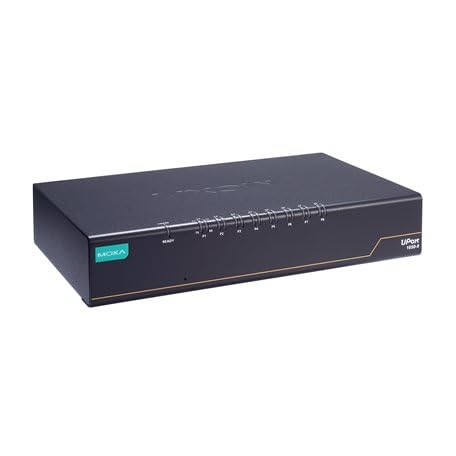
Image: The Moxa UPort 1610-8-G2 USB to 8-Port RS-232 Serial Converter, showing its compact design and multiple serial ports. The USB input port is visible, along with the array of RS-232 connectors for various devices.
3.2 การติดตั้งไดรเวอร์
The UPort 1610-8-G2 requires specific drivers to function correctly with your operating system. Drivers are provided for a broad selection of operating systems, including Windows and Linux.
- Obtain Drivers: Download the latest drivers from the official Moxa webงาน (www.moxa.com) by searching for 'UPort 1610-8-G2'. Alternatively, use the provided documentation CD if available.
- ติดตั้งไดรเวอร์: Follow the on-screen instructions to install the drivers. For Windows, this typically involves running an executable file. For Linux, consult the provided installation guide for specific commands and procedures.
- ตรวจสอบการติดตั้ง: After installation, check your operating system's Device Manager (Windows) or equivalent system information tool (Linux) to ensure that the UPort 1610-8-G2 and its virtual COM ports are recognized correctly.
4. ปฏิบัติการ
4.1 การทำงานพื้นฐาน
Once the hardware is connected and drivers are installed, the UPort 1610-8-G2 will create virtual COM ports on your host computer. These virtual COM ports can be accessed by your serial communication software as if they were native serial ports.
- การกำหนดค่าซอฟต์แวร์: Configure your serial communication software (e.g., terminal emulator, SCADA system) to use the assigned virtual COM port numbers.
- Baud Rate Settings: Set the baud rate, data bits, parity, and stop bits in your software to match the settings of your connected serial devices. The UPort 1610-8-G2 supports baud rates from 50 bps to 921.6 kbps.
- การส่งผ่านข้อมูล: Initiate data transmission or reception through your software. The UPort 1610-8-G2 will handle the conversion between USB and RS-232 signals.
4.2 ไฟแสดงสถานะ LED
The UPort 1610-8-G2 features double-sided LEDs located at the corners, providing visual status indications:
- กำลังไฟ LED: Indicates that the device is receiving power.
- ไฟ LED แสดงสถานะการส่งสัญญาณ (TX LED): Flashes when data is being transmitted from the host computer through the serial port.
- ไฟ LED แสดงสถานะ RX (รับสัญญาณ): Flashes when data is being received by the serial port from a connected device.
Monitoring these LEDs can help in diagnosing communication issues.
5. การบำรุงรักษา
To ensure the longevity and optimal performance of your Moxa UPort 1610-8-G2, follow these maintenance guidelines:
- การทำความสะอาด: Keep the device clean and free from dust. Use a soft, dry cloth for cleaning. Avoid liquid cleaners or solvents.
- สภาพแวดล้อม : Operate the device within its specified temperature range of 0 to 60°C. Avoid exposing it to extreme temperatures, high humidity, or direct sunlight.
- การจัดการสายเคเบิล: ตรวจสอบให้แน่ใจว่าสายเคเบิลทั้งหมดเชื่อมต่อแน่นหนาและไม่ตึงเกินไป หลีกเลี่ยงการดัดงอสายเคเบิลอย่างรุนแรง
- อัพเดตเฟิร์มแวร์: ตรวจสอบม็อกซาเป็นระยะ website for any available firmware updates for your device. Firmware updates can improve performance, add features, or fix bugs.
6 การแก้ไขปัญหา
If you encounter issues with your UPort 1610-8-G2, consider the following troubleshooting steps:
6.1 No Device Recognition
- ตรวจสอบการเชื่อมต่อ USB: Ensure the USB cable is securely connected to both the UPort and the host computer. Try a different USB port or cable.
- แหล่งจ่ายไฟ: Verify that the device is receiving power. Check the Power LED. If using an external adapter, ensure it is properly connected and functional.
- การติดตั้งไดร์เวอร์: Confirm that the correct drivers are installed. Reinstall drivers if necessary. Check Device Manager (Windows) for any error indicators.
- รีสตาร์ทคอมพิวเตอร์: A system restart can sometimes resolve recognition issues.
6.2 ข้อผิดพลาดในการสื่อสาร
- การตั้งค่าพอร์ตซีเรียล: Double-check that the baud rate, data bits, parity, and stop bits in your software match those of the connected serial device.
- ความสมบูรณ์ของสายเคเบิล: Inspect the serial cables for damage. Try a different serial cable.
- ฟังก์ชั่นอุปกรณ์: Ensure the connected serial device is powered on and functioning correctly.
- กิจกรรม LED: Observe the TX/RX LEDs. If they are not flashing during data transmission, there might be an issue with the software configuration or the connected device.
6.3 ปัญหาประสิทธิภาพการทำงาน
- ประเภทพอร์ต USB: Ensure the UPort 1610-8-G2 is connected to a USB 3.0/3.1/3.2 port on your host computer to utilize its SuperSpeed capabilities. Connecting to a USB 2.0 port will result in lower speeds.
- ทรัพยากรระบบ: Close unnecessary applications on your host computer to free up system resources.
7. ข้อมูลจำเพาะ
| คุณสมบัติ | ข้อมูลจำเพาะ |
|---|---|
| แบบอย่าง | ยูพอร์ต 1610-8-G2 |
| อินเทอร์เฟซ USB | USB 3.2 SuperSpeed |
| พอร์ตซีเรียล | 8 x RS-232 |
| อัตราบอดเรท | 50 bps to 921.6 kbps (nonstandard baudrates supported) |
| FIFO Cache | 512-byte on-chip |
| การควบคุมการไหล | รองรับ |
| อุณหภูมิในการทำงาน | 0 ถึง 60°C |
| ขนาดสินค้า | 8.5 x 4.79 x 1.63 นิ้ว |
| น้ำหนักสินค้า | 4 ปอนด์ |
| ระบบปฏิบัติการที่รองรับ | วินโดวส์, ลินุกซ์ |
8. ข้อมูลการรับประกัน
Moxa products are backed by a manufacturer's warranty. The specific terms and duration of the warranty may vary by region and product. Please refer to the warranty card included with your product or visit the official Moxa webเว็บไซต์สำหรับข้อมูลการรับประกันและขั้นตอนการลงทะเบียนโดยละเอียด
เก็บหลักฐานการซื้อของคุณไว้เพื่อเรียกร้องการรับประกัน
9. การสนับสนุนด้านเทคนิค
For further assistance, technical support, or to report issues not covered in this manual, please contact Moxa's customer support team.
- โมกซ่า Webเว็บไซต์: เยี่ยม www.moxa.com/support for FAQs, driver downloads, documentation, and contact information.
- การสนับสนุนทางออนไลน์: Utilize the online support portal for submitting tickets or accessing knowledge base articles.
When contacting support, please have your product model (UPort 1610-8-G2) and serial number ready.


