
1. บทนำ
ขอบคุณสำหรับการซื้อasing the BoxWave SlimKeys Bluetooth Keyboard. This portable, backlit keyboard is designed to enhance your typing experience across various devices, including tablets, smartphones, and computers. Its slim profile, customizable LED backlight, and reliable Bluetooth connectivity make it an ideal companion for productivity on the go. This manual provides detailed instructions for setup, operation, maintenance, and troubleshooting to ensure optimal performance of your device.

Image: The SlimKeys Bluetooth Keyboard positioned alongside a Blackview Tab 7 tablet, demonstrating its compact size and compatibility.
2. คุณสมบัติของผลิตภัณฑ์
- ไฟแบ็คไลท์ LED ในตัว: Illuminates keys for typing in low-light or dark environments.
- Customizable Backlight: Choose from seven vibrant LED backlight colors to personalize your setup.
- การเชื่อมต่อไร้สายที่เชื่อถือได้: Connects quickly and easily via Bluetooth 3.0 for a stable and responsive typing experience.
- Battery-Saving Power Switch: A dedicated on/off switch helps extend battery life during travel or downtime.
- การออกแบบบางและพกพาสะดวก: Compact and lightweight, making it easy to store and transport without added bulk.
- ปุ่มกดแบบชิคเล็ต: คุณสมบัติระดับต่ำfile keys designed for quiet and comfortable typing.
- ความเข้ากันได้กับหลายแพลตฟอร์ม: Seamlessly connects across Android, Windows, and iOS devices.

Image: An infographic highlighting the main features of the SlimKeys keyboard, including backlit keys, multi-platform compatibility, chiclet keys, and its ultra-slim and light design.
3. คู่มือการติดตั้ง
3.1. การชาร์จคีย์บอร์ด
Before first use, ensure the keyboard is fully charged. Connect the included charging cable to the keyboard's charging port and to a USB power source (e.g., computer USB port, USB wall adapter). The 'Charge' indicator light will illuminate during charging and turn off when fully charged.

Image: The SlimKeys keyboard with its charging cable connected, demonstrating the charging process and highlighting its long-lasting battery life.
3.2. การเปิด/ปิดเครื่อง
Locate the ON/OFF switch on the top right side of the keyboard. Slide the switch to the 'ON' position to power on the keyboard. The 'Power' indicator light will briefly illuminate. To conserve battery, slide the switch to 'OFF' when not in use.
3.3. การจับคู่บลูทู ธ
- ตรวจสอบให้แน่ใจว่าแป้นพิมพ์เปิดอยู่
- Press the 'Connect' button located near the ON/OFF switch. The 'Connect' indicator light will start blinking, indicating the keyboard is in pairing mode.
- On your device (tablet, smartphone, computer), go to the Bluetooth settings.
- เปิดใช้งาน Bluetooth และค้นหาอุปกรณ์ที่มีอยู่
- Select 'BoxWave SlimKeys Keyboard' (or similar name) from the list of found devices.
- If prompted, enter the pairing code displayed on your device's screen using the SlimKeys keyboard, then press Enter.
- Once paired, the 'Connect' indicator light on the keyboard will stop blinking and remain solid, or turn off, depending on the model. Your keyboard is now ready for use.
ภาพ: รายละเอียด view of the top right section of the SlimKeys keyboard, highlighting the 'Connect' button and the 'ON/OFF' switch, along with the indicator lights.
4. คู่มือการใช้งาน
4.1. การพิมพ์
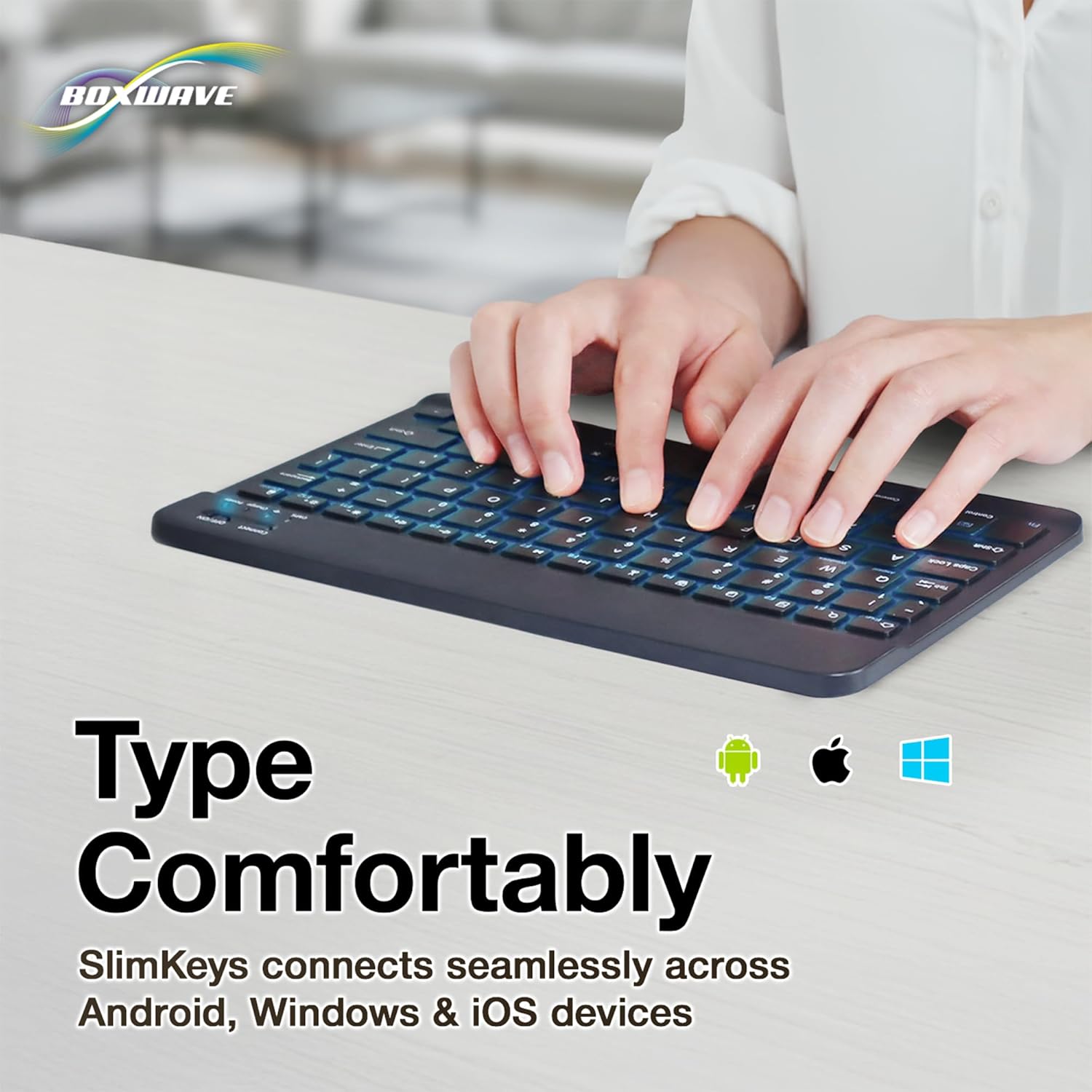
Once successfully paired, you can use the SlimKeys keyboard for all your typing needs. The chiclet-style keys provide a comfortable and responsive typing experience.
4.2. การควบคุมแบ็คไลท์
The keyboard features an integrated LED backlight with seven customizable colors. To control the backlight:
- กดปุ่ม หลอดไฟ key (usually located near the right Ctrl key) to turn the backlight on or off.
- กดปุ่ม อาร์จีบี key (usually located next to the Light Bulb key) to cycle through the seven available backlight colors.

Image: The SlimKeys keyboard showcasing its seven different backlight colors, demonstrating the customization options.
4.3. Specialized Function Keys
The SlimKeys keyboard includes a row of specialized function keys (F1-F12) that provide quick access to common commands. These functions may vary slightly depending on your operating system (Android, Windows, iOS). To use a function key, press the Fn key (usually located near the left Ctrl key) simultaneously with the desired function key.
| คีย์ผสม | การทำงาน |
|---|---|
| Fn + Esc (Home) | ไปที่หน้าจอหลัก |
| Fn + F1 (Search) | เปิดการค้นหา |
| Fn + F2 (Select All) | Select All text/items |
| Fn + F3 (Copy) | Copy selected content |
| Fn + F4 (Paste) | Paste content |
| Fn + F5 (Cut) | Cut selected content |
| Fn + F6 (Skip Back) | ข้ามไปยังเพลงก่อนหน้า |
| Fn + F7 (Play/Pause) | Play or Pause media |
| Fn + F8 (Skip Forward) | ข้ามไปยังเพลงถัดไป |
| Fn + F9 (Volume Down) | ลดระดับเสียง |
| Fn + F10 (Volume Up) | เพิ่มปริมาณเสียง |
| Fn + F11 (Brightness Down) | ลดความสว่างหน้าจอ |
| Fn + F12 (Brightness Up) | เพิ่มความสว่างหน้าจอ |
| Fn + Delete (Lock) | Lock device screen |

Image: A visual representation of the specialized function keys on the SlimKeys keyboard, detailing their respective commands.
5. การบำรุงรักษา
To ensure the longevity and optimal performance of your BoxWave SlimKeys Bluetooth Keyboard, follow these maintenance guidelines:
- การทำความสะอาด: ใช้ผ้านุ่มที่ไม่เป็นขุยเช็ดพื้นผิวแป้นพิมพ์ สำหรับคราบสกปรกฝังแน่น ให้เช็ดเบาๆampชุบผ้าด้วยน้ำหรือน้ำยาทำความสะอาดอ่อนๆ ที่ไม่กัดกร่อน หลีกเลี่ยงความชื้นที่มากเกินไป
- พื้นที่จัดเก็บ: เก็บแป้นพิมพ์ไว้ในที่แห้งและเย็น หลีกเลี่ยงแสงแดดโดยตรงและอุณหภูมิที่สูงหรือต่ำเกินไป
- หลีกเลี่ยงของเหลว: อย่าให้แป้นพิมพ์สัมผัสกับของเหลว หากเกิดการหกใส่โดยไม่ตั้งใจ ให้ปิดแป้นพิมพ์ทันทีและปล่อยให้แห้งสนิทก่อนนำกลับมาใช้งานใหม่
- จัดการด้วยความระมัดระวัง: ควรหลีกเลี่ยงการทำแป้นพิมพ์ตกหรือการกระแทกอย่างแรง เพราะอาจทำให้ชิ้นส่วนภายในเสียหายได้
6 การแก้ไขปัญหา
If you encounter issues with your BoxWave SlimKeys Bluetooth Keyboard, refer to the following common problems and solutions:
| ปัญหา | สาเหตุที่เป็นไปได้ | สารละลาย |
|---|---|---|
| แป้นพิมพ์ไม่เปิดใช้งาน | แบตเตอรี่หมด | ชาร์จคีย์บอร์ดให้เต็ม |
| Cannot pair the keyboard with my device. | Bluetooth not enabled on device; keyboard not in pairing mode; interference. | Ensure Bluetooth is on. Press 'Connect' button on keyboard. Move closer to device. Remove previous pairings. Restart both devices. |
| แป้นพิมพ์หลุดการเชื่อมต่อบ่อยครั้ง | แบตเตอรี่อ่อน, อยู่ไกลจากอุปกรณ์มากเกินไป, มีสัญญาณรบกวน | Charge keyboard. Keep keyboard within 10 meters of device. Avoid strong electromagnetic interference. |
| Backlight is not working or stuck on one color. | Backlight off; low battery; software glitch. | Press the Light Bulb key. Charge the keyboard. Power cycle the keyboard (turn off, then on). |
| คีย์ไม่ตอบสนอง | Keyboard not paired; low battery; hardware issue. | Re-pair the keyboard. Charge the keyboard. If problem persists, contact customer support. |
If the problem persists after trying these solutions, please contact BoxWave customer support for further assistance.
7. ข้อมูลจำเพาะ
| คุณสมบัติ | รายละเอียด |
|---|---|
| ชื่อรุ่น | SlimKeys Bluetooth Keyboard |
| การเชื่อมต่อ | บลูทูธ 3.0 |
| แสงไฟแบ็คไลท์ | ไฟ LED 7 สี |
| ความเข้ากันได้ | แอนดรอยด์, วินโดวส์, ไอโอเอส |
| น้ำหนักสินค้า | 8.6 ออนซ์ (ประมาณ 244 กรัม) |
| ขนาด (โดยประมาณ) | 9.5 in (Width) x 5.75 in (Depth) x 0.2 in (Height) |
| ผู้ผลิต | บ็อกซ์เวฟ |

Image: The SlimKeys keyboard shown with its approximate dimensions, illustrating its ultra-slim and lightweight design for portability.
8. การรับประกันและการสนับสนุน
BoxWave products are designed for quality and reliability. For information regarding product warranty, returns, or technical support, please refer to the warranty card included with your product or visit the official BoxWave website. You may also contact BoxWave customer service directly for assistance with any product-related inquiries.
ข้อมูลติดต่อ: Please refer to the packaging or BoxWave's official webเว็บไซต์สำหรับรายละเอียดการติดต่อฝ่ายสนับสนุนลูกค้าล่าสุด