
1. บทนำ
This manual provides detailed instructions for the FUNLAB Grily Hall Effect Wireless Controller. Please read this manual thoroughly before use to ensure proper operation and to maximize your gaming experience. This controller is designed for use with Nintendo Switch, Switch OLED, and Switch Lite consoles, as well as PC, Steam Deck, iOS, and Android devices.

This image displays the pink FUNLAB Grily Hall Effect Wireless Controller from a top-down perspective, showcasing its cat paw pattern design and button layout.
2. คุณสมบัติของผลิตภัณฑ์
- Hidden-til-lit Display: Unique design where patterns illuminate when the LED is active, remaining subtle when off.
- Polychrome Breathing LED: Features 7 LED colors with 4 lighting modes: breathing, quick flash, vibration lighting, and always-on.
- จอยสติ๊กเอฟเฟกต์ฮอลล์: Provides precise and sensitive control, reducing mechanical wear and preventing stick drift.
- Sensing Motion & Turbo Function: Equipped with precise motion control and a turbo function for continuous input.
- อายุการใช้งานแบตเตอรี่ยาวนาน: Built-in 3.7V/950mAH Lithium battery offers up to 12.5 hours of gameplay with lights off.
- Programmable Back Paddle Buttons: Two customizable back buttons for enhanced control and personalized gameplay.
- การออกแบบตามหลักสรีรศาสตร์: Shaped for comfortable handling during extended gaming sessions.
- ฟังก์ชั่นการสั่นสะเทือน: มอบประสบการณ์การสัมผัสที่สมจริงระหว่างการเล่นเกม
- ความเข้ากันได้กว้าง: Supports Nintendo Switch (2/OLED/Lite), Windows PC, Steam Deck, iOS, and Android devices.
2.1 Detailed Feature Overview

This image illustrates the controller's unique hidden-til-lit display, where the cat paw patterns glow when the internal LEDs are active, creating a distinct visual effect.

The image highlights the controller's 7-color breathing LED feature, demonstrating various lighting modes such as always-on, breathing, quick flash, and vibrating.

This diagram illustrates the Hall Effect joystick technology, emphasizing its precision and resistance to stick drift compared to traditional joysticks.

The image displays the controller's battery specifications, indicating a 12-hour playing time and a 950mAh battery capacity.
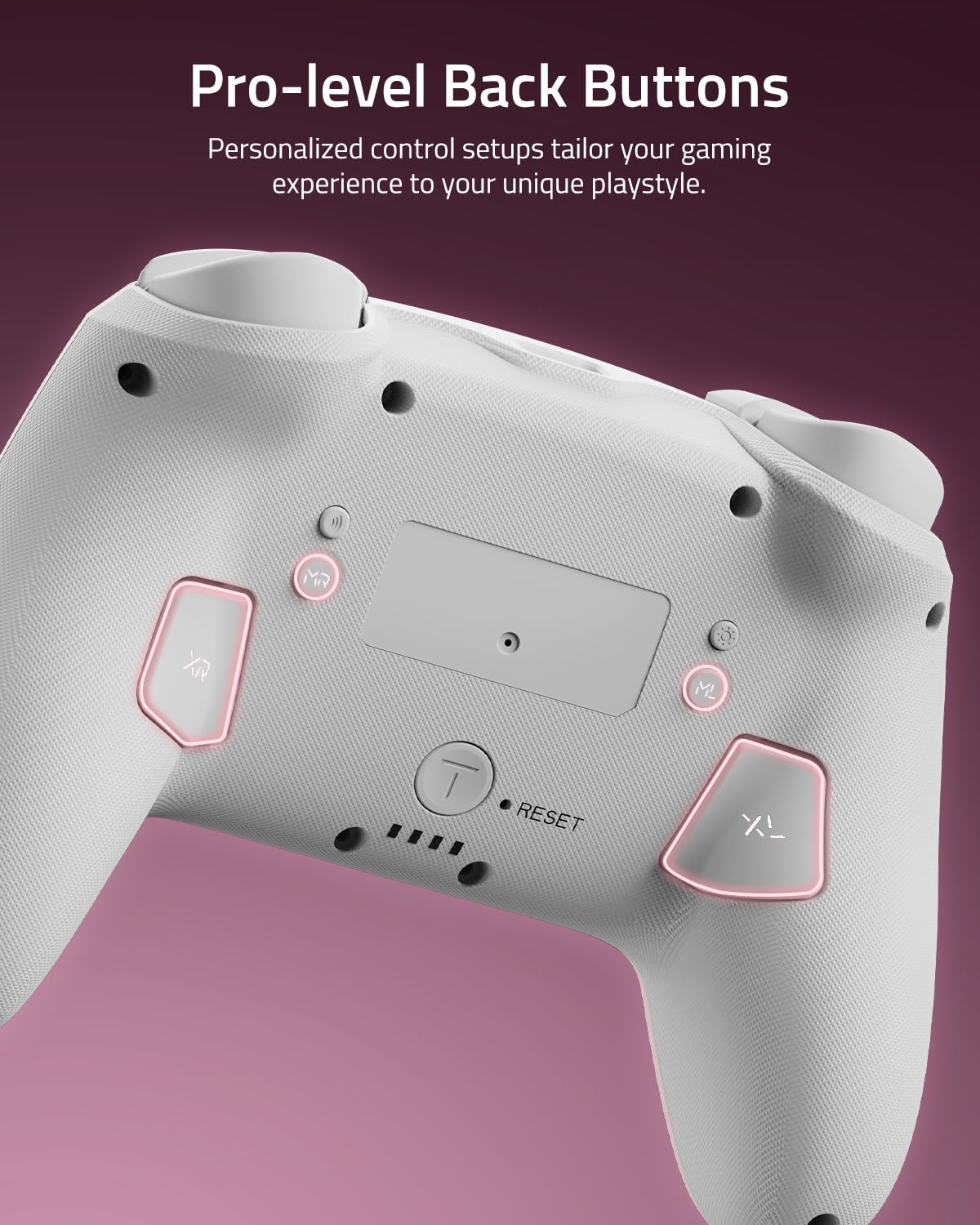
ภาพระยะใกล้นี้ view shows the two programmable back paddle buttons (XL and XR) located on the underside of the controller, designed for custom assignments.
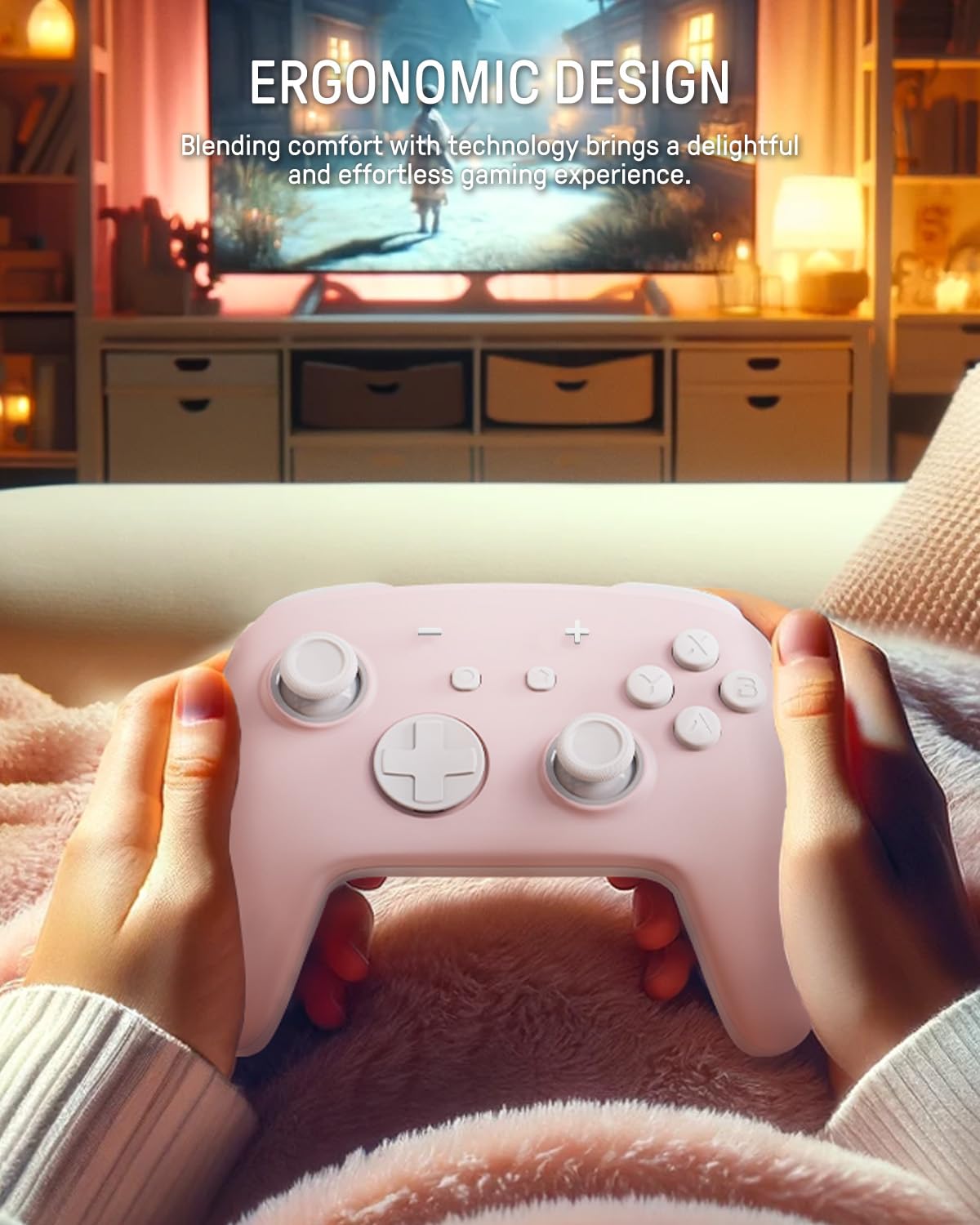
The image depicts a person holding the controller, highlighting its ergonomic shape designed for comfortable and extended gameplay.
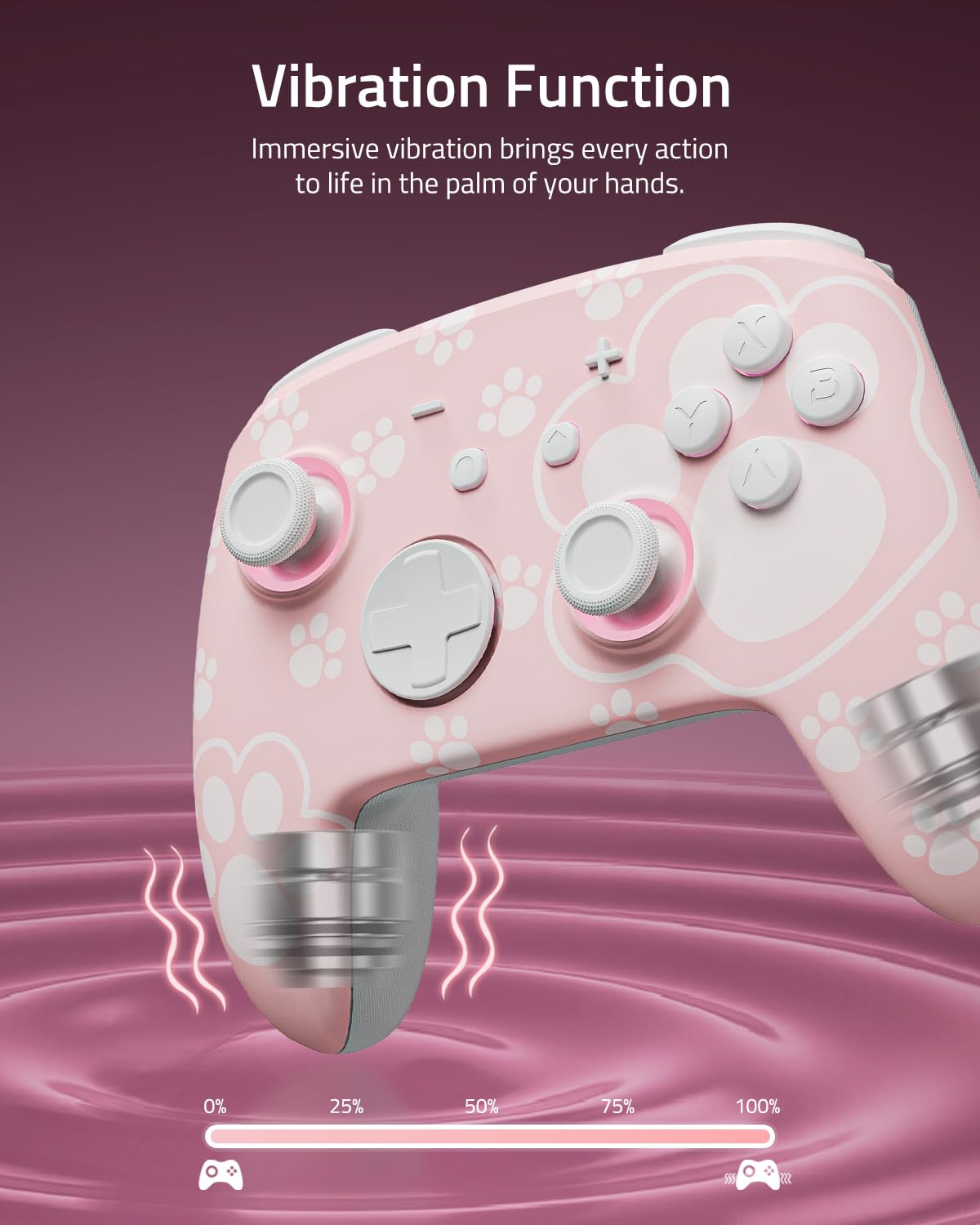
This image visually represents the controller's vibration function, with intensity levels shown to indicate immersive haptic feedback.

The image demonstrates the controller's broad compatibility with multiple platforms, including Nintendo Switch systems, Windows PCs, Steam Deck, iOS, and Android devices.
3. การตั้งค่าและการเชื่อมต่อ
3.1 การชาร์จคอนโทรลเลอร์
Before first use, fully charge the controller. Connect the included USB-C cable to the controller's charging port and the other end to a USB power source (e.g., Nintendo Switch dock, PC, or USB wall adapter). The LED indicators will show charging status and turn off or change color when fully charged.
3.2 การจับคู่กับ Nintendo Switch
- จากเมนู HOME เลือก ตัวควบคุม > เปลี่ยนกริป/สั่งซื้อ.
- บนตัวควบคุม ให้กด . ค้างไว้ ปุ่มจับคู่ (usually a small button on the top or back) for a few seconds until the indicator lights begin to flash rapidly.
- Once paired, the player indicator LED(s) on the controller will remain lit.
3.3 การจับคู่กับพีซี (Windows)
- ตรวจสอบให้แน่ใจว่าพีซีของคุณเปิดใช้งานบลูทูธแล้ว
- ไปที่ การตั้งค่า > อุปกรณ์ > บลูทูธและอุปกรณ์อื่นๆ > เพิ่มบลูทูธหรืออุปกรณ์อื่น ๆ.
- เลือก บลูทูธ.
- บนตัวควบคุม ให้กด . ค้างไว้ ปุ่มจับคู่ until the indicator lights flash rapidly.
- Select the controller from the list of available devices on your PC.
3.4 การจับคู่กับอุปกรณ์ iOS
- บนอุปกรณ์ iOS ของคุณ ให้ไปที่ การตั้งค่า > บลูทูธ และเปิดบลูทูธ
- บนตัวควบคุม ให้กด . ค้างไว้ ปุ่มจับคู่ until the indicator lights flash rapidly.
- Select the controller from the list of available devices on your iOS device.
3.5 การจับคู่กับอุปกรณ์ Android
- บนอุปกรณ์ Android ของคุณ ไปที่ การตั้งค่า > อุปกรณ์ที่เชื่อมต่อ > บลูทูธ และเปิดบลูทูธ
- บนตัวควบคุม ให้กด . ค้างไว้ ปุ่มจับคู่ until the indicator lights flash rapidly.
- Select the controller from the list of available devices on your Android device.
4. การดำเนินการ
4.1 Basic Button Layout
The controller features standard gamepad buttons including A/B/X/Y, D-pad, Left/Right Joysticks, L/R, ZL/ZR, Home, Capture, Plus (+), Minus (-), and two programmable back paddle buttons (XL, XR).
4.2 Adjusting LED Lighting Modes
กดปุ่ม ปุ่มไฟ (refer to controller diagram for location) to cycle through the 7 LED colors. To change lighting modes (breathing, quick flash, vibration lighting, always-on), consult the specific instructions provided with your controller or the manufacturer's website for the exact button combination.
4.3 การใช้ฟังก์ชันเทอร์โบ
The Turbo function allows for rapid, continuous input of a button press. To activate Turbo for a button:
- กดปุ่มค้างไว้ ปุ่มเทอร์โบ.
- While holding Turbo, press the desired action button (e.g., A, B, X, Y, L, R, ZL, ZR).
- Release both buttons. The selected action button will now continuously input when held.
To deactivate Turbo for a button, repeat the process. To clear all Turbo settings, press and hold the Turbo button for 5 seconds.
4.4 Programming Back Paddle Buttons (XL, XR)
The XL and XR back paddle buttons can be assigned to replicate other button inputs or perform macro sequences. Refer to the specific programming instructions that came with your controller, as the method may vary. Typically, this involves a combination of holding a programming button (often labeled 'M' or 'MR') and pressing the desired input button(s).
4.5 Motion Control Functionality
The controller supports motion control for compatible games. Ensure the controller is paired correctly with your device. Calibration may be required within the game or system settings if motion controls are not responding accurately.
5. การบำรุงรักษาและการดูแล
5.1 การทำความสะอาด
- ใช้ผ้าแห้งนุ่มๆ เช็ดทำความสะอาดพื้นผิวของตัวควบคุม
- สำหรับสิ่งสกปรกฝังแน่น ให้เช็ดออกเล็กน้อยampชุบน้ำหรือน้ำยาทำความสะอาดสูตรอ่อนโยนที่ไม่มีฤทธิ์กัดกร่อนบนผ้า
- Avoid using harsh chemicals, solvents, or abrasive materials, as these can damage the controller's finish.
- ห้ามปล่อยให้ของเหลวเข้าไปในช่องเปิดของตัวควบคุม
5.2 พื้นที่จัดเก็บ
- เก็บตัวควบคุมไว้ในที่แห้งและเย็น ห่างจากแสงแดดโดยตรงและอุณหภูมิที่สูงหรือต่ำมาก
- If storing for an extended period, ensure the controller is fully charged before storage and recharge it periodically (e.g., every 3-6 months) to maintain battery health.
- Keep the controller away from dust and moisture.
6 การแก้ไขปัญหา
6.1 ปัญหาการเชื่อมต่อ
- ตัวควบคุมไม่ได้เชื่อมต่อ: Ensure the controller is charged. Try re-pairing the controller by following the setup instructions for your specific device.
- การเชื่อมต่อไม่ต่อเนื่อง: Move closer to the console/device. Ensure there are no strong interference sources (e.g., Wi-Fi routers, other Bluetooth devices) nearby.
- ไม่พบตัวควบคุม: Restart your console/device and the controller, then attempt pairing again.
6.2 ตัวควบคุมไม่ตอบสนอง
- No input: Check battery level. If the battery is low, charge the controller.
- ปุ่มไม่ตอบสนอง: Perform a soft reset by pressing the small reset button (if available, often located in a pinhole on the back) with a thin object like a paperclip.
6.3 LEDs Not Working
- ตรวจสอบให้แน่ใจว่าตัวควบคุมเปิดอยู่
- กดปุ่ม ปุ่มไฟ to cycle through colors and modes.
- If still unresponsive, try resetting the controller.
6.4 แบตเตอรี่ไม่ชาร์จ
- Verify the USB-C cable is securely connected to both the controller and the power source.
- ลองใช้สาย USB-C หรืออะแดปเตอร์ไฟอื่น
- ตรวจสอบให้แน่ใจว่าแหล่งจ่ายไฟทำงานอยู่และจ่ายไฟได้เพียงพอ
6.5 การดริฟท์ของก้านควบคุม
While Hall Effect joysticks are designed to prevent stick drift, if you experience any unintended input from the joysticks, try the following:
- Recalibrate the joysticks through your console's or device's system settings.
- Ensure the controller's firmware is up to date (check the FUNLAB web(ดูเว็บไซต์สำหรับการอัปเดต)
7. ข้อมูลจำเพาะ
| คุณสมบัติ | รายละเอียด |
|---|---|
| แบบอย่าง | Grily Hall Effect Controller |
| ขนาด | 5.91 x 2.36 x 4.33 นิ้ว |
| น้ำหนัก | 8.8 ออนซ์ |
| แบตเตอรี่ | 1 Lithium Ion battery (included), 3.7V/950mAH |
| อายุการใช้งานแบตเตอรี่ | ใช้งานได้นานสูงสุด 12.5 ชั่วโมง (ในที่มืด) |
| การเชื่อมต่อ | ไร้สาย (Bluetooth) |
| ความเข้ากันได้ | Nintendo Switch (2/OLED/Lite), Windows PC, Steam Deck, iOS, Android |
| คุณสมบัติพิเศษ | Hall Effect Joysticks, Polychrome LED, Turbo Function, Programmable Back Buttons, Motion Control |
8. ข้อมูลการสนับสนุน
For further assistance, product registration, or warranty information, please visit the official FUNLAB website or contact customer support through the retailer where the product was purchased.
ผู้ผลิต: ฟันแล็บ
วันที่เข้าใช้งานครั้งแรก: 4 พฤศจิกายน 2023