
1. บทนำ
This manual provides detailed instructions for the setup, operation, and maintenance of your edaiser Swivel Keyboard Case. Please read this manual thoroughly before using the product to ensure proper function and longevity. This keyboard case is designed to enhance your iPad mini experience by providing a physical keyboard and trackpad, along with robust protection and versatile viewมุมการเอียง
2. เนื้อหาบรรจุภัณฑ์
- edaiser Swivel Keyboard Case
- สายชาร์จ USB-C
- คู่มือการใช้งาน
3. ความเข้ากันได้
เคสคีย์บอร์ดนี้ออกแบบมาโดยเฉพาะสำหรับ iPad รุ่นต่อไปนี้:
- 2021 iPad mini 6th Generation (8.3-inch): Model Numbers A2567, A2568, A2569
- 2024 iPad mini 7th Generation (8.3-inch): Model Numbers A2993, A2995, A2996
To verify your iPad model number, check the back of your iPad or go to Settings > General > About > Model Number.

Image: Compatible iPad models and their model numbers.
4. คุณสมบัติของผลิตภัณฑ์
4.1 การหมุนและการเอียง
The keyboard case features a 360-degree rotatable hinge and 180-degree fold, allowing for multiple viewing and typing modes:
- โหมดแล็ปท็อป: Standard laptop-like setup for typing.
- โหมดยืน: Ideal for watching videos or presentations.
- โหมดเต็นท์: Suitable for touch-based interactions or drawing.
- โหมดแท็บเล็ต: Fold the keyboard back for a traditional tablet experience.

Image: iPad mini in laptop mode, demonstrating swivel and rotation.

Image: Different usage modes of the keyboard case.
4.2 RGB Backlit Keyboard and Trackpad
The integrated keyboard features RGB backlighting for comfortable typing in low-light conditions. The precision trackpad supports multi-touch gestures for enhanced navigation within iPadOS.
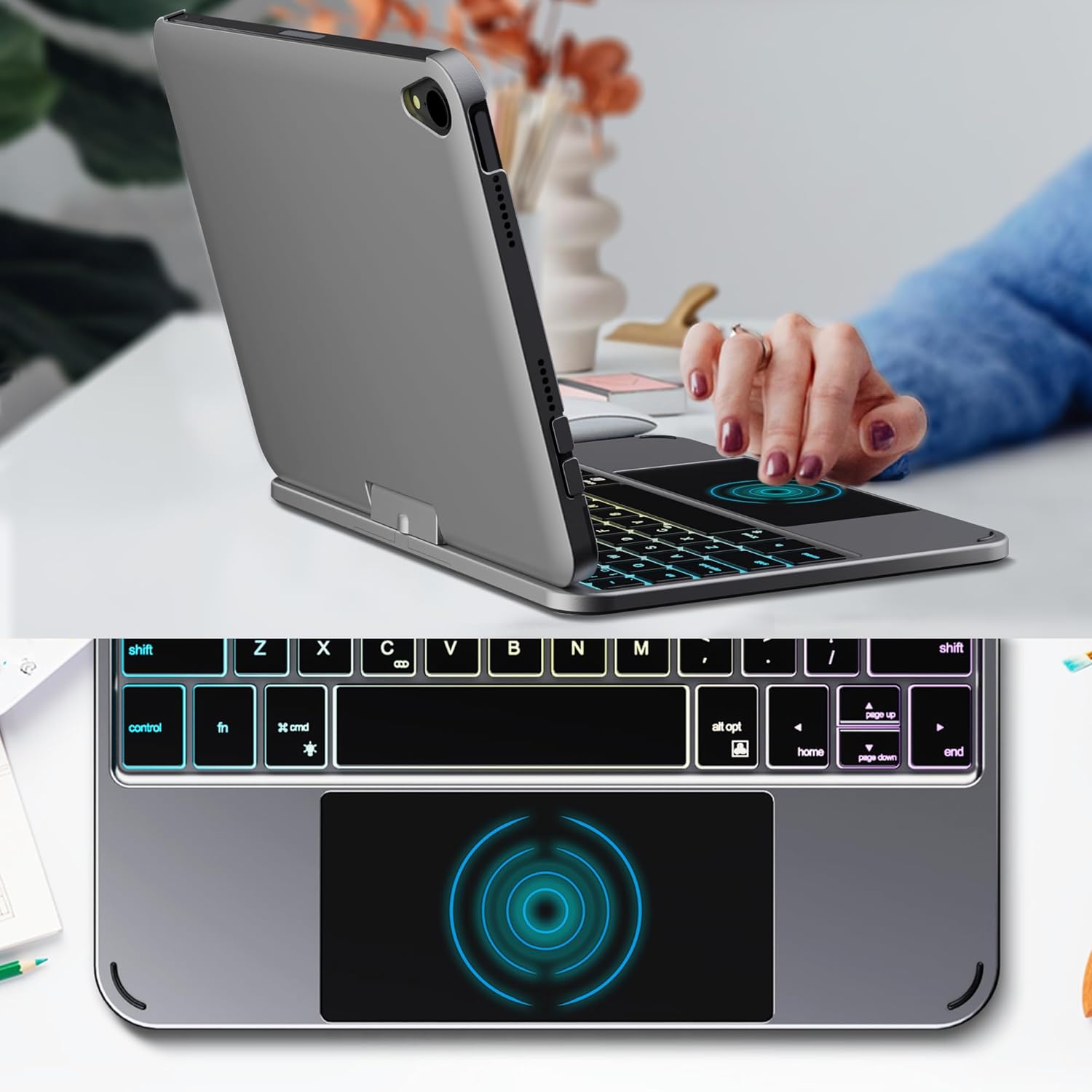
Image: Backlit keyboard and trackpad in use.

Image: Keycap and touchpad dimensions, and available colors.
4.3 Protection and Design
The case provides comprehensive protection for your iPad mini, safeguarding it from scratches and minor impacts. It features precise cutouts for the camera, charging port, and speakers.

Image: Case features and drop protection illustration.
5. คำแนะนำในการตั้งค่า
5.1 Installing Your iPad mini
- Gently align your iPad mini with the case.
- Press the iPad firmly into the case until it is securely seated. Ensure all edges are properly covered and ports/buttons are accessible.
Video: Demonstrates the installation of the iPad mini into the keyboard case, followed by usage in laptop mode, trackpad interaction, and backlight activation.
5.2 การจับคู่บลูทูธ
- เปิดแป้นพิมพ์: Locate the power button on the keyboard and press it to turn on the device.
- Activate Bluetooth on the keyboard: Press the "Fn" key and the "C" key simultaneously to activate Bluetooth pairing mode. The Bluetooth indicator light will flash.
- Open iPad Settings: บน iPad ของคุณไปที่ การตั้งค่า > บลูทูธ.
- เชื่อมต่อ: In the Bluetooth device list, find "iPad keyboard" and tap to connect. A pairing request may appear; confirm it.
- The Bluetooth indicator light on the keyboard will stop flashing once successfully paired.
Video: Demonstrates the rotation of the iPad within the case, various usage modes, and the Bluetooth pairing process for the keyboard.
6. คู่มือการใช้งาน
6.1 ฟังก์ชั่นคีย์บอร์ด
The keyboard includes standard keys and function keys specific to iPadOS:
- เอฟเอ็น + ซี: Activates Bluetooth pairing mode.
- Fn + Light Bulb icon: Toggles keyboard backlight on/off and cycles through brightness levels.
- Fn + RGB icon: Changes backlight color (if multiple colors are supported).
- กุญแจบ้าน: Returns to the iPad home screen.
- คีย์การค้นหา: Activates iPad search.
- ปุ่มปรับระดับเสียง: Adjusts iPad volume.
- ปุ่มควบคุมสื่อ: Play/Pause, Previous Track, Next Track.
6.2 ท่าทางบนแทร็กแพด
แทร็กแพดรองรับการสัมผัสหลายจุดเพื่อการใช้งานที่มีประสิทธิภาพ:
- แตะนิ้วเดียว: Left-click.
- แตะด้วยสองนิ้ว: Right-click (context menu).
- เลื่อนโดยใช้สองนิ้ว: Scroll up/down or left/right.
- ปัดขึ้นด้วยสามนิ้ว: Go to the home screen.
- Three-finger swipe up and hold: Open the App Switcher.
- ปัดนิ้วสามนิ้วไปทางซ้าย/ขวา: Switch between open apps.
- หยิกเพื่อซูม: Zoom in/out on content.
7. การชาร์จและแบตเตอรี่
The keyboard case is powered by a built-in rechargeable battery. Use the provided USB-C cable to charge the keyboard.
- ความจุของแบตเตอรี่: 500mAh
- เวลาสแตนด์บาย: สูงสุด 90 วัน
- เวลาทำงาน: Up to 180 hours (without backlight)
- ไฟแสดงสถานะการชาร์จ: The LED indicator will show charging status.
Connect the USB-C cable to the charging port on the keyboard and the other end to a USB power adapter (not included).

Image: Battery specifications and charging port location.
8. การบำรุงรักษา
- ควรเก็บเคสคีย์บอร์ดให้ห่างจากของเหลวและอุณหภูมิที่สูงหรือต่ำเกินไป
- Clean the case and keyboard with a soft, damp ผ้า. หลีกเลี่ยงสารเคมีที่รุนแรง
- อย่าพยายามถอดประกอบผลิตภัณฑ์
9 การแก้ไขปัญหา
9.1 แป้นพิมพ์ไม่เชื่อมต่อผ่านบลูทูธ
- ตรวจสอบให้แน่ใจว่าคีย์บอร์ดเปิดใช้งานอยู่และชาร์จแบตเตอรี่เต็มแล้ว
- โปรดตรวจสอบให้แน่ใจว่าได้เปิดใช้งานบลูทูธบน iPad ของคุณแล้ว
- Press "Fn" + "C" on the keyboard to enter pairing mode.
- ลบอุปกรณ์ออกจากเมนูบลูทูธใน iPad ของคุณ แล้วลองเชื่อมต่อใหม่อีกครั้ง
- รีสตาร์ททั้ง iPad และคีย์บอร์ดของคุณ
9.2 คีย์ไม่ตอบสนอง
- Check the battery level of the keyboard.
- ตรวจสอบให้แน่ใจว่าแป้นพิมพ์เชื่อมต่อผ่านบลูทูธอย่างถูกต้อง
- ทำความสะอาดรอบ ๆ คีย์เพื่อเอาเศษสิ่งสกปรกออก
9.3 แทร็กแพดใช้งานไม่ได้
- ตรวจสอบให้แน่ใจว่าได้เชื่อมต่อแป้นพิมพ์ผ่านบลูทูธแล้ว
- Check iPad settings: การตั้งค่า > ทั่วไป > Trackpad & Mouse to ensure it's enabled and sensitivity is adjusted.
- รีสตาร์ททั้ง iPad และคีย์บอร์ดของคุณ
10. ข้อมูลจำเพาะ
| คุณสมบัติ | ข้อมูลจำเพาะ |
|---|---|
| ยี่ห้อ | เอไดเซอร์ |
| หมายเลขรุ่น | edaiser Swivel 83ATS |
| รุ่นที่รองรับ | Apple iPad mini 6th Gen (8.3-inch), iPad mini 7th Gen (A17 Pro) |
| การเชื่อมต่อ | บลูทูธ |
| ประเภทแป้นพิมพ์ | Compact with RGB Backlight |
| แทร็กแพด | Integrated, Multi-touch |
| แหล่งพลังงาน | ใช้พลังงานจากแบตเตอรี่ |
| ความจุของแบตเตอรี่ | 500mAh |
| เวลาสแตนด์บาย | นานถึง 90 วัน |
| เวลาทำงาน | Up to 180 hours (without backlight) |
| พอร์ตชาร์จ | ยูเอสบี-ซี |
| จำนวนคีย์ | 64 |
| Keycap Size | 11.5มม. x 12.9มม. |
| ขนาดทัชแพด | 98.4มม. x 49.7มม. |
11. การรับประกันและการสนับสนุน
For warranty information and customer support, please refer to the official edaiser webหรือติดต่อฝ่ายบริการลูกค้าโดยตรง เก็บใบเสร็จรับเงินไว้เพื่อใช้ในการเคลมประกัน

