
1. บทนำ
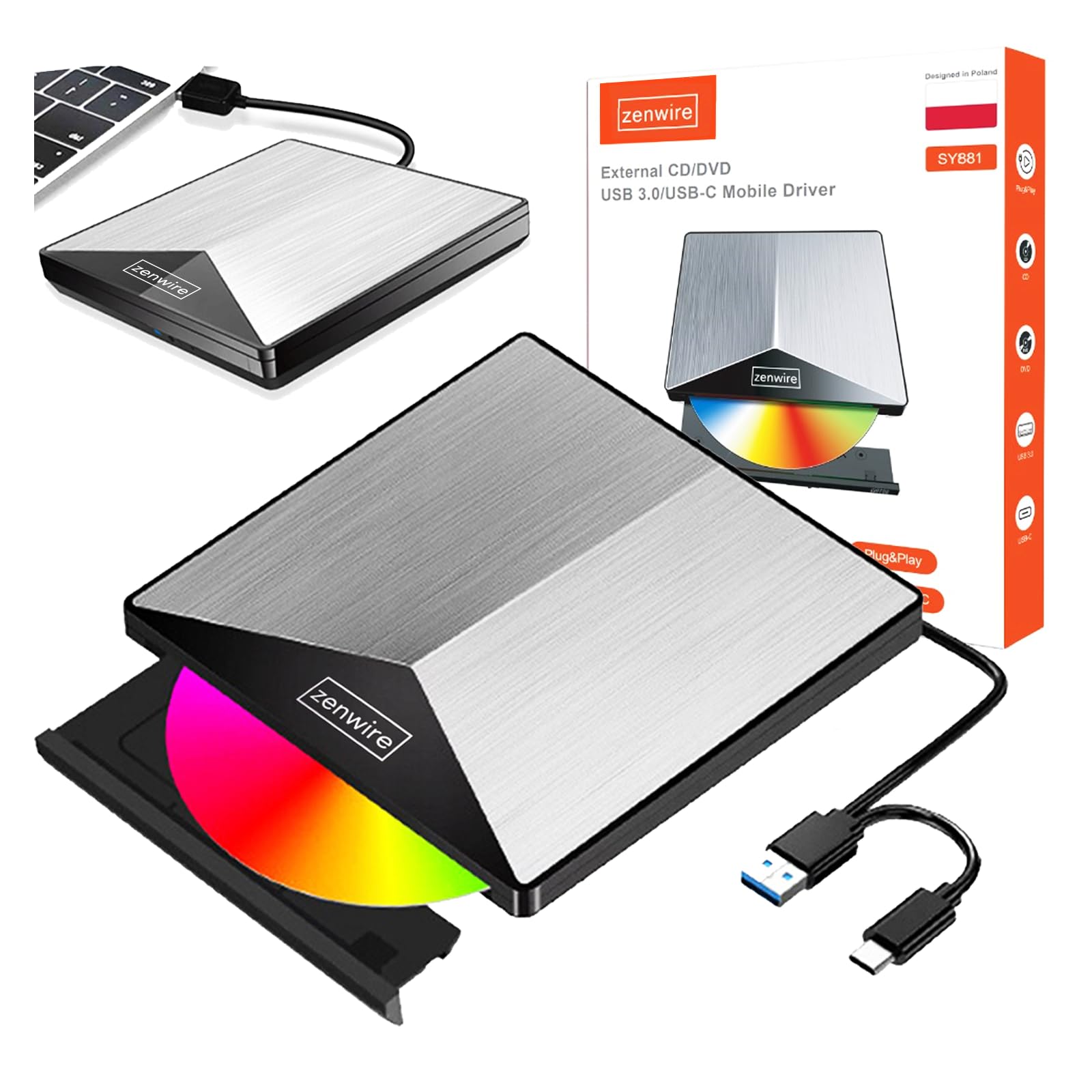
Thank you for choosing the Zenwire External CD/DVD Drive. This device is a versatile and portable solution for both reading and writing optical discs, designed for use with laptops and desktop computers. It features modern USB 3.0 and USB-C 3.1 interfaces, ensuring rapid data transfer speeds up to 5 Gb/s. Its durable aluminum casing provides efficient heat dissipation and a sleek design. This drive is compatible with various operating systems, including Windows, Mac OS, and Linux, offering broad utility for a wide range of users.
คุณสมบัติที่สำคัญ ได้แก่:
- USB 3.0 and USB-C 3.1 Support: Offers very high data transfer speeds up to 5 Gb/s, enhancing efficiency for large files and multimedia.
- อลูมิเนียม ซีasing: Durable and elegant, effectively dissipates heat for long-lasting and safe use.
- ความเข้ากันได้ของระบบปฏิบัติการ: Seamless operation across multiple platforms, including Windows, Mac OS, and Linux.
- ความสามารถในการพกพา: Slim design and low weight allow for easy transport, ideal for users on the go.
- ปลั๊กแอนด์เพลย์: Simple installation without the need for additional drivers, enabling quick use immediately after connection.
2. ข้อมูลด้านความปลอดภัย
โปรดอ่านและปฏิบัติตามคำแนะนำด้านความปลอดภัยเหล่านี้ เพื่อให้มั่นใจได้ว่าอุปกรณ์จะทำงานได้อย่างถูกต้อง และป้องกันความเสียหายต่ออุปกรณ์หรือการบาดเจ็บ:
- อย่าให้เครื่องสัมผัสกับน้ำ ความชื้น หรืออุณหภูมิที่สูงหรือต่ำเกินไป
- หลีกเลี่ยงการทำอุปกรณ์หล่นหรือกระแทกอย่างรุนแรง
- อย่าพยายามถอดประกอบหรือซ่อมแซมอุปกรณ์ด้วยตนเอง โปรดติดต่อช่างผู้ชำนาญการ
- Use only compatible discs and cables.
- เก็บอุปกรณ์ให้ห่างจากสนามแม่เหล็กแรงสูง
3. เนื้อหาบรรจุภัณฑ์
ตรวจสอบว่ามีรายการทั้งหมดอยู่ในแพ็คเกจของคุณ:
- Zenwire External CD/DVD Drive
- Integrated USB 3.0 / USB-C 3.1 Cable
- คู่มือการใช้งาน (เอกสารนี้)
4. สินค้าหมดview
Familiarize yourself with the components and dimensions of your Zenwire External CD/DVD Drive.

ภาพ: ภาพระยะใกล้ views of the Zenwire External CD/DVD Drive, highlighting the integrated USB cable, the disc eject button, and the anti-slip feet on the bottom. These details illustrate the device's connectivity and stable design.

ภาพ: The Zenwire External CD/DVD Drive displayed with its approximate dimensions: 5.9 inches (148mm) in length, 5.9 inches (149mm) in width, and 0.6 inches in thickness. This illustrates the compact and slim profile ของอุปกรณ์
5. การตั้งค่า
The Zenwire External CD/DVD Drive is designed for simple plug-and-play operation. No additional drivers are typically required for most operating systems.
- Locate an available USB 3.0 or USB-C port on your computer (laptop or desktop).
- Connect the integrated USB cable from the Zenwire drive directly into the chosen port on your computer.
- The operating system should automatically detect and install the necessary drivers. This process may take a few moments.
- Once installed, the drive will appear as a removable storage device in your computer's file explorer หรือเดสก์ท็อป
ภาพ: The Zenwire External CD/DVD Drive shown connected to a laptop via its integrated USB cable. This illustrates the simple plug-and-play connection process.
6. คู่มือการใช้งาน
6.1 การใส่แผ่นดิสก์
- Press the eject button located on the front of the drive. The disc tray will slide out.
- Carefully place the disc onto the tray with the label side facing up. Ensure the disc is seated correctly in the center.
- Gently push the tray back into the drive until it clicks into place. Do not force the tray.

ภาพ: A hand carefully inserting a CD into the open disc tray of the Zenwire External CD/DVD Drive. This demonstrates the correct method for disc placement.
6.2 แผ่นดิสก์สำหรับอ่านและเขียน
Once a disc is inserted and recognized by your computer, you can perform various operations:
- การอ่าน: For data discs, open 'This PC' or 'My Computer' (Windows) or 'Finder' (Mac) and click on the drive icon to access its contents. For movie DVDs or audio CDs, your operating system may prompt you to open a media player.
- Writing (Burning): To burn data to a blank CD or DVD, insert a blank disc. Your operating system or third-party burning software will guide you through the process of selecting files and initiating the burn.
6.3 รูปแบบดิสก์ที่รองรับ
The drive supports a variety of optical disc formats:
- ซีดีรอม, ซีดี-R, ซีดี-RW
- DVD-ROM, DVD-R, DVD+R, DVD-RW, DVD+RW
- วีซีดี

ภาพ: The Zenwire External CD/DVD Drive displayed alongside icons representing VCD, CD, and DVD, clearly indicating the range of optical disc formats supported by the device.
6.4 ความเข้ากันได้ของระบบปฏิบัติการ
The drive is compatible with the following operating systems:
- Windows (XP, Vista, 7, 8, 10, 11)
- ระบบปฏิบัติการ Mac
- ลินุกซ์

ภาพ: The Zenwire External CD/DVD Drive depicted in a setup demonstrating its compatibility with multiple operating systems, including various versions of Windows, Mac OS, and Linux. This highlights its universal usability.
7. การบำรุงรักษา
การบำรุงรักษาอย่างถูกต้องจะช่วยให้ไดรฟ์ของคุณมีอายุการใช้งานยาวนานและทำงานได้อย่างมีประสิทธิภาพสูงสุด
- การทำความสะอาดไดรฟ์: Use a soft, dry, lint-free cloth to wipe the exterior of the drive. Do not use liquid cleaners or abrasive materials. For the optical lens, use a specialized CD/DVD lens cleaning kit if necessary, following its instructions carefully.
- แผ่นทำความสะอาด: Always handle discs by their edges. If a disc is dirty, gently wipe it from the center outwards with a soft, lint-free cloth.
- พื้นที่จัดเก็บ: Store the drive in a cool, dry place away from direct sunlight and extreme temperatures when not in use. Keep discs in their cases to prevent scratches and dust accumulation.
- ฟิล์มป้องกัน: Upon first use, you may need to remove any protective film from the device's surface.

ภาพ: A hand demonstrating the removal of a protective film from the surface of the Zenwire External CD/DVD Drive. This step is often performed during the initial setup or maintenance to ensure optimal appearance and function.
8 การแก้ไขปัญหา
If you encounter issues with your Zenwire External CD/DVD Drive, refer to the following common problems and solutions:
- Drive not recognized by the computer:
- ตรวจสอบให้แน่ใจว่าสาย USB เชื่อมต่อกับไดรฟ์และคอมพิวเตอร์อย่างแน่นหนา
- ลองเชื่อมต่อไดรฟ์เข้ากับพอร์ต USB อื่นบนคอมพิวเตอร์ของคุณ
- ลองทดสอบฮาร์ดไดรฟ์กับคอมพิวเตอร์เครื่องอื่นเพื่อตัดความเป็นไปได้ว่าปัญหาเกิดจากคอมพิวเตอร์เครื่องนั้นเครื่องเดียว
- รีสตาร์ทเครื่องคอมพิวเตอร์ของคุณ
- Disc not reading or writing:
- ตรวจสอบแผ่นดิสก์ว่ามีรอยขีดข่วน คราบสกปรก หรือความเสียหายหรือไม่ ลองใช้แผ่นอื่นดู
- ตรวจสอบให้แน่ใจว่าใส่ดิสก์อย่างถูกต้องโดยให้ด้านที่มีฉลากหงายขึ้น
- For writing, ensure you are using a blank, compatible disc (CD-R/RW, DVD-R/RW, DVD+R/RW).
- Clean the drive's optical lens using a specialized cleaning disc.
- ความเร็วในการถ่ายโอนข้อมูลช้า:
- Ensure the drive is connected to a USB 3.0 or USB-C 3.1 port on your computer for optimal speed. USB 2.0 ports will result in slower performance.
- Avoid using USB hubs if possible, or ensure the hub is powered and supports USB 3.0/USB-C speeds.
- Drive makes unusual noises:
- This can sometimes occur with unbalanced or damaged discs. Try a different disc.
- ตรวจสอบให้แน่ใจว่าวางไดรฟ์ไว้บนพื้นผิวที่มั่นคงและเรียบ
9. ข้อมูลจำเพาะ
| คุณสมบัติ | คำอธิบาย |
|---|---|
| ยี่ห้อ | เซนไวร์ |
| หมายเลขรุ่น | 5904507529123 |
| อินเทอร์เฟซ | USB 3.0, USB Type-C |
| ความเร็วในการถ่ายโอนข้อมูล | Up to 5 Gb/s (via USB 3.0 / USB-C 3.1) |
| Optical Write Speed | 10 เท่า |
| ระบบปฏิบัติการที่รองรับ | Windows, Mac OS, ลินุกซ์ |
| คุณสมบัติพิเศษ | ปลั๊กแอนด์เพลย์ |
| วัสดุ | อลูมิเนียม ซีasing |
| ขนาด (โดยประมาณ) | 148 มม. (ยาว) x 149 มม. (กว้าง) x 15 มม. (สูง) / 5.9 นิ้ว (ยาว) x 5.9 นิ้ว (กว้าง) x 0.6 นิ้ว (สูง) |
10. ข้อมูลการรับประกัน
Warranty terms and conditions are typically provided with your purchase documentation. Please refer to the specific warranty information included with your product or contact the retailer/manufacturer for details regarding warranty coverage and claims.
11. การสนับสนุน
If you require further assistance or have questions not covered in this manual, please contact Zenwire customer support or your product retailer. Please have your model number (5904507529123) and purchase details ready when contacting support.