
ATTACK SHARK X2 Pro
คู่มือผู้ใช้เมาส์เกมมิ่งไร้สาย ATTACK SHARK X2 Pro
Comprehensive guide for setup, operation, and maintenance of your X2 Pro Wireless Gaming Mouse.
1. สินค้าหมดview
The ATTACK SHARK X2 Pro is a versatile tri-mode wireless gaming mouse designed for high performance and user convenience. It features 2.4G wireless, Bluetooth, and wired connectivity options, a transparent shell with vibrant RGB lighting, a magnetic charging dock, and adjustable DPI settings. The integrated display shows the battery level, ensuring you are always aware of your mouse's power status.

Image: The ATTACK SHARK X2 Pro mouse and its charging dock, illustrating key features such as tri-mode connection, charging dock, silent clicks, 3D RGB lighting, visible battery level, and 4000 DPI max.
คุณสมบัติหลัก:
- การเชื่อมต่อสามโหมด: Seamlessly switch between 2.4G wireless, Bluetooth, and wired USB-C connections.
- แท่นชาร์จแม่เหล็ก RGB: Provides convenient and rapid charging, with adjustable RGB lighting.
- Visible Battery Level: An integrated screen on the mouse displays the current power level.
- Transparent Shell & 3D RGB Lighting: Unique design showcasing internal components with customizable RGB effects.
- ปุ่มกดแบบเงียบ: Reduces click noise by up to 90% for a quieter user experience.
- DPI ที่ปรับได้: Five customizable DPI levels (1200/1600/2000/2400/4000) for precise control.
- Smart Auto-sleep: Power-saving feature to extend battery life.
2. เนื้อหาบรรจุภัณฑ์
โปรดตรวจสอบว่าสินค้าทั้งหมดมีอยู่ในแพ็คเกจของคุณ:
- ATTACK SHARK X2 Pro Wireless Gaming Mouse
- แท่นชาร์จแม่เหล็ก RGB
- สายชาร์จ USB-C
- ตัวรับสัญญาณ USB 2.4G
- คู่มือการใช้งาน (เอกสารนี้)
3. การตั้งค่า
3.1. Parts of the Mouse

Image: A diagram illustrating the key components of the ATTACK SHARK X2 Pro mouse, including the USB-C charging cable port, RGB switch button, mode switch button, and USB receiver storage slot.
- พอร์ตชาร์จ USB-C: Located at the front of the mouse for wired connection and charging.
- ปุ่มสวิตช์ RGB: On the bottom of the mouse, used to cycle through RGB lighting effects.
- ปุ่มสลับโหมด: On the bottom of the mouse, used to select 2.4G, Bluetooth, or OFF mode.
- ที่เก็บข้อมูลตัวรับ USB: A compartment on the bottom of the mouse to store the 2.4G USB receiver when not in use.
- การแสดงระดับแบตเตอรี่: A small screen at the rear of the mouse showing the current battery percentage.
3.2. การชาร์จเมาส์
The X2 Pro mouse can be charged using the included magnetic RGB charging dock or directly via the USB-C cable.
- Connect the USB-C charging cable to the magnetic RGB charging dock and a power source (e.g., computer USB port, USB wall adapter).
- Place the mouse onto the charging dock. The magnetic connection will secure it, and the dock's RGB lights will illuminate.
- Alternatively, connect the USB-C cable directly from a power source to the mouse's USB-C port for wired charging and use.
A 10-minute charge provides approximately 5 hours of playtime. The battery level is visible on the mouse's integrated display.
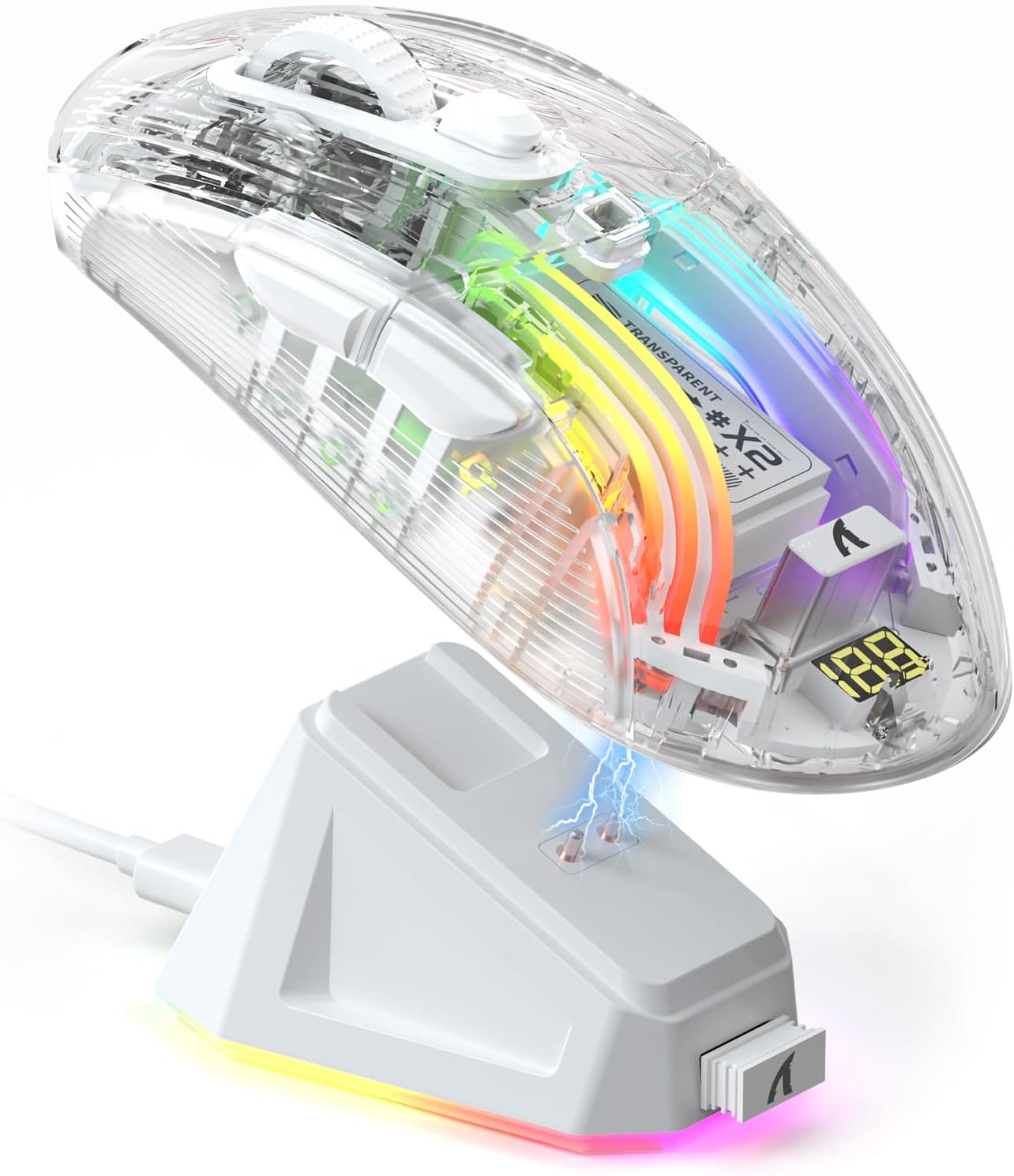
Image: The ATTACK SHARK X2 Pro mouse being charged wirelessly on its magnetic RGB charging dock, with a visible lightning bolt icon indicating charging status.

Image: Two ATTACK SHARK X2 Pro mice, one white and one black, on their respective charging docks, with their integrated displays showing battery levels.
3.3. การเชื่อมต่อเมาส์ (โหมดสามแบบ)
The X2 Pro offers three connection modes: 2.4G Wireless, Bluetooth, and Wired.
วิดีโอ: จบแล้วview demonstrating the features of the ATTACK SHARK X2 Pro Wireless Gaming Mouse, including its tri-mode connectivity, magnetic charging dock, visible battery level, and RGB lighting effects.
3.3.1. โหมดไร้สาย 2.4G
- ค้นหาตัวรับสัญญาณ USB 2.4G ที่เก็บไว้ในช่องด้านล่างของเมาส์
- เสียบตัวรับสัญญาณ USB 2.4G เข้ากับพอร์ต USB ที่ว่างอยู่บนคอมพิวเตอร์ของคุณ
- Slide the mode switch button on the bottom of the mouse to the "2.4G" position.
- เมาส์จะเชื่อมต่อกับอุปกรณ์ของคุณโดยอัตโนมัติ
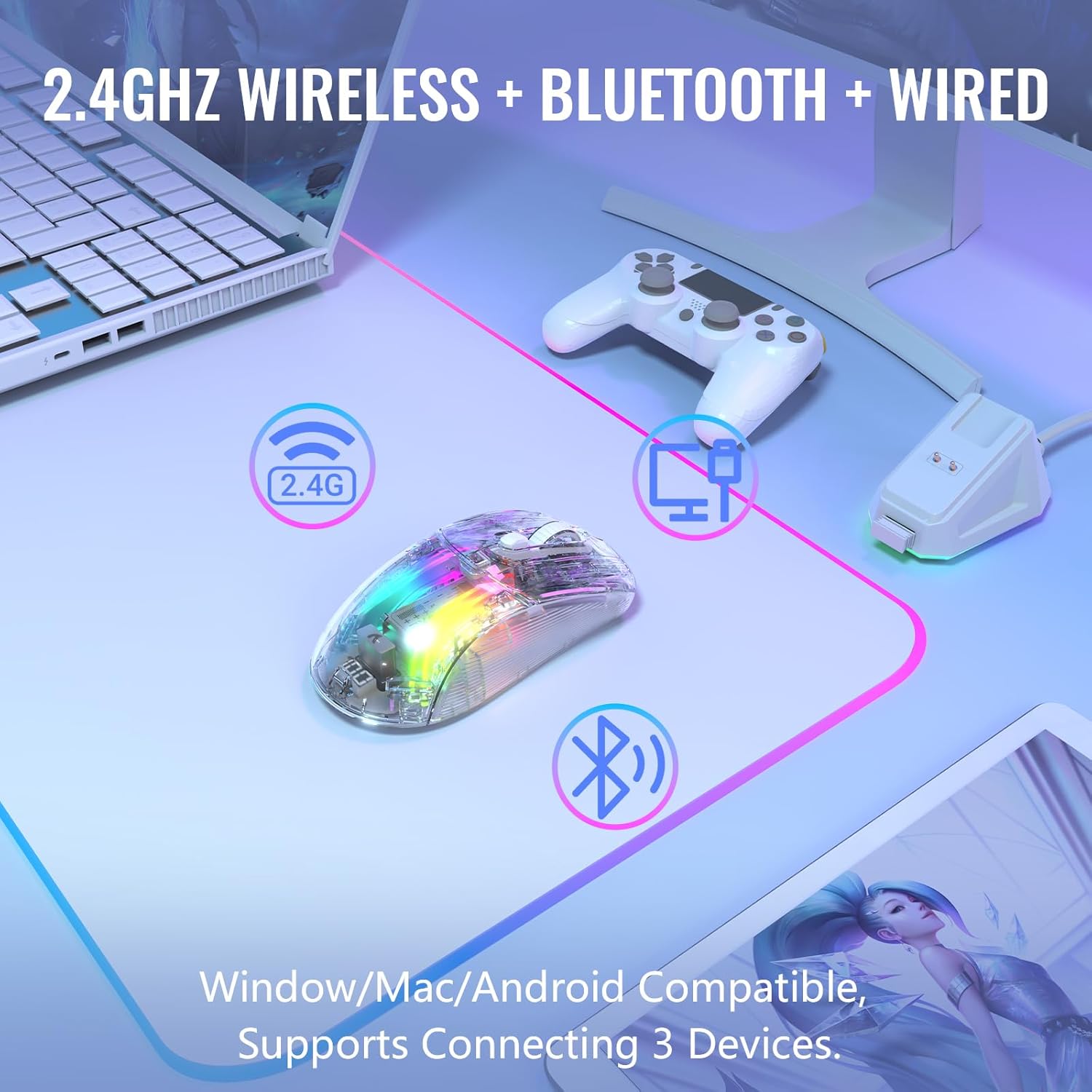
Image: The ATTACK SHARK X2 Pro mouse demonstrating its 2.4GHz wireless, Bluetooth, and wired connectivity options, compatible with Windows, Mac, and Android devices, supporting connection to three devices simultaneously.
3.3.2. โหมดบลูทู ธ
- Slide the mode switch button on the bottom of the mouse to the "BT" (Bluetooth) position.
- The mouse's RGB lighting will flash, indicating it is in pairing mode.
- บนอุปกรณ์ของคุณ (คอมพิวเตอร์ แท็บเล็ต สมาร์ทโฟน) ไปที่การตั้งค่าบลูทูธ และค้นหาอุปกรณ์ใหม่
- Select "ATTACK SHARK X2 Pro" from the list of available devices to pair.
- Once paired, the mouse's RGB lighting will become steady.
3.3.3. โหมดแบบมีสาย
- Connect the USB-C charging cable directly to the mouse's USB-C port and the other end to your computer's USB port.
- เมาส์จะเปลี่ยนเป็นโหมดสายโดยอัตโนมัติและเริ่มชาร์จ
- You can also slide the mode switch button to "OFF" when using wired mode to conserve battery if desired.
4. การใช้งานเมาส์
4.1. การปรับ DPI
The X2 Pro mouse features 5 adjustable DPI levels to suit your precision needs for gaming or productivity. The default DPI is 1200.
- ระดับ DPI: 1200/1600/2000/2400/4000
- To cycle through DPI settings, press the DPI button located behind the scroll wheel. Each press will switch to the next DPI level.

Image: A visual representation of the five adjustable DPI levels (1200, 1600, 2000, 2400, 4000) available on the ATTACK SHARK X2 Pro mouse, with 1200 DPI as the default setting.
4.2. การควบคุมแสง RGB
The transparent shell of the X2 Pro mouse enhances its 3D RGB lighting effects. You can customize the lighting to match your setup or mood.
- To change the RGB lighting effect, press the RGB switch button on the bottom of the mouse.
- The mouse supports 16.8 million color lighting and 11 different lighting effects.

Image: The ATTACK SHARK X2 Pro mouse displaying its vibrant 3D RGB lighting, highlighting the transparent shell design.
The magnetic charging dock also features adjustable RGB lights. Use the lighting mode switch on the dock to cycle through its lighting effects.
4.3. Battery Level Visibility
The X2 Pro mouse is equipped with a small screen at its rear that displays the current battery percentage, allowing you to monitor power levels at a glance.
4.4. คุณสมบัติการคลิกเงียบ
The left and right mouse buttons are designed for silent clicks, reducing noise by up to 90%. This feature is ideal for quiet environments or late-night use.

Image: A hand gripping the ATTACK SHARK X2 Pro mouse, emphasizing its ergonomic design and silent click capability, indicated by a speaker icon with a mute symbol and a keystroke count.
5. การบำรุงรักษา
Proper maintenance ensures the longevity and optimal performance of your ATTACK SHARK X2 Pro mouse.
5.1. การทำความสะอาด
- Use a soft, dry, lint-free cloth to wipe the surface of the mouse and charging dock.
- สำหรับรอยเปื้อนฝังแน่น ให้เช็ดออกเล็กน้อยampชุบผ้าด้วยน้ำหรือน้ำยาทำความสะอาดอ่อนๆ ที่ไม่กัดกร่อน หลีกเลี่ยงความชื้นที่มากเกินไป
- Do not use harsh chemicals, abrasive pads, or solvents, as these can damage the transparent shell and oleophobic coating.
- ควรทำความสะอาดเซ็นเซอร์แสงที่ด้านล่างของเมาส์เป็นระยะด้วยสำลี เพื่อให้มั่นใจได้ว่าการติดตามการเคลื่อนไหวมีความแม่นยำ
5.2. การดูแลแบตเตอรี่
- The mouse features a Smart Auto-sleep function to conserve power. It will enter sleep mode after 2 minutes of inactivity and can be woken by clicking any button or moving the mouse.
- หลีกเลี่ยงการปล่อยแบตเตอรี่จนหมดบ่อยครั้งเพื่อยืดอายุการใช้งาน
- เก็บเมาส์ไว้ในที่แห้งและเย็นเมื่อไม่ได้ใช้งานเป็นเวลานาน
6 การแก้ไขปัญหา
If you encounter issues with your ATTACK SHARK X2 Pro mouse, please refer to the following common solutions:
| ปัญหา | สาเหตุที่เป็นไปได้ | สารละลาย |
|---|---|---|
| เมาส์ไม่ตอบสนองในโหมด 2.4G | USB receiver not properly connected or mouse not in 2.4G mode. | Ensure the USB receiver is securely plugged into a working USB port. Slide the mode switch on the mouse to "2.4G". Try a different USB port. |
| ไม่สามารถจับคู่ผ่านบลูทูธได้ | Mouse not in Bluetooth pairing mode or device's Bluetooth is off. | Slide the mode switch to "BT". Ensure your device's Bluetooth is enabled and visible. Remove previous pairings and try again. |
| เมาส์ไม่ชาร์จ | Charging dock/cable not connected, or mouse not properly seated on dock. | Verify the USB-C cable is connected to the dock and a power source. Ensure the mouse is correctly placed on the magnetic dock. Try charging directly with the USB-C cable. |
| ไฟ RGB ไม่ทำงานหรือค้าง | Lighting effect frozen or turned off. | Press the RGB switch button on the bottom of the mouse to cycle through effects. Ensure the mouse has sufficient battery. |
| Inaccurate tracking or cursor lag. | Dirty optical sensor or low battery. | Clean the optical sensor. Charge the mouse fully. Ensure you are using the mouse on a suitable surface. |
หากปัญหายังคงมีอยู่หลังจากลองวิธีแก้ไขเหล่านี้แล้ว โปรดติดต่อฝ่ายสนับสนุนลูกค้า
7. ข้อมูลจำเพาะ
| คุณสมบัติ | รายละเอียด |
|---|---|
| แบบอย่าง | X2โปร |
| การเชื่อมต่อ | 2.4G ไร้สาย, บลูทูธ, แบบมีสาย (USB-C) |
| ระดับ DPI | 1200 / 1600 / 2000 / 2400 / 4000 (ปรับได้) |
| ปุ่ม | Silent Click Left/Right, Scroll Wheel, DPI Button, Mode Switch, RGB Switch |
| แสงสว่าง | 3D RGB Backlit, 16.8 Million Colors, 11 Lighting Effects |
| การชาร์จไฟ | Magnetic RGB Charging Dock, USB-C Cable |
| อายุการใช้งานแบตเตอรี่ | Approx. 5 hours playtime with 10 minutes charge |
| คุณสมบัติพิเศษ | Transparent Shell, Oleophobic Coating, Visible Battery Level, Smart Auto-sleep, Ergonomic Design |
| น้ำหนักสินค้า | 9.1 ออนซ์ |
| ขนาดแพ็คเกจ | 7.01 x 4.61 x 2.13 นิ้ว |
| ผู้ผลิต | โจมตีฉลาม |
| ประเทศต้นกำเนิด | จีน |
8. การรับประกันและการสนับสนุน
8.1. ข้อมูลการรับประกัน
The ATTACK SHARK X2 Pro Wireless Gaming Mouse comes with a standard manufacturer's warranty. Please refer to the warranty card included in your package or visit the official ATTACK SHARK webเว็บไซต์สำหรับข้อกำหนดและเงื่อนไขการรับประกันโดยละเอียด
8.2. การสนับสนุนลูกค้า
For technical assistance, troubleshooting beyond this manual, or warranty claims, please contact ATTACK SHARK customer support. Contact information can typically be found on the product packaging, the official ATTACK SHARK webไซต์หรือผ่านผู้ค้าปลีกของคุณ
You can visit the official ATTACK SHARK Store on Amazon for more information: ร้านค้า ATTACK SHARK
Ask a question about this manual
Ask about setup, troubleshooting, compatibility, parts, safety, or missing instructions. Manuals+ will review the question and use this page’s manual context to help answer it.