
1. สินค้าหมดview
The LASERTAIL 9-inch 8-core car stereo radio is an advanced head unit designed to upgrade the in-car entertainment and navigation experience for compatible Dodge Ram models. It features an Android 12 system, 5Ghz WiFi connectivity, a 9-inch IPS HD touch screen, CarPlay, Android Auto, GPS navigation, DSP audio processing, and FM/RDS radio. This unit is specifically compatible with Dodge Ram 1500, 2500, and 3500 models manufactured between 2013 and 2018, provided they have manual A/C controls.

Image: The LASERTAIL 9-inch 8-core car stereo radio seamlessly integrated into a Dodge Ram dashboard, showcasing คือหน้าจอสัมผัสขนาดใหญ่
2. อะไรอยู่ในกล่อง
ตรวจสอบว่าส่วนประกอบทั้งหมดมีอยู่ก่อนเริ่มการติดตั้ง:
- Car radio and Frame (1 unit)
- AHD ด้านหลัง view camera (1 unit)
- Installation kit (1 set)
- Function instruction (1 manual)
- Installation instruction (1 manual)
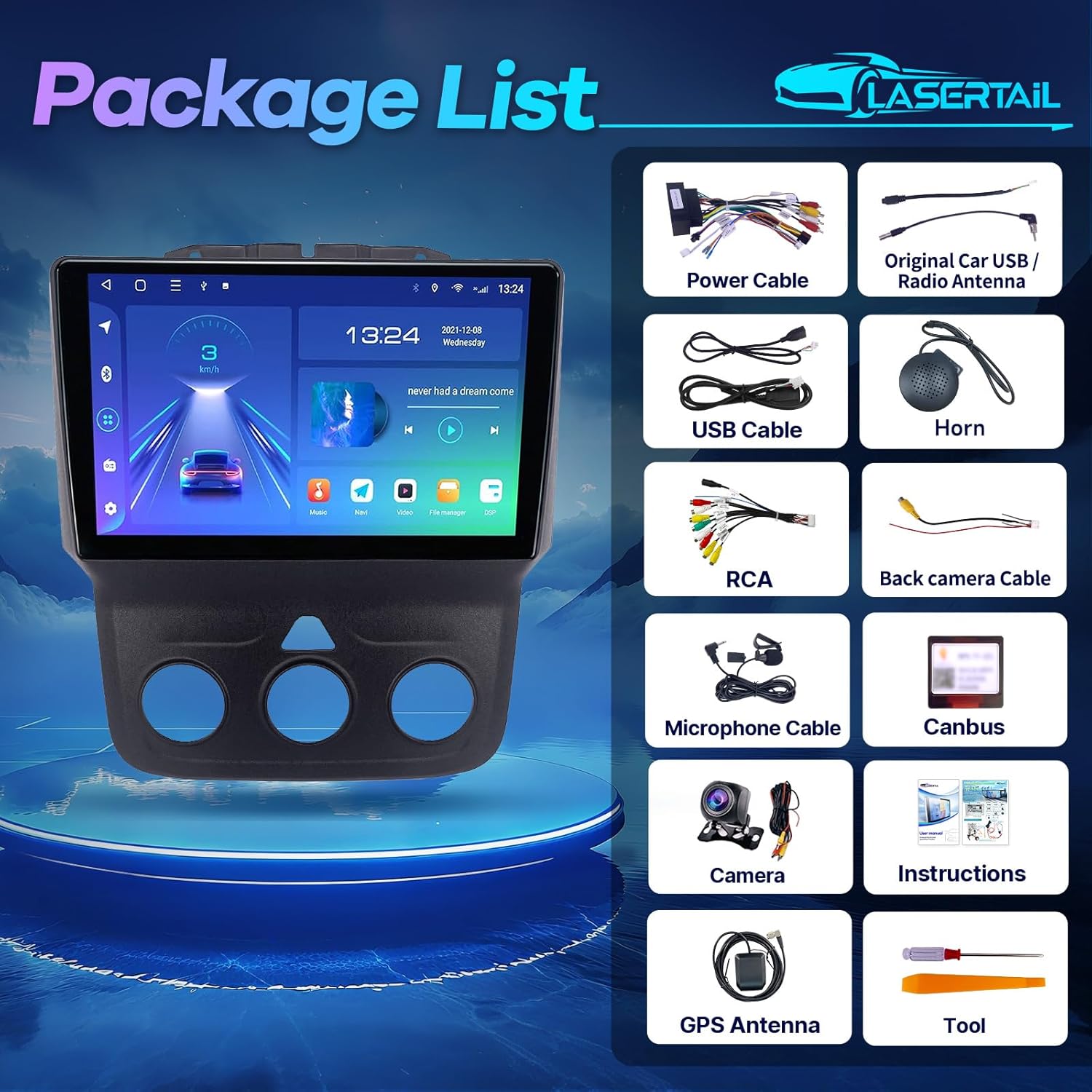
ภาพ: เสร็จสมบูรณ์ view of all items included in the product package, laid out on a white surface.
3. คู่มือการติดตั้ง
This section provides general guidance for installing the LASERTAIL car stereo. Professional installation is recommended. Ensure the vehicle's battery is disconnected before starting any electrical work.
3.1. การถอดวิทยุเดิมจากโรงงาน
- Carefully remove the top dashboard panel above the factory radio. This usually involves prying it gently.
- Unscrew any visible screws securing the factory radio and surrounding trim.
- Gently pull the entire radio assembly out from the dashboard. Disconnect all wiring harnesses from the back of the factory unit.

Image: A hand demonstrating the removal of the factory radio unit from a Dodge Ram dashboard, revealing the internal wiring.
3.2. การเชื่อมต่อสายไฟ
Connect the provided wiring harnesses to the new LASERTAIL head unit and the vehicle's existing wiring. The system is designed for plug-and-play installation for most connections.
- Main Power Harness: Connect the main power cable plug from the new unit to the vehicle's corresponding harness.
- ตัวถอดรหัส Canbus: Connect the 8-PIN connector for the Canbus decoder to ensure proper communication with the vehicle's systems, eliminating error codes.
- สาย USB: Connect the 4-PIN and 6-PIN USB cables to the designated ports on the head unit. These can be routed to a convenient location for external device connection.
- เสาอากาศ GPS: Connect the GPS cable to the GPS port on the head unit. Mount the GPS antenna in a location with a clear view โดยทั่วไปจะติดตั้งไว้บนแผงหน้าปัดหรือใต้กระจกหน้ารถ
- เสาอากาศวิทยุ: Connect the radio antenna to the appropriate port.
- ไมโครโฟน: Connect the external microphone cable for improved call quality.
- Amplifier Cable: If your original car has an amplifier เชื่อมต่อ amplifier cable (blue wires) to the corresponding wires. If not, it doesn't need to be connected.
- RCA Cable Plug: Connect the RCA cable plug for auxiliary audio/video inputs and outputs, including subwoofer and ampการเชื่อมต่อเครื่องขยายเสียงถ้ามี
- Reversing Video Input Cable: Connect this cable to enable the backup camera feature.
Video: Detailed instructions on how to connect the wiring harness to the car radio unit.

Image: A visual guide illustrating the various wiring connections for the car stereo, including power, USB, and RCA cables.
3.3. การติดตั้งกล้องสำรอง
The unit supports the original factory camera. An AHD rear view camera is included for enhanced night vision and a 170° wide-angle view.
- Connect the camera cable to the reversing video input cable.
- Connect the red wire of the camera power cable to the backup light's positive (+) terminal.
- Connect the black wire of the camera power cable to the vehicle's ground (GND).
- Ensure the reverse control line (usually a brown or red wire labeled 'Reverse') from the main harness is connected to the vehicle's reverse light signal.
Video: A step-by-step guide on connecting the backup camera to the car stereo system.

Image: Illustrates the AHD backup camera and its connection, alongside the steering wheel control functionality.
3.4. การประกอบขั้นสุดท้าย
- Carefully tuck all wires and harnesses into the dashboard cavity, ensuring they are not pinched.
- Mount the new head unit into the dashboard opening, securing it with the appropriate screws from the installation kit.
- Reattach the dashboard trim panels.
- เชื่อมต่อแบตเตอรี่รถยนต์อีกครั้ง

Image: The car stereo unit perfectly fitted into the dashboard of a Dodge Ram, demonstrating its compatibility.
4. คู่มือการใช้งาน
This section covers the basic operation of your LASERTAIL car stereo.
4.1. การเปิด/ปิดเครื่องและการนำทางพื้นฐาน
- Press the power button (usually located on the top left of the unit) to turn the device on or off.
- The home screen displays various applications and widgets. Swipe left or right to access additional app pages.
- Use the touch screen to select applications or adjust settings.
Video: Demonstrates various functions and user interface navigation of the car stereo in a Dodge Ram.
4.2. CarPlay และ Android Auto
The unit supports both wireless and wired CarPlay and Android Auto for seamless smartphone integration.
- เปิดใช้งานการเชื่อมต่อ: เปิดใช้งาน Wi-Fi และ Bluetooth บนสมาร์ทโฟนของคุณ
- จับคู่อุปกรณ์: On the car stereo, select "SYU-Android" from the Bluetooth device list and pair with your phone. Confirm the pairing code.
- Launch Car Link: Open the "Car Link 2.0" application on the head unit. The system will attempt to connect to your smartphone.
- Once connected, your phone's interface will appear on the car stereo display, allowing access to navigation, music, calls, and messages.
Video: A demonstration of how to connect and use CarPlay with the smart car multimedia player.
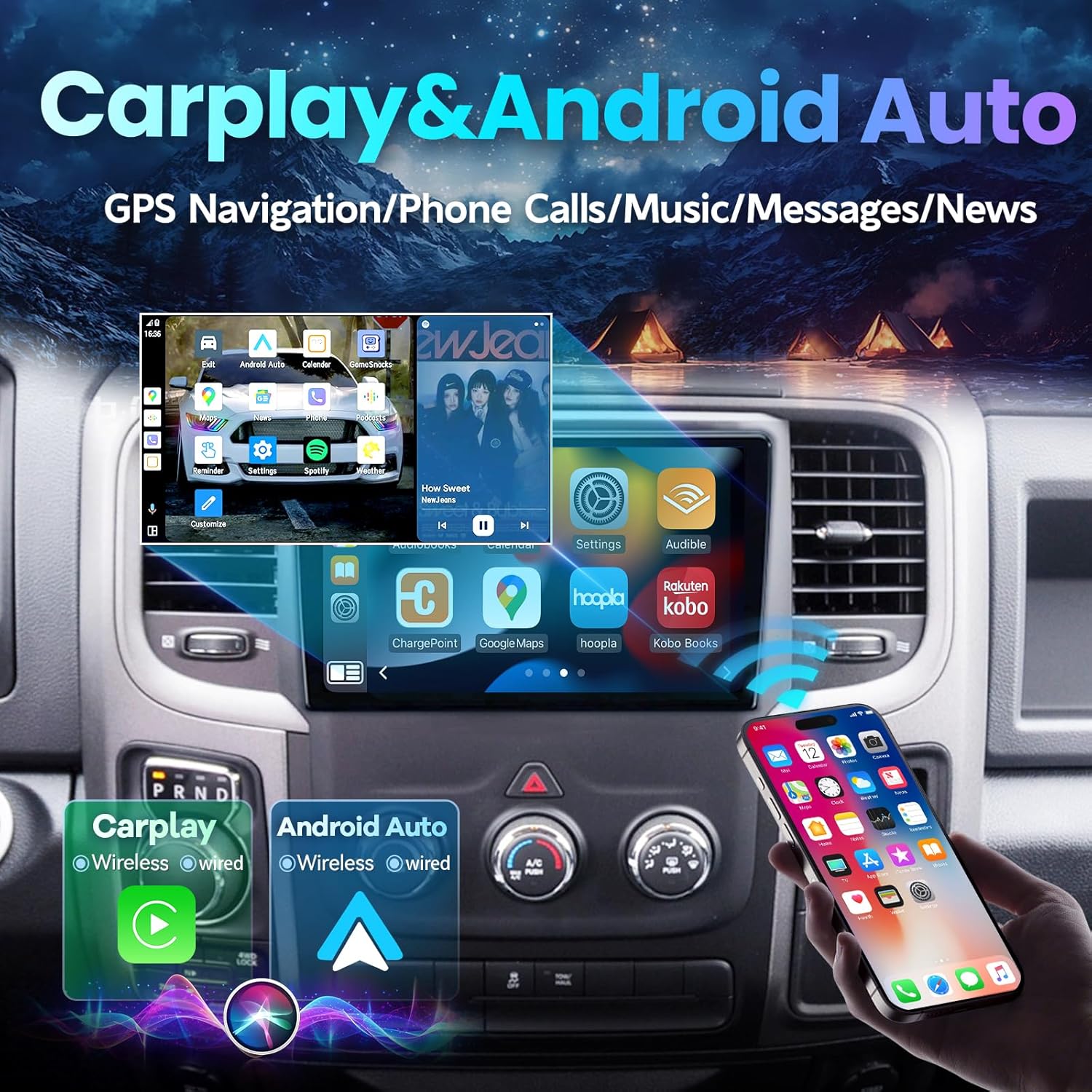
Image: The car stereo screen showing the interfaces for both CarPlay and Android Auto, highlighting their wireless and wired connectivity options.
4.3. ระบบนำทาง GPS
The unit has a built-in GPS module and supports both online and offline maps. Connect to 5GHz WiFi or a mobile hotspot for online map access.
- Select the Navigation app (e.g., Waze, Google Maps, Here We Go) from the home screen.
- ป้อนจุดหมายปลายทางของคุณและทำตามคำแนะนำบนหน้าจอ

Image: The GPS navigation interface displaying various map applications available on the car stereo.
4.4. Audio Features (DSP, FM/RDS Radio)
- วิทยุ FM/RDS: Access the Radio app to tune into FM stations and receive RDS information.
- DSP & EQ: The built-in DSP (Digital Sound Processor) and 48-band EQ allow for extensive audio customization. Select the DSP Equalizer app to adjust sound effects, sound field, and bass boost.

Image: The DSP and 48-band equalizer interface, allowing users to customize their audio experience.
4.5. ระบบควบคุมพวงมาลัย (SWC)
The unit retains original steering wheel control functionality. Access the SWC app to configure buttons for functions like switching music, adjusting volume, and answering calls.

Image: A driver interacting with the car stereo using the vehicle's original steering wheel controls.
4.6. คุณสมบัติอื่น ๆ
- 5Ghz WiFi: Connect to a 5Ghz WiFi network for fast and stable internet access, enabling app downloads from the Google Play Store.
- ลิงค์มิเรอร์: Project your smartphone screen onto the car stereo display for enhanced viewการไอเอ็นจี
- หน้าจอแยก: Utilize the split-screen display to run two applications simultaneously.

Image: The car stereo screen showing 5G WiFi connectivity and a selection of downloadable applications.
5. การบำรุงรักษาและการดูแล
- การทำความสะอาดหน้าจอ: ใช้ผ้านุ่มที่ไม่เป็นขุยทำความสะอาดหน้าจอสัมผัส หลีกเลี่ยงน้ำยาทำความสะอาดหรือตัวทำละลายที่มีฤทธิ์กัดกร่อน
- การอัปเดตซอฟต์แวร์: Periodically check for software updates to ensure optimal performance and access to new features. Updates can typically be downloaded via WiFi.
- พัดลมระบายความร้อน: The unit features an intelligent cooling fan system that activates when the CPU temperature or volume exceeds preset values, prolonging the head unit's lifespan. Ensure the fan vents are not obstructed.

ภาพ: รายละเอียด view of the cooling fan located on the rear of the car stereo, designed to prevent overheating.
6 การแก้ไขปัญหา
If you encounter issues with your LASERTAIL car stereo, refer to the following common troubleshooting steps:
- ไม่มีไฟฟ้า: Check all power connections and ensure the vehicle's battery is fully charged. Verify fuses are intact.
- ไม่มีเสียง: Confirm speaker connections are secure. Check audio settings (DSP, EQ) to ensure volume is not muted or set too low. Verify ampการเชื่อมต่อเครื่องขยายเสียงถ้ามี
- ปัญหาเกี่ยวกับการเชื่อมต่อ Bluetooth/CarPlay/Android Auto: Ensure Wi-Fi and Bluetooth are enabled on your phone and the head unit. Try unpairing and re-pairing the device. Restart both the phone and the head unit.
- การสูญเสียสัญญาณ GPS: ตรวจสอบให้แน่ใจว่าเสาอากาศ GPS เชื่อมต่ออย่างถูกต้องและติดตั้งในตำแหน่งที่มองเห็นได้ชัดเจน view ของท้องฟ้า
- กล้องสำรองไม่แสดง: Verify the camera's power and signal connections. Ensure the reverse control line is correctly wired to the vehicle's reverse light signal.
- System Lag/Slow Response: Close unnecessary background applications. Clear system cache if available in settings.
- เสียงพัดลม: The cooling fan operates to prevent overheating. If noise is excessive or unusual, ensure vents are clear. If the issue persists, contact customer support.
For persistent issues or complex problems, please contact LASERTAIL technical support as indicated in the user manual or via email.
7. ข้อมูลจำเพาะ
| คุณสมบัติ | ข้อมูลจำเพาะ |
|---|---|
| ขนาดสินค้า | 12.4 x 0.01 x 5.3 นิ้ว |
| น้ำหนักสินค้า | 4 ปอนด์ |
| หมายเลขรุ่นสินค้า | Dodge Ram 1500 2500 3500 (Compatibility) |
| ยี่ห้อ | LASERTAIL |
| ประเภทบริการยานพาหนะ | Dodge Ram 1500, 2500, 3500 (2013-2018, manual A/C) |
| ขนาดหน้าจอ | 9 นิ้ว |
| ปณิธาน | 720 x 1280 (IPS HD Touch Screen) |
| ระบบปฏิบัติการ | แอนดรอยด์ 12 |
| ซีพียู | 8 คอร์ |
| แรม | 2GB |
| รอม | 32GB |
| เทคโนโลยีการเชื่อมต่อ | Bluetooth, Wi-Fi (5Ghz) |
| คุณสมบัติพิเศษ | Android Auto, CarPlay, GPS Navigation, Touchscreen, Bluetooth, SWC, DSP (48EQ), Split Screen Display, Voice Assistant, Mirror Link, Backup Camera, Upgrade Cooling Fan |
| ประเภทแผนที่ | อเมริกาเหนือ |
| โหมดเอาต์พุตเสียง | สเตอริโอ |
| ประเภทการติดตั้ง | แผงหน้าปัด |
8. การรับประกันและการสนับสนุน
LASERTAIL products are designed for quality and reliability. For any questions regarding installation, operation, or product issues, please refer to the contact information provided in your included user manual or reach out to LASERTAIL customer support directly. Information regarding specific warranty periods and service procedures can be found in the product documentation.