
Cleyver ODHCAM360
Cleyver ODHCAM 360° Webคู่มือการใช้กล้อง
Model: ODHCAM360
1. บทนำ
Thank you for choosing the Cleyver ODHCAM 360° Webcam. This device is designed to enhance your video conferencing experience with its panoramic view, intelligent features, and high-quality audio-visual capabilities. Please read this manual carefully to ensure proper setup and operation.
2. สินค้าหมดview
The Cleyver ODHCAM 360° Webcam integrates a 5 MP Full HD CMOS sensor, omnidirectional microphones, and a 3W HD speaker into a single, compact unit. It offers a 360° field of view and intelligent features like voice tracking and automatic framing to keep participants engaged.
2.1 เนื้อหาบรรจุภัณฑ์
- Cleyver ODHCAM 360° Webลูกเบี้ยว
- สาย USB
- (Potentially) Driver/Software CD
- (Potentially) Lens Cap
2.2 ส่วนประกอบของอุปกรณ์
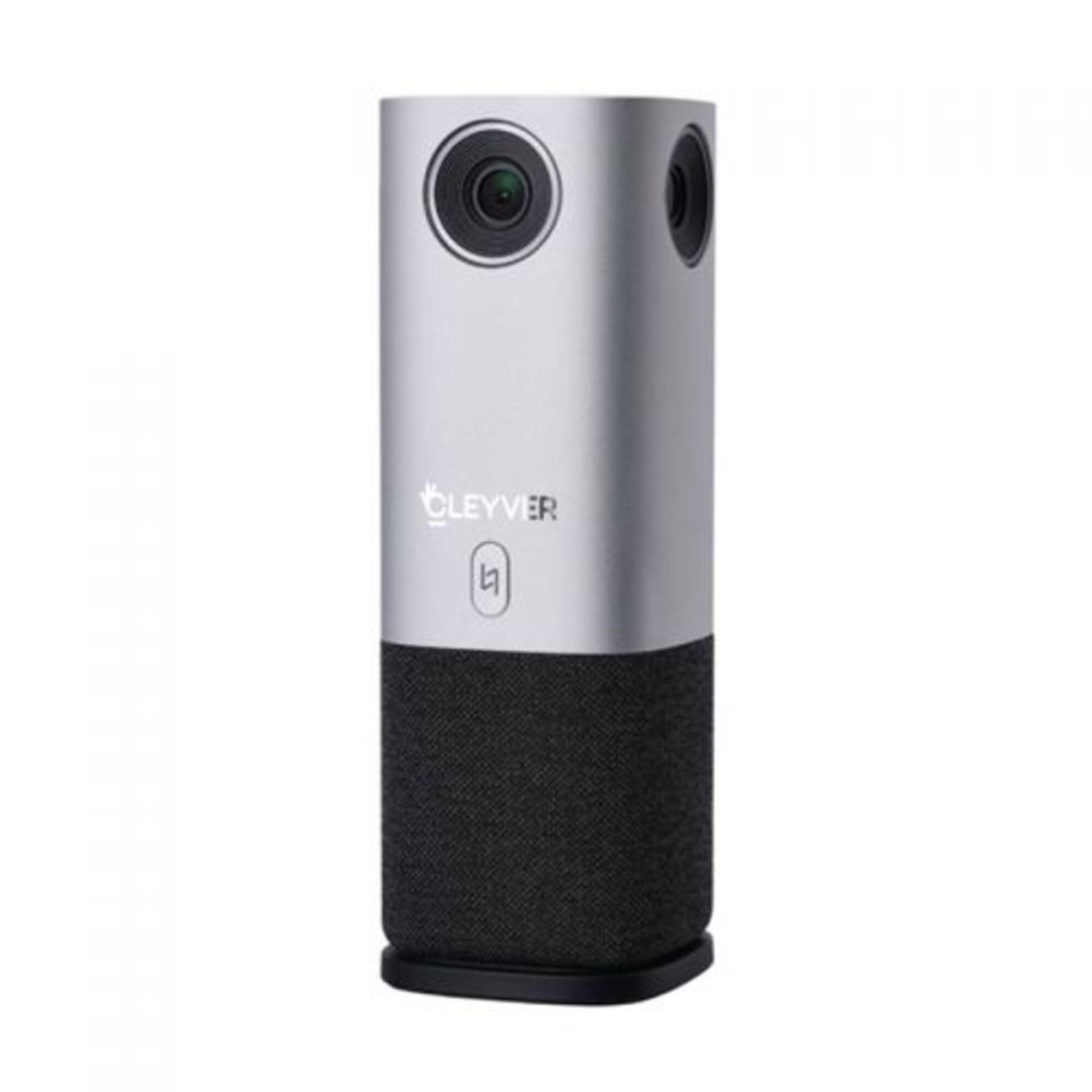
รูปที่ 1 : ด้านหน้า view of the Cleyver ODHCAM 360° Webcam. Shows the main camera lens, Cleyver logo, and a button.

รูปที่ 2: ด้านหลัง view of the Cleyver ODHCAM 360° Webcam, highlighting the USB and power ports.

Figure 3: A hand pressing the mode selection button on the Cleyver ODHCAM 360° Webลูกเบี้ยว.
3. การตั้งค่า
The Cleyver ODHCAM 360° Webcam is designed for Plug & Play operation, requiring minimal setup.
3.1 การเชื่อมต่ออุปกรณ์
- วาง webcam on a stable surface in the center of your meeting area.
- Connect the provided USB cable to the USB port on the webลูกเบี้ยว.
- เชื่อมต่อปลายอีกด้านหนึ่งของสาย USB เข้ากับพอร์ต USB ที่ว่างอยู่บนคอมพิวเตอร์ของคุณ
- เชื่อมต่ออะแดปเตอร์เพาเวอร์เข้ากับ webcam's power input and then to a wall outlet. The device requires external power for full functionality.
- Your computer should automatically detect and install the necessary drivers. If not, refer to the (potentially) included driver CD or download drivers from the official Cleyver webเว็บไซต์.

Figure 4: USB and power cables connected to the Cleyver ODHCAM 360° Webลูกเบี้ยว.
4. คู่มือการใช้งาน
เมื่อเชื่อมต่อแล้ว webcam is ready for use with your preferred video conferencing software.
4.1 Selecting a Presentation Mode
The Cleyver ODHCAM 360° offers 6 distinct presentation modes to suit various meeting scenarios. Press the mode selection button on the device to cycle through the available modes.
- Full Screen 360°: Displays a complete panoramic view ของห้อง
- ทุกรอบ View: Presents a split view with a panoramic top section and individual speaker viewอยู่ข้างล่าง
- โหมดโฮสต์: Focuses on the primary speaker while showing a panoramic view.
- Dual Host Mode: Highlights two main speakers simultaneously.
- เดี่ยว View 90°: Provides a standard 90-degree field of view, focusing on a specific area.
- มุมกว้าง View 120°: Offers a broader 120-degree field of view.
The device uses AI voice tracking and automatic framing to dynamically adjust the view based on who is speaking, ensuring optimal visibility for all participants.
4.2 คุณสมบัติด้านเสียง
- Omnidirectional Microphones: The integrated microphones capture clear audio from all directions.
- 3W HD Speaker: Provides clear sound output for incoming audio.
- ฟังก์ชั่นปิดเสียง: A dedicated button on the device allows you to quickly mute/unmute the microphones. An indicator light will show the mute status (e.g., red for muted, green for active).
4.3 ความเข้ากันได้
The Cleyver ODHCAM 360° Webcam is compatible with most popular video conferencing platforms and operating systems, including Windows and macOS. It is designed to work seamlessly with applications such as Zoom, Microsoft Teams, Skype, Google Meet, and others.
Video 1: Demonstration of the Nuroum C50 Webcam (similar to Cleyver ODHCAM 360°) features, including panoramic view and voice tracking. This video illustrates how the camera automatically focuses on the active speaker during a meeting.
Video 2: Unboxing and initial setup of a CZUR Halo webcam (similar to Cleyver ODHCAM 360°). This video demonstrates the physical components and how to connect the device.
วิดีโอ 3: จบview of the j5create 360-degree meeting webcam (similar to Cleyver ODHCAM 360°), showcasing its various display modes and omnidirectional microphone capabilities.
Video 4: Promotional video for Nuroum C20 (similar to Cleyver ODHCAM 360°), highlighting its all-in-one conference camera features, AI noise cancellation, and effective voice capture.
Video 5: Instructions on how to use the CZUR Halo webcam (similar to Cleyver ODHCAM 360°) with Zoom, demonstrating camera selection within the application.
5. การบำรุงรักษาและการดูแล
- รักษาความสะอาดของอุปกรณ์ด้วยการเช็ดด้วยผ้าแห้งเนื้อนุ่ม
- หลีกเลี่ยงการใช้สารเคมีรุนแรงหรือน้ำยาทำความสะอาดที่มีฤทธิ์กัดกร่อน
- Ensure the lens is free from dust and smudges for optimal image quality.
- จัดเก็บ webcam in a cool, dry place when not in use.
- อย่าให้อุปกรณ์สัมผัสกับอุณหภูมิหรือความชื้นสูง
6 การแก้ไขปัญหา
| ปัญหา | สาเหตุที่เป็นไปได้ | สารละลาย |
|---|---|---|
| ไม่มีเอาต์พุตภาพ/วิดีโอ |
|
|
| ไม่มีอินพุต/เอาต์พุตเสียง |
|
|
| คุณภาพของภาพไม่ดี |
|
|
7. ข้อมูลจำเพาะ
| คุณสมบัติ | รายละเอียด |
|---|---|
| ยี่ห้อ | Cleyver |
| แบบอย่าง | ODHCAM360 |
| สี | เงิน |
| คุณสมบัติพิเศษ | 360° Video Conferencing, Voice Tracking, Automatic Framing |
| เทคโนโลยีเซ็นเซอร์ | ซีมอส |
| ความละเอียดของภาพนิ่งที่มีประสิทธิภาพ | 5 ล้านพิกเซล |
| ความละเอียดวิดีโอ | 1080p |
| เทคโนโลยีการเชื่อมต่อ | ยูเอสบี |
| ไมโครโฟน | รอบทิศทาง |
| ลำโพง | 3W HD Speaker |
| ขนาด (กว้าง x ยาว x สูง) | 6.76 x 6.75 x 18.2 ซม. |
| อุปกรณ์ที่รองรับ | Laptop, Personal Computer, (potentially) Tablet, (potentially) Smartphone |
| ประเภทโฟกัส | Auto Focus, Manual Focus |
| ระดับความต้านทานต่อน้ำ | ไม่กันน้ำ |
8. การรับประกันและการสนับสนุน
For warranty information and technical support, please refer to the documentation included with your product or visit the official Cleyver webไซต์ โปรดเก็บใบเสร็จรับเงินไว้เป็นหลักฐานการซื้อสำหรับการเรียกร้องการรับประกัน
Ask a question about this manual
Ask about setup, troubleshooting, compatibility, parts, safety, or missing instructions. Manuals+ will review the question and use this page’s manual context to help answer it.