
การแนะนำ
ขอบคุณสำหรับการซื้อasing the ASA A900 Gaming Steering Wheel. This high-performance racing wheel is designed to provide an immersive and realistic driving experience across multiple gaming platforms. Featuring 270 and 900-degree rotation modes, dual vibration motors, and a comprehensive pedal and shifter setup, the ASA A900 is engineered for precision and durability. Please read this manual carefully to ensure proper setup, operation, and maintenance of your device.
เนื้อหาแพ็คเกจ
ก่อนดำเนินการติดตั้ง โปรดตรวจสอบให้แน่ใจว่ามีอุปกรณ์ทั้งหมดที่ระบุไว้ด้านล่างนี้อยู่ในแพ็คเกจของคุณ:
- 1 x ASA A900 Gaming Steering Wheel
- 1 x Triple Pedal Set (Accelerator, Brake, Clutch)
- 1 x Gear Shift Knob
- 2 x U-shaped Fixing Brackets
- 1 x คู่มือผู้ใช้ (เอกสารนี้)

Figure 1: Contents of the ASA A900 Gaming Steering Wheel package.
คู่มือการติดตั้ง
1. การเชื่อมต่อล้อแข่ง
The ASA A900 steering wheel connects via a wired USB connection. For console use, it requires an original wired controller to be connected to the steering wheel for initial recognition and authentication.
- For PC (Windows XP/Vista/7/8/10): Connect the steering wheel's USB cable directly to an available USB port on your computer. The device supports both X-input and D-input modes and should be plug-and-play. For optimal performance and automatic calibration, driver installation may be required. Refer to the included CD or manufacturer's webเว็บไซต์สำหรับผู้ขับขี่
- For Xbox Series X|S, PS3, PS4, Xbox One, Nintendo Switch:
- Ensure your console is powered off.
- Connect your original wired console controller (e.g., Xbox One controller, PS4 DualShock) to the designated USB port on the ASA A900 steering wheel. This step is crucial for the steering wheel to be recognized by the console.
- Connect the ASA A900 steering wheel's main USB cable to an available USB port on your console.
- Power on your console. The steering wheel should now be recognized and ready for use.
- Special Note for Xbox 360: The ASA A900 is compatible with Xbox 360, but it requires an original wired Xbox 360 controller for pairing and functionality. If a non-original controller is used, the steering wheel may not function correctly.
2. Connecting Pedals and Shifter
Connect the pedal set and gear shift knob to their respective ports on the back or underside of the steering wheel base. Ensure connections are secure.
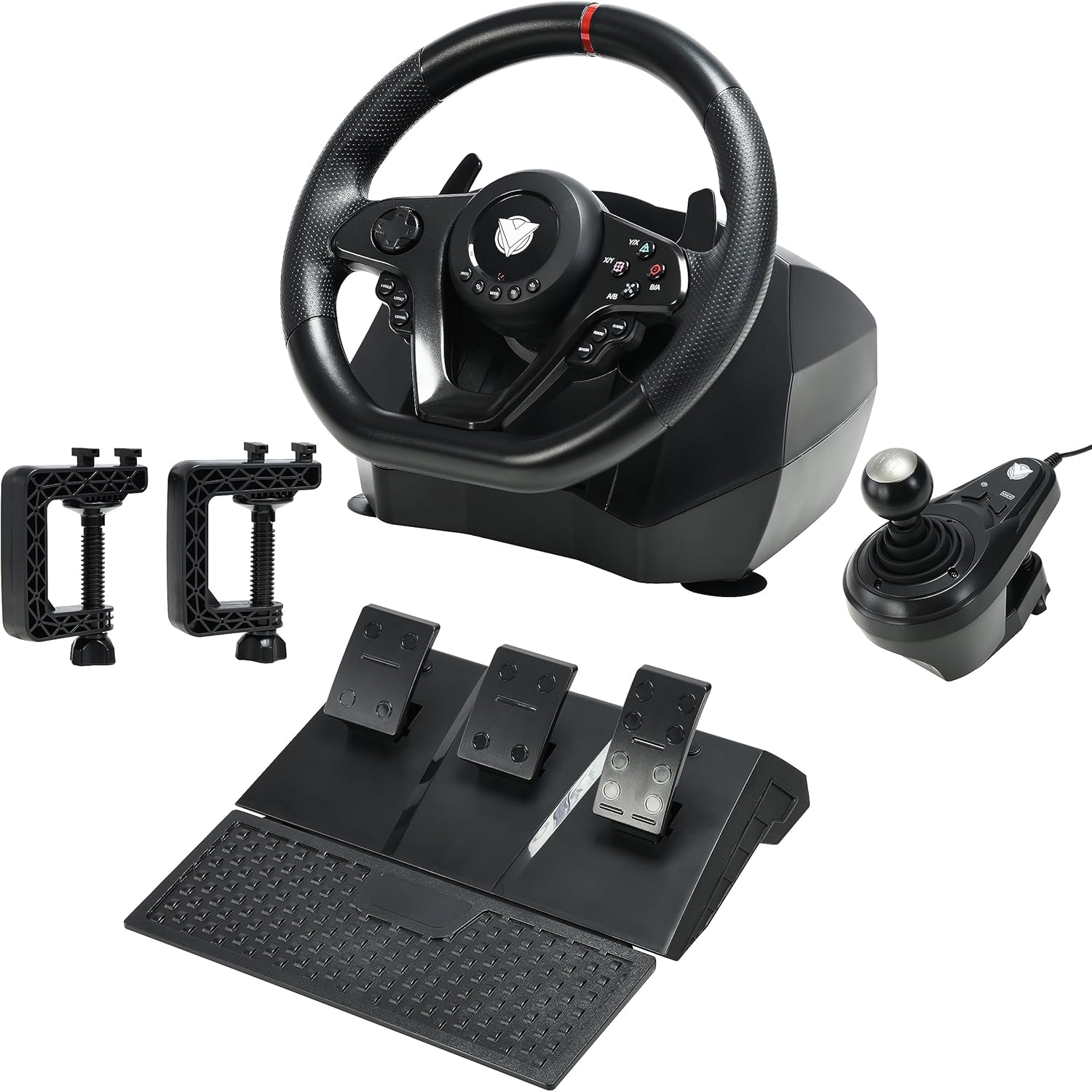
Figure 2: Complete ASA A900 setup with wheel, pedals, and shifter.
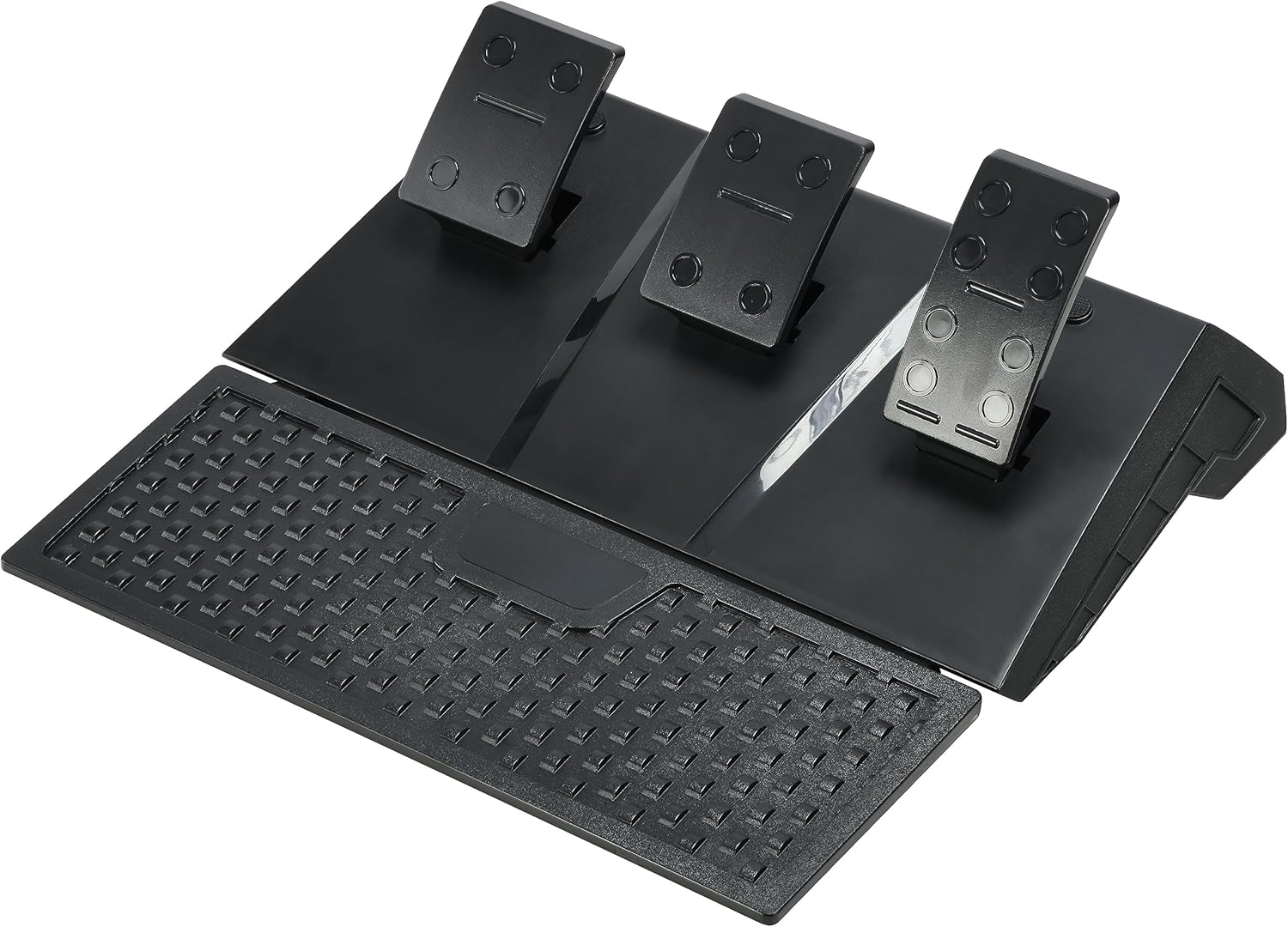
Figure 3: Triple Pedal Set.

Figure 4: Gear Shift Knob.
3. การติดตั้งพวงมาลัย
The ASA A900 offers stable mounting options to enhance your gaming experience.
- ถ้วยดูด: The base of the steering wheel is equipped with 5 strong suction cups. Place the steering wheel on a smooth, flat surface (like a desk or table) and press down firmly to engage the suction cups for a secure grip.
- Cl รูปตัว Uamps: For additional stability, use the two U-shaped fixing brackets. Attach them to the designated slots on the steering wheel base and tighten them to the edge of your table or desk.
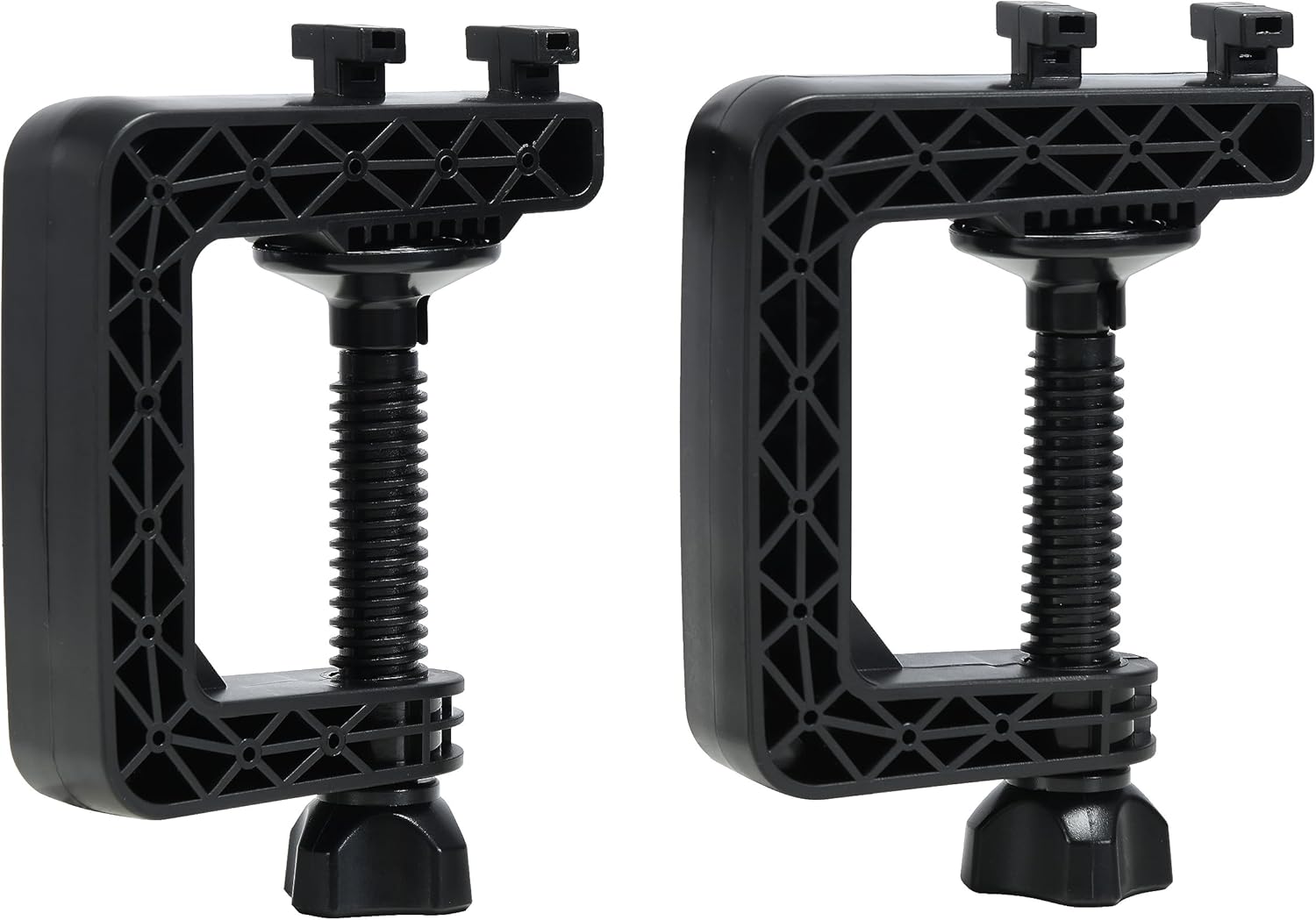
Figure 5: U-shaped Fixing Brackets.
คำแนะนำการใช้งาน
1. Steering Angle Adjustment (270°/900°)
The ASA A900 allows you to switch between two steering angle modes: 270 degrees for racing cars and 900 degrees for truck simulation or more realistic driving. There is a dedicated button or switch on the steering wheel base to toggle between these modes. Refer to the specific button layout on your steering wheel for its location.
2. Pedals and Shifter Usage
- Triple Pedals: The linear pedal set includes an accelerator, brake, and clutch. These provide precise control over your vehicle's speed and braking. The linear design ensures accurate input based on pedal pressure.
- แป้นเปลี่ยนเกียร์: Use the left and right paddle shifters located behind the steering wheel for quick and responsive gear changes in games that support them.
- Gear Shift Knob: For a more authentic manual driving experience, utilize the included gear shift knob. Its design allows for smooth and precise shifting.
3. การตอบสนองด้วยการสั่นสะเทือน
The built-in dual vibration motors provide realistic force feedback, simulating road conditions, collisions, and other in-game effects. This enhances the immersion of your racing experience.
4. Audio Communication (Xbox One)
The steering wheel supports audio communication functionality when used with an Xbox One console. Connect your headset to the appropriate port on the steering wheel (if available) or through the connected original Xbox One controller.
การซ่อมบำรุง
To ensure the longevity and optimal performance of your ASA A900 Gaming Steering Wheel, follow these maintenance guidelines:
- การทำความสะอาด: Use a soft, dry cloth to wipe down the steering wheel, pedals, and shifter. Avoid using abrasive cleaners or solvents, as they may damage the surface.
- พื้นที่จัดเก็บ: เมื่อไม่ใช้งาน ควรเก็บอุปกรณ์ไว้ในที่สะอาดและแห้ง หลีกเลี่ยงแสงแดดโดยตรงและอุณหภูมิที่สูงหรือต่ำเกินไป
- การดูแลสายเคเบิล: Avoid sharp bends or kinks in the USB cables. Do not pull on the cables to disconnect the device.
การแก้ไขปัญหา
If you encounter issues with your ASA A900 Gaming Steering Wheel, please refer to the following common problems and solutions:
| ปัญหา | สาเหตุที่เป็นไปได้ / วิธีแก้ไข |
|---|---|
| เครื่องเล่นเกม/คอมพิวเตอร์ไม่รู้จักพวงมาลัย |
|
| ไม่มีการสั่นสะเทือนตอบสนอง |
|
| Pedals or shifter not responding. |
|
| พวงมาลัยรู้สึกหลวมหรือไม่มั่นคง |
|
ข้อมูลจำเพาะ
| คุณสมบัติ | รายละเอียด |
|---|---|
| ประเภทสินค้า | พวงมาลัยเกมมิ่ง |
| หมายเลขรุ่น | ASA-A900 |
| ความเข้ากันได้ | PC (Windows XP/Vista/7/8/10), PlayStation 3, PlayStation 4, Xbox One, Xbox 360, Xbox Series X|S, Nintendo Switch |
| อินเทอร์เฟซ | Wired USB (6.56 ft cable length) |
| มุมพวงมาลัย | 270° (Racing Car Mode) / 900° (Truck Simulation Mode) |
| การสั่นสะเทือน | Dual Motor Vibration Feedback |
| แป้นเหยียบ | Linear Triple Pedal Set (Accelerator, Brake, Clutch) |
| ชิฟเตอร์ | Paddle Shifters, Manual Gear Shift Knob |
| การติดตั้ง | 5 Suction Cups, 2 U-shaped Clamps |
| ขนาด | 33 x 43 x 74 cm (Product); 3.6 kg (Weight) |
หมายเหตุสำคัญ
- For console compatibility, an original wired controller for the respective console is required to be connected to the steering wheel for authentication.
- Driver installation may be necessary for full functionality and automatic calibration on PC.
- The steering wheel's audio communication function is specifically supported on Xbox One.
การรับประกันและการสนับสนุน
For warranty information, technical support, or further assistance, please refer to the warranty card included with your product or visit the official ASA webไซต์ โปรดเก็บใบเสร็จรับเงินไว้เป็นหลักฐานการซื้อสำหรับการเรียกร้องการรับประกัน
Ask a question about this manual
Ask about setup, troubleshooting, compatibility, parts, safety, or missing instructions. Manuals+ will review the question and use this page’s manual context to help answer it.