
พระราชบัญญัติ AC5101
ACT AC5101 Wireless Ergonomic Vertical Mouse User Manual
แบบ: AC5101
1. บทนำ
Thank you for choosing the ACT AC5101 Wireless Ergonomic Vertical Mouse. This manual provides detailed instructions for setting up, operating, and maintaining your new mouse. Designed for right-handed users, this ergonomic mouse aims to reduce hand and wrist strain during extended computer use, promoting a more natural and comfortable posture.
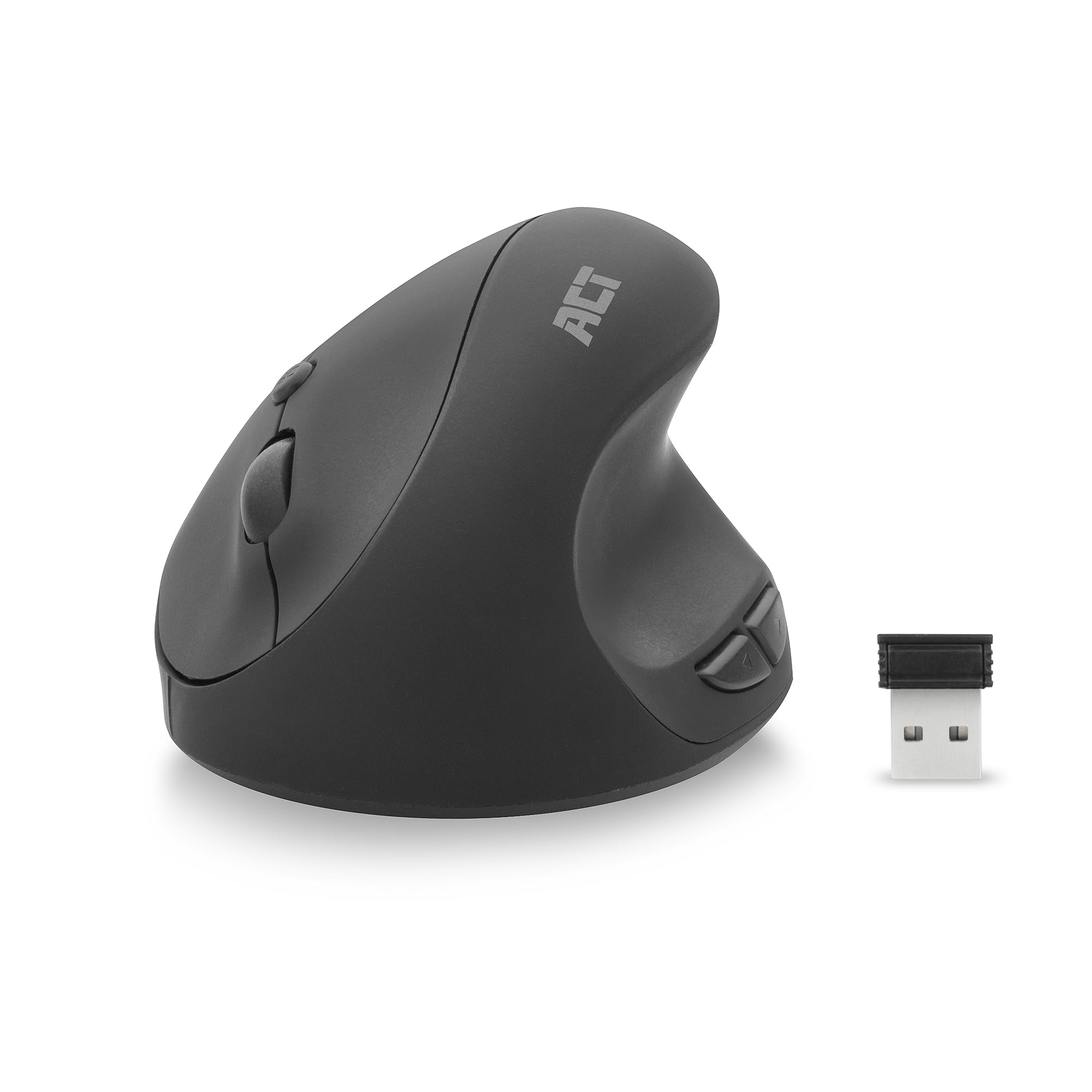
Image 1.1: The ACT AC5101 Wireless Ergonomic Vertical Mouse with its USB receiver.
2. เนื้อหาบรรจุภัณฑ์
กรุณาตรวจสอบแพ็คเกจสำหรับรายการต่อไปนี้:
- 1 x ACT AC5101 Wireless Ergonomic Vertical Mouse
- 1 x USB-A Nano Receiver (stored in the mouse battery compartment)
- 1 x AA แบตเตอรี่ (รวมอยู่ด้วย)
- 1 x คู่มือผู้ใช้ (เอกสารนี้)
3. สินค้าหมดview
The ACT AC5101 mouse features a vertical design for improved ergonomics and includes multiple buttons for enhanced functionality.

Image 3.1: Diagram showing the buttons on the ACT AC5101 mouse. These include the Left Key, Right Key, Scroll Wheel, DPI Button, Forward Button, and Back Button.
- ปุ่มซ้าย: ฟังก์ชั่นคลิกซ้ายมาตรฐาน
- ปุ่มขวา: ฟังก์ชั่นคลิกขวามาตรฐาน
- ล้อเลื่อน: สำหรับการเลื่อนแนวตั้งและฟังก์ชันคลิกกลาง
- ปุ่ม DPI: สลับไปมาระหว่างการตั้งค่า DPI (800/1200/1600)
- ปุ่มไปข้างหน้า: นำทางไปข้างหน้าใน web เบราว์เซอร์หรือ file นักสำรวจ
- ปุ่มย้อนกลับ: นำทางย้อนกลับใน web เบราว์เซอร์หรือ file นักสำรวจ
- สวิตช์เปิด/ปิด: Located on the bottom of the mouse to conserve battery life.
4. คำแนะนำในการตั้งค่า
Follow these steps to set up your ACT AC5101 Wireless Ergonomic Vertical Mouse:
- ใส่แบตเตอรี่:
Locate the battery compartment on the bottom of the mouse. Open the cover and insert the included AA battery, ensuring correct polarity (+/-). Close the battery compartment cover securely.

Image 4.1: The bottom of the mouse showing the battery compartment and the USB-A Nano Receiver storage slot.
- เชื่อมต่อตัวรับสัญญาณ USB:
Remove the USB-A Nano Receiver from its storage slot next to the battery compartment. Plug the receiver into an available USB-A port on your computer.

Image 4.2: The USB-A Nano Receiver.
- เปิดเครื่อง:
Flip the On/Off switch, located on the bottom of the mouse, to the "On" position. Your computer should automatically detect and install the necessary drivers. The mouse is now ready for use.
5. คู่มือการใช้งาน
5.1 ด้ามจับที่ออกแบบตามหลักสรีรศาสตร์
The vertical design of the ACT AC5101 mouse promotes a natural handshake position, reducing pronation of the forearm and wrist strain. Place your hand over the mouse so your thumb rests comfortably on the thumb rest, and your fingers align with the main buttons.

Image 5.1: Comparison illustrating how a traditional mouse twists the arm and wrist, while the ACT ergonomic mouse allows for a relaxed shoulder and neutral wrist position.
5.2 การปรับความไวของ DPI
The DPI (Dots Per Inch) button allows you to adjust the mouse cursor speed. Press the ปุ่ม DPI (refer to Image 3.1) to cycle through the available sensitivity settings: 800 DPI, 1200 DPI, and 1600 DPI. Select the setting that best suits your preference and task.
5.3 การใช้ปุ่มด้านข้าง
การ ปุ่มเดินหน้า และ ปุ่มย้อนกลับ are conveniently located for thumb access. These buttons are typically used for navigation in web เบราว์เซอร์ (เช่น การย้อนกลับหรือไปข้างหน้าหน้าเว็บ) หรือ file นักสำรวจ
6. การบำรุงรักษา
To ensure the longevity and optimal performance of your ACT AC5101 mouse, follow these maintenance guidelines:
- การทำความสะอาด: ใช้ผ้านุ่มและแห้งเช็ดพื้นผิวของเมาส์ สำหรับสิ่งสกปรกฝังแน่น ให้เช็ดเบาๆampชุบผ้าด้วยน้ำหรือน้ำยาทำความสะอาดอ่อนๆ หลีกเลี่ยงการใช้สารเคมีรุนแรงหรือวัสดุที่มีฤทธิ์กัดกร่อน
- การเปลี่ยนแบตเตอรี่: When the mouse performance degrades or it stops responding, replace the AA battery. Ensure the On/Off switch is in the "Off" position before replacing the battery.
- พื้นที่จัดเก็บ: When not in use for extended periods, turn off the mouse using the On/Off switch to conserve battery life. Store the USB receiver in its dedicated slot on the bottom of the mouse to prevent loss.
7 การแก้ไขปัญหา
If you encounter issues with your ACT AC5101 mouse, refer to the following common problems and solutions:
| ปัญหา | สาเหตุที่เป็นไปได้ | สารละลาย |
|---|---|---|
| เมาส์ไม่ตอบสนอง |
|
|
| การเคลื่อนไหวของเคอร์เซอร์ที่ผิดปกติ |
|
|
| ปุ่มด้านข้างไม่ทำงาน |
|
|
8. ข้อมูลจำเพาะ
Technical details for the ACT AC5101 Wireless Ergonomic Vertical Mouse:
- ชื่อรุ่น : เอซี5101
- ยี่ห้อ: กระทำ
- เทคโนโลยีการเชื่อมต่อ: 2.4 GHz Wireless (Radio-frequency)
- ผู้รับ: USB-A Nano Receiver
- เทคโนโลยีการตรวจจับการเคลื่อนไหว: ออฟติคอล
- การตั้งค่า DPI: 800 / 1200 / 1600 DPI (adjustable via DPI button)
- จำนวนปุ่ม: 6 (ซ้าย, ขวา, ล้อเลื่อน, DPI, เดินหน้า, ถอยหลัง)
- การวางแนวมือ: ถนัดขวา
- แหล่งพลังงาน: 1 x AA แบตเตอรี่ (รวมอยู่ด้วย)
- สี: สีดำ
- อุปกรณ์ที่รองรับ: เครื่องคอมพิวเตอร์ส่วนบุคคล
- ขนาด : Approximately 105mm (Length) x 77mm (Height) x 60mm (Width)

Image 8.1: Approximate dimensions of the ACT AC5101 mouse.
9. การรับประกันและการสนับสนุน
การรับประกัน: The ACT AC5101 Wireless Ergonomic Vertical Mouse comes with a manufacturer's warranty of 2 years. This warranty covers defects in materials and workmanship under normal use.
สนับสนุน: For technical assistance, troubleshooting beyond this manual, or warranty claims, please contact your retailer or visit the official ACT website for support information. Please have your product model number (AC5101) and proof of purchase ready when contacting support.
Ask a question about this manual
Ask about setup, troubleshooting, compatibility, parts, safety, or missing instructions. Manuals+ will review the question and use this page’s manual context to help answer it.