
1. บทนำ
This manual provides essential information for setting up, operating, and maintaining your Bmax Y13 13.3-inch 2-in-1 Touchscreen Laptop. Please read this manual thoroughly before using your device to ensure optimal performance and longevity.

Figure 1: The Bmax Y13 2-in-1 laptop showcasing its versatile convertible design.
2. การตั้งค่า
2.1 การแกะกล่องและการตรวจสอบเบื้องต้น
Your Bmax Y13 laptop is carefully packaged to prevent damage during transit. Upon receiving your device, inspect the packaging for any signs of damage. Carefully remove the laptop and all accessories from the box.
วิดีโอ 1: แกะกล่องและเริ่มต้นใหม่view of the Bmax Y13 laptop, demonstrating its physical features and included accessories.
2.2 การเปิดเครื่องและการกำหนดค่าเริ่มต้น
Connect the provided power adapter to the laptop's DC port and a power outlet. Press the power button located on the side of the device. Follow the on-screen instructions to complete the initial Windows setup, including language selection, network connection, and user account creation.
2.3 System Updates and Driver Installation
After the initial setup, it is highly recommended to perform the following steps:
- Install All Windows Updates: Ensure your operating system is up-to-date for optimal security and performance.
- Install and Run 'Intel Driver Support Assistant': This tool helps identify and install the latest drivers for your Intel components, ensuring compatibility and peak performance.
3. ฮาร์ดแวร์โอเวอร์view
3.1 ลักษณะทางกายภาพ
The Bmax Y13 features a sleek, thin all-metal body, weighing approximately 2.8 lbs (1.25 kg) and measuring 12.1" x 8.2" x 0.6". This design makes it highly portable and stylish.

Figure 2: The Bmax Y13's ultra-thin and lightweight metal body, ideal for portability.
3.2 พอร์ตและการเชื่อมต่อ
The laptop is equipped with various ports for versatile connectivity:
- ด้านขวา: Audio jack, Type-C data-only port, Micro-SD card slot, Power on/off button.
- ด้านซ้าย: 12V-2A Power port, Type-C full functionality port (for data transfer, power delivery, and video out).

รูปที่ 3: รายละเอียด view of the right-side ports on the Bmax Y13.
3.3 คีย์บอร์ดและทัชแพด
The Bmax Y13 features a full-sized, backlit keyboard with two adjustable brightness levels (On/Off, 2-level adjustable via 'Fn+F2'). The keys offer good tactile feedback and travel for comfortable typing. The touchpad is generously sized and responsive.

Figure 4: The backlit keyboard of the Bmax Y13, illustrating the function key for backlight control.
3.4 Display and Convertible Modes
The laptop boasts a 13.3-inch Full HD (1920 x 1080) IPS multi-touch screen with a narrow bezel, providing an immersive viewing experience and excellent color reproduction. The 360-degree durable hinge allows for six versatile usage modes: Laptop, Stand, Tent, Tablet, Portable, and Drawing.

Figure 5: The Bmax Y13 in various convertible configurations.

Figure 6: Visual representation of the six versatile usage modes.
4. คู่มือการใช้งาน
4.1 การใช้งานทั่วไป
The Bmax Y13 is designed for everyday productivity and entertainment. It handles common applications like web browsing, document editing, and media playback efficiently. The Intel Celeron N4120 Quad Core Processor (up to 2.6GHz) combined with 8GB DDR4 RAM and a 256GB SSD ensures smooth operation.
Video 2: Demonstration of the Bmax Y13's performance in web browsing, media streaming, and light gaming.
4.2 ท่าทางสัมผัสบนหน้าจอสัมผัส
The multi-touch screen supports 10-finger input with high precision. Common gestures include:
- Two-finger swipe: เลื่อนดูเนื้อหา
- Pinch with two fingers: ซูมเข้าหรือออก
- แตะด้วยสามนิ้ว: Open search or switch applications.
- Four-finger tap: Open action center.
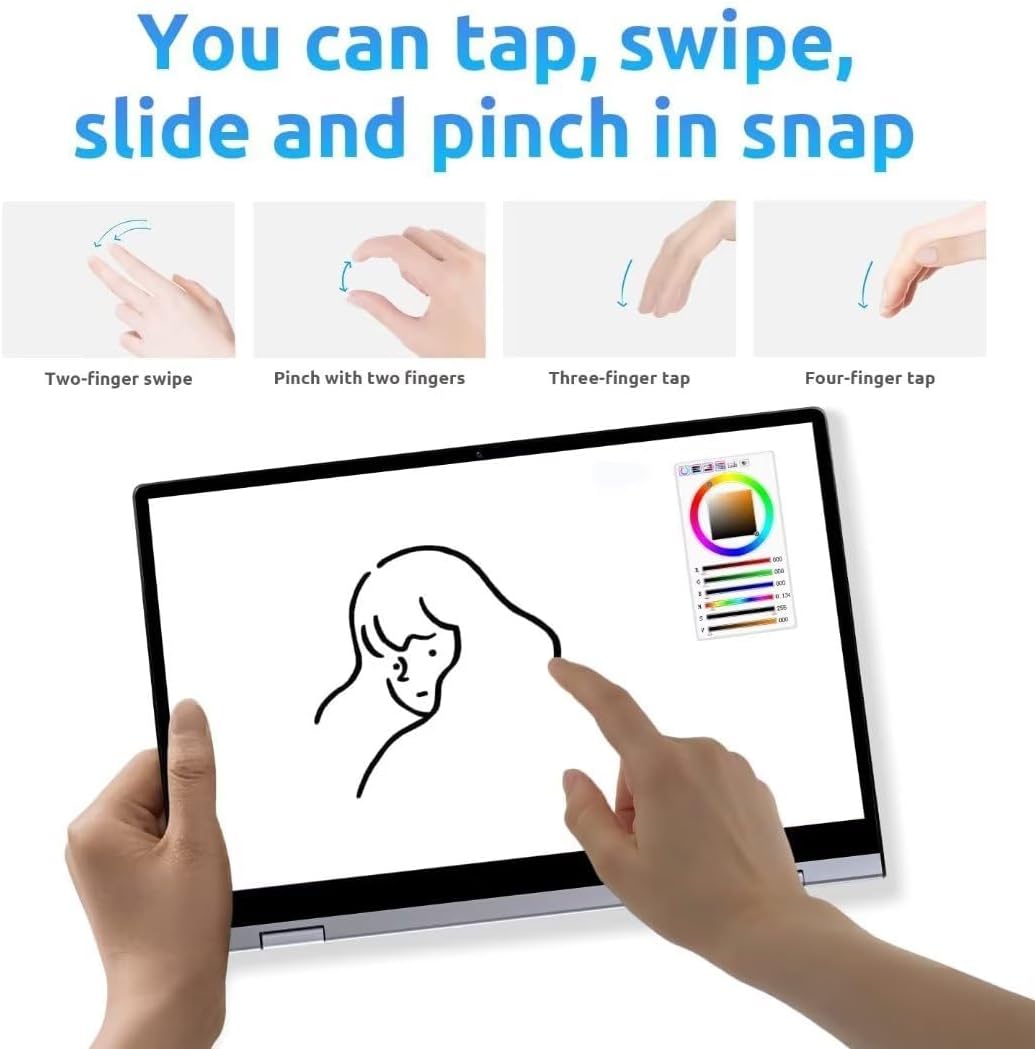
Figure 7: Common touchscreen gestures for navigation and interaction.
4.3 การฉายภาพแบบไร้สาย
The Bmax Y13 supports wireless screen projection, allowing you to display content from your laptop onto a larger screen or projector. This feature is particularly useful for presentations or sharing media.

Figure 8: Using the touchscreen for presentations or content display.
5. ข้อมูลจำเพาะ
| คุณสมบัติ | ข้อมูลจำเพาะ |
|---|---|
| ขนาดการแสดงผลหน้าจอยืน | 13.3 นิ้ว |
| ความละเอียดหน้าจอ | 1920 x 1080 พิกเซล (FHD) |
| โปรเซสเซอร์ | Intel Celeron N4120 Quad Core (up to 2.6GHz) |
| แรม | 8GB LPDDR4 ความจุ |
| ฮาร์ดไดรฟ์ | SSD ความจุ 256GB |
| โคโปรเซสเซอร์กราฟิก | กราฟิก Intel UHD 600 |
| ประเภทไร้สาย | 802.11a/g/n/ac, Bluetooth 5.0 |
| ระบบปฏิบัติการ | โอเอส 10 |
| น้ำหนักสินค้า | 2.75 ปอนด์ (1.25 กก.) |
| ขนาดสินค้า | 12.6 x 8.2 x 0.6 นิ้ว |
| อายุการใช้งานแบตเตอรี่โดยเฉลี่ย | 6 ชั่วโมง |
6. การบำรุงรักษา
To ensure the longevity and optimal performance of your Bmax Y13 laptop, follow these maintenance guidelines:
- การทำความสะอาด: ใช้ผ้านุ่มไม่เป็นขุยทำความสะอาดหน้าจอและภายนอก สำหรับรอยเปื้อนฝังแน่น ให้ampชุบผ้าด้วยน้ำหรือน้ำยาทำความสะอาดที่ปลอดภัยต่อหน้าจอ หลีกเลี่ยงสารเคมีรุนแรง
- อุณหภูมิ: Operate the laptop within recommended temperature ranges. Avoid exposing it to extreme heat or cold, and ensure proper ventilation to prevent overheating.
- การอัปเดตซอฟต์แวร์: Regularly update your operating system and drivers to benefit from performance improvements, security patches, and new features.
- การดูแลแบตเตอรี่ For optimal battery life, avoid fully discharging the battery frequently. If storing the laptop for an extended period, charge it to about 50-70%.
7 การแก้ไขปัญหา
If you encounter issues with your Bmax Y13, try the following troubleshooting steps:
- ไม่มีไฟฟ้า: ตรวจสอบให้แน่ใจว่าอะแดปเตอร์แปลงไฟเชื่อมต่อกับแล็ปท็อปและเต้ารับไฟฟ้าที่ใช้งานได้แน่นหนาแล้ว ตรวจสอบว่าเต้ารับไฟฟ้าใช้งานได้หรือไม่
- ปัญหาหน้าจอ: If the screen is blank or flickering, try restarting the laptop. If using an external display, ensure the cable connection is secure.
- ประสิทธิภาพการทำงานช้า: Close unnecessary applications, check for malware, and ensure your operating system and drivers are updated. Consider freeing up storage space on the SSD.
- การเชื่อมต่อ Wi-Fi/บลูทูธ: Ensure Wi-Fi and Bluetooth are enabled in Windows settings. Restart your router or Bluetooth device if connection issues persist.
- หน้าจอสัมผัสไม่ตอบสนอง: Restart the laptop. If the issue continues, check for driver updates for the touchscreen.
8. การรับประกันและการสนับสนุน
For warranty information and technical support, please refer to the documentation included with your product or visit the official Bmax webไซต์นี้ โปรดเก็บหลักฐานการซื้อไว้เพื่อใช้ยืนยันการรับประกัน