
1. การตั้งค่า
This section provides instructions for the initial setup of your TCL 55S41 television, including unpacking, stand installation, wall mounting, and connecting external devices.
1.1 การแกะกล่อง
- นำโทรทัศน์ออกจากบรรจุภัณฑ์อย่างระมัดระวัง
- Ensure all accessories are present: remote control, AAA batteries, power cord, and stand components.
- Retain the packaging materials for future transport or service needs.
1.2 การติดตั้งขาตั้ง
If you are not wall-mounting the television, install the included stand according to these steps:
- Place the television face-down on a soft, clean surface to prevent screen damage.
- Align the stand legs with the screw holes on the bottom of the television. The stand separation distance is approximately 41.5 inches.
- Secure each stand leg using the provided M4 x 25 screws (4 screws total). Tighten securely with a screwdriver.
- Carefully lift the television to an upright position on a stable, level surface.
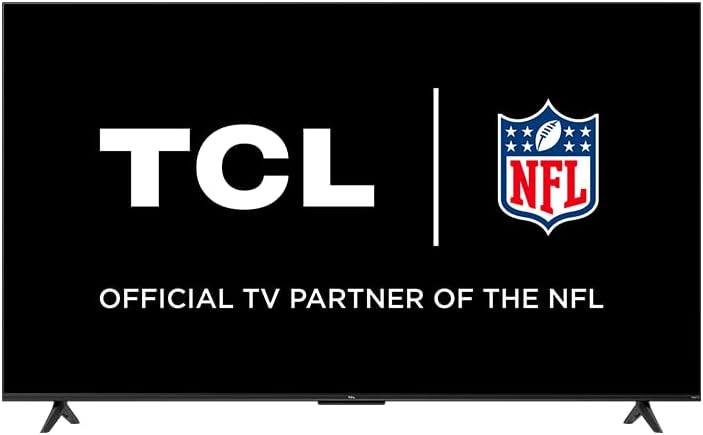
Image: The TCL 55S41 television with its stand attached, illustrating the typical appearance after stand installation. The stand provides stable support for the television on a flat surface.
1.3 การติดตั้งบนผนัง
If you plan to wall-mount your television, ensure you use a VESA-compatible wall mount (sold separately) that supports the television's weight and size.
- The VESA wall mount pattern for this model is 200มม. x 200มม..
- Use M6 x 12 screws for attaching the wall mount bracket to the television.
- Follow the instructions provided with your specific wall mount for safe and secure installation.
- Remove the stand legs before wall mounting.
1.4 การเชื่อมต่ออุปกรณ์
Connect your external devices to the appropriate ports on the back of the television.
- อินพุต HDMI: The TV features 4 HDMI inputs, including 1 eARC port for enhanced audio return channel functionality. Use these for connecting Blu-ray players, game consoles, cable boxes, etc.
- Composite Audio/Video Input: 1 input for older devices using RCA cables.
- เอาต์พุตเสียงออปติคัลดิจิตอล: 1 output for connecting to soundbars or audio receivers.
- แจ็คหูฟัง: 1 output for private listening with headphones.
- อินพุตเสาอากาศ RF: 1 input for connecting an antenna for over-the-air broadcasts.
- พอร์ต USB 2.0: 1 port for connecting USB storage devices to play media.
- พอร์ตอีเธอร์เน็ต: สำหรับการเชื่อมต่ออินเตอร์เน็ตแบบใช้สาย
- การเชื่อมต่อแบบไร้สาย: Supports 802.11ac 2x2 Dual Band (2.4GHz & 5GHz) Wi-Fi for wireless internet access.
ภาพ: นายพล view of the TCL 55S41 television, indicating the typical location of various input and output ports on the rear panel for connecting external devices.
1.5 การเปิดเครื่องครั้งแรกและการตั้งค่า Roku
- Connect the power cord to the television and then to a power outlet.
- กดปุ่มเปิดปิดบนรีโมทคอนโทรลหรือบนทีวี
- Follow the on-screen instructions to complete the Roku guided setup, which includes selecting your language, connecting to a network, and activating your Roku account.
2. การใช้งานโทรทัศน์
This section details the basic operation of your TCL Roku TV, including remote control functions, smart features, and input selection.
2.1 การควบคุมระยะไกล
The included remote control (model RC280) requires two "AAA" batteries. It provides intuitive control over your television and Roku OS.
- ปุ่มเปิด/ปิด: เปิดหรือปิดทีวี
- แผ่นทิศทาง: นำทางเมนูและเลือกสินค้า
- ปุ่มโฮม: กลับไปยังหน้าจอหลักของ Roku
- ปุ่มย้อนกลับ: กลับไปยังหน้าจอที่แล้ว
- ปุ่มปรับระดับเสียง: ปรับระดับเสียงโทรทัศน์
- ปุ่มปิดเสียง: ปิดเสียงหรือเปิดเสียง
- ปุ่มทางลัด: Dedicated buttons for popular streaming channels.
2.2 Smart Features (Roku TV)
Your TCL TV is powered by Roku OS, offering a wide range of smart features:
- ช่องทางการสตรีมมิ่ง: Access thousands of streaming channels for movies, TV shows, news, sports, and more.
- การควบคุมด้วยเสียง: The TV works with Siri, Alexa, and Hey Google for voice commands to search for content, launch apps, or switch inputs.
- แอร์เพลย์: แชร์วิดีโอ รูปภาพ และเพลงได้โดยตรงจากอุปกรณ์ Apple ของคุณ
- หน้าจอหลักที่ปรับแต่งได้: Organize your favorite channels and inputs for quick access.
- แอป Roku Mobile: Use the free Roku mobile app for private listening via headphones, voice control, and as an alternative remote.
2.3 การเลือกอินพุต
To switch between connected devices or the antenna input:
- From the Roku home screen, navigate to the desired input tile (e.g., HDMI 1, Antenna TV).
- กดปุ่ม OK button on your remote to select the input.
2.4 คุณสมบัติด้านเสียง
- ระบบดอลบี้ ดิจิตอล พลัส: Enhanced audio quality for compatible content.
- การฟังส่วนตัว: Use the Roku mobile app with headphones for personal audio.
2.5 Live TV Pause
If you have an antenna connected, you can pause live TV for up to 30 minutes. A USB drive (sold separately) is required for this feature.
3. การบำรุงรักษา
การบำรุงรักษาอย่างถูกวิธีจะช่วยให้โทรทัศน์ของคุณมีอายุการใช้งานยาวนานและทำงานได้อย่างมีประสิทธิภาพสูงสุด
3.1 การทำความสะอาด
- หน้าจอ: เช็ดหน้าจอเบาๆ ด้วยผ้าเนื้อนุ่มที่ไม่เป็นขุย สำหรับคราบฝังแน่น ให้ใช้น้ำยาทำความสะอาดหน้าจอสำหรับโทรทัศน์โดยเฉพาะ โดยทาลงบนผ้าก่อนแล้วค่อยเช็ดลงบนหน้าจอ
- คณะรัฐมนตรี: เช็ดตู้ทีวีด้วยผ้านุ่มและแห้ง หลีกเลี่ยงการใช้น้ำยาทำความสะอาดหรือสารละลายที่มีฤทธิ์กัดกร่อน
- ควรถอดปลั๊กทีวีทุกครั้งก่อนทำความสะอาด
3.2 การอัปเดตซอฟต์แวร์
Your TCL Roku TV receives automatic software updates to improve performance and add new features. Ensure your TV is connected to the internet for these updates.
4 การแก้ไขปัญหา
This section provides solutions to common issues you might encounter with your TCL 55S41 television.
4.1 ไม่มีไฟฟ้า
- ตรวจสอบว่าสายไฟเสียบเข้ากับทีวีและเต้ารับไฟฟ้าอย่างแน่นหนาหรือไม่
- ตรวจสอบว่าเต้ารับไฟฟ้าใช้งานได้โดยเสียบอุปกรณ์อื่น
- ลองกดปุ่มเปิดปิดบนทีวีโดยตรง ไม่ใช่แค่ที่รีโมท
4.2 ไม่มีภาพ / คุณภาพภาพไม่ดี
- ตรวจสอบให้แน่ใจว่าเลือกแหล่งอินพุตที่ถูกต้อง
- Check all cable connections (HDMI, composite) to external devices.
- If using an antenna, check antenna connection and try rescanning for channels.
- ปรับการตั้งค่าภาพ (ความสว่าง ความคมชัด ฯลฯ) ในเมนูทีวี
4.3 ไม่มีเสียง / คุณภาพเสียงไม่ดี
- ตรวจสอบระดับเสียงและตรวจสอบให้แน่ใจว่าทีวีไม่ได้ถูกปิดเสียง
- If using external audio equipment (soundbar, receiver), ensure it is powered on and correctly connected.
- ตรวจสอบการตั้งค่าเอาต์พุตเสียงในเมนูทีวี
4.4 รีโมทคอนโทรลไม่ตอบสนอง
- Replace the batteries with fresh "AAA" batteries.
- ตรวจสอบให้แน่ใจว่าไม่มีสิ่งกีดขวางระหว่างรีโมทและเซ็นเซอร์ IR ของทีวี
- Try pairing the remote again if it's a voice remote (refer to Roku TV settings).
4.5 ปัญหาการเชื่อมต่อเครือข่าย
- ตรวจสอบเราเตอร์ Wi-Fi และโมเด็มของคุณเพื่อให้แน่ใจว่าเปิดใช้งานอยู่และทำงานได้ปกติ
- รีสตาร์ทเราเตอร์และโมเด็มของคุณ
- ไปที่การตั้งค่าเครือข่ายทีวีและลองเชื่อมต่อกับเครือข่าย Wi-Fi อีกครั้ง
- หากใช้การเชื่อมต่อแบบใช้สาย โปรดตรวจสอบให้แน่ใจว่าสายอีเทอร์เน็ตเชื่อมต่ออย่างแน่นหนา
5. ข้อมูลจำเพาะ
Detailed technical specifications for the TCL 55S41 55-inch 4-Series 4K UHD HDR LED Smart Roku TV.
| คุณสมบัติ | ข้อมูลจำเพาะ |
|---|---|
| ชื่อรุ่น | 55S41 |
| ขนาดหน้าจอ | 55 นิ้ว (54.6 นิ้ว) Viewสามารถ) |
| ความละเอียดแผง | 3840 x 2160 (4K UHD) |
| อัตราการรีเฟรช | 60 เฮิรตซ์ |
| เทคโนโลยีการแสดงผล | LED-LCD |
| รองรับรูปแบบ HDR | HDR10,เอชแอลจี |
| สมาร์ทแพลตฟอร์ม | ทีวีโรคุ |
| กำลังขับเสียง | 10W + 10W |
| พรีเมี่ยมและเสียง | ระบบเสียงดอลบี้ ดิจิตอล พลัส |
| อินพุต HDMI | 4 (1 eARC) |
| พอร์ต USB 2.0 | 1 |
| การเชื่อมต่อแบบไร้สาย | 802.11ac 2x2 Dual Band (2.4GHz & 5GHz) |
| พอร์ตอีเทอร์เน็ต | 1 |
| ขนาดสินค้า (กxสxล) พร้อมขาตั้ง | 48.3" x 29.8" x 10.1" |
| Product Size (WxHxD) without Stand | 48.3" x 28" x 3.2" |
| Product Weight with Stand | 22.5 ปอนด์ |
| Product Weight without Stand | 22 ปอนด์ |
| VESA แบบติดผนัง | 200มม. x 200มม. |
| ขนาดสกรู VESA | M6x12 นิ้ว |
| รวมการควบคุมระยะไกล | RC280 |
| ประเภทแบตเตอรี่รีโมทคอนโทรล | Two "AAA" |
| ยูพีซี | 846042065061 |
6. การรับประกันและการสนับสนุน
Information regarding the product warranty and how to obtain support.
6.1 ข้อมูลการรับประกัน
This TCL television comes with a รับประกันจำกัด 1 ปี. This warranty covers manufacturing defects and issues arising from normal use. Please refer to the warranty card included with your product or visit the official TCL webเว็บไซต์สำหรับข้อกำหนดและเงื่อนไขฉบับเต็ม
6.2 การสนับสนุนลูกค้า
For technical assistance, troubleshooting beyond this manual, or warranty claims, please contact TCL Customer Support. You can typically find support contact information (phone, email, or live chat) on the official TCL website. When contacting support, have your TV model number (55S41) and serial number ready.