
1. บทนำ
This manual provides instructions for the proper setup, operation, and maintenance of your Tera 3106-2 1D USB Wired Barcode Scanner. Please read this manual thoroughly before using the device to ensure optimal performance and longevity.
2. สินค้าหมดview
The Tera 3106-2 is a high-speed, accurate 1D barcode scanner designed for various applications including retail, small businesses, libraries, and warehouses. It features a plug-and-play USB connection and supports multiple customization options.

รูปที่ 2.1: The Tera 3106-2 scanner is designed to be eye-safe, operating without a visible laser.
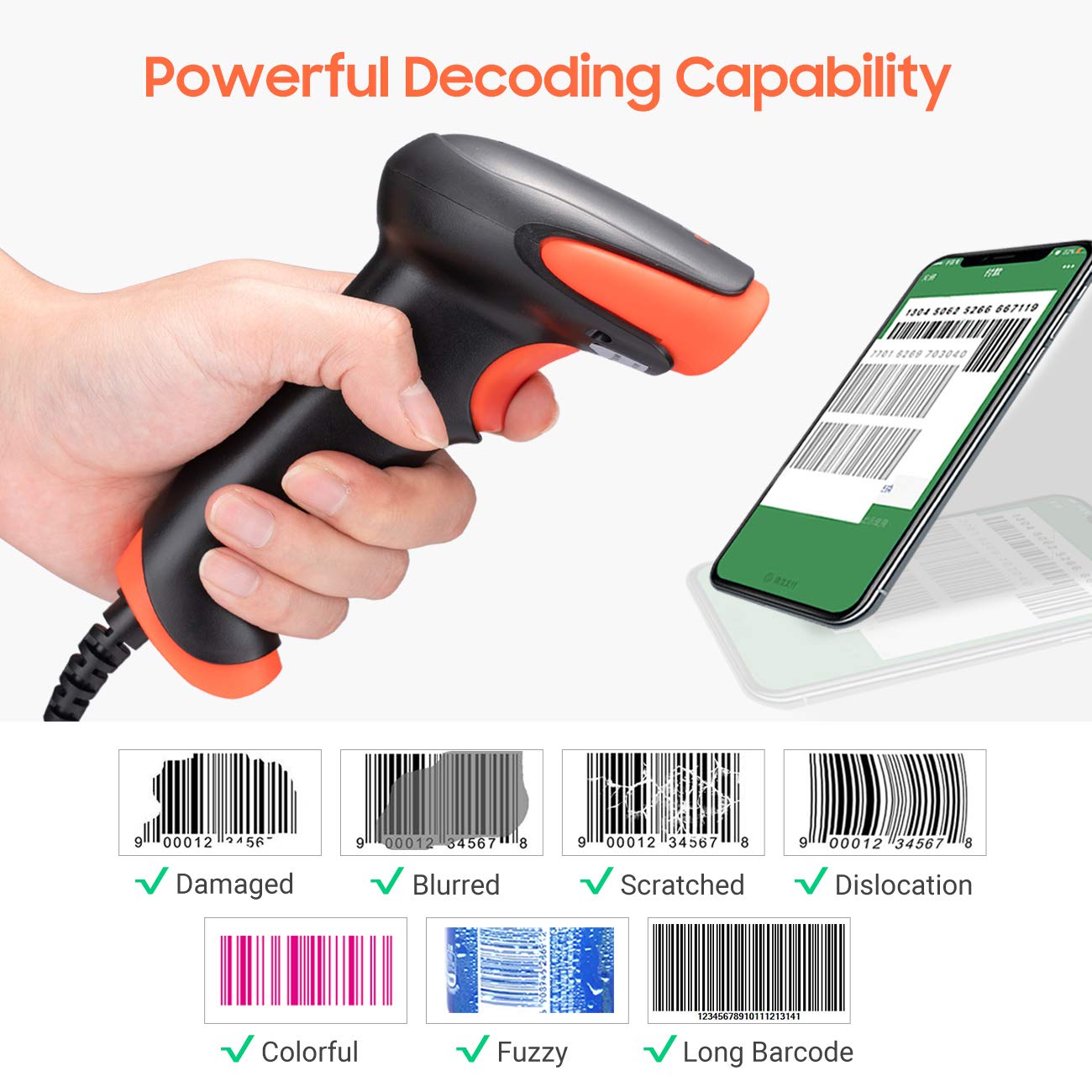
รูปที่ 2.2: The scanner offers powerful decoding capabilities, accurately reading damaged, blurred, scratched, dislocated, colorful, fuzzy, and long 1D barcodes.
3. เนื้อหาบรรจุภัณฑ์
- Tera 3106-2 Barcode Scanner x1
- คู่มือการใช้งาน x1
4. การตั้งค่า
The Tera 3106-2 barcode scanner is designed for simple plug-and-play operation. No additional drivers or software installation is required for most systems.
- เชื่อมต่อสาย USB: Plug the USB cable of the scanner into an available USB 2.0 port on your computer (desktop or laptop).
- การจดจำระบบ: Your operating system (Windows, Linux, macOS, iOS, Android) will automatically detect and install the necessary device drivers. This process may take a few moments.
- พร้อมใช้งาน: Once the system indicates that the device is ready, the scanner can be used with applications such as Word, Excel, Novell, or other common software that accepts keyboard input.

รูปที่ 4.1: The scanner is compatible with various devices and operating systems, including Windows, Linux, macOS, iOS, and Android.
5. คู่มือการใช้งาน
5.1 การสแกนพื้นฐาน
To scan a barcode, aim the scanner's light beam at the center of the barcode. A successful scan will typically be indicated by an audible beep and/or a visual confirmation (e.g., LED indicator). The decoded data will appear in the active input field on your connected device.
5.2 โหมดการสแกน
เครื่องสแกนนี้รองรับโหมดการสแกนหลักสองโหมด:
- การสแกนด้วยตนเอง: Press the trigger button to initiate a scan. This is the default mode.
- Auto Continuous Scanning: The scanner continuously emits a scan beam, automatically reading barcodes presented to it without needing to press the trigger.
To switch between these modes, refer to the configuration barcodes provided in the supplementary user guide or quick start sheet that came with your scanner. Scan the appropriate barcode to change the mode.
6. ตัวเลือกการปรับแต่ง
The Tera 3106-2 scanner offers various customization settings to adapt to your specific needs. These settings are typically configured by scanning special barcodes found in the included user guide.
- คำนำหน้า/คำต่อท้าย: เพิ่มอักขระที่กำหนดเองก่อนหรือหลังข้อมูลที่สแกนแล้ว
- ปริมาณ: Adjust the sound level of the scan confirmation beep.
- เทอร์มิเนเตอร์: Configure the character sent after the barcode data (e.g., Carriage Return, Tab).
- Upper/Lower Case: Convert scanned data to all uppercase or all lowercase.
- ภาษาของแป้นพิมพ์: Select the appropriate keyboard layout for your region. Supported languages include English, Spanish, German, French, Italian, Japanese, and more.
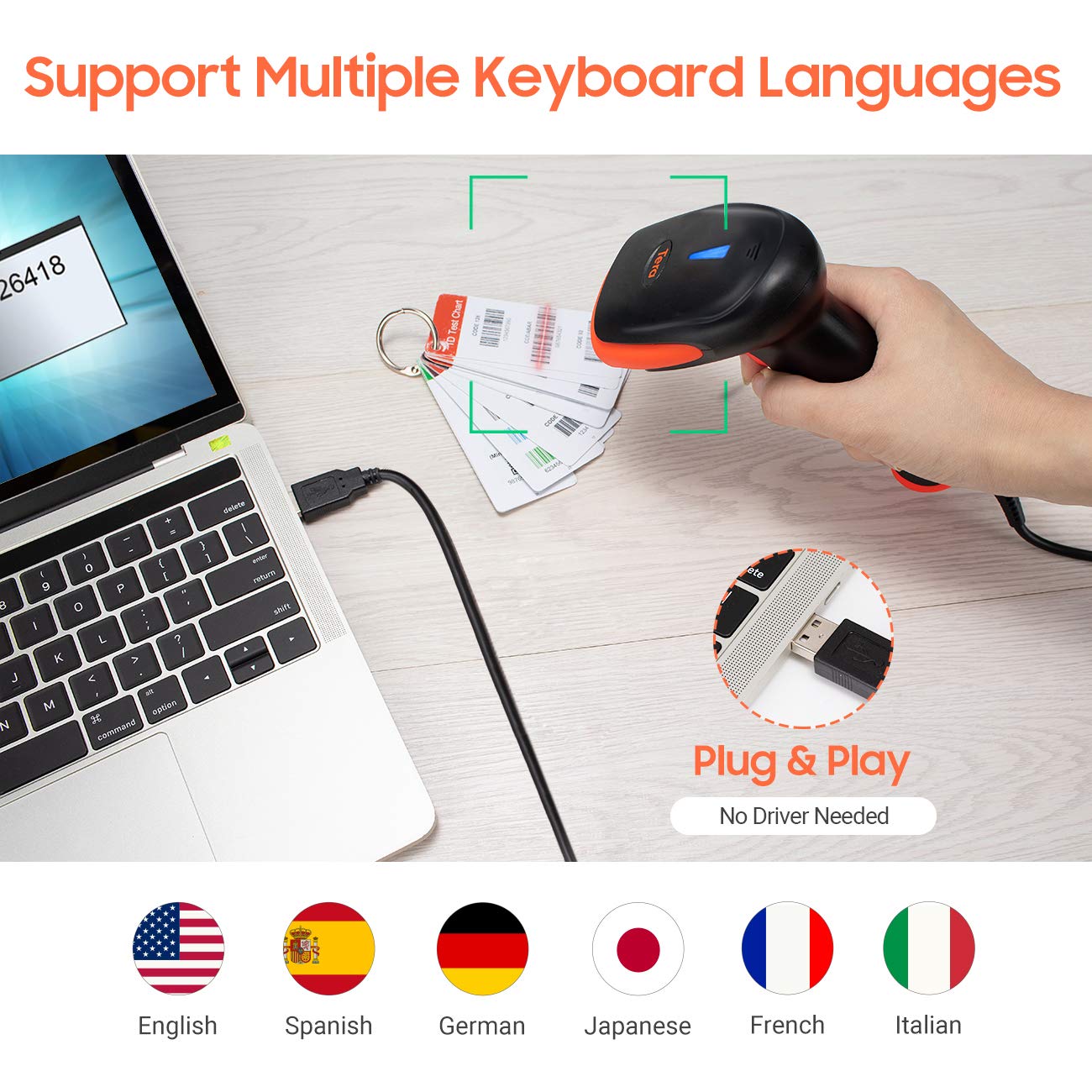
รูปที่ 6.1: The scanner supports multiple keyboard languages for diverse international use.

รูปที่ 6.2: Customize barcode output by adding prefixes, suffixes, or hiding specific digits.
7. บาร์โค้ดที่รองรับ
This scanner is compatible with a wide range of 1D barcode symbologies, including but not limited to:
- UPC&EAN (UPC-A, UPC-E, EAN-8, EAN-13)
- Code 39, CODE32, Code 93, CODE11, Code 128, UCC-EAN128
- ISSN, ISBN
- CODABAR, MSI
- Interleaved 2 of 5, Matrix 2 of 5, Industrial 2 of 5
- และอื่นๆอีกมากมาย
The scanner also supports reading 1D barcodes directly from digital screens.
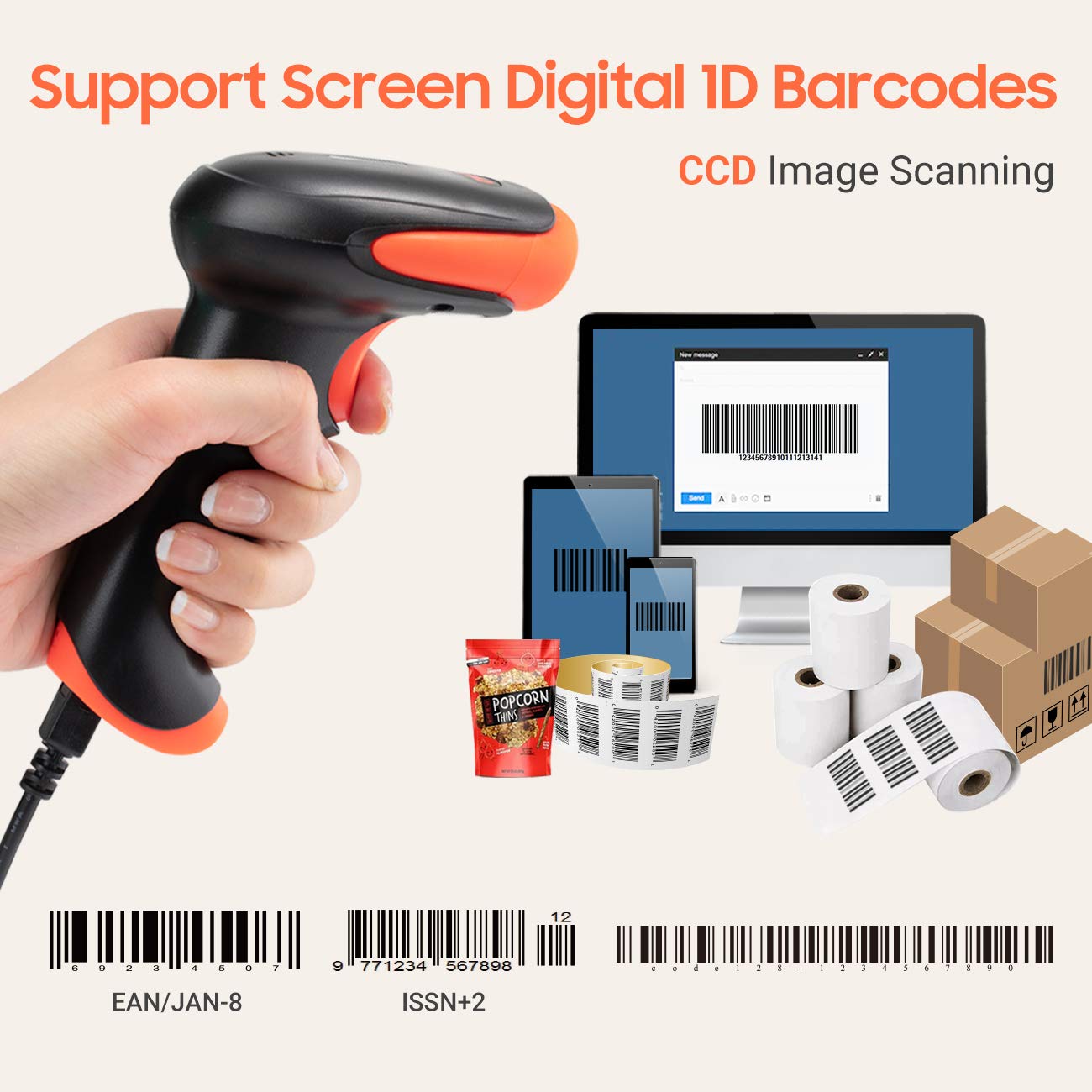
รูปที่ 7.1: The scanner supports reading 1D barcodes from various sources, including digital screens and printed labels.
8. การบำรุงรักษา
- การทำความสะอาด: ใช้ผ้าแห้งเนื้อนุ่มเช็ดทำความสะอาดภายนอกเครื่องสแกน สำหรับช่องสแกน ให้ใช้ผ้าเนื้อนุ่มที่ไม่เป็นขุยเช็ดเบาๆampล้างด้วยน้ำหรือน้ำยาทำความสะอาดอ่อนๆ ที่ไม่ทำให้เกิดรอยขีดข่วน หลีกเลี่ยงสารเคมีรุนแรง
- พื้นที่จัดเก็บ: เก็บเครื่องสแกนเนอร์ไว้ในที่แห้งและเย็น หลีกเลี่ยงแสงแดดโดยตรงและอุณหภูมิที่สูงหรือต่ำเกินไป
- การจัดการ: Avoid dropping the scanner or subjecting it to strong impacts. Do not attempt to disassemble the device.
9 การแก้ไขปัญหา
| ปัญหา | สาเหตุที่เป็นไปได้ | สารละลาย |
|---|---|---|
| เครื่องสแกนไม่เปิดใช้งานหรือไม่ตอบสนอง | สาย USB ไม่ได้เชื่อมต่ออย่างถูกต้องหรือพอร์ต USB ชำรุด | ตรวจสอบให้แน่ใจว่าเสียบสาย USB เข้ากับเครื่องสแกนและคอมพิวเตอร์อย่างแน่นหนาแล้ว ลองใช้พอร์ต USB อื่นดู |
| Scanner reads barcodes slowly or inaccurately. | Barcode is damaged, blurred, or poorly printed. Insufficient lighting. Scanner window is dirty. | Ensure the barcode is clear and well-lit. Clean the scanner window. Try scanning from a different angle or distance. |
| Scanner does not read barcodes from digital screens. | Screen brightness is too low or glare is present. | Increase screen brightness. Adjust the angle of the scanner to minimize glare. Ensure the barcode is fully displayed on the screen. |
| Scanned data appears incorrectly (e.g., wrong characters, missing digits). | Incorrect keyboard language setting. Prefix/suffix or other data formatting settings are active. | Verify the keyboard language setting matches your computer's keyboard layout. Review and adjust prefix/suffix or other data formatting settings using the configuration barcodes. |
| เครื่องสแกนส่งเสียงดัง แต่ไม่มีการส่งข้อมูลใดๆ | แอปพลิเคชันไม่อยู่ในโหมดโฟกัสหรือไม่รับข้อมูลป้อนเข้า | Ensure the cursor is in the desired input field of your application. Test with a simple text editor like Notepad. |
10. ข้อมูลจำเพาะ
| คุณสมบัติ | รายละเอียด |
|---|---|
| แบบอย่าง | 3106-2 |
| ประเภทการสแกน | 1D Laser (Eye Safe) |
| การเชื่อมต่อ | USB Wired (USB 2.0) |
| ความเร็วในการสแกน | สแกนได้สูงสุด 300 ครั้งต่อวินาที |
| อัตราความผิดพลาด | 1 in 5 million scans |
| อุปกรณ์ที่รองรับ | เดสก์ท็อป, โน๊ตบุ๊ก |
| ระบบที่เข้ากันได้ | Windows, Linux, macOS, iOS, Android |
| แหล่งพลังงาน | สายไฟ (ผ่าน USB) |
| ขนาดสินค้า (ลึก x กว้าง x สูง) | 7.9 x 19.3 x 10.4 เซนติเมตร |
| รองรับบาร์โค้ด 1 มิติ | UPC&EAN, UPC-A, UPC-E, Code 39, CODE32, Code 93, CODE11, Code 128, UCC-EAN128, EAN-8, EAN-13, ISSN, ISBN, CODABAR, MSI, Interleaved 2 of 5, Matrix 2 of 5, Industrial 2 of 5, etc. |
11. การรับประกันและการสนับสนุน
For warranty information, technical support, or service inquiries, please refer to the contact details provided with your purchase documentation or visit the official Tera webไซต์ โปรดเก็บหลักฐานการซื้อไว้เพื่อใช้ในการเรียกร้องการรับประกัน