
1. บทนำ
The FIDECO M.2 NVMe SATA to USB Adapter (Model M118) is a versatile external docking station designed for M.2 NVMe and SATA SSDs. It provides high-speed data transfer capabilities, allowing users to easily access, backup, and transfer data from M.2 solid-state drives via a USB connection. Its robust aluminum alloy construction ensures efficient heat dissipation, contributing to optimal performance and extended SSD lifespan. This manual provides essential information for setting up, operating, and maintaining your FIDECO M.2 SSD adapter.

Figure 1: FIDECO M.2 NVMe SATA to USB Adapter (Model M118) with USB-C to USB-C and USB-C to USB-A cables.
2. คุณสมบัติหลัก
- รองรับ SSD หลากหลายรุ่น: Supports M.2 PCIe NVMe SSDs with M Key or B+M Key, and M.2 SATA SSDs with B+M Key. Compatible SSD sizes include 2230, 2242, 2260, 2280, and 22110.
- ความเร็วสูงสุด 10Gbps: Features USB 3.2 Gen 2 PCIe NVMe data bridge, offering data transfer speeds up to 10Gbps. Supports UASP for faster read and write speeds compared to conventional USB 3.1.
- การกระจายความร้อนที่มีประสิทธิภาพ: Constructed from aluminum with a unique toaster design, aiding in maintaining a cooler operating environment for optimal performance and extended SSD lifespan. Includes heatsink and thermal pad for enhanced cooling.
- Tool-free Installation: Designed for easy plug-and-unplug of SSDs without requiring tools.
- ความเข้ากันได้ของระบบปฏิบัติการในวงกว้าง: Widely compatible with Windows, Mac OS, and Linux. Plug and play functionality, no drivers required.
- การออกแบบพกพา: Compact and mini design for easy portability.
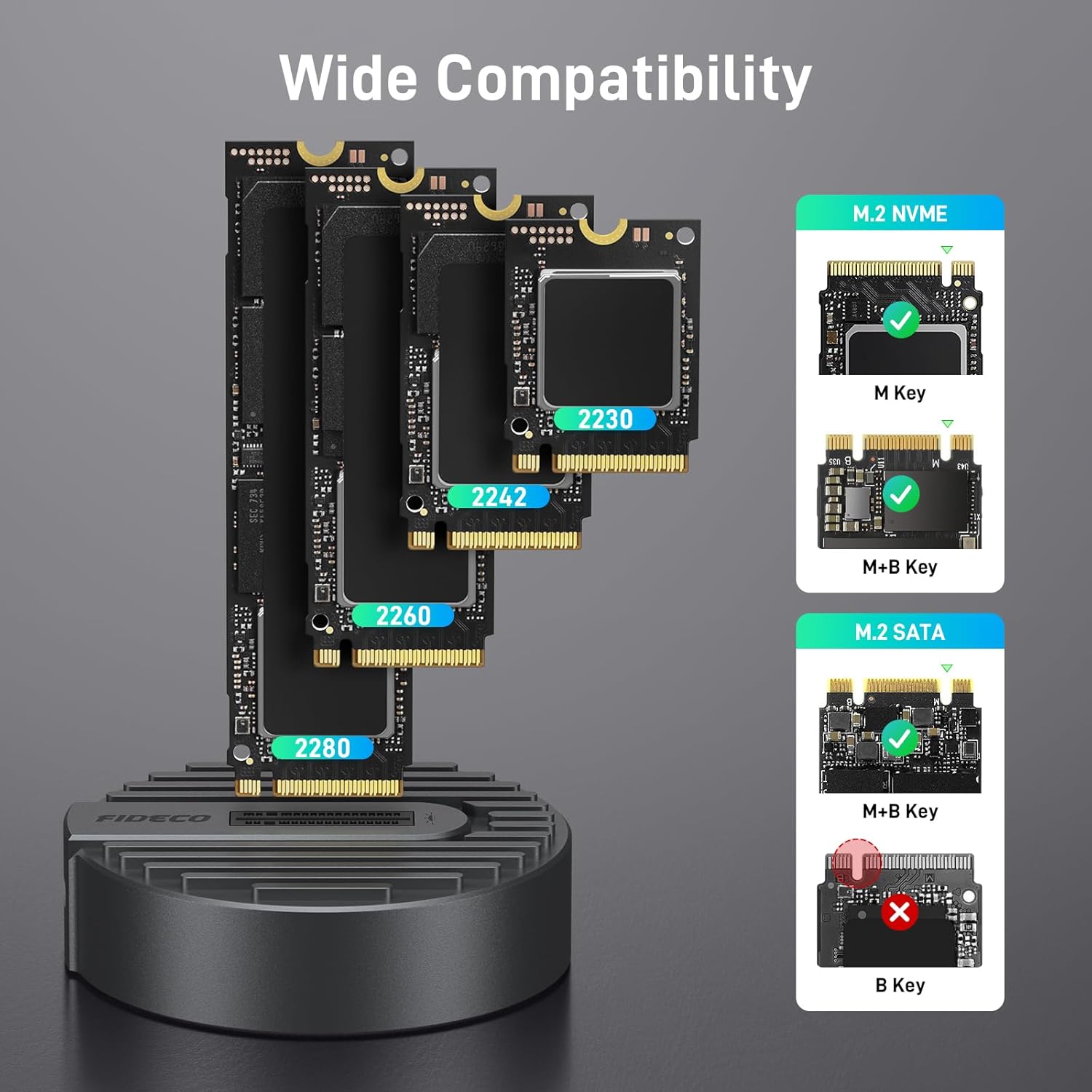
รูปที่ 2: ความเข้ากันได้เหนือview for M.2 NVMe (M Key, M+B Key) and M.2 SATA (M+B Key) SSDs, excluding B Key SATA SSDs.
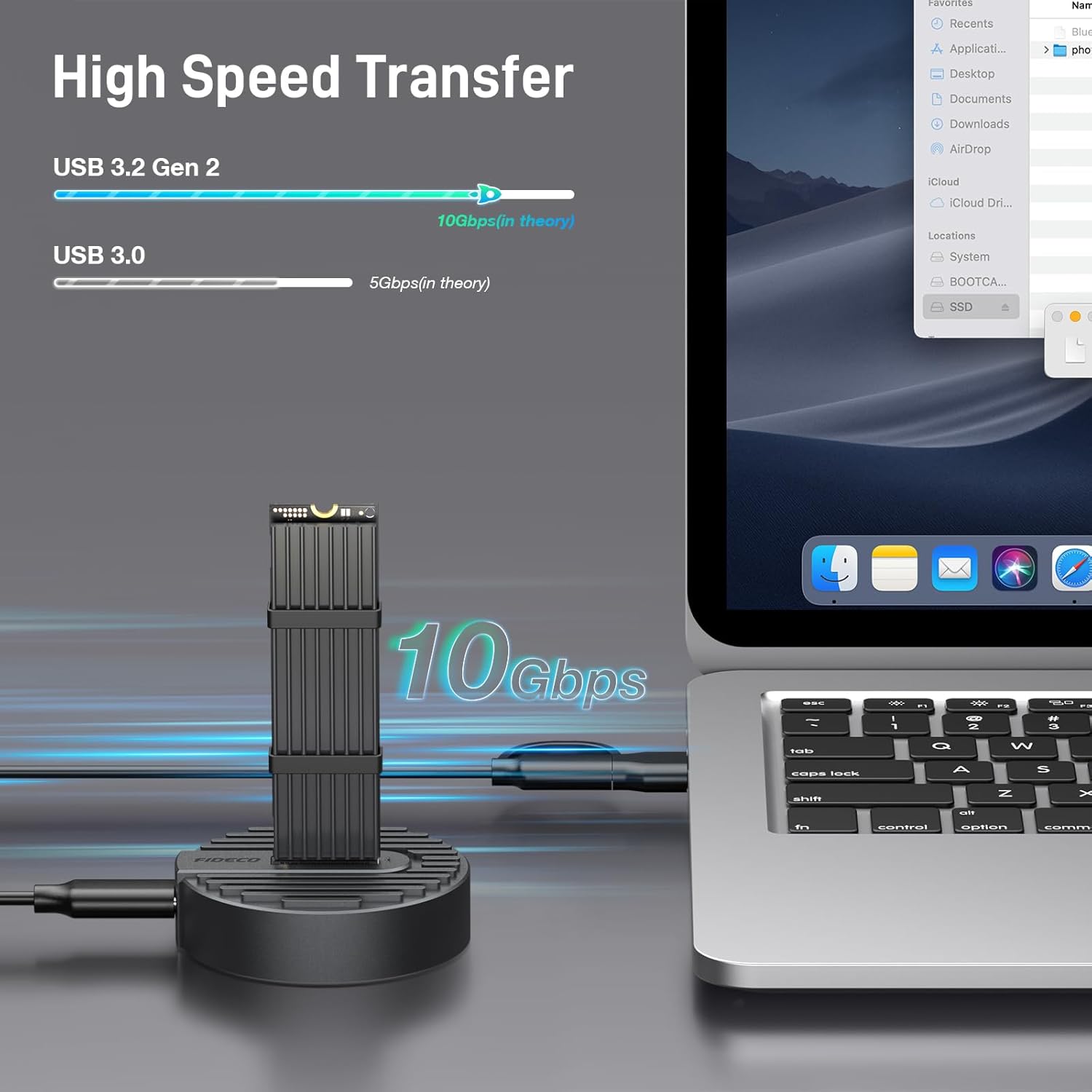
Figure 3: High-speed data transfer capabilities of the FIDECO M.2 SSD adapter, illustrating 10Gbps performance.
3. เนื้อหาบรรจุภัณฑ์
โปรดตรวจสอบว่าสินค้าทั้งหมดมีอยู่และอยู่ในสภาพดีเมื่อเปิดบรรจุภัณฑ์
- FIDECO M.2 NVMe SATA to USB Adapter (Model M118)
- สาย USB-C ถึง USB-C (พร้อมอะแดปเตอร์ USB-A)
- Heatsink (cooling vest)
- แผ่นซับความร้อน
- Rubber Bands (for securing heatsink)
4. คู่มือการติดตั้ง
Follow these steps to install your M.2 SSD into the FIDECO adapter:
- เตรียม SSD: If using the included heatsink, peel off the protective film from the thermal pad and carefully stick it onto your M.2 SSD.
- ติดตั้งฮีทซิงค์: Place the heatsink over the thermal pad on the SSD. Use the provided rubber bands to securely fasten the heatsink to the SSD. This ensures optimal heat dissipation.
- ใส่ SSD: Gently insert the prepared M.2 SSD into the slot on the FIDECO docking station. Ensure it is fully seated. The tool-free design allows for easy insertion.
- เชื่อมต่อกับคอมพิวเตอร์: Connect the FIDECO SSD docking station to your computer using the provided USB-C to USB-C cable, or the USB-C to USB-A adapter if your computer only has USB-A ports.

Figure 4: Visual guide for the easy, tool-free installation of an M.2 SSD into the FIDECO docking station.
5. คู่มือการใช้งาน
Once connected, the FIDECO M.2 NVMe SATA to USB Adapter operates on a plug-and-play basis, requiring no additional drivers for most operating systems.
- การจดจำอัตโนมัติ: Your computer should automatically detect the connected SSD. The SSD will appear as an external drive in your file explorer (Windows) or Finder (Mac OS).
- การถ่ายโอนข้อมูล: ตอนนี้คุณสามารถลากและวางได้แล้ว files, copy, paste, or perform any data transfer operations as you would with any other external storage device.
- ผลงาน: For optimal performance, ensure your computer's USB port supports USB 3.2 Gen 2 (10Gbps). While compatible with older USB standards, speeds will be limited to the maximum supported by the port.
- ไฟแสดงสถานะ: The adapter features an indicator light that typically illuminates when powered and blinks during data transfer activity.

Figure 5: The FIDECO adapter offers driver-free, plug-and-play functionality across various operating systems.

Figure 6: The FIDECO M.2 SSD adapter can be used with a wide range of devices, including desktops, laptops, tablets, and smartphones.
6. การบำรุงรักษา
Proper maintenance ensures the longevity and optimal performance of your FIDECO M.2 NVMe SATA to USB Adapter.
- การจัดการความร้อน: M.2 SSDs can generate significant heat during high-speed data transfers. The aluminum design and included heatsink are designed to dissipate this heat. It is normal for the SSD to become warm during operation.
- ข้อควรระวังในการจัดการ: Avoid touching the SSD directly during operation, as it may be hot. Always handle the adapter and SSD with care to prevent physical damage.
- การทำความสะอาด: ใช้ผ้าแห้งนุ่มๆ เช็ดทำความสะอาดอะแดปเตอร์ หลีกเลี่ยงการใช้น้ำยาทำความสะอาดหรือสารละลาย
- พื้นที่จัดเก็บ: เมื่อไม่ใช้งาน ให้เก็บอะแดปเตอร์ไว้ในที่แห้งและเย็น ห่างจากแสงแดดโดยตรงและอุณหภูมิที่สูงหรือต่ำเกินไป
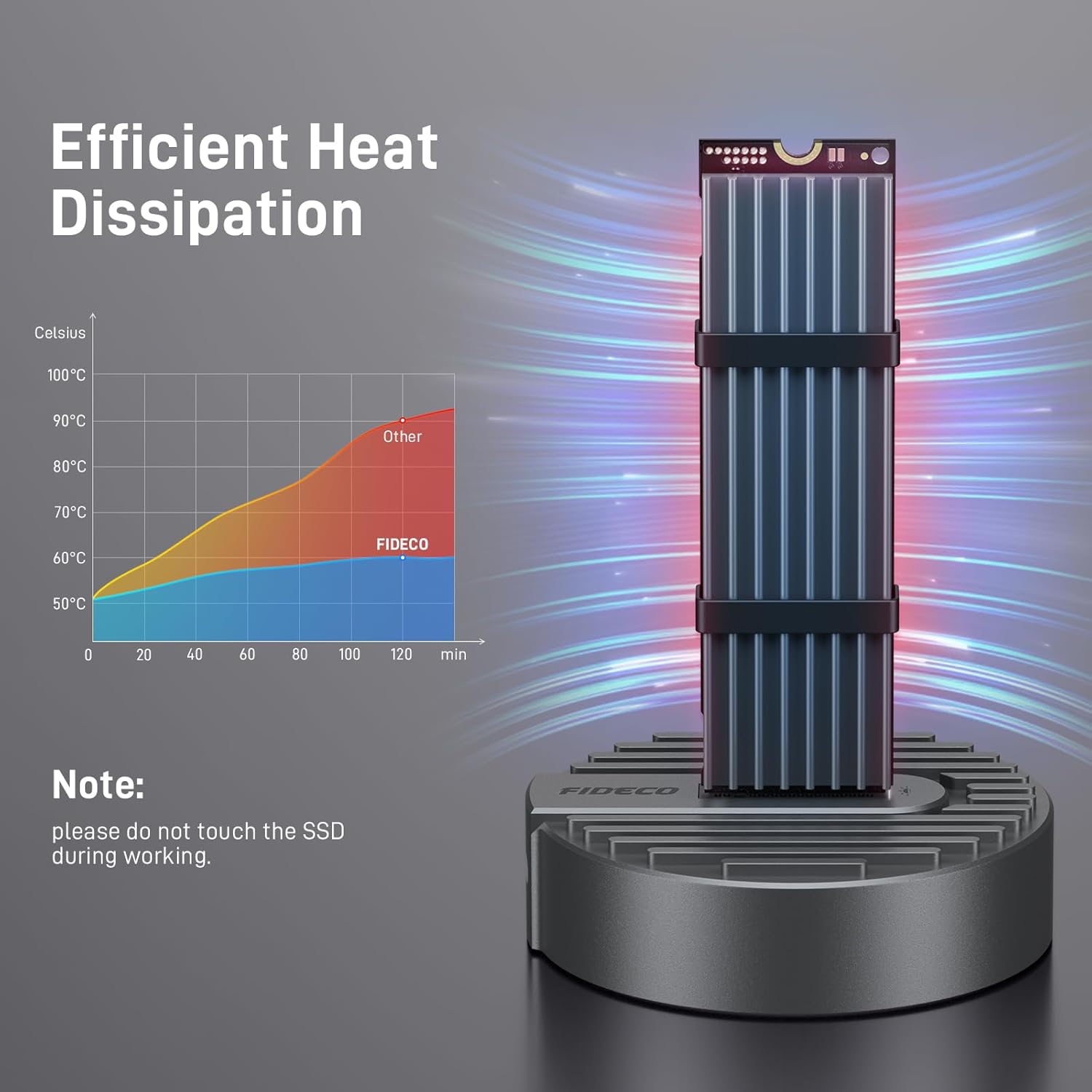
Figure 7: The FIDECO adapter's design promotes efficient heat dissipation, keeping the SSD cooler during operation.
7 การแก้ไขปัญหา
If you encounter issues with your FIDECO M.2 NVMe SATA to USB Adapter, refer to the following common solutions:
| ปัญหา | สาเหตุที่เป็นไปได้ / วิธีแก้ไข |
|---|---|
| SSD not recognized by computer. |
|
| ความเร็วในการถ่ายโอนข้อมูลช้า |
|
| Adapter or SSD feels hot. |
|
8. ข้อมูลจำเพาะ
| คุณลักษณะ | รายละเอียด |
|---|---|
| แบบอย่าง | M118 |
| ยี่ห้อ | ฟิเดโก้ |
| ฮาร์ดแวร์อินเตอร์เฟซ | USB 3.2 เจเนอเรชั่นที่ 2 |
| อัตราการถ่ายโอนข้อมูล | 10 กิกะบิตต่อวินาที |
| ประเภท SSD ที่ใช้งานร่วมกันได้ | M.2 PCIe NVMe (M Key, B+M Key), M.2 SATA (B+M Key) |
| ขนาด SSD ที่รองรับ | 2230, 2242, 2260, 2280, 22110 |
| วัสดุ | อลูมิเนียม |
| สี | เงิน |
| ขนาดสินค้า | 6.6 x 1.5 x 0.8 ซม. |
| น้ำหนักสินค้า | 80 กรัม |
| จำนวนพอร์ต | 1 (ยูเอสบี) |
| แบตเตอรี่ที่จำเป็น | เลขที่ |
9. การรับประกันและการสนับสนุน
FIDECO products are designed for reliability and performance. For any technical support, questions, or concerns regarding your FIDECO M.2 NVMe SATA to USB Adapter, please contact FIDECO customer service. We are committed to providing prompt assistance and effective solutions.
Please refer to the product packaging or the official FIDECO webโปรดเข้าชมเว็บไซต์เพื่อดูข้อมูลการรับประกันและรายละเอียดการติดต่อล่าสุด
Webเว็บไซต์: www.fideco-it.com