
FILTA 2f0b905e-b558-4f8d-9106-9f75a68b2a3f
Filta Smart Lock User Manual
Model: 2f0b905e-b558-4f8d-9106-9f75a68b2a3f
1. บทนำ
The Filta Smart Lock offers advanced security and convenience for your home or office. This 5-in-1 keyless entry system provides multiple unlocking options including Bluetooth App control, fingerprint recognition, password entry, traditional key access, and IC card unlocking. Designed for ease of use and robust security, this manual will guide you through the installation, setup, and operation of your new smart lock.

Image: Filta Smart Lock with its accompanying mobile application interface.
2. ข้อมูลด้านความปลอดภัย
โปรดอ่านคำแนะนำทั้งหมดอย่างละเอียดก่อนการติดตั้งและใช้งาน เก็บคู่มือนี้ไว้เพื่อใช้อ้างอิงในอนาคต
- อย่าพยายามถอดประกอบหรือซ่อมแซมล็อคด้วยตนเอง เพราะอาจทำให้การรับประกันเป็นโมฆะและเกิดความเสียหายได้
- ใช้เฉพาะแบตเตอรี่ที่ระบุ (แบตเตอรี่ AA 4 ก้อน) ห้ามใช้แบตเตอรี่เก่าและใหม่ปะปนกัน หรือใช้แบตเตอรี่ต่างชนิดกัน
- หลีกเลี่ยงการให้ล็อคโดนแสงแดดโดยตรง ฝน หรืออุณหภูมิที่สูงหรือต่ำเกินไป
- รักษาเซ็นเซอร์สแกนลายนิ้วมือให้สะอาดและแห้งเพื่อประสิทธิภาพสูงสุด
- Ensure all screws are tightened securely during installation to prevent loosening.
- Regularly check the battery level and replace batteries promptly when low to avoid lockouts.
3. เนื้อหาบรรจุภัณฑ์
ตรวจสอบว่าส่วนประกอบทั้งหมดมีอยู่ก่อนเริ่มการติดตั้ง:
- Exterior Smart Lock Assembly (with keypad and fingerprint sensor)
- Interior Smart Lock Assembly (with battery compartment and thumb turn)
- แผ่นยึด
- สลัก Deadbolt
- จานตี
- กล่องสไตรค์
- Installation Screws (various sizes)
- คีย์ทางกายภาพ (2)
- บัตร IC (2)
- เทมเพลตการติดตั้ง
- คู่มือการใช้งาน
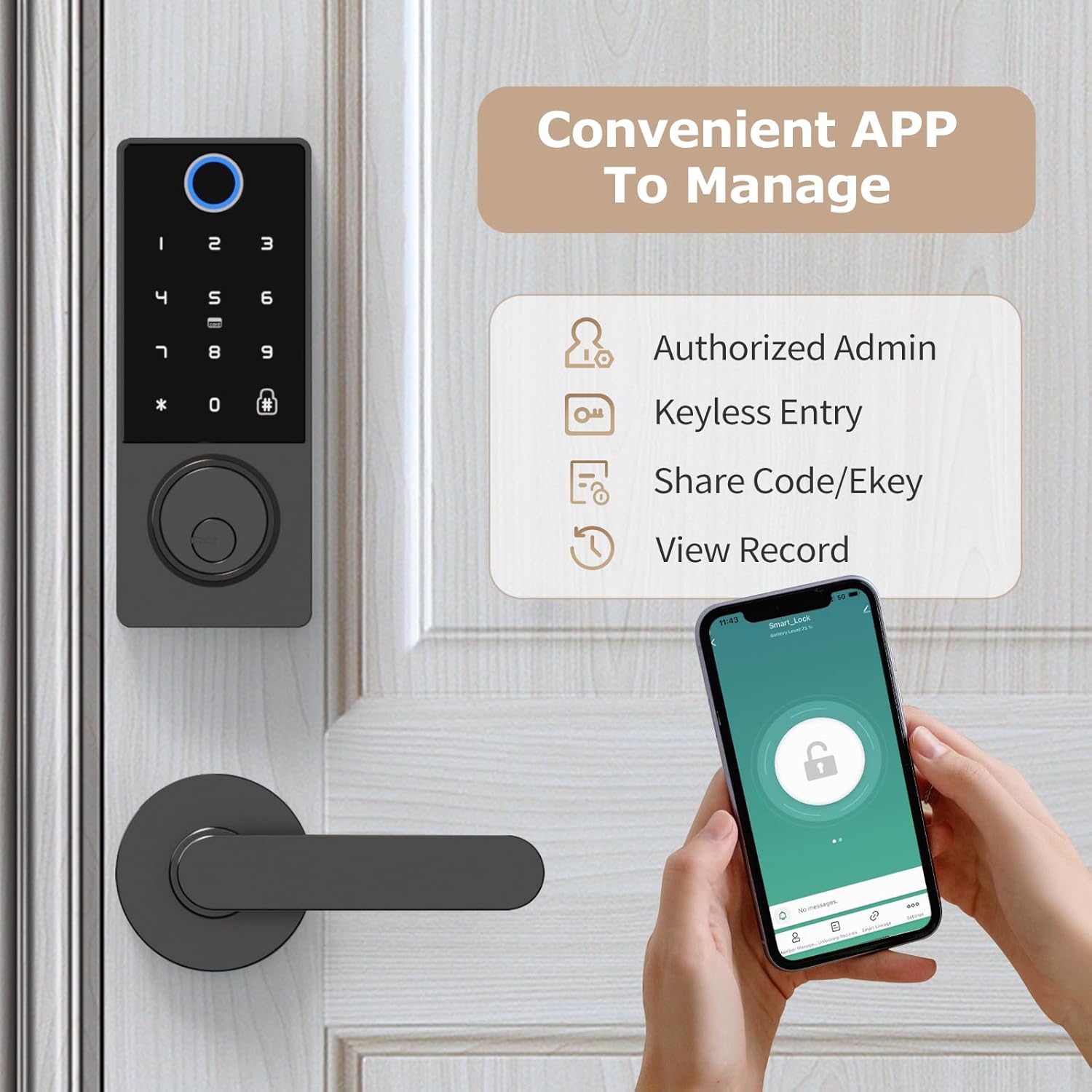
Image: All components included in the Filta Smart Lock package.
4. ข้อมูลจำเพาะ
| คุณสมบัติ | รายละเอียด |
|---|---|
| ยี่ห้อ | FILTA |
| หมายเลขรุ่น | 2f0b905e-b558-4f8d-9106-9f75a68b2a3f |
| ประเภทล็อค | deadbolt |
| วิธีการปลดล็อค | Bluetooth App, Fingerprint, Password, Key, IC Card |
| การเชื่อมต่อ | บลูทูธ |
| วัสดุ | โลหะผสมสังกะสี |
| สี | สีดำ |
| แหล่งพลังงาน | แบตเตอรี่ AA 4 ก้อน (ไม่รวม) |
| ความเข้ากันได้ของความหนาของประตู | 1 5/16" ~ 2" (33mm - 50mm) |
| Bore Hole Diameter | 2 1/8 นิ้ว (54 มม.) |
| Bore Hole Backset | 2 3/8" or 2 3/4" (60mm or 70mm) |
5. คู่มือการติดตั้ง
Follow these steps carefully to install your Filta Smart Lock. A screwdriver is the only tool required.
5.1. การตรวจสอบความเข้ากันได้ของประตู
โปรดตรวจสอบให้แน่ใจว่าประตูของคุณตรงตามข้อกำหนดต่อไปนี้เพื่อการติดตั้งที่ถูกต้อง:
- ความหนาของประตู: 1 5/16" ~ 2" (33mm - 50mm)
- เส้นผ่านศูนย์กลางรูเจาะ: 2 1/8 นิ้ว (54 มม.)
- แบ็คเซ็ตหลุมเจาะ: 2 3/8" or 2 3/4" (60mm or 70mm)

Image: Door preparation diagram with measurements for thickness, bore hole diameter, and backset.
5.2. การติดตั้งแบบทีละขั้นตอน
- ปรับสลักกลอนล็อค: If necessary, adjust the deadbolt latch to fit your door's backset (60mm or 70mm). The bolt can be adjusted by twisting and pulling/pushing.
- ติดตั้งกลอนประตู: Slide the deadbolt latch into the door edge hole. Ensure the bolt is centered and the "UP" arrow is facing upwards. Secure it with the provided screws.
- ติดตั้งชุดประกอบภายนอก: Slide the lock spindle and wire connector from the exterior smart lock assembly through the deadbolt latch and the door hole. Ensure the exterior assembly sits flush against the door.
- ติดตั้งแผ่นยึด: Thread the wire connector through the mounting plate. Secure the mounting plate to the door using the long screws, ensuring it is aligned and stable.
- Connect Wires and Install Interior Assembly: Connect the wire connector from the exterior assembly to the wire connector port on the interior smart lock assembly. Carefully tuck excess wires into the door cavity. Align the interior assembly with the mounting plate and secure it with screws.
- ติดตั้งแบตเตอรี่: Open the battery compartment on the interior assembly. Insert 4 AA batteries, ensuring correct polarity. Close the battery box securely.
- Test Lock Core: Before closing the battery cover, use a physical key to test if the lock core is properly installed and the deadbolt operates smoothly.
Video: Detailed installation guide and app connection for the Filta Smart Lock.
This video demonstrates the physical installation steps and initial app setup, including adjusting the deadbolt, securing components, and connecting the wiring.
6. App and Lock Setup
Your Filta Smart Lock can be managed and configured via the dedicated mobile application.
6.1. การติดตั้งแอปและการลงทะเบียนบัญชี
- Download the 'Tuya Smart' or 'Smart Life' app from your device's app store (iOS App Store or Google Play Store).
- Open the app and register a new account using your email address or phone number. Follow the on-screen prompts to complete the registration and verification process.
6.2. Connecting the Lock to the App (Bluetooth)
- ตรวจสอบให้แน่ใจว่าได้เปิดใช้งาน Bluetooth บนสมาร์ทโฟนของคุณแล้ว
- Open the app and tap 'Add Device' or the '+' icon.
- The app will search for nearby Bluetooth devices. Select 'Smart_Lock' from the discovered devices.
- Follow any additional prompts to confirm the connection. Once connected, you can control the lock via the app.
6.3. Adding Users and Unlocking Methods via App
The app allows you to manage various unlocking methods and user permissions.
- การเพิ่มลายนิ้วมือ: Navigate to 'Fingerprint Management' in the app. Tap 'Add Fingerprint' and follow the instructions to place your finger on the lock's sensor multiple times until registered.
- Adding Passwords: Go to 'Password Management'. Tap 'Add Password' to create a new permanent or temporary password. You can also generate a random password.
- Adding IC Cards: Select 'Card Management'. Tap 'Add Card' and present the IC card to the lock's sensor to register it.
- Adding Members: In 'Member Management', you can add family members (with full control) or other members (with limited permissions) to access the lock.
6.4. Adjusting Lock Settings via App
Within the app's settings, you can customize various aspects of your lock:
- Voice Volume: Adjust the voice prompts volume (Mute, Level-1, Level-2, Normal).
- ภาษาของอุปกรณ์: Change the language of the lock's voice prompts (e.g., English, Simplified Chinese).
- Motor Rotation Direction: Set the correct door opening direction (Left door opening, Right door opening) to ensure proper lock operation.
- ล็อคอัตโนมัติ: Enable or disable the automatic locking feature and set the delay time.
7. คู่มือการใช้งาน
Your Filta Smart Lock offers multiple convenient ways to secure and access your property.

Image: Visual representation of the five unlocking methods available for the smart lock.
7.1. Unlocking the Lock
- ลายนิ้วมือ: วางนิ้วที่ลงทะเบียนไว้บนเซ็นเซอร์ลายนิ้วมือ ล็อคจะปลดล็อคหากระบบจดจำลายนิ้วมือได้
- รหัสผ่าน: Enter your registered password on the keypad, then press the '#' key. The lock will unlock if the password is correct.
- บัตร IC: Present your registered IC card to the card reader area on the lock. The lock will unlock if the card is recognized.
- แอพบลูทูธ: Open the app, select your lock, and tap the unlock icon. You may need to hold the unlock button in the app.
- คีย์ทางกายภาพ: Insert the physical key into the keyhole and turn to unlock, just like a traditional lock.
7.2. Locking the Lock
- การล็อคอัตโนมัติ: If enabled in the app settings, the lock will automatically lock after a set delay once the door is closed.
- ล็อคด้วยตนเอง: From the outside, press the '#' key on the keypad. From the inside, turn the thumb turn to the locked position.
- แอพบลูทูธ: เปิดแอป เลือกอุปกรณ์ล็อกของคุณ แล้วแตะไอคอนล็อก
7.3. Adding Fingerprint/Password Directly on Lock (Admin Mode)
You can add fingerprints and passwords directly on the lock without the app, typically after initial setup. This requires entering administrator mode.
- Enter Admin Mode: Press '2' then '#' on the keypad.
- เพิ่มลายนิ้วมือ: Place your finger on the sensor multiple times as prompted until successfully registered.
- เพิ่มรหัสผ่าน: Enter your desired password (6-8 digits) and press '#'. Re-enter the password and press '#' to confirm.
7.4. Changing Normally Open Mode
This mode keeps the lock unlocked until manually locked.
- เปิดใช้งาน/ปิดใช้งาน: Press '3' then '#' on the keypad. The lock will confirm the change.
7.5. Changing Language
To change the voice prompt language directly on the lock:
- เปลี่ยนภาษา: Press '4' then '#' on the keypad. The lock will cycle through available languages.
8. การบำรุงรักษา
การบำรุงรักษาอย่างถูกวิธีจะช่วยให้สมาร์ทล็อคของคุณมีอายุการใช้งานยาวนานและทำงานได้อย่างมีประสิทธิภาพสูงสุด
- การทำความสะอาด: Wipe the lock's surface and fingerprint sensor with a soft, dry cloth. Avoid abrasive cleaners or solvents.
- การเปลี่ยนแบตเตอรี่: Replace all four AA batteries when the low battery indicator appears or when the lock's voice prompts indicate low power. Do not wait until batteries are completely drained.
- อัพเดตเฟิร์มแวร์: Periodically check the mobile app for any available firmware updates for your lock. Updates can improve performance and security.
- การตรวจสอบเชิงกล: Occasionally check that all screws are tight and the deadbolt operates smoothly without obstruction.
9 การแก้ไขปัญหา
If you encounter issues with your Filta Smart Lock, refer to the following common problems and solutions:
| ปัญหา | สาเหตุที่เป็นไปได้ | สารละลาย |
|---|---|---|
| ล็อคไม่ตอบสนอง | แบตเตอรี่หมด | Replace all 4 AA batteries. Use the emergency USB power port if completely drained. |
| ลายนิ้วมือไม่ถูกจดจำ | Dirty sensor, unregistered fingerprint, incorrect placement | Clean the sensor. Re-register fingerprint if needed. Ensure proper finger placement. |
| รหัสผ่านไม่ทำงาน | รหัสผ่านไม่ถูกต้อง, รหัสผ่านไม่ได้ลงทะเบียน | Verify the password. Add or reset password via app or directly on the lock. |
| แอปไม่สามารถเชื่อมต่อกับล็อกได้ | Bluetooth off, app permissions, lock too far | Ensure Bluetooth is on. Grant necessary app permissions. Move closer to the lock. Restart app/phone. |
| Deadbolt not extending/retracting smoothly | Misalignment, obstruction, loose screws | Check alignment of lock components and strike plate. Remove any obstructions. Tighten all screws. |
10. การรับประกันและการสนับสนุน
FILTA provides a limited warranty for this smart lock. Please refer to the warranty card included in your package for specific terms and conditions. For technical support, troubleshooting assistance, or warranty claims, please contact FILTA customer service through the following channels:
- อีเมล: support@filta.com
- Webเว็บไซต์: Visit the official FILTA webไซต์สำหรับคำถามที่พบบ่อยและทรัพยากรสนับสนุน
- ร้านค้าอเมซอน: คุณสามารถติดต่อผ่านช่องทางอื่นๆ ได้เช่นกัน FILTA Store on Amazon.
Please have your product model number (2f0b905e-b558-4f8d-9106-9f75a68b2a3f) and purchase information ready when contacting support.
Ask a question about this manual
Ask about setup, troubleshooting, compatibility, parts, safety, or missing instructions. Manuals+ will review the question and use this page’s manual context to help answer it.