
1. บทนำ
This manual provides essential information for setting up, operating, maintaining, and troubleshooting your Beelink SER5 5500U Mini PC. Please read it carefully before using the product to ensure optimal performance and longevity.
The Beelink SER5 5500U is a compact and powerful Mini PC featuring an AMD Ryzen 5 5500U processor, designed for various applications from office work to multimedia entertainment and light gaming. It supports dual 4K display output and offers robust connectivity options.
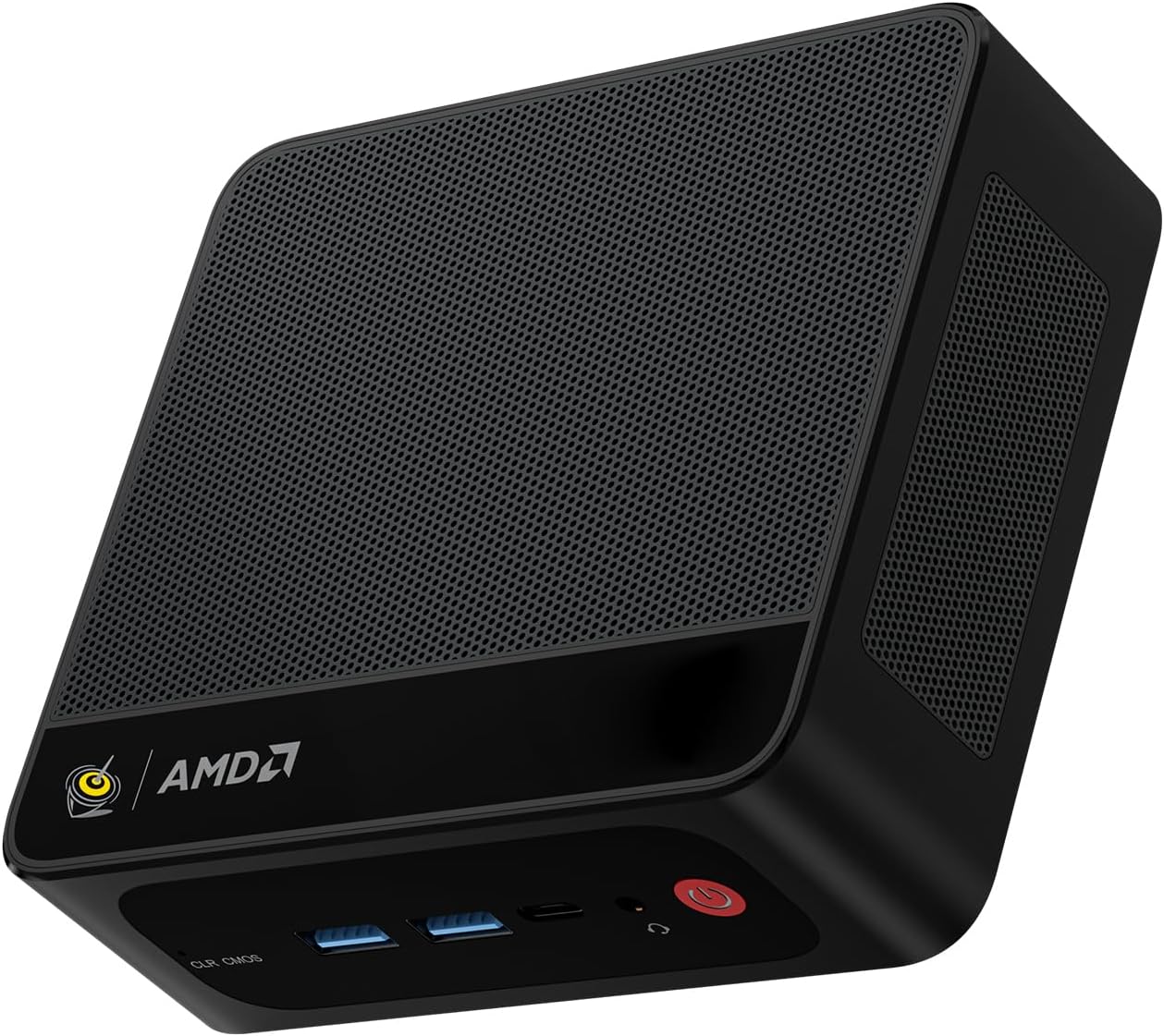
Figure 1: Beelink SER5 5500U Mini PC
2. เนื้อหาบรรจุภัณฑ์
ตรวจสอบว่ามีรายการทั้งหมดอยู่ในแพ็คเกจ:
- Beelink SER5 5500U Mini PC (x1)
- HDMI Cable (100cm) (x1)
- อะแดปเตอร์แปลงไฟ (19V/3.42A) (1 ชิ้น)
- Wall-Mounted Bracket (x1)
- คู่มือการใช้งาน (เอกสารนี้)
3. คำแนะนำในการตั้งค่า
3.1 การเชื่อมต่ออุปกรณ์ต่อพ่วง
- เชื่อมต่อจอแสดงผล: Use the provided HDMI cable to connect your monitor to the HDMI port on the Mini PC. Alternatively, use a DisplayPort cable for DP connection.
- เชื่อมต่อคีย์บอร์ดและเมาส์: เสียบแป้นพิมพ์และเมาส์ USB เข้ากับพอร์ต USB ที่ว่างอยู่
- เชื่อมต่อพลังงาน: ต่ออะแดปเตอร์แปลงไฟเข้ากับพอร์ต DC-in บนมินิพีซี จากนั้นเสียบอะแดปเตอร์เข้ากับเต้ารับไฟฟ้า
- การเชื่อมต่อเครือข่าย (ทางเลือก): For a wired connection, connect an Ethernet cable to the 2.5G LAN port. For wireless, ensure your WiFi network is available.

Figure 2: Front and Rear Ports
3.2 การบูตเครื่องครั้งแรก
Press the power button on the front of the Mini PC. The system will boot up, and you will see the Windows 11 Pro setup screen. Follow the on-screen instructions to complete the initial Windows setup.
4. คู่มือการใช้งาน
4.1 เปิด/ปิดและรีสตาร์ท
- เปิดเครื่อง: กดปุ่มเปิด/ปิด
- หมดแรง: ใน Windows ให้คลิกปุ่ม Start จากนั้นเลือก Power > Shut down หรืออีกวิธีหนึ่งคือ กดปุ่มเปิด/ปิดค้างไว้ 5 วินาทีเพื่อบังคับปิดเครื่อง (ไม่แนะนำให้ใช้เป็นประจำ)
- เริ่มต้นใหม่อีกครั้ง: คลิกปุ่มเริ่มใน Windows จากนั้นเลือกเปิด/ปิดเครื่อง > เริ่มระบบใหม่
4.2 การตั้งค่าจอแสดงผลคู่
The Beelink SER5 5500U supports dual 4K display output via its HDMI and DisplayPort interfaces. Connect two monitors to these ports. Windows will automatically detect the displays. You can configure display settings (extend, duplicate, etc.) via Windows Display Settings.

Figure 3: Dual Display Configuration
4.3 การเชื่อมต่อแบบไร้สาย
- ไวไฟ 6: The Mini PC supports Wi-Fi 6 (802.11ax) for high-speed wireless internet. Connect via Windows network settings.
- Bluetooth 5.2: Pair Bluetooth devices such as keyboards, mice, or headphones through Windows Bluetooth settings.
4.4 การขยายพื้นที่เก็บข้อมูล
The Mini PC includes a 500GB M.2 PCIe NVME 2280 SSD. For additional storage, a 2.5-inch HDD/SSD (not included) can be installed in the dedicated slot. Refer to the internal hardware guide for installation steps.
5. การบำรุงรักษา
5.1 การทำความสะอาด
Regularly clean the exterior of the Mini PC with a soft, dry cloth. Use compressed air to gently clear dust from the ventilation openings to maintain optimal airflow and cooling performance. Do not use liquid cleaners directly on the device.
5.2 การอัปเดตซอฟต์แวร์
Keep your Windows operating system and device drivers updated. Windows Update will handle most OS updates. For graphics drivers (AMD Radeon Graphics), visit the AMD official webเว็บไซต์สำหรับเวอร์ชั่นล่าสุด
5.3 ระบบทำความเย็น
The Beelink SER5 5500U features a high-speed cooling fan. Ensure the Mini PC is placed in a well-ventilated area and that the air vents are not obstructed to prevent overheating.

รูปที่ 4: พัดลมระบายความร้อนภายใน
6 การแก้ไขปัญหา
6.1 ไม่มีไฟฟ้า
- ตรวจสอบให้แน่ใจว่าอะแดปเตอร์ไฟฟ้าเชื่อมต่อกับมินิพีซีและเต้ารับไฟฟ้าที่ใช้งานได้แน่นหนา
- ตรวจสอบว่าเต้ารับไฟฟ้าใช้งานได้หรือไม่โดยเสียบอุปกรณ์อื่นเข้าไป
- ลองใช้อะแดปเตอร์แปลงไฟตัวอื่นที่ใช้งานร่วมกันได้ หากมีให้ใช้งาน
6.2 ไม่มีการแสดงผล
- Verify that the HDMI or DisplayPort cable is securely connected to both the Mini PC and the monitor.
- ตรวจสอบให้แน่ใจว่าจอภาพเปิดอยู่และตั้งค่าแหล่งสัญญาณเข้าถูกต้องแล้ว (HDMI/DP)
- ทดสอบด้วยจอภาพหรือสายเคเบิลอื่นหากเป็นไปได้
- If the issue persists, try resetting the CMOS by pressing the CLR CMOS button (refer to Figure 2 for location).
6.3 ปัญหาการเชื่อมต่อเครือข่าย
- การเชื่อมต่อแบบใช้สาย (LAN): Check the Ethernet cable connection and your router/modem.
- Wireless (Wi-Fi/Bluetooth): Ensure Wi-Fi and Bluetooth are enabled in Windows settings. Restart your router/modem.
- Update network drivers if necessary.
6.4 ระบบทำงานช้าลง
- ปิดแอปพลิเคชันที่ไม่จำเป็นซึ่งทำงานอยู่เบื้องหลัง
- ตรวจสอบและติดตั้งการอัปเดต Windows ที่รอดำเนินการอยู่
- Ensure the cooling vents are clear of obstructions.
- รันการล้างข้อมูลบนดิสก์และดีแฟร็กเมนต์ (สำหรับ HDD ไม่จำเป็นสำหรับ SSD)
7. ข้อมูลจำเพาะ

รูปที่ 5: ข้อมูลจำเพาะของผลิตภัณฑ์view
| คุณสมบัติ | รายละเอียด |
|---|---|
| ยี่ห้อ | บีลิงค์ |
| แบบอย่าง | SER5 5500U |
| ระบบปฏิบัติการ | วินโดวส์ 11 โปร |
| ซีพียู | AMD Ryzen 5 5500U (6 Cores/12 Threads, 2.1GHz Base, up to 4.0GHz Boost) |
| กราฟฟิก | การ์ดจอ AMD Radeon (7 คอร์, 1800 MHz) |
| แรม | หน่วยความจำ DDR4 ขนาด 16GB (Dual Channel ขยายได้สูงสุด 64GB) |
| พื้นที่จัดเก็บ | 500GB M.2 PCIe NVME 2280 SSD (expandable with 2.5-inch HDD/SSD) |
| เอาท์พุตวิดีโอ | 1x HDMI (4K@60Hz), 1x DisplayPort (4K@60Hz) |
| พอร์ต USB | 3x USB 3.2 Gen2, 1x USB 2.0, 1x Type-C (Data) |
| เครือข่าย | Wi-Fi 6 (802.11ax), Bluetooth 5.2, 2.5G LAN (RJ45) |
| เสียง | Audio Jack (HP&MIC) |
| ขนาด | 12.6 x 11.3 x 4.2 ซม. |
| การทำให้เย็น | ระบบระบายความร้อนด้วยอากาศ |
| อะแดปเตอร์แปลงไฟ | 19V/3.42A |
8. การรับประกันและการสนับสนุน
8.1 ข้อมูลการรับประกัน
Your Beelink SER5 5500U Mini PC comes with a การรับประกันจากผู้ผลิต 3 ปีโปรดเก็บหลักฐานการซื้อไว้เพื่อใช้เรียกร้องการรับประกัน
8.2 Product Key Retrieval
If you received your product without a physical product key, you can contact Beelink support to obtain it. Please provide the SN code located on the bottom of your product when contacting support.
8.3 การสนับสนุนลูกค้า
For technical assistance, warranty claims, or any other inquiries, please contact Beelink customer support through the official Beelink store or website. Support is typically available within 24 hours for messages.