
1. บทนำ
Thank you for choosing the Dpofirs Ultra-Slim Keyboard. This compact and lightweight keyboard is designed for portability and ease of use, compatible with various operating systems. This manual provides essential information for setting up, operating, and maintaining your new keyboard.

Image: The Dpofirs ultra-slim keyboard, illustrating its compact design and overall layout. Dimensions are approximately 20cm (7.9in) by 12.5cm (4.9in).
ด้วยโปรที่บางเฉียบfile of just 6mm, this keyboard is ideal for travel and mobile computing, easily fitting into bags and cases.

Image: The Dpofirs keyboard demonstrating its ultra-thin design (0.6cm / 0.2 inches thick) when placed alongside a tablet.
2. เนื้อหาบรรจุภัณฑ์
กรุณาตรวจสอบแพ็คเกจสำหรับรายการต่อไปนี้:
- 1 x Dpofirs Ultra-Slim Keyboard
- สายชาร์จ USB 1 เส้น
- 1 x คู่มือผู้ใช้ (เอกสารนี้)
3. ข้อมูลจำเพาะ
| ข้อมูลจำเพาะบลูทูธ | วี3.0 |
| ปฏิบัติการฉบับที่tage | 1.8-3.6โวลต์ |
| กระแสไฟฟ้าที่ใช้งาน | <2มิลลิแอมป์ |
| ระยะการทำงาน | สูงสุด 10ม. / 33ฟุต |
| เวลาทำงานต่อเนื่อง | 44 ชั่วโมง |
| เวลาสแตนด์บาย | > 30 วัน |
| คีย์ฟอร์ซ | 80±10ก. |
| คีย์ไลฟ์ | 5 ล้านคลิก |
| ขนาด | ขนาดโดยประมาณ 20 x 12.5 x 0.6 ซม. (7.9 x 4.9 x 0.2 นิ้ว) |
| น้ำหนัก | ประมาณ 188กรัม |
| แบตเตอรี่ | Built-in 110mAh rechargeable Li-battery |
4. การตั้งค่าและการจับคู่
Follow these steps to connect your Dpofirs keyboard to your device:
- ชาร์จคีย์บอร์ด: Before first use, ensure the keyboard is fully charged. Connect the provided USB charging cable to the keyboard's charging port and the other end to a USB power source (e.g., computer USB port, USB wall adapter). The "Charge" indicator light will illuminate during charging and turn off when fully charged.
- เปิดใช้งานคีย์บอร์ด: Locate the "OFF/ON" switch on the top right side of the keyboard. Slide the switch to the "ON" position. The "Power" indicator light will briefly illuminate.
- เข้าสู่โหมดจับคู่: กดปุ่ม "CONNECT" button located next to the "Power" indicator. The "CONNECT" indicator light will start blinking, indicating the keyboard is in pairing mode and discoverable by other devices.
- เปิดใช้งานบลูทูธบนอุปกรณ์ของคุณ: บนแท็บเล็ต สมาร์ทโฟน หรือคอมพิวเตอร์ของคุณ ให้ไปที่การตั้งค่าบลูทูธ
- ค้นหา อุปกรณ์: Your device will scan for available Bluetooth devices. Look for "Bluetooth Keyboard" or a similar name in the list of found devices.
- จับคู่คีย์บอร์ด: Select the keyboard from the list. Your device may prompt you to enter a pairing code displayed on your screen. Type this code on the Dpofirs keyboard and press เข้า.
- การยืนยันการเชื่อมต่อ: Once successfully paired, the "CONNECT" indicator light on the keyboard will stop blinking and turn off, and your device will show the keyboard as connected.

Image: Close-up of the keyboard's top right section, showing the "OFF/ON" switch, "Charge", "Power", and "CONNECT" indicator lights, and the "CONNECT" button.
5. คู่มือการใช้งาน
5.1. ความเข้ากันได้
The Dpofirs keyboard is universally compatible with Bluetooth-enabled devices running on the following operating systems:
- หน้าต่าง
- iOS (for iPad/iPhone)
- แอนดรอยด์

Image: The keyboard demonstrating compatibility with Windows, iOS, and Android devices.
5.2. การใช้งานพื้นฐาน
- การพิมพ์: ใช้แป้นพิมพ์เหมือนกับแป้นพิมพ์คอมพิวเตอร์ทั่วไป
- ปุ่มฟังก์ชัน: The top row of keys (F1-F12) may have secondary functions (e.g., volume control, media playback, home screen) accessible by pressing the Fn key simultaneously with the desired function key. Refer to the icons on the keys for specific functions.
- ระยะการทำงาน: The keyboard maintains a stable connection up to 10 meters (33 feet) from your paired device.

Image: The keyboard being used with a tablet, illustrating its effective Bluetooth working distance of up to 10 meters (33 feet).
6. การชาร์จคีย์บอร์ด
The keyboard features a built-in rechargeable lithium battery. When the battery is low, the "Power" indicator light may blink or turn off. To charge:
- Connect the small end of the included USB charging cable to the charging port on the keyboard.
- Connect the larger end of the USB cable to a standard USB power source (e.g., computer, USB wall adapter, power bank).
- The "Charge" indicator light will illuminate during charging. It will turn off once the keyboard is fully charged.
A full charge provides approximately 44 hours of continuous working time and over 30 days of standby time.
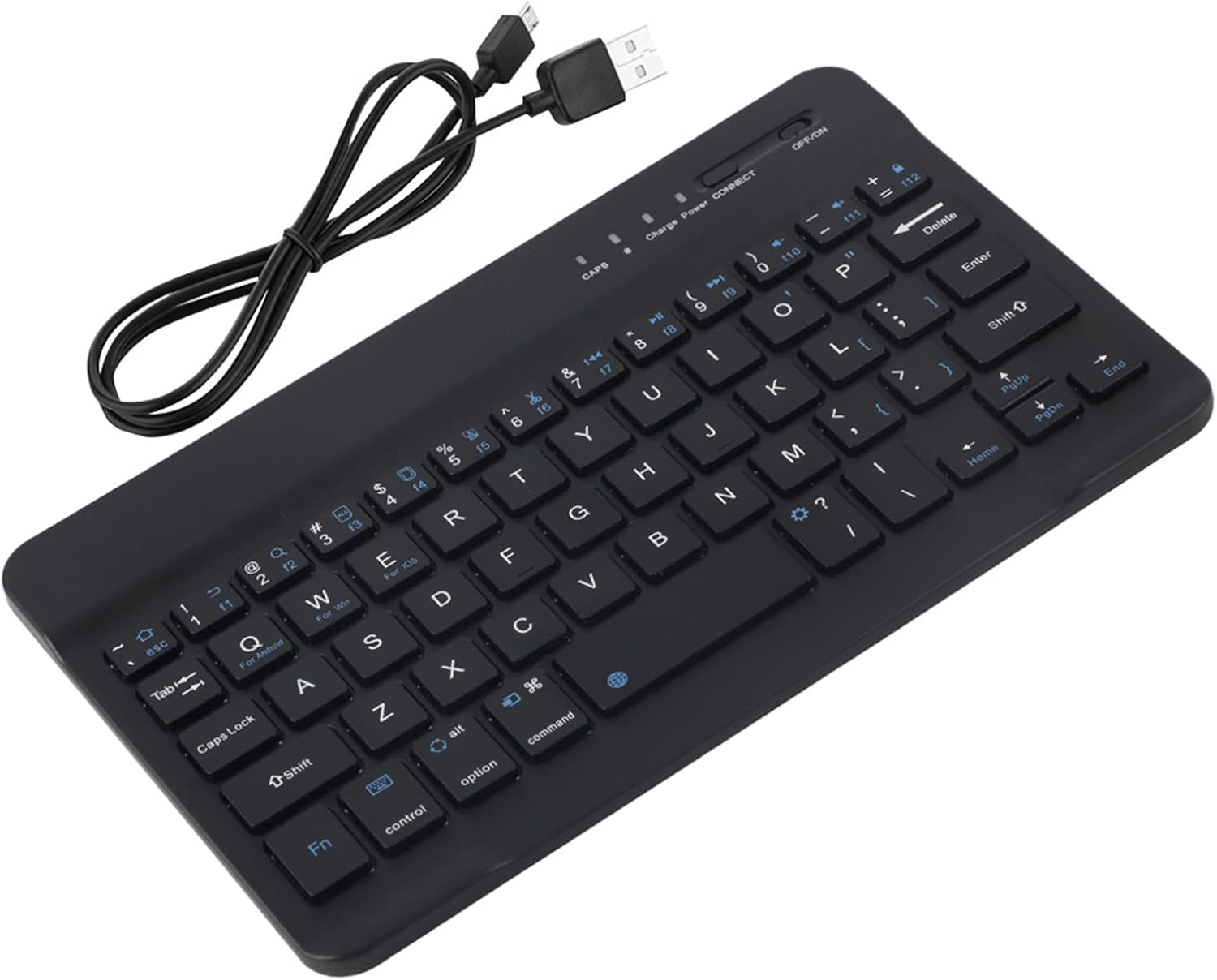
Image: The Dpofirs keyboard shown with the included USB charging cable.
7. การบำรุงรักษา
- การทำความสะอาด: ใช้ผ้าแห้งนุ่มๆ ที่ไม่มีขนเช็ดทำความสะอาดแป้นพิมพ์ สำหรับคราบสกปรกที่ติดแน่น ให้ใช้ผ้าชุบน้ำหมาดๆ เช็ดเบาๆampชุบผ้าด้วยน้ำหรือน้ำยาทำความสะอาดอ่อนๆ หลีกเลี่ยงความชื้นที่มากเกินไป
- พื้นที่จัดเก็บ: เก็บแป้นพิมพ์ไว้ในที่แห้งและเย็น หลีกเลี่ยงแสงแดดโดยตรงและอุณหภูมิที่สูงหรือต่ำเกินไป
- หลีกเลี่ยงของเหลว: อย่าให้แป้นพิมพ์สัมผัสกับของเหลว
- หลีกเลี่ยงการหยด: Handle the keyboard with care to prevent damage from drops or impacts.
- Key Durability: The keys are designed with film treatment to prevent fading of characters, ensuring long-term readability.
8 การแก้ไขปัญหา
| ปัญหา | สารละลาย |
|---|---|
| แป้นพิมพ์ไม่เปิดใช้งาน |
|
| แป้นพิมพ์ไม่เชื่อมต่อกับอุปกรณ์ |
|
| Typing is delayed or unresponsive. |
|
| Certain keys do not work. |
|
9. การรับประกันและการสนับสนุน
Dpofirs products are designed for reliability and performance. For specific warranty information, please refer to the warranty card included with your purchase or contact your retailer. If you encounter any issues not covered in this manual, please contact Dpofirs customer support through the retailer's platform or the official brand webเว็บไซต์เพื่อขอความช่วยเหลือ
โปรดเก็บหลักฐานการซื้อของคุณไว้เพื่อเรียกร้องการรับประกัน