
1. บทนำ
This manual provides comprehensive instructions for the setup, operation, and maintenance of your BL X88PRO 13 Android TV Box. Please read this manual carefully before using the device to ensure optimal performance and longevity.
The BL X88PRO 13 is a high-performance Android TV Box designed to enhance your home entertainment experience. It features the Android 13.0 operating system, a powerful RK3528 Quad-Core processor, 4GB RAM, and 64GB ROM, supporting advanced connectivity options like Wi-Fi 6 and Bluetooth 5.0, and delivering up to 8K video resolution.
2. เนื้อหาบรรจุภัณฑ์
ตรวจสอบว่ารายการทั้งหมดที่ระบุไว้ด้านล่างนี้รวมอยู่ในแพ็คเกจของคุณ:
- BL X88PRO 13 Android TV Box
- อะแดปเตอร์แปลงไฟของสหรัฐอเมริกา
- สายเคเบิล HD (สาย HDMI)
- รีโมทคอนโทรล
- คู่มือการใช้งาน (เอกสารนี้)

รูปที่ 2.1: Package Contents. This image displays the BL X88PRO 13 Android TV Box along with its standard accessories, including the power adapter, HDMI cable, remote control, and user manual.
3. คู่มือการติดตั้ง
Follow these steps to set up your BL X88PRO 13 Android TV Box:
- เชื่อมต่อสาย HDMI: Connect one end of the provided HD cable (HDMI) to the HDMI port on the TV Box and the other end to an available HDMI input on your television.
- เชื่อมต่ออะแดปเตอร์ไฟฟ้า: Plug the US power adapter into the DC port on the TV Box, then plug the adapter into a wall outlet.
- เชื่อมต่อกับเครือข่าย: Once the device powers on, navigate to the network settings to connect to your Wi-Fi network or connect an Ethernet cable to the LAN port for a wired connection.

รูปที่ 3.1: Easy Setup Steps. This image visually guides users through connecting the HDMI cable, power adapter, and network to the TV Box.
4. คู่มือการใช้งาน
4.1 การเปิด/ปิดเครื่อง
After connecting all cables, the device should power on automatically. If not, press the power button on the remote control. To power off, press the power button on the remote control and select the shutdown option.
4.2 การนำทางอินเทอร์เฟซ
Use the included remote control to navigate the Android 13.0 interface. The directional buttons allow you to move between icons and menus, while the 'OK' button confirms selections. The 'Back' button returns to the previous screen, and the 'Home' button takes you to the main screen.

รูปที่ 4.1: BL X88PRO 13 Android TV Box and Remote. This image shows the main unit of the TV box alongside its remote control, highlighting the device's design and primary input method.
ระบบปฏิบัติการ Android 13.0 4.3
The TV Box runs on Android 13.0, offering improved compatibility with applications, channels, and programs. This version also includes enhanced security features to protect user privacy and data.
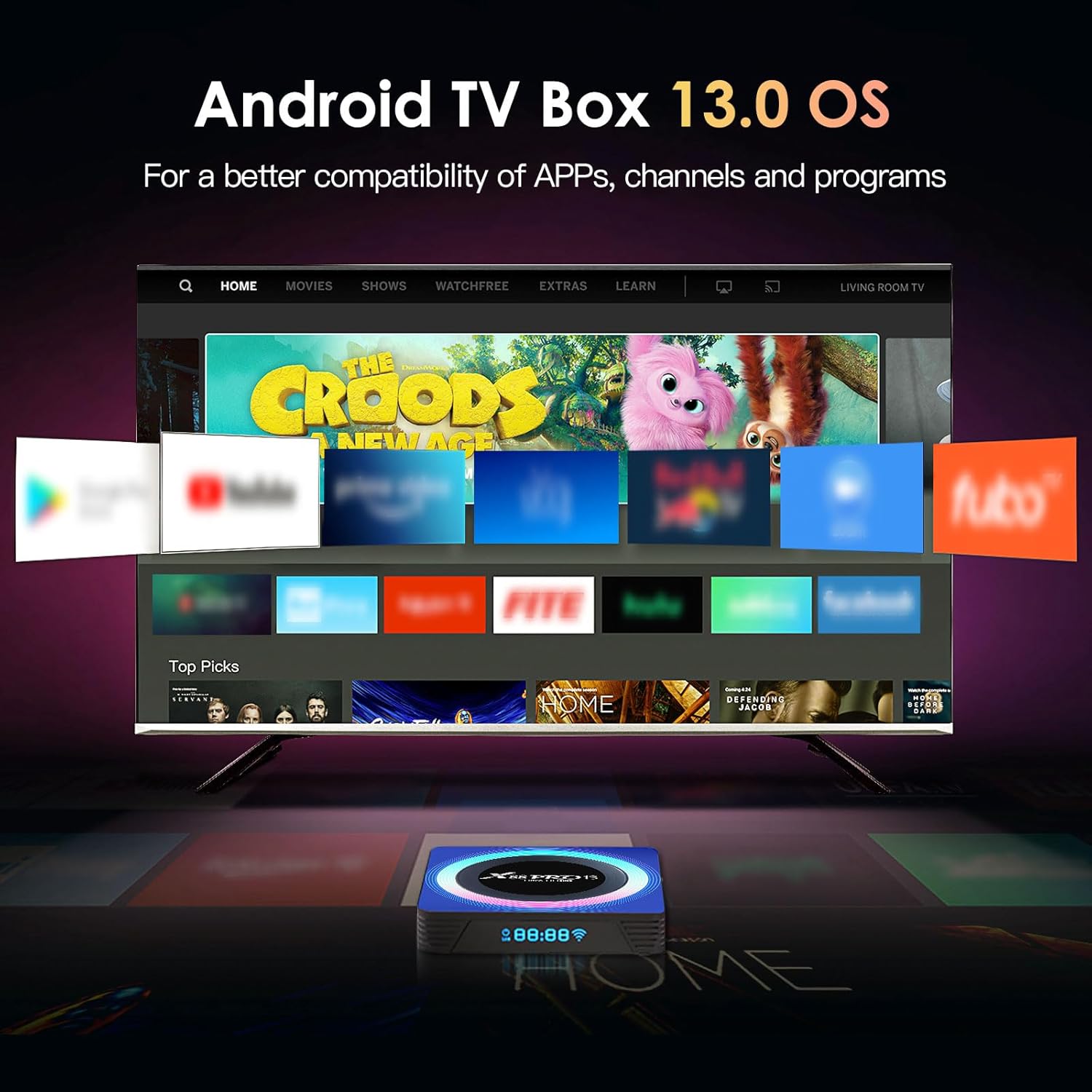
รูปที่ 4.2: Android 13.0 OS Interface. This image displays the user interface of the Android 13.0 operating system as seen on a television, featuring various application icons.
4.4 การจัดเก็บและประสิทธิภาพการทำงาน
Equipped with 4GB RAM and 64GB ROM, the device ensures faster operation and ample storage capacity. Storage can be expanded via a 128GB TF card or a 2TB external hard drive.

รูปที่ 4.3: Internal Components. This image illustrates the RK3528 chip, Cortex-A53 CPU, and Mali 450 MP2 GPU, which contribute to the device's performance.
4.5 การเล่นวิดีโอ
The TV Box supports H.265 decoding and HDR10 for high picture quality, with support for up to 8K@30fps decoding and real 4K video with 3D graphics acceleration.

รูปที่ 4.4: 8K Video Support. This image demonstrates the device's capability to support up to 8K Ultra HD video resolution.
4.6 การเชื่อมต่อ
The device features Wi-Fi 6 for faster and more stable wireless connections, supporting dual-band 2.4G/5G Wi-Fi. It also includes a 100M Ethernet port for stable wired network access and Bluetooth 5.0 for connecting wireless peripherals.

รูปที่ 4.5: Wi-Fi 6 Advantage. This image illustrates the improved speed and stability offered by Wi-Fi 6 compared to Wi-Fi 5.

รูปที่ 4.6: Network Connectivity Options. This image highlights both Wi-Fi 6 and Ethernet as available network connection methods for the device.
4.7 Screen Sharing and Bluetooth
Utilize Bluetooth 5.0 to connect wireless headphones, speakers, or game controllers. The device also supports screen sharing/mirroring, allowing you to cast content from your phone to the TV screen.

รูปที่ 4.7: Screen Sharing and Bluetooth Connectivity. This image demonstrates the ability to share a phone screen to the TV and connect various Bluetooth devices to the TV box.
5. การบำรุงรักษา
To ensure the longevity and optimal performance of your BL X88PRO 13 Android TV Box, follow these maintenance guidelines:
- การทำความสะอาด: ใช้ผ้าแห้งเนื้อนุ่มเช็ดทำความสะอาดภายนอกของอุปกรณ์ หลีกเลี่ยงการใช้น้ำยาทำความสะอาดหรือวัสดุที่มีฤทธิ์กัดกร่อน
- การระบายอากาศ : ตรวจสอบให้แน่ใจว่าวางกล่องทีวีไว้ในที่ที่มีอากาศถ่ายเทสะดวกเพื่อป้องกันความร้อนสูงเกินไป อย่าปิดช่องระบายอากาศ
- แหล่งจ่ายไฟ: Always use the original power adapter provided with the device. Disconnect the power adapter during electrical storms or when the device will be unused for extended periods.
- การอัปเดตซอฟต์แวร์: Periodically check for and install available software updates to ensure system stability and access to the latest features.
6 การแก้ไขปัญหา
If you encounter issues with your BL X88PRO 13 Android TV Box, refer to the following common problems and solutions:
| ปัญหา | สาเหตุที่เป็นไปได้ | สารละลาย |
|---|---|---|
| ไม่มีไฟฟ้า | ไม่ได้เชื่อมต่ออะแดปเตอร์ไฟหรือเต้ารับไฟฟ้าชำรุด | ตรวจสอบการเชื่อมต่อสายไฟ ลองใช้ปลั๊กไฟอื่นดู |
| ไม่มีภาพในทีวี | สาย HDMI หลวม หรือเลือกช่องต่อสัญญาณเข้าทีวีไม่ถูกต้อง | ตรวจสอบให้แน่ใจว่าเสียบสาย HDMI แน่นดีแล้ว เลือกช่องต่อ HDMI ที่ถูกต้องบนทีวีของคุณ |
| รีโมตคอนโทรลไม่ทำงาน | แบตเตอรี่อ่อน หรือมีสิ่งกีดขวาง | Replace remote control batteries. Ensure no obstructions between remote and TV Box. |
| ปัญหาการเชื่อมต่อ Wi-Fi | รหัสผ่านไม่ถูกต้อง สัญญาณอ่อน หรือเราเตอร์มีปัญหา | Verify Wi-Fi password. Move TV Box closer to router. Restart your router. |
| แอปพลิเคชันค้างหรือหยุดทำงาน | Insufficient memory or outdated app version. | Close background applications. Clear app cache. Update the application or the system software. |
7. ข้อมูลจำเพาะ
| คุณสมบัติ | รายละเอียด |
|---|---|
| ยี่ห้อ | BL |
| ชื่อรุ่น | X88PRO 13 |
| ระบบปฏิบัติการ | แอนดรอยด์ 13.0 |
| โปรเซสเซอร์ | RK3528 Quad-Core |
| แรม | 4GB |
| รอม | 64GB |
| ไวไฟ | Wi-Fi 6, Dual-band 2.4G/5G |
| บลูทูธ | บลูทูธ 5.0 |
| อีเธอร์เน็ต | 100เมตร |
| ความละเอียดวิดีโอ | Up to 8K@30fps, 4K, 6K |
| การถอดรหัสวิดีโอ | H.265, HDR10 |
| พอร์ต USB | ยูเอสบี 3.0, ยูเอสบี 2.0 |
| พอร์ตอื่น ๆ | HDMI, SPDIF (Audio), AV, DC Power |
| ขนาด | 4 x 4 x 0.2 นิ้ว |
| น้ำหนักสินค้า | 11.3 ออนซ์ |
8. การรับประกันและการสนับสนุน
For warranty information, please refer to the purchase documentation or contact your retailer. For technical support or further assistance, please contact the BL customer service team through the contact information provided with your purchase or on the official BL webเว็บไซต์.