
การแนะนำ
The AVATTO S16 Pro is a universal smart remote control designed to integrate various infrared (IR) and radio frequency (RF 433 MHz) devices into a single control system via Wi-Fi. It operates through the TUYA smart home platform, allowing you to manage your home appliances from anywhere using your smartphone. This manual provides essential information for setting up, operating, maintaining, and troubleshooting your S16 Pro device.
การตั้งค่า
เนื้อหาแพ็คเกจ
- 1 x AVATTO S16 Pro Universal Remote Control Unit
- สายไฟ 1 x USB
- 1 x คู่มือผู้ใช้ (เอกสารนี้)
อุปกรณ์โอเวอร์view
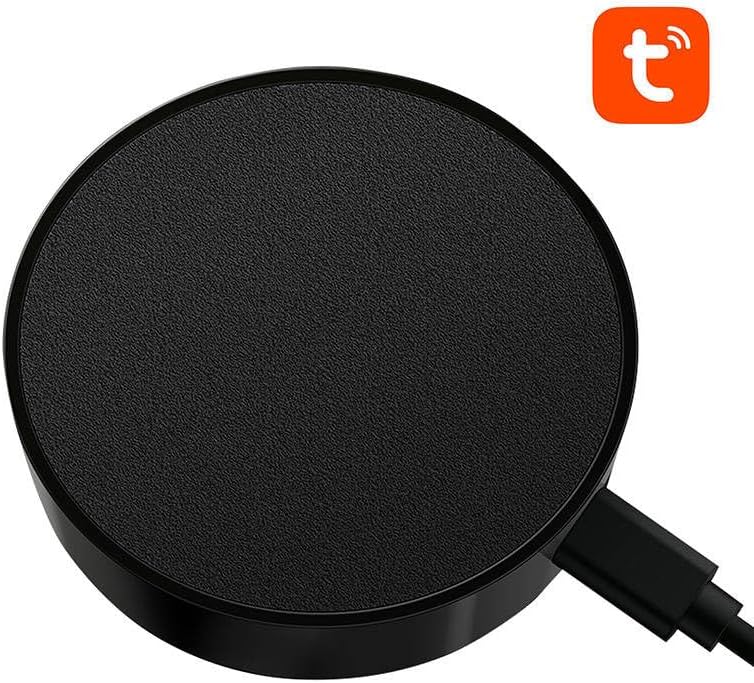
ภาพ: ด้านบน view of the AVATTO S16 Pro Universal Remote Control, showing its circular design and the USB power input.
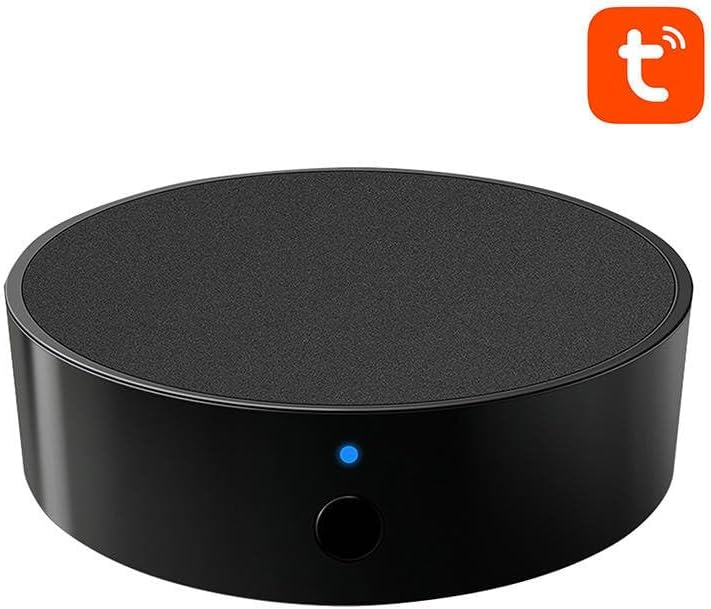
ภาพ: ด้านหน้า view of the AVATTO S16 Pro Universal Remote Control, highlighting the blue indicator light and the physical button.
การเปิดเครื่อง
- Connect the provided USB power cable to the micro-USB port on the AVATTO S16 Pro.
- Plug the other end of the USB cable into a 5V/1A USB power adapter (not included) or a compatible USB port.
- The indicator light on the device will illuminate, indicating it is powered on.
Connecting to TUYA App
- ดาวน์โหลด ตุยย่า สมาร์ท or ชีวิตที่ชาญฉลาด แอปจากร้านแอปของสมาร์ทโฟนของคุณ (iOS หรือ Android)
- ลงทะเบียนหรือเข้าสู่ระบบบัญชีของคุณ
- Ensure your smartphone is connected to a 2.4 GHz Wi-Fi network. The S16 Pro does not support 5 GHz Wi-Fi.
- Open the app, tap the "+" icon in the top right corner to add a device.
- Select "Universal Remote Control" or search for the device type.
- Follow the on-screen instructions to put the S16 Pro into pairing mode (usually by pressing and holding the reset button until the indicator light blinks rapidly).
- Confirm the indicator light status in the app and enter your Wi-Fi password.
- รอให้อุปกรณ์เชื่อมต่อ เมื่อเชื่อมต่อแล้ว คุณสามารถเปลี่ยนชื่ออุปกรณ์และกำหนดให้กับห้องได้
Adding Devices (IR/RF)
After successfully connecting the S16 Pro to the app, you can add IR and RF controlled devices:
- In the S16 Pro device interface within the Tuya app, select "Add Remote Control".
- Choose the type of device you want to add (e.g., TV, Air Conditioner, Fan, RF Curtain).
- For IR devices, you can often select from a pre-defined brand library or use the "DIY" learning function.
- For RF 433 MHz devices, use the "RF Learn" function to capture the signals from your existing RF remote. Follow the app's prompts to press buttons on your original remote.
- Test the added controls to ensure they function correctly.
คำแนะนำการใช้งาน
การใช้งานแอป
- เปิดแอป Tuya Smart หรือ Smart Life บนสมาร์ทโฟนของคุณ
- Select the AVATTO S16 Pro from your device list.
- Access the virtual remote controls for your added IR/RF devices.
- Tap the corresponding buttons to control your appliances.
อุปกรณ์ควบคุม
Ensure the S16 Pro is placed in a central location with a clear line of sight to IR-controlled devices. For RF devices, line of sight is not strictly necessary, but proximity can improve signal reliability.
Creating Automations and Scenes
The Tuya app allows you to create smart scenes and automations:
- ฉาก: Combine multiple actions into a single tap (e.g., "Movie Night" scene turns on TV, lowers lights, and adjusts AC).
- ระบบอัตโนมัติ: Set up conditions to trigger actions (e.g., turn on AC when room temperature exceeds 28°C, or turn off TV at a specific time).
การซ่อมบำรุง
การทำความสะอาด
- เช็ดอุปกรณ์ด้วยผ้านุ่มแห้ง
- Do not use liquid cleaners, aerosols, or abrasive chemicals, as these can damage the device.
สภาพแวดล้อม
- Keep the device away from direct sunlight, high temperatures, and high humidity.
- ควรหลีกเลี่ยงการวางอุปกรณ์ไว้ใกล้สนามแม่เหล็กไฟฟ้าที่มีความเข้มสูง
การแก้ไขปัญหา
- อุปกรณ์ไม่เชื่อมต่อกับ Wi-Fi: Ensure your Wi-Fi network is 2.4 GHz. Check your Wi-Fi password. Try resetting the S16 Pro by pressing and holding the button for 5-10 seconds until the indicator light blinks rapidly, then attempt pairing again.
- อุปกรณ์อินฟราเรดไม่ตอบสนอง: Ensure the S16 Pro has a clear line of sight to the IR-controlled device. The distance between the S16 Pro and the IR device should not be excessive. Re-learn the IR commands if necessary.
- อุปกรณ์ RF ไม่ตอบสนอง: Ensure the S16 Pro is within range of the RF device. RF signals can pass through walls but may be weakened by obstacles. Re-learn the RF commands if necessary.
- App not controlling devices: Check your internet connection. Ensure the S16 Pro is online in the Tuya app. Restart the app or your smartphone.
- ไฟแสดงสถานะไม่ติด: Verify the USB power cable is securely connected and the power adapter is functioning. Try a different USB cable or power adapter.
ข้อมูลจำเพาะ
| ยี่ห้อ | อาวัตโต้ |
| แบบอย่าง | S16โปร |
| สี | สีดำ |
| การเชื่อมต่อ | IR, Wi-Fi (2.4 GHz), RF 433 MHz |
| ความเข้ากันได้ | TUYA Smart / Smart Life App |
| หมายเลขสินค้า | 10229 |
| ส่วนประกอบที่รวมอยู่ | 1 หน่วย |
การรับประกันและการสนับสนุน
ข้อมูลการรับประกัน
The AVATTO S16 Pro comes with a รับประกันจากผู้ผลิต 2 ปีโปรดเก็บหลักฐานการซื้อไว้เพื่อใช้เรียกร้องการรับประกัน
การสนับสนุนลูกค้า
For technical assistance, troubleshooting beyond this manual, or warranty inquiries, please contact your retailer or the AVATTO customer support directly. Refer to the product packaging or AVATTO's official webเว็บไซต์สำหรับรายละเอียดการติดต่อ