
1. บทนำ
The Inseego MiFi M2000 is a portable 5G and 4G LTE hotspot designed to provide high-speed internet connectivity on the go. Featuring Wi-Fi 6 technology, it allows you to connect up to 30 Wi-Fi enabled devices simultaneously. Its robust 5050mAh battery ensures all-day operation and can also function as a power bank for other mobile devices. This manual will guide you through the setup, operation, maintenance, and troubleshooting of your MiFi M2000 to ensure optimal performance.
2. เนื้อหาบรรจุภัณฑ์
กรุณาตรวจสอบแพ็คเกจสำหรับรายการต่อไปนี้:
- อุปกรณ์ Inseego MiFi M2000
- แบตเตอรี่แบบชาร์จไฟได้ (5050mAh)
- สายเคเบิล USB Type-C
- อะแดปเตอร์ AC
- เครื่องมือถอดซิม (อาจแตกต่างกันไปตามแต่ละภูมิภาค)
- คู่มือเริ่มต้นอย่างรวดเร็ว
3. อุปกรณ์โอเวอร์view
Familiarize yourself with the key components of your Inseego MiFi M2000.

รูปที่ 3.1: ด้านหน้า view of the Inseego MiFi M2000, showing the touchscreen display with network status, Wi-Fi status, and menu options.

รูปที่ 3.2: ด้านข้าง view of the Inseego MiFi M2000, highlighting the USB Type-C port for charging and tethering.
ส่วนประกอบหลัก:
- จอแสดงผลแบบสัมผัส: Provides information on network status, battery level, Wi-Fi name (SSID), password, and allows access to device settings.
- ปุ่มเปิด/ปิด: ใช้สำหรับเปิด/ปิดอุปกรณ์ และปลุก/พักหน้าจอ
- พอร์ต USB Type-C: For charging the device, connecting to a computer for USB tethering, or using the device as a power bank.
- ช่องใส่ซิมการ์ด: Located under the battery cover, for inserting your Nano-SIM card.
4. การตั้งค่า
4.1. การติดตั้งซิมการ์ด
- Ensure the MiFi M2000 is powered off.
- ถอดฝาหลังของอุปกรณ์ออก
- ค้นหาช่องใส่ซิมการ์ด
- Insert a Nano-SIM card into the slot with the gold contacts facing down and the notched corner aligned correctly. Push gently until it clicks into place.
- เปลี่ยนฝาหลัง
4.2. การติดตั้งแบตเตอรี่
- เมื่อถอดฝาหลังออกแล้ว ให้จัดตำแหน่งขั้วแบตเตอรี่ให้ตรงกับขั้วต่อภายในช่องใส่แบตเตอรี่
- ค่อยๆ กดแบตเตอรี่ให้เข้าที่
- ใส่ฝาหลังกลับคืนให้แน่น
4.3. เปิดเครื่องครั้งแรก
- Press and hold the Power button for a few seconds until the Inseego logo appears on the screen.
- อุปกรณ์จะเริ่มทำงานและพยายามเชื่อมต่อกับเครือข่ายโทรศัพท์มือถือ ซึ่งอาจใช้เวลาสักครู่
- Once connected, the screen will display network status, Wi-Fi name (SSID), and password.
5. การใช้งานอุปกรณ์
5.1 การเชื่อมต่ออุปกรณ์ผ่าน Wi-Fi
- Ensure your MiFi M2000 is powered on and connected to the cellular network.
- บนอุปกรณ์ที่เชื่อมต่อ Wi-Fi ได้ (แล็ปท็อป แท็บเล็ต สมาร์ทโฟน) ให้เปิดการตั้งค่า Wi-Fi
- Look for the Wi-Fi network name (SSID) displayed on your MiFi M2000's screen. It typically starts with "Inseego" or similar.
- Select the network and enter the Wi-Fi password (also displayed on the MiFi screen) when prompted.
- ตอนนี้อุปกรณ์ของคุณควรเชื่อมต่อกับอินเทอร์เน็ตแล้ว
5.2. Connecting Devices via USB Tethering
You can connect a single device, such as a laptop, directly to the MiFi M2000 using the USB Type-C cable for a secure, wired internet connection.
- Connect one end of the USB Type-C cable to the MiFi M2000's USB port and the other end to your computer.
- On the MiFi M2000's screen, you may be prompted to select the USB mode. Choose "USB Tethering" or "Internet Sharing."
- Your computer should automatically detect the new network connection.
5.3. การชาร์จอุปกรณ์
To charge your MiFi M2000:
- Connect the USB Type-C cable to the MiFi M2000's USB port.
- Connect the other end of the USB cable to the provided AC power adapter.
- เสียบอะแดปเตอร์ไฟ AC เข้ากับเต้ารับไฟฟ้าที่ผนัง
- The battery icon on the MiFi screen will indicate charging status.
5.4. ใช้เป็นพาวเวอร์แบงค์
The MiFi M2000's large battery can be used to charge other devices.
- Connect your mobile device (phone, tablet) to the MiFi M2000's USB Type-C port using an appropriate charging cable.
- The MiFi M2000 will begin charging the connected device.
5.5. การจัดการการตั้งค่า
You can manage various settings directly from the MiFi M2000's touchscreen display or by accessing the web administration interface from a connected device. The web interface typically offers more advanced options.
- หน้าจอสัมผัส: Tap the screen to navigate through menus for basic settings like Wi-Fi name, password, and data usage.
- Web ส่วนต่อประสานผู้ดูแลระบบ: Connect a device to the MiFi's Wi-Fi network. Open a web เปิดเบราว์เซอร์และป้อนที่อยู่ IP (โดยปกติ)
192.168.1.1or192.168.0.1, check your device screen or documentation) to access the administration portal. You will need the admin password, which is often found on the device itself or in the quick start guide.
6. การบำรุงรักษา
6.1. การอัปเดตซอฟต์แวร์
Periodically check for and install software updates to ensure your device has the latest features, security patches, and performance improvements. Updates can usually be initiated through the device's touchscreen menu or the web อินเทอร์เฟซการดูแลระบบ
6.2. การทำความสะอาด
To clean your MiFi M2000:
- ปิดอุปกรณ์และถอดสายเคเบิลทั้งหมด
- ใช้ผ้าแห้งนุ่มๆ ที่ไม่มีขนเช็ดทำความสะอาดภายนอก
- For the touchscreen, use a screen-cleaning solution specifically designed for electronics, applied to the cloth, not directly to the screen.
- Avoid using harsh chemicals, abrasive cleaners, or getting moisture into any openings.
6.3. การดูแลแบตเตอรี่
เพื่อยืดอายุการใช้งานแบตเตอรี่ของคุณ:
- หลีกเลี่ยงการให้อุปกรณ์สัมผัสกับอุณหภูมิที่สูงเกินไป
- อย่าปล่อยให้แบตเตอรี่หมดจนเกลี้ยงเป็นประจำ ควรชาร์จก่อนที่ระดับแบตเตอรี่จะต่ำเกินไป
- หากจะเก็บอุปกรณ์ไว้เป็นเวลานาน ควรชาร์จแบตเตอรี่ให้เหลือประมาณ 50% แล้วเก็บไว้ในที่แห้งและเย็น
7 การแก้ไขปัญหา
If you encounter issues with your MiFi M2000, try the following troubleshooting steps:
7.1. ไม่มีการเชื่อมต่ออินเตอร์เน็ต
- ตรวจสอบความแรงของสัญญาณ: Ensure the device is in an area with good cellular coverage. The signal indicator on the screen should show bars.
- ตรวจสอบซิมการ์ด: ตรวจสอบให้แน่ใจว่าได้ใส่ซิมการ์ดอย่างถูกต้องและเปิดใช้งานแพ็กเกจอินเทอร์เน็ตแล้ว
- รีสตาร์ทอุปกรณ์: Power off the MiFi M2000, wait a few seconds, then power it back on.
- ตรวจสอบแพ็กเกจข้อมูล: ตรวจสอบว่าแพ็กเกจอินเทอร์เน็ตของคุณเปิดใช้งานอยู่และมีข้อมูลเหลืออยู่หรือไม่
7.2. ความเร็วช้า
- ความแรงของสัญญาณ: ย้ายไปยังพื้นที่ที่มีสัญญาณดีกว่า
- อุปกรณ์ที่เชื่อมต่อ: ลดจำนวนอุปกรณ์ที่เชื่อมต่อกับฮอตสปอตลง
- ความแออัดของเครือข่าย: Performance can be affected by network congestion in your area.
- การรบกวน: ควรวาง MiFi ให้ห่างจากอุปกรณ์อิเล็กทรอนิกส์อื่นๆ ที่อาจก่อให้เกิดการรบกวน
7.3. Battery Not Charging / Device Not Powering On
- ตรวจสอบสายเคเบิลและอะแดปเตอร์: Ensure the USB Type-C cable and AC adapter are securely connected and functioning correctly. Try a different cable or adapter if available.
- ระดับแบตเตอรี่: หากแบตเตอรี่หมดเกลี้ยง อาจต้องใช้เวลาชาร์จสักครู่ก่อนที่อุปกรณ์จะตอบสนอง
- ใส่แบตเตอรี่กลับเข้าไป: Power off the device, remove and reinsert the battery, then try powering on again.
8. ข้อมูลจำเพาะ
Below are the technical specifications for the Inseego MiFi M2000:
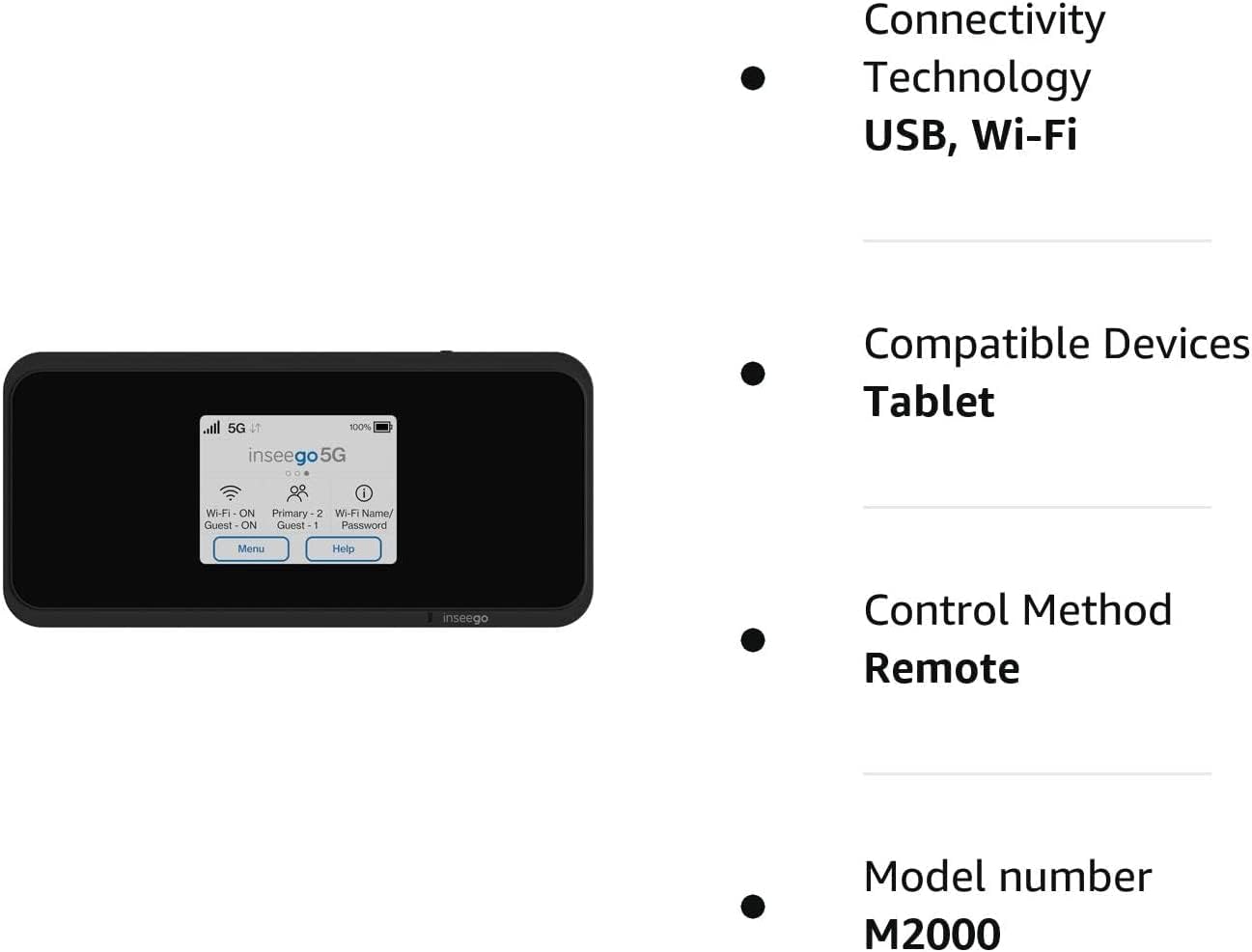
รูปที่ 8.1: Visual representation of key features and specifications for the Inseego MiFi M2000.
| คุณสมบัติ | ข้อมูลจำเพาะ |
|---|---|
| หมายเลขรุ่น | M2000 |
| ยี่ห้อ | อินซีโก้ |
| เทคโนโลยีการเชื่อมต่อ | ยูเอสบี, ไวไฟ |
| มาตรฐานการสื่อสารไร้สาย | 802.11ax (ไวไฟ 6) |
| ระดับย่านความถี่ | คลื่นความถี่คู่ (2.4 GHz) |
| โปรโตคอลความปลอดภัย | WPA3 |
| อัตราการถ่ายโอนข้อมูล | 1 กิกะบิตต่อวินาที |
| อัตราการถ่ายโอนข้อมูลต้นทางสูงสุด | 500 เมกะบิตต่อวินาที |
| จำนวนพอร์ต | 1 (พอร์ต USB Type-C) |
| จำนวนเสาอากาศ | 2 |
| ความจุของแบตเตอรี่ | 5050mAh (All Day Battery Life) |
| อุปกรณ์ที่รองรับ | Tablet, up to 30 Wi-Fi enabled devices |
| วิธีการควบคุม | สัมผัส |
| สี | สีดำ |
| ระบบปฏิบัติการ | [Proprietary OS] |
| เล่มที่tage | 5 โวลต์ (กระแสตรง) |
| แบนด์วิดท์พอร์ต LAN | 1000 เมกะบิตต่อวินาที |
9. ข้อมูลด้านความปลอดภัย
โปรดอ่านและปฏิบัติตามคำแนะนำด้านความปลอดภัยเหล่านี้เพื่อป้องกันความเสียหายต่ออุปกรณ์ของคุณหรือการบาดเจ็บต่อตัวคุณเอง:
- อย่าให้เครื่องสัมผัสกับอุณหภูมิที่สูงหรือต่ำเกินไป แสงแดดโดยตรง หรือความชื้นสูง
- หลีกเลี่ยงการทำตก เจาะ หรือถอดประกอบอุปกรณ์
- ใช้เฉพาะที่ชาร์จและอุปกรณ์เสริมที่ได้รับอนุญาตเท่านั้น
- เก็บอุปกรณ์ให้ห่างจากน้ำหรือของเหลวอื่นๆ
- Do not operate the device in areas where electronic devices are restricted.
- กำจัดแบตเตอรี่และอุปกรณ์ตามกฎระเบียบท้องถิ่น
10. การรับประกันและการสนับสนุน
For warranty information, technical support, or service inquiries, please refer to the warranty card included with your product or visit the official Inseego webไซต์นี้ โปรดเก็บหลักฐานการซื้อไว้เพื่อใช้ยืนยันการรับประกัน