
1. บทนำ
เครื่องพิมพ์ฉลาก MARKLIFE P50 เป็นเครื่องพิมพ์ฉลากความร้อนขนาดเล็กพกพาได้ที่ใช้บลูทูธ ออกแบบมาเพื่อตอบสนองความต้องการในการติดฉลากที่หลากหลาย ใช้เทคโนโลยีการพิมพ์ความร้อน รองรับการพิมพ์ขาวดำ และเหมาะอย่างยิ่งสำหรับการสร้างฉลากสำหรับที่อยู่ เสื้อผ้า เครื่องประดับ บาร์โคดค้าปลีก ธุรกิจขนาดเล็ก การจัดระเบียบภายในบ้าน และการใช้งานในสำนักงาน คู่มือนี้ให้คำแนะนำอย่างละเอียดเกี่ยวกับการติดตั้ง การใช้งาน และการบำรุงรักษาเครื่องพิมพ์ฉลาก P50 ของคุณ

ภาพ: เครื่องพิมพ์ฉลาก MARKLIFE P50 แสดงพร้อมฉลากประเภทต่างๆ รวมถึงฉลาก "ขอบคุณ" ฉลาก "น้ำส้มโอ" และม้วนฉลากสีขาวแบบมีช่องว่าง ฉลากวงกลมแบบมีช่องว่าง และฉลากใสแบบมีช่องว่างampฉลากระบุว่า "เครื่องพิมพ์ไร้สายพร้อมไฟร์วอลล์ในตัว รองรับ WDS, WPS 123456"
2. อะไรอยู่ในกล่อง
เมื่อแกะกล่องเครื่องพิมพ์ฉลาก MARKLIFE P50 แล้ว โปรดตรวจสอบว่ามีอุปกรณ์ครบทุกชิ้น:
- MARKLIFE P50 เครื่องผลิตฉลาก
- ฉลาก (โดยทั่วไปประกอบด้วยเทป 3 ชิ้น: ฉลากสีขาวขนาด 1.57"x1.18" ฉลากวงกลมขนาด 2"x2" และฉลากโปร่งใสขนาด 1.57"x0.79")
- สายชาร์จ USB-C
3. คู่มือการติดตั้ง
3.1 การชาร์จอุปกรณ์
เครื่องพิมพ์ฉลาก P50 มีแบตเตอรี่แบบชาร์จไฟได้ในตัวขนาด 1200mAh สำหรับการใช้งานแบบพกพา ก่อนใช้งานครั้งแรก โปรดตรวจสอบให้แน่ใจว่าอุปกรณ์ได้รับการชาร์จจนเต็มแล้ว
- เชื่อมต่อสายชาร์จ USB-C ที่ให้มากับพอร์ตชาร์จบนเครื่องพิมพ์ฉลาก
- เชื่อมต่อปลายสายอีกด้านหนึ่งเข้ากับอะแดปเตอร์ไฟ USB ที่ใช้งานร่วมกันได้ (ไม่รวมอยู่ด้วย) หรือพอร์ต USB ของคอมพิวเตอร์
- ไฟแสดงสถานะการชาร์จจะแสดงสถานะการชาร์จ โปรดดูคู่มือการใช้งานไฟแสดงสถานะ LED ของอุปกรณ์สำหรับลักษณะการทำงานของไฟโดยละเอียด (เช่น ไฟติดสว่างเมื่อกำลังชาร์จ และดับเมื่อชาร์จเต็มแล้ว)
ภาพ: บุคคลกำลังใส่เครื่องพิมพ์ฉลากขนาดกะทัดรัด MARKLIFE P50 ลงในกระเป๋าถือ เน้นให้เห็นถึงความสะดวกในการพกพา ไอคอนแสดงถึง "พกพาได้", "แบตเตอรี่ในตัว 1200mAh" และ "การชาร์จแบบ Type-c"
3.2 การโหลดฉลาก
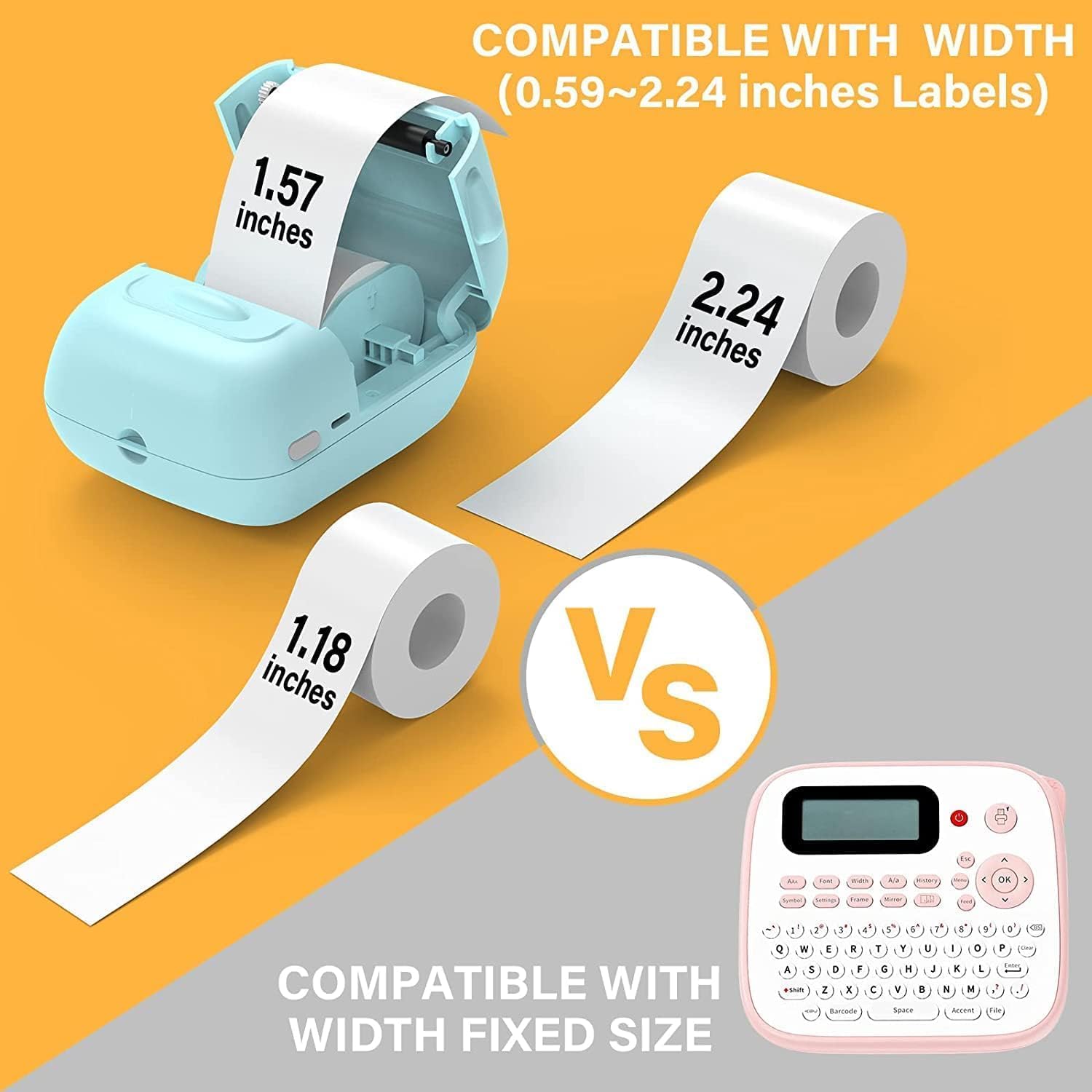
เครื่องพิมพ์ฉลาก P50 รองรับความกว้างของฉลากตั้งแต่ 0.59 นิ้ว ถึง 2.24 นิ้ว โปรดตรวจสอบให้แน่ใจว่าคุณใช้ฉลากความร้อนที่เข้ากันได้
- เปิดฝาช่องใส่ฉลากบนอุปกรณ์
- ใส่ฉลากม้วนโดยให้ด้านที่มีลายพิมพ์หันขึ้นด้านบน ตรวจสอบให้แน่ใจว่าฉลากม้วนนั้นเข้าที่ในช่องใส่ฉลากอย่างถูกต้อง
- ดึงกระดาษฉลากออกมาจากช่องเล็กน้อย โดยให้ยื่นออกมาเลยขอบคมตัดเล็กน้อย
- ปิดฝาช่องใส่ฉลากให้แน่นจนได้ยินเสียงคลิก เครื่องพิมพ์จะตรวจจับขนาดฉลากโดยอัตโนมัติ

ภาพ: แสดงม้วนฉลากสามม้วนเพื่อแสดงขนาดที่แตกต่างกัน ได้แก่ ฉลากใสแบบมีช่องว่างขนาด 1.57"x0.78" (40x20 มม.) ฉลากสีขาวแบบมีช่องว่างขนาด 1.57"x1.18" (40x30 มม.) และฉลากวงกลมแบบมีช่องว่างขนาด 2"x2" (50x50 มม.) ภาพนี้เน้นย้ำว่าม้วนฉลากเหล่านี้ "ตอบสนองความต้องการได้มากขึ้น"
ภาพ: เครื่องพิมพ์ฉลาก MARKLIFE P50 แสดงพร้อมม้วนฉลาก ซึ่งบ่งชี้ว่าสามารถใช้กับฉลากที่มีความกว้างตั้งแต่ 0.59 ถึง 2.24 นิ้วได้ แตกต่างจากเครื่องพิมพ์ฉลากแบบดั้งเดิมที่มีขนาดฉลากคงที่
3.3 การเชื่อมต่อกับอุปกรณ์ของคุณ (สมาร์ทโฟน/พีซี)
เครื่องพิมพ์ฉลาก P50 รองรับการเชื่อมต่อไร้สายผ่านบลูทูธสำหรับสมาร์ทโฟน และการเชื่อมต่อ USB สำหรับพีซีระบบ Windows
3.3.1 การเชื่อมต่อสมาร์ทโฟน (บลูทูธ)
- ดาวน์โหลดแอปพลิเคชัน "Marklife" จากแอปสโตร์ของสมาร์ทโฟนของคุณ (มีให้สำหรับ Android และ iOS)
- ตรวจสอบให้แน่ใจว่าได้เปิดใช้งาน Bluetooth บนสมาร์ทโฟนของคุณแล้ว
- เปิดใช้งานเครื่องพิมพ์ฉลาก P50
- เปิดแอป Marklife แอปจะค้นหาและเชื่อมต่อกับเครื่องพิมพ์ฉลากโดยอัตโนมัติผ่าน Bluetooth 4.0 ภายในระยะประมาณ 33 ฟุต
3.3.2 การเชื่อมต่อกับคอมพิวเตอร์ (USB)
สำหรับผู้ใช้พีซีระบบ Windows มีซอฟต์แวร์ออนไลน์ให้ใช้งาน โปรดดูรายละเอียดเพิ่มเติมได้ที่เว็บไซต์ทางการของ MARKLIFE webดูคำแนะนำในการดาวน์โหลดและติดตั้งซอฟต์แวร์สำหรับพีซีได้จากเว็บไซต์หรือส่วนช่วยเหลือของแอปพลิเคชัน
4. คู่มือการใช้งาน
4.1 คุณสมบัติของแอป Marklife
แอป Marklife มีอินเทอร์เฟซที่ทรงพลังและใช้งานง่ายสำหรับการสร้างฉลาก:
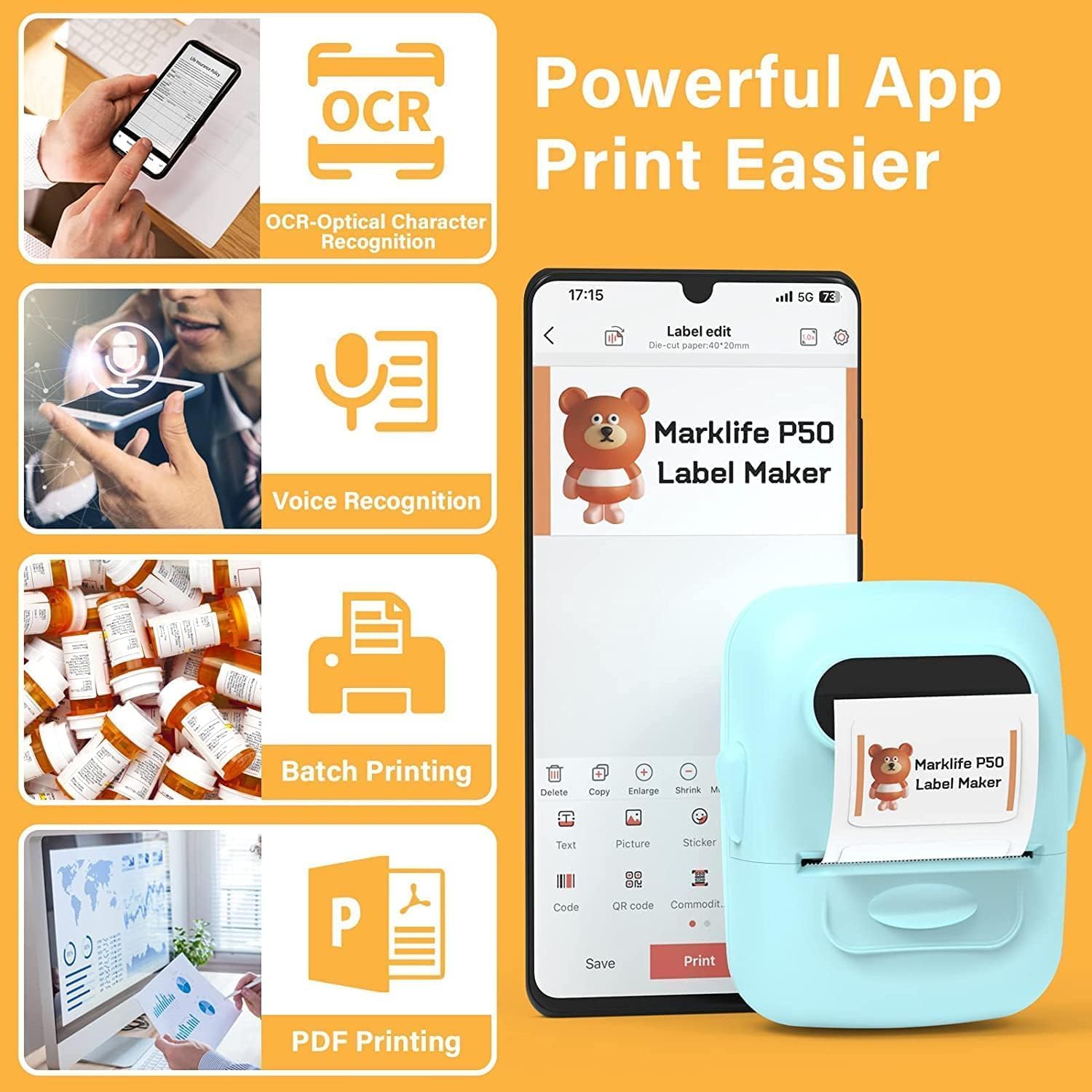
- OCR (การจดจำอักขระด้วยแสง): สแกนข้อความจากรูปภาพเพื่อแปลงเป็นข้อความที่แก้ไขได้สำหรับฉลากของคุณ
- การจดจำเสียง: แปลงคำพูดเป็นข้อความเพื่อการป้อนป้ายกำกับอย่างรวดเร็ว
- การพิมพ์แบทช์: พิมพ์ฉลากเดียวกันหลายชุดได้อย่างมีประสิทธิภาพ
- การพิมพ์ไฟล์ PDF: พิมพ์ฉลากได้โดยตรงจากเอกสาร PDF
- การแทรกรูปภาพ: ใส่รูปถ่ายหรือภาพประกอบของคุณเองลงบนฉลากได้
- การสร้างบาร์โค้ด/คิวอาร์โค้ด: สแกนบาร์โค้ดที่มีอยู่เพื่อสร้างบาร์โค้ดใหม่ หรือสร้างคิวอาร์โค้ดแบบกำหนดเอง
- เทมเพลต: เข้าถึงเทมเพลตสำเร็จรูปหลากหลายรูปแบบสำหรับฉลากประเภทต่างๆ (เสื้อผ้า ราคา สายเคเบิล เครื่องประดับ ที่อยู่ ส่วนผสม ฯลฯ)

ภาพ: เครื่องพิมพ์ฉลาก MARKLIFE P50 แสดงการพิมพ์ฉลากบาร์โค้ดเป็นแถวยาว เพื่อสาธิตฟังก์ชัน "การพิมพ์แบบเป็นชุด"ampบาร์โค้ดที่แสดงคือ "123456"

ภาพ: หน้าจอสมาร์ทโฟนแสดงอินเทอร์เฟซแอป Marklife โดยเน้นคุณสมบัติต่างๆ เช่น OCR (การรู้จำอักขระด้วยแสง), การรู้จำเสียง, การพิมพ์แบบกลุ่ม และการพิมพ์ PDF เครื่องพิมพ์ฉลาก P50 แสดงอยู่ข้างโทรศัพท์ กำลังพิมพ์ฉลาก
4.2 การสร้างและการพิมพ์ฉลาก
- ออกแบบฉลากของคุณ: เปิดแอป Marklife แล้วเลือกเทมเพลตหรือเริ่มออกแบบใหม่ ใช้เครื่องมือแก้ไขต่างๆ เพื่อเพิ่มข้อความ รูปภาพ บาร์โค้ด และองค์ประกอบอื่นๆ
- ปรับการตั้งค่า: ก่อนพิมพ์ คุณสามารถปรับความหนาแน่นของการพิมพ์และการตั้งค่าคุณภาพของภาพถ่ายภายในแอป เพื่อปรับปรุงคุณภาพงานพิมพ์ได้
- พิมพ์: เมื่อออกแบบเสร็จแล้ว ให้แตะปุ่ม "พิมพ์" ในแอป โปรแกรมสร้างฉลากจะพิมพ์ฉลากของคุณอย่างรวดเร็ว
- ตัดป้าย: ฉีกหรือตัดฉลากที่พิมพ์แล้วออกจากช่องส่งฉลากของเครื่องพิมพ์ด้วยมือ

ภาพ: เครื่องพิมพ์ฉลาก MARKLIFE P50 กำลังพิมพ์ฉลากเสื้อผ้า tag พร้อมข้อความ "ชื่อ ขนาดชุด: 16S/64A ราคา: 7.00 ดอลลาร์" และบาร์โค้ด "0123456789005" อื่นๆampตัวอย่างเหล่านี้รวมถึงฉลากบนสบู่ทำมือและขนมอบ ซึ่งแสดงให้เห็นถึงการใช้งานที่หลากหลาย
5. การบำรุงรักษา
การบำรุงรักษาอย่างถูกวิธีจะช่วยให้เครื่องพิมพ์ฉลาก MARKLIFE P50 ของคุณมีอายุการใช้งานยาวนานและทำงานได้อย่างมีประสิทธิภาพสูงสุด
- การทำความสะอาดหัวพิมพ์: ทำความสะอาดหัวพิมพ์ความร้อนเป็นประจำด้วยผ้าเนื้อนุ่มที่ไม่เป็นขุย เช็ดเบาๆampเช็ดทำความสะอาดด้วยไอโซโพรพิลแอลกอฮอล์ ตรวจสอบให้แน่ใจว่าอุปกรณ์ปิดอยู่และเย็นลงก่อนทำความสะอาด
- การทำความสะอาดภายนอก: เช็ดทำความสะอาดภายนอกของอุปกรณ์ด้วยผ้าแห้งเนื้อนุ่ม หลีกเลี่ยงการใช้สารทำความสะอาดที่มีฤทธิ์กัดกร่อนหรือตัวทำละลาย
- การจัดเก็บฉลาก: เก็บฉลากความร้อนไว้ในที่แห้งและเย็น หลีกเลี่ยงแสงแดดและความร้อนโดยตรง เพื่อป้องกันการซีดจางหรือเสียหายก่อนกำหนด
- การดูแลแบตเตอรี่ สำหรับการเก็บรักษาในระยะยาว ให้ชาร์จแบตเตอรี่ประมาณ 50% และเก็บไว้ในที่แห้งและเย็น ชาร์จใหม่ทุกๆ สองสามเดือนเพื่อรักษาสภาพแบตเตอรี่ให้ใช้งานได้ดี
6 การแก้ไขปัญหา
หากคุณพบปัญหาใดๆ กับเครื่องพิมพ์ฉลาก P50 โปรดดูปัญหาและวิธีแก้ไขที่พบบ่อยต่อไปนี้:
| ปัญหา | สาเหตุที่เป็นไปได้ | สารละลาย |
|---|---|---|
| เครื่องพิมพ์ไม่เปิดใช้งาน | แบตเตอรี่อ่อนหรือไม่มีการชาร์จ | เชื่อมต่ออุปกรณ์เข้ากับแหล่งจ่ายไฟโดยใช้สาย USB-C แล้วทำการชาร์จ |
| ไม่สามารถเชื่อมต่อผ่านบลูทูธได้ | บลูทูธในโทรศัพท์ปิดอยู่ แอปไม่ได้เปิด หรือเครื่องพิมพ์อยู่ไกลเกินไป | ตรวจสอบให้แน่ใจว่าได้เปิดใช้งานบลูทูธบนโทรศัพท์ของคุณแล้ว แอป Marklife เปิดอยู่ และเครื่องพิมพ์อยู่ห่างออกไปไม่เกิน 33 ฟุต หากจำเป็น ให้รีสตาร์ทอุปกรณ์ทั้งสอง |
| ป้ายกำกับว่างเปล่าหรือซีดจาง | ใส่ฉลากม้วนผิดวิธี (กลับหัว) หรือหัวพิมพ์สกปรก | ใส่ฉลากม้วนกลับเข้าไปโดยให้ด้านที่ใช้พิมพ์หงายขึ้น ทำความสะอาดหัวพิมพ์ความร้อนตามที่อธิบายไว้ในส่วนการบำรุงรักษา |
| ฉลากติดไม่ตรงแนวหรือพิมพ์ไม่ครบ | ม้วนฉลากวางไม่สนิทหรือเลื่อนไปมาภายในช่องใส่ฉลาก | เปิดช่องใส่ฉลาก ตรวจสอบให้แน่ใจว่าม้วนฉลากถูกดันไปทางขวาและเข้าที่อย่างแน่นหนา ปิดฝาครอบ เครื่องพิมพ์ควรจะปรับเทียบอัตโนมัติ หากปัญหายังคงอยู่ ให้ลองปรับเทียบใหม่ผ่านแอปพลิเคชันหากมีให้ใช้งาน |
| แอปขัดข้องหรือต้องรีสตาร์ทบ่อยครั้งขณะพิมพ์ | ความผิดพลาดของซอฟต์แวร์หรือปัญหาเกี่ยวกับแคชของแอป | ปิดแอป Marklife แล้วเปิดใหม่อีกครั้ง ล้างแคชของแอป หรือติดตั้งแอปใหม่หากปัญหายังคงอยู่ ตรวจสอบให้แน่ใจว่าระบบปฏิบัติการของโทรศัพท์ของคุณเป็นเวอร์ชันล่าสุด |
7. ข้อมูลจำเพาะ
| คุณสมบัติ | รายละเอียด |
|---|---|
| ยี่ห้อ | มาร์คไลฟ์ |
| ชื่อรุ่น | เครื่องพิมพ์ฉลาก P50 |
| เทคโนโลยีการพิมพ์ | เทอร์มอล |
| เทคโนโลยีการเชื่อมต่อ | บลูทูธ, ยูเอสบี |
| ขนาดสื่อสูงสุด | 2 นิ้ว (ใช้ได้กับฉลากที่มีความกว้าง 0.59" - 2.24") |
| ความละเอียดการพิมพ์ขาวดำสูงสุด | 300 จุดต่อนิ้ว |
| เอาท์พุตเครื่องพิมพ์ | ภาพขาวดำ (ขาวดำ) |
| วิธีการควบคุม | แอป (Android, iOS) |
| คุณสมบัติพิเศษ | น้ำหนักเบา พกพาสะดวก มีฟังก์ชันสแกนผ่านแอปพลิเคชัน |
| น้ำหนักสินค้า | 1.39 ปอนด์ |
| ขนาดสินค้า | ลึก 4 นิ้ว x กว้าง 3 นิ้ว x สูง 2 นิ้ว |
| แบตเตอรี่ | แบตเตอรี่ในตัว 1200mAh (ชาร์จได้ผ่าน USB-C) |
8. การรับประกันและการสนับสนุน
ผลิตภัณฑ์ MARKLIFE ผลิตขึ้นตามมาตรฐานคุณภาพสูง สำหรับข้อมูลการรับประกัน การสนับสนุนทางเทคนิค หรือสอบถามบริการ โปรดติดต่อฝ่ายบริการลูกค้าของ MARKLIFE โดยตรง โดยทั่วไปแล้วสามารถดูรายละเอียดได้ในเว็บไซต์อย่างเป็นทางการของ MARKLIFE webดูข้อมูลเพิ่มเติมได้ที่เว็บไซต์ หรือในส่วนช่วยเหลือของแอปพลิเคชัน Marklife
โปรดเก็บหลักฐานการซื้อไว้เพื่อใช้ในกรณีเรียกร้องการรับประกัน