
1. บทนำ
The Crestron HD-CONV-USB-300 is a versatile USB converter designed to seamlessly integrate HDMI and analog audio sources into a USB stream. This device facilitates the capture and conversion of high-definition video and audio signals for various applications, including conferencing, streaming, and recording. This manual provides essential information for the proper installation, operation, and maintenance of your HD-CONV-USB-300 converter.
2. ข้อมูลด้านความปลอดภัย
Please read and understand all safety instructions before operating this device to prevent injury or damage.
- พลัง: Use only the power adapter supplied with the unit. Ensure the power source matches the voltagข้อกำหนดอี
- การระบายอากาศ : Do not block ventilation openings. Install the device in a location with adequate airflow.
- ความชื้น: ห้ามวางเครื่องไว้ในที่โดนฝน ความชื้น หรือจุ่มลงในน้ำ
- ความร้อน: ควรวางเครื่องให้ห่างจากแหล่งความร้อน เช่น เครื่องทำความร้อน ช่องระบายความร้อน เตา หรือเครื่องใช้ไฟฟ้าอื่นๆ ที่ให้ความร้อน
- การทำความสะอาด: Disconnect power before cleaning. Use a dry cloth only. Do not use liquid cleaners or aerosol sprays.
- การบริการ: อย่าพยายามให้บริการผลิตภัณฑ์นี้ด้วยตนเอง ส่งต่อการบริการทั้งหมดไปยังช่างบริการที่ผ่านการรับรอง
3. เนื้อหาบรรจุภัณฑ์
ตรวจสอบว่ามีรายการทั้งหมดอยู่ในแพ็คเกจของคุณ:
- 1x Crestron HD-CONV-USB-300 USB Converter
- อะแดปเตอร์ไฟฟ้า 1x
- 1x USB Cable (Type A to Type B)
- 1x Quick Start Guide (or similar documentation)
4. สินค้าหมดview
The HD-CONV-USB-300 features multiple input and output ports for flexible connectivity.
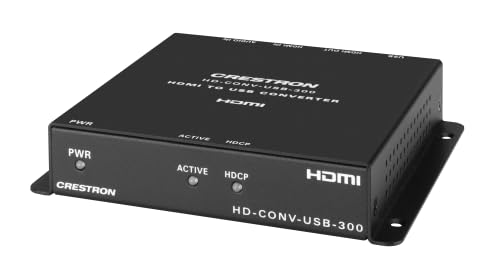
รูปที่ 1 : ด้านหน้า view of the Crestron HD-CONV-USB-300 USB Converter. This image shows the compact design and the Crestron branding on the device.
4.1. แผงด้านหน้า
- ไฟ LED แสดงสถานะ: Indicates power and operational status.
- ปุ่มเลือกอินพุต: Toggles between HDMI and Analog audio inputs.
4.2. แผงด้านหลัง
- อินพุต HDMI: Connect your HDMI video and audio source here.
- Analog Audio Input (3.5mm): Connect analog audio sources.
- USB Output (Type B): Connect to your computer for data transfer.
- แหล่งจ่ายไฟ (DC 5V): เชื่อมต่ออะแดปเตอร์จ่ายไฟที่ให้มา
5. การตั้งค่า
Follow these steps to set up your Crestron HD-CONV-USB-300 converter:
- เชื่อมต่อแหล่งสัญญาณ HDMI: Connect an HDMI cable from your video source (e.g., camera, media player) to the อินพุต HDMI port on the HD-CONV-USB-300.
- Connect Analog Audio Source (Optional): If using an analog audio source, connect a 3.5mm audio cable from your audio device to the อินพุตเสียงอะนาล็อก ท่าเรือ.
- เชื่อมต่อกับคอมพิวเตอร์: Connect the supplied USB cable from the USB Output (Type B) port on the converter to an available USB port on your computer.
- เชื่อมต่อพลังงาน: Plug the supplied power adapter into the กำลังไฟเข้า (DC 5V) port on the converter, then plug the adapter into a power outlet. The Status LED should illuminate.
- การติดตั้งไดร์เวอร์: The HD-CONV-USB-300 is typically plug-and-play and does not require specific drivers for most operating systems (Windows, macOS, Linux). It will be recognized as a standard USB Video Class (UVC) and USB Audio Class (UAC) device.
- การกำหนดค่าซอฟต์แวร์: Open your preferred video conferencing, streaming, or recording software (e.g., OBS Studio, Zoom, Microsoft Teams). In the software's settings, select the Crestron HD-CONV-USB-300 as your video and audio input device.
6. คู่มือการใช้งาน
Once the device is set up, follow these steps for operation:
- เปิดเครื่อง: Ensure the converter is powered on and connected to your computer. The Status LED should be solid green.
- เลือกอินพุต: กดปุ่ม ปุ่มเลือกอินพุต on the front panel to switch between HDMI and Analog audio inputs. The Status LED may change color or blink to indicate the active input (refer to specific model documentation for LED behavior).
- Verify Input in Software: In your chosen software, confirm that the video and audio from your selected source are being received. Adjust any necessary settings within the software, such as resolution, frame rate, or audio levels.
- เริ่มการสมัคร: Begin your video conference, streaming session, or recording.
บันทึก: The quality of the captured video and audio will depend on the source device and the capabilities of your computer and software.
7. การบำรุงรักษา
Proper maintenance ensures the longevity and optimal performance of your HD-CONV-USB-300.
- การทำความสะอาด: Disconnect the power before cleaning. Use a soft, dry, lint-free cloth to wipe the exterior of the device. Do not use abrasive cleaners, solvents, or chemical sprays.
- พื้นที่จัดเก็บ: หากต้องเก็บรักษาอุปกรณ์เป็นเวลานาน ควรตัดการเชื่อมต่อสายเคเบิลทั้งหมดและเก็บไว้ในที่แห้งและเย็น หลีกเลี่ยงแสงแดดโดยตรงและอุณหภูมิที่สูงหรือต่ำเกินไป
- การจัดการสายเคเบิล: Ensure all cables are routed neatly and are not under strain or sharply bent to prevent damage.
8 การแก้ไขปัญหา
If you encounter issues with your HD-CONV-USB-300, refer to the following common problems and solutions:
| ปัญหา | สาเหตุที่เป็นไปได้ | สารละลาย |
|---|---|---|
| No power / Status LED off | อะแดปเตอร์ไฟไม่ได้เชื่อมต่อหรือมีข้อบกพร่อง | Ensure the power adapter is securely connected to the converter and a working power outlet. Try a different outlet. |
| No video output in software | Incorrect input selected; HDMI cable issue; Software not configured correctly. |
|
| No audio output in software | Incorrect input selected; Audio cable issue; Software not configured correctly; Source audio settings. |
|
| Computer does not recognize device | USB cable issue; USB port issue; Driver conflict. |
|
9. ข้อมูลจำเพาะ
| หมายเลขรุ่น | 6512272 |
| ยี่ห้อ | เครสตรอน |
| อินเทอร์เฟซ | HDMI, USB, Analog Audio (3.5mm) |
| ขนาด (กว้าง x ยาว x สูง) | 10.69 x 25.9 x 29.4 ซม. |
| น้ำหนัก | 730 กรัม |
| ผู้ผลิต | เครสตรอน |
| วันที่พร้อมให้บริการ | 18 พฤษภาคม 2023 |
10. ข้อมูลการรับประกัน
Crestron products are typically covered by a limited manufacturer's warranty. The specific terms and duration of the warranty may vary by region and product type. For detailed warranty information, please refer to the warranty card included with your product or visit the official Crestron webเว็บไซต์.
บันทึก: เก็บหลักฐานการซื้อของคุณไว้เพื่อเรียกร้องการรับประกัน
11. ข้อมูลการสนับสนุน
For technical support, product updates, or additional resources, please visit the official Crestron webเว็บไซต์:
You may also find FAQs and community forums on their support pages.