
1. การตั้งค่าและการเชื่อมต่อ
The ATTACK SHARK K6 Wireless Mechanical Keyboard offers versatile connectivity options and is compatible with multiple operating systems.
1.1 เนื้อหาบรรจุภัณฑ์
- ATTACK SHARK K6 Wireless Mechanical Keyboard
- Cloud Keyboard Wrist Rest
- 2-in-1 USB Cable (Type-C to USB-A)
- ที่ดึงคีย์แคปและสวิตช์ 2-in-1
- ตัวรับสัญญาณ 2.4GHz

Image: All components included with the ATTACK SHARK K6 Wireless Mechanical Keyboard.
1.2 โหมดการเชื่อมต่อ
The keyboard supports three connection modes: Bluetooth 5.0, 2.4GHz wireless, and USB-C wired.
- โหมดบลูทู ธ : กด เอฟเอ็น + 1, เอฟเอ็น + 2, หรือ เอฟเอ็น + 3 to switch between three different Bluetooth devices.
- โหมดไร้สาย 2.4GHz: กด เอฟเอ็น + 4. Insert the 2.4GHz receiver into your device's USB port.
- โหมดสาย USB-C: กด เอฟเอ็น + 5. Connect the keyboard to your device using the provided USB-C to USB-A cable.
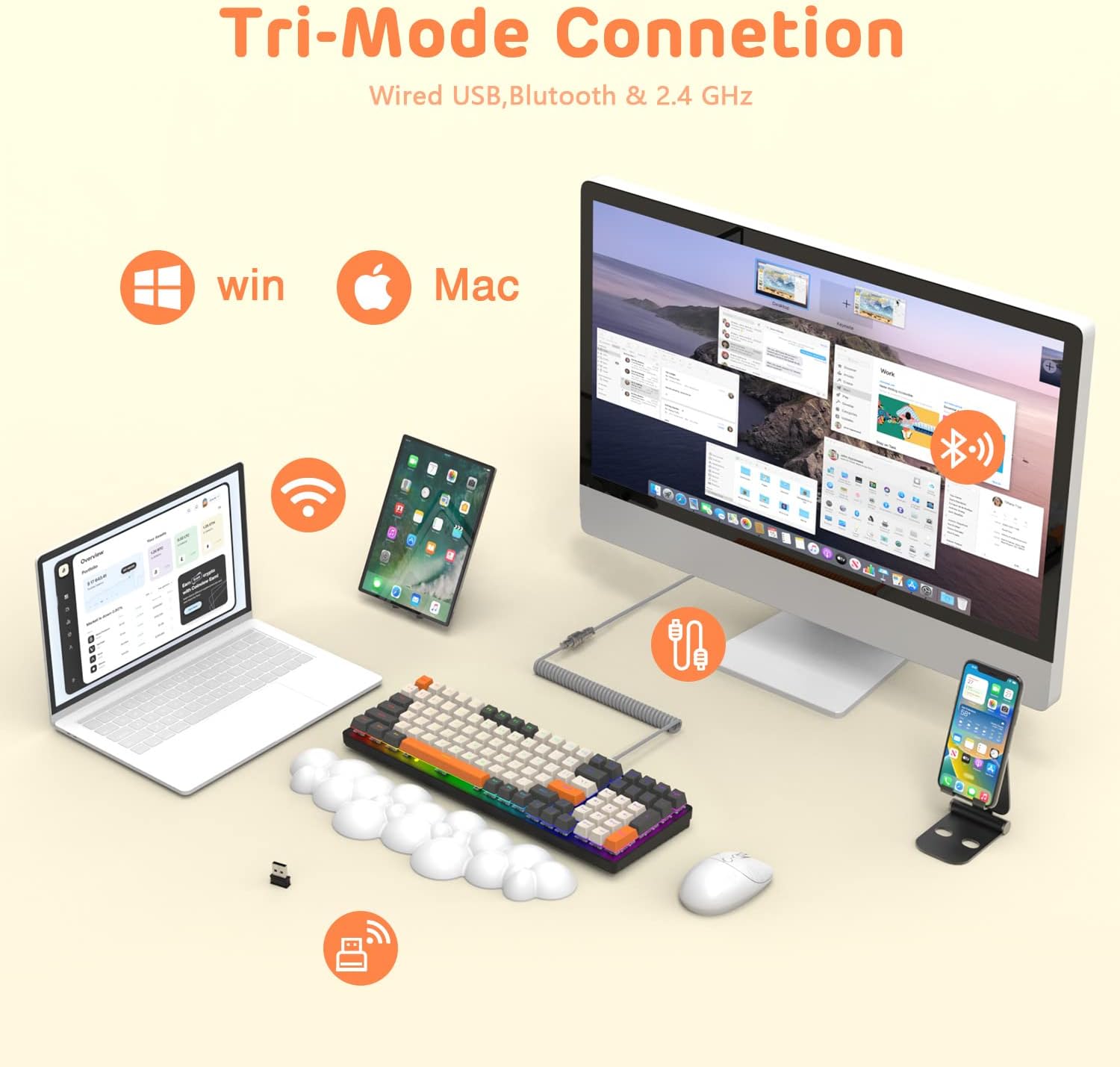
Image: The keyboard demonstrating its tri-mode connection capabilities with various devices.
1.3 การชาร์จคีย์บอร์ด
The keyboard features a 4000mAh battery. Connect the USB-C cable to the keyboard and a power source to charge. Indicator lights (blue, purple, cyan, green) will display the charging status and low voltagคำเตือน

Image: Visual representation of the keyboard's 4000mAh lithium battery capacity.

Image: The custom coiled USB-C to USB-A cable for charging and wired use.
2. คู่มือการใช้งาน
This section details the various functions and features of your ATTACK SHARK K6 keyboard.
2.1 Keyboard Layout and Ergonomics
The keyboard features a 96% compact layout with 100 keys, including a numpad, optimizing workspace while retaining full functionality. It also includes a cloud-shaped memory foam wrist rest for enhanced comfort.

Image: The 100-key compact layout of the K6 keyboard.

Image: Ergonomic design with adjustable two-stage tripod feet.

Image: The K6 keyboard with its ergonomic wrist rest and key features.

Image: Benefits of the ergonomic wrist rest for wrist pain relief.
2.2 การปรับแต่งแสง RGB
The keyboard features customizable RGB backlighting. You can adjust the color, brightness, and flow rate of each key to create personalized lighting effects.
- สลับโหมดแบ็คไลท์: กด FN + อิน เพื่อสลับไปมาระหว่างโหมดแสงไฟ RGB 9 แบบที่แตกต่างกัน
- ปรับความสว่าง/ความเร็ว: ใช้ FN + ปุ่มลูกศร (Up/Down for brightness, Left/Right for speed) to fine-tune the lighting effects.

ภาพ: เหนือview of the 9 RGB rainbow backlight modes and control keys.
2.3 สวิตช์แบบ Hot-Swappable
The K6 keyboard features a hot-swappable PCB, allowing you to easily replace 3-pin mechanical switches without soldering. This extends the lifespan of the switches and offers customization possibilities.

Image: Detail of the hot-swappable PCB and mechanical switches.
Video: A short demonstration of the K6 keyboard's retro design, PBT keycaps, and easy-to-type switches, including a close-up of a red switch.
Video: Demonstration of the K6 keyboard's RGB backlighting and typing sound, showcasing its triple-mode connectivity and mechanical switches.
3. การบำรุงรักษา
การบำรุงรักษาอย่างถูกต้องจะช่วยให้แป้นพิมพ์ของคุณมีอายุการใช้งานยาวนานและมีประสิทธิภาพเหมาะสมที่สุด
3.1 การทำความสะอาดแป้นพิมพ์
- คีย์แคป: ใช้ที่ดึงปุ่มกดที่ให้มาเพื่อถอดปุ่มกดออก ทำความสะอาดด้วยผ้านุ่มๆamp ผ้าและสบู่อ่อนๆ หากจำเป็น ตรวจสอบให้แน่ใจว่าแห้งสนิทก่อนติดกลับเข้าที่
- ตัวคีย์บอร์ด: Wipe the keyboard surface with a soft, lint-free cloth. For stubborn dirt, slightly dampen the cloth with water or a gentle electronics cleaner.
- ใต้ปุ่มกด: ใช้ลมเป่าอัดเพื่อกำจัดฝุ่นและเศษสิ่งสกปรกออกจากช่องว่างระหว่างสวิตช์
3.2 การเปลี่ยนสวิตช์
Thanks to the hot-swappable design, individual switches can be replaced if they become faulty or if you wish to customize your typing experience.
- Use the switch puller to carefully grip and pull out the desired switch.
- จัดตำแหน่งขาของสวิตช์ 3 ขาตัวใหม่ให้ตรงกับรูบนแผงวงจรพิมพ์ (PCB)
- ค่อยๆ กดสวิตช์ใหม่ลงไปจนกว่าจะได้ยินเสียงคลิกและแน่นสนิท ตรวจสอบให้แน่ใจว่าขาของสวิตช์ไม่บิดงอ
3.3 การดูแลที่พักข้อมือ
The wrist rest is made of durable and washable PU material. Clean it with a damp cloth and mild soap as needed to maintain hygiene and appearance.
4 การแก้ไขปัญหา
If you encounter issues with your keyboard, refer to the following common solutions.
4.1 ปัญหาการเชื่อมต่อ
- ไม่มีการเชื่อมต่อ (ไร้สาย): Ensure the keyboard is in the correct wireless mode (Bluetooth or 2.4GHz). Check if the 2.4GHz receiver is properly inserted or if Bluetooth is enabled on your device and the keyboard is paired.
- การเชื่อมต่อไม่ต่อเนื่อง: Move the keyboard closer to your device to reduce interference. Ensure the keyboard is sufficiently charged.
- การเชื่อมต่อแบบใช้สายไม่ทำงาน: Verify the USB-C cable is securely connected to both the keyboard and your device. Try a different USB port or cable.
4.2 ปัญหาเกี่ยวกับแสงไฟ RGB
- Lights Not On: Ensure the keyboard is powered on and charged. Adjust brightness using FN + ลูกศรขึ้น.
- Incorrect Mode/Color: สลับโหมดต่างๆ โดยใช้ FN + อิน.
4.3 Key Functionality Issues
- คีย์ไม่ตอบสนอง: Check for debris under the keycap or switch. If a specific switch is faulty, consider replacing it using the hot-swappable feature.
- Keys Double-Typing or Sticking: This can sometimes be resolved by cleaning the switch or replacing the affected switch. Ensure the switch is fully seated.
5. ข้อมูลจำเพาะ
| คุณสมบัติ | รายละเอียด |
|---|---|
| แบบอย่าง | คีย์บอร์ดเครื่องกลไร้สาย K6 |
| เทคโนโลยีการเชื่อมต่อ | บลูทูธ 5.0, วิทยุ RF 2.4GHz, สาย USB-C |
| คำอธิบายแป้นพิมพ์ | เครื่องจักรกล |
| ประเภทสวิตซ์ | Clicky Blue Switches (Hot-Swappable 3-pin) |
| เค้าโครง | 96% (100 คีย์) |
| ความจุของแบตเตอรี่ | 4000mAh |
| การแบ็คไลท์ | RGB (9 โหมด) |
| อุปกรณ์ที่รองรับ | Laptop, PC, Tablet (Mac/Win dual systems) |
| คุณสมบัติพิเศษ | Ergonomic, Hot-Swap, Custom Coiled Aviator Keyboard Cable, Backlit, Wrist Rest, Rechargeable, Keycap and Switch Puller, N-Key Rollover |
| วัสดุ | Polyurethane (PU) for wrist rest |
| น้ำหนักสินค้า | 2.97 ปอนด์ |
| ขนาดแพ็คเกจ | 17.09 x 6.46 x 2.68 นิ้ว |
6. ข้อมูลการรับประกัน
กรุณาอ้างอิงจากคู่มืออย่างเป็นทางการของผู้ผลิต website or product packaging for detailed warranty information regarding your ATTACK SHARK K6 Wireless Mechanical Keyboard.
7. การสนับสนุนลูกค้า
For further assistance, technical support, or inquiries about your ATTACK SHARK K6 Wireless Mechanical Keyboard, please contact ATTACK SHARK customer support or visit their official webเว็บไซต์.