
1. ข้อมูลด้านความปลอดภัยที่สำคัญ
Please read all safety instructions carefully before using the BYINTEK P70 Smart WiFi Projector. Keep this manual for future reference.
- แหล่งพลังงาน: ใช้เฉพาะอะแดปเตอร์ไฟฟ้าที่ให้มาเท่านั้น ตรวจสอบให้แน่ใจว่าระดับเสียงtagตรงตามข้อกำหนดของโปรเจ็กเตอร์
- ความปลอดภัยของแบตเตอรี่: The projector contains a built-in lithium-ion battery. Do not expose to extreme temperatures, puncture, or disassemble.
- การระบายอากาศ : ตรวจสอบให้แน่ใจว่ามีการระบายอากาศที่เหมาะสมรอบๆ โปรเจ็กเตอร์เพื่อป้องกันความร้อนสูงเกินไป อย่าปิดกั้นช่องระบายอากาศ
- ความร้อน: โปรเจ็กเตอร์อาจร้อนขึ้นระหว่างการใช้งาน ซึ่งเป็นเรื่องปกติ หลีกเลี่ยงการสัมผัสเลนส์หรือช่องระบายอากาศทันทีหลังใช้งาน
- การได้รับแสง: อย่ามองตรงเข้าไปในเลนส์โปรเจ็กเตอร์เมื่อลamp เปิดอยู่ เนื่องจากแสงที่สว่างเกินไปอาจทำให้ตาเมื่อยล้าหรือเกิดความเสียหายได้
- น้ำและความชื้น: ควรเก็บโปรเจคเตอร์ให้ห่างจากน้ำ ฝน และความชื้นสูง ห้ามใช้งานขณะมือเปียก
- การทำความสะอาด: ถอดปลั๊กไฟออกก่อนทำความสะอาด ใช้ผ้านุ่มและแห้ง ห้ามใช้น้ำยาทำความสะอาดชนิดน้ำหรือสเปรย์
- เด็ก: Keep the projector and its accessories out of reach of children.
2. สินค้าหมดview
The BYINTEK P70 is a portable smart DLP projector designed for versatile entertainment and presentation needs. It features an 8000mAh built-in battery, Android 9.0 operating system, auto-focus, and 3D support.
2.1 เนื้อหาบรรจุภัณฑ์
- BYINTEK P70 Projector x 1
- รีโมทคอนโทรล x 1
- อะแดปเตอร์แปลงไฟ x 1
- ขาตั้งกล้องขนาดเล็ก x 1
- กระเป๋าเก็บของ x 1
- คู่มือการใช้งาน x 1
2.2 คุณสมบัติหลัก
- การออกแบบพกพา: กะทัดรัดและน้ำหนักเบาเพื่อการขนย้ายที่ง่ายดาย
- แบตเตอรี่ในตัว: 8000mAh battery provides 1.5 to 3 hours of playback.
- ระบบปฏิบัติการแอนดรอยด์อัจฉริยะ: Android 9.0 for app downloads, online streaming, and gaming.
- โฟกัสอัตโนมัติ: Automatic focus adjustment for clear images.
- การแก้ไขคีย์สโตน 6D: Advanced keystone correction for flexible placement.
- การรองรับ 3D: เพลิดเพลินไปกับคอนเทนต์ 3 มิติที่สมจริง
- การเชื่อมต่อไร้สาย: Supports wireless screen mirroring from Android, iOS, and PC devices.
- การเชื่อมต่อแบบมีสาย: USB data cable sync for iOS and select Android devices.
- ขนาดการฉายภาพขนาดใหญ่: สูงสุด 200 นิ้ว
- การเล่นวิดีโอ 4K: Supports up to 4K video input.
- ไฟ LED ยาว Lamp ชีวิต: 30,000 ชั่วโมง.
- ลำโพงสเตอริโอคู่: Integrated 2x5W speakers for clear audio.

Image: Infographic detailing the BYINTEK P70's features including 4K support, DLP display, 6D keystone, 8000mAh battery, 3D, Type-C charge, 2G+32G memory, Android OS, and stereo speakers.
3. การตั้งค่า
3.1 Charging the Projector
Before first use, fully charge the projector. Connect the provided power adapter to the projector's Type-C port and plug it into a power outlet. The charging indicator will show the charging status.

Image: The BYINTEK P70 projector connected to a power bank via a Type-C cable, illustrating its portable charging capability.
3.2 การจัดวางเริ่มต้น
วางโปรเจ็กเตอร์บนพื้นผิวที่มั่นคงและเรียบ เพื่อประสิทธิภาพสูงสุด viewing, position it directly in front of your projection screen or wall. The included mini tripod can be used for angle adjustments.
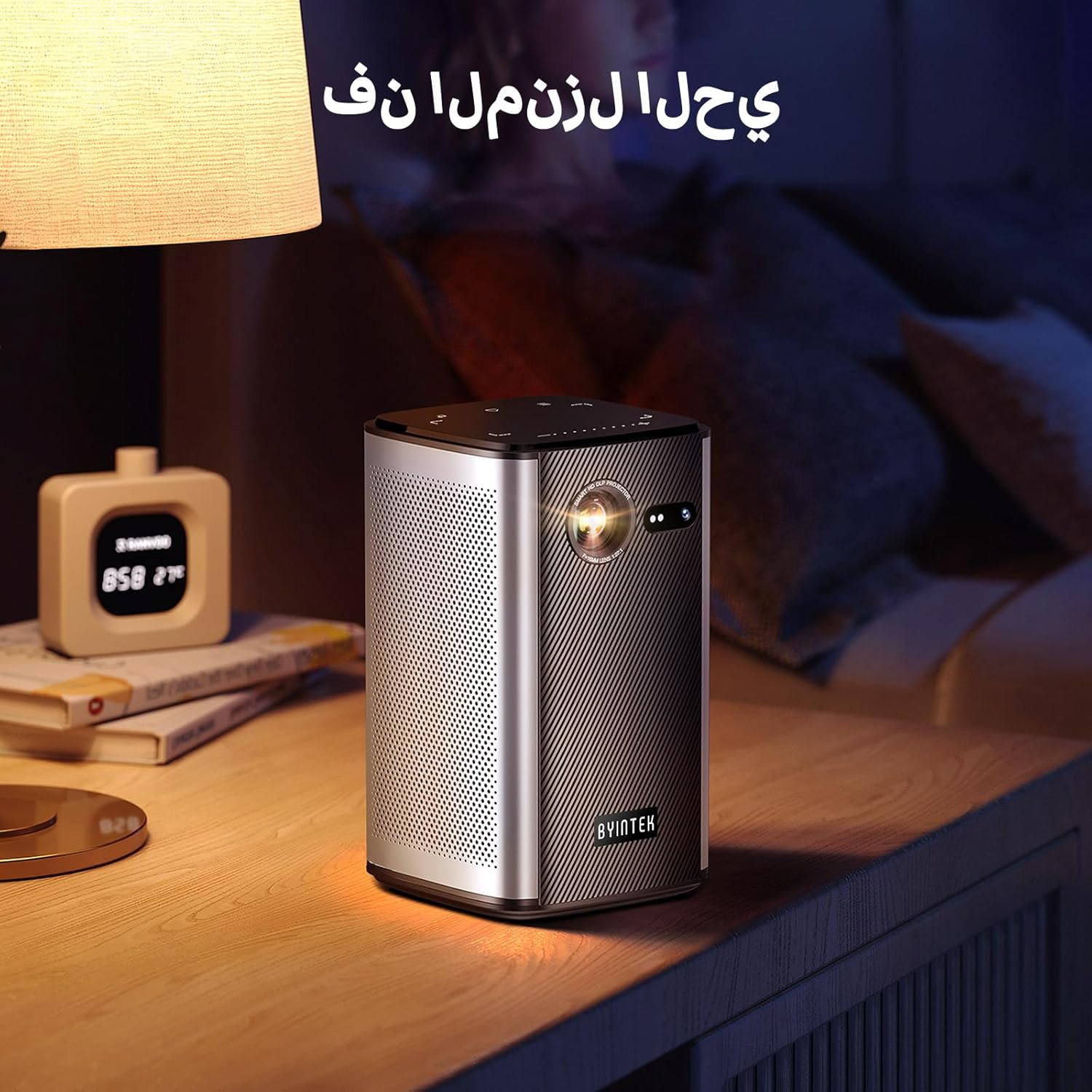
Image: The BYINTEK P70 projector placed on a bedside table, ready for indoor use.
3.3 การเปิด/ปิดเครื่อง
Press and hold the power button on the projector or remote control to turn the device on or off.
3.4 การแก้ไขโฟกัสและคีย์สโตน
The BYINTEK P70 features automatic focus. For keystone correction, navigate to the settings menu using the remote control. The 6D keystone correction allows for precise image adjustment, even with side projection.

Image: A visual representation of the projector's auto-focus feature, showing a clear image projected onto a wall.
4. คู่มือการใช้งาน
4.1 การใช้งานระบบปฏิบัติการ Android
Use the remote control to navigate the Android 9.0 interface. The home screen provides access to pre-installed apps and settings. You can download additional applications from the app store.

Image: The projector displaying its Android operating system interface with various application icons like Miracast, Settings, AirPlay, Market, File Explorer, YouTube, and Netflix.
4.2 การสะท้อนหน้าจอแบบไร้สาย
The projector supports wireless screen mirroring for Android, iOS, and PC devices. Access the 'Miracast' or 'AirPlay' app on the projector's home screen and follow the on-screen instructions to connect your device.
4.3 Wired Screen Mirroring
For iOS devices and some Android devices, you can use a USB data cable for wired screen synchronization. Connect your device to the projector's USB port using its original data cable.
4.4 การเล่นแบบ 3 มิติ
The BYINTEK P70 supports 3D content. To enjoy 3D movies, ensure your media file is in a compatible 3D format (e.g., Blu-ray 3D, SBS, TNB) and use active shutter 3D glasses (sold separately).

Image: A family wearing 3D glasses, enjoying a 3D movie projected by the BYINTEK P70, showcasing its 3D capability.
4.5 ซูมดิจิตอล
Adjust the image size from 50% to 100% using the digital zoom function on the remote control. This allows you to fit the image perfectly to your screen without moving the projector.
5. การบำรุงรักษา
5.1 การทำความสะอาดเลนส์
ใช้ผ้าเนื้อนุ่ม ปราศจากขน ที่ออกแบบมาสำหรับเลนส์โดยเฉพาะ เช็ดเลนส์โปรเจคเตอร์เบาๆ หลีกเลี่ยงการใช้วัสดุที่มีฤทธิ์กัดกร่อนหรือสารเคมีรุนแรง
5.2 การทำความสะอาดภายนอก
เช็ดทำความสะอาดภายนอกของโปรเจคเตอร์ด้วยผ้าแห้งเนื้อนุ่ม ห้ามใช้น้ำยาทำความสะอาดหรือสเปรย์ฉีดลงบนตัวเครื่องโดยตรง
5.3 พื้นที่จัดเก็บ
When not in use, store the projector in a cool, dry place, away from direct sunlight and extreme temperatures. Use the provided storage bag to protect it from dust and scratches.
5.4 การดูแลแบตเตอรี่
เพื่อยืดอายุการใช้งานแบตเตอรี่ ควรหลีกเลี่ยงการปล่อยประจุแบตเตอรี่จนหมดบ่อยๆ หากเก็บรักษาเป็นเวลานาน ควรชาร์จแบตเตอรี่ประมาณ 50% แล้วชาร์จใหม่ทุกๆ สองสามเดือน
6 การแก้ไขปัญหา
| ปัญหา | สาเหตุที่เป็นไปได้ | สารละลาย |
|---|---|---|
| ไม่มีภาพที่ฉาย | Projector not powered on; input source not selected; cable not connected. | Ensure projector is on. Select correct input source (HDMI, USB, Wireless). Check cable connections. |
| ภาพเบลอ | Out of focus; projector too close/far from screen; lens dirty. | Allow auto-focus to adjust. Adjust projector distance. Clean the lens. |
| รีโมตคอนโทรลไม่ทำงาน | Batteries low/dead; remote not paired; obstruction. | Replace remote batteries. Ensure line of sight to projector's IR receiver. Re-pair remote if necessary (refer to specific pairing instructions in the full manual). |
| ไม่มีเสียง | ระดับเสียงเบาเกินไป; มีอุปกรณ์เสียงภายนอกเชื่อมต่ออยู่; รูปแบบเสียงไม่รองรับ | Increase projector volume. Disconnect external audio devices. Check audio format compatibility. |
| ปัญหาการมิเรอร์แบบไร้สาย | Poor Wi-Fi signal; device compatibility; firewall settings. | Ensure strong Wi-Fi signal. Check device compatibility with Miracast/AirPlay. Disable firewalls temporarily for testing. |
| โปรเจ็กเตอร์ร้อนเกินไป | Blocked ventilation; prolonged use in hot environment. | ตรวจสอบให้แน่ใจว่าช่องระบายอากาศสะอาด ใช้งานในบริเวณที่มีการระบายอากาศดี ปล่อยให้โปรเจคเตอร์เย็นลงก่อนใช้งาน |
7. ข้อมูลจำเพาะ
| คุณสมบัติ | ข้อมูลจำเพาะ |
|---|---|
| ยี่ห้อ | บยินเท็ก |
| หมายเลขรุ่น | P70 |
| ขนาดสินค้า | 8.2 x 8.2 x 14.2 ซม. |
| น้ำหนักสินค้า | 1.58 กิโลกรัม |
| แบตเตอรี่ | 1 Lithium Ion battery (included), 8000mAh, 29.6 Wh |
| ระบบปฏิบัติการ | แอนดรอยด์ |
| ความละเอียดการแสดงผล | 960 x 540 |
| ความละเอียดการแสดงผลสูงสุด | 4K Ultra HD Megapixel |
| เทคโนโลยีการเชื่อมต่อ | ไวไฟ |
| คุณสมบัติพิเศษ | Auto-focus, 3D Ready, Built-in Wi-Fi Receiver |
| การใช้ที่แนะนำ | โฮมซีเนม่า |
| ประเภทจอภาพ | ดีแอลพี |
| ฟอร์มแฟกเตอร์ | พกพาได้ |
| ประเภทการติดตั้ง | ขาตั้งกล้อง |
| พอร์ต USB 3.0 | 1 |
| พอร์ต HDMI | 1 |
| เล่มที่tage | 12 โวลต์ |
| วัดtage | 25 วัตต์ |
| แหล่งพลังงาน | เครื่องปรับอากาศและแบตเตอรี่ |
8. การรับประกันและการสนับสนุน
The BYINTEK P70 Smart WiFi Projector comes with a standard manufacturer's warranty. For specific warranty details, please refer to the warranty card included in your product packaging or contact BYINTEK customer support.
If you encounter any issues or have questions regarding your projector, please contact BYINTEK customer support through their official website or the contact information provided in your product documentation. Please have your model number (P70) and purchase details ready when contacting support.