
1. บทนำ
The Intelbras GX 3000 is a multifunction wireless mesh router designed to provide high-speed internet connectivity via 5G/4G networks and Wi-Fi 6. This device integrates advanced Qualcomm technology for both its 5G modem and Wi-Fi 6 solution, ensuring high performance and reliability. It supports up to 128 devices simultaneously on the Wi-Fi network and offers wired connectivity options. The GX 3000 is suitable for various environments, from home to office, providing robust network performance.
This manual provides instructions for setting up, operating, and maintaining your Intelbras GX 3000 router. Please read it carefully before use.
2. Package Contents & Device Overview
2.1. เนื้อหาบรรจุภัณฑ์
- Intelbras GX 3000 Wireless Mesh Router
- อะแดปเตอร์แปลงไฟ
- สายเคเบิลเครือข่าย
- คู่มือเริ่มต้นใช้งานฉบับย่อ (ไม่รวมอยู่ในคู่มือนี้)
2.2. อุปกรณ์โอเวอร์view
รูปที่ 1 : ด้านหน้า View of the GX 3000 Router
This image displays the front of the Intelbras GX 3000 router, showing its sleek white design and LED indicators for 5G, 4G, call status, Wi-Fi, and WPS button.

Figure 2: GX 3000 Router with Highlighted Indicators and Ports
This image provides a closer look at the router, emphasizing the LED indicators on the front (5G, 4G, Call, Wi-Fi, WPS) and the various ports located on the rear panel, including LAN, WAN, and TEL ports.
2.2.1. พอร์ตด้านหลัง

Figure 3: Rear Panel of the GX 3000 Router
This image shows the rear panel of the router, clearly displaying the LAN, WAN, and TEL ports for wired connections.
- พอร์ต LAN: For connecting wired devices such as computers, smart TVs, or gaming consoles.
- พอร์ต WAN: For connecting to an external modem or internet source (if not using 5G/4G).
- พอร์ตโทร: For voice services (if supported by your service provider).
- กำลังไฟเข้า: เชื่อมต่อกับอะแดปเตอร์ไฟฟ้าที่ให้มา
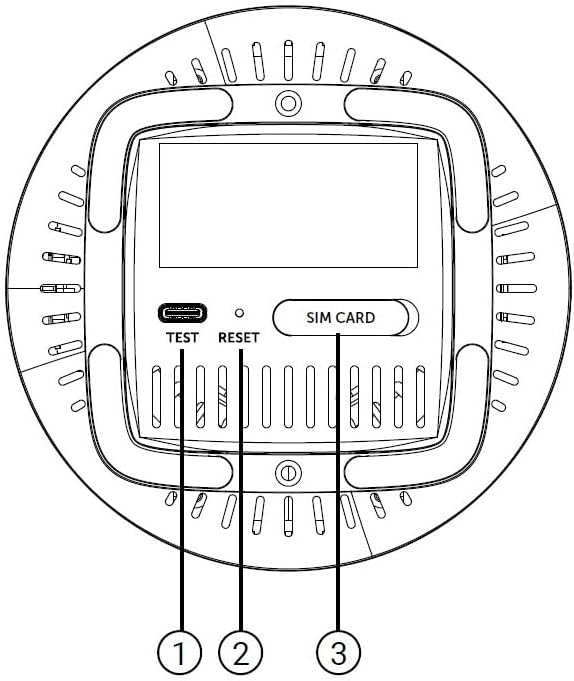
2.2.2. Bottom Panel Features

Figure 4: Bottom Panel Features of the GX 3000 Router
This diagram illustrates the bottom panel of the router, highlighting the TEST port, RESET button, and SIM CARD slot.
- TEST Port: เพื่อการวินิจฉัยโรค
- ปุ่มรีเซ็ต: Used to restore factory default settings. Press and hold for 10 seconds while the device is powered on.
- SIM CARD Slot: Insert your 5G/4G SIM card here for mobile broadband connectivity.
3. การตั้งค่า
3.1. การจัดวางเริ่มต้น
Place the router in a central location within your desired coverage area, away from obstructions, metal objects, and other electronic devices that may cause interference. Ensure good ventilation around the device.
3.2. การใส่ซิมการ์ด
- ตรวจสอบให้แน่ใจว่าเราเตอร์ปิดอยู่
- Locate the SIM CARD slot on the bottom panel of the router (refer to Figure 4).
- Insert your activated 5G/4G SIM card into the slot with the gold contacts facing down and the notched corner oriented correctly. Push until it clicks into place.
- ในการถอด ให้ค่อยๆ ดันซิมการ์ดเข้าไปใหม่จนกว่าจะเด้งออกมา
3.3. การเชื่อมต่อพลังงาน
- Connect one end of the power adapter to the Power Input port on the rear of the router.
- เสียบปลายอีกด้านของอะแดปเตอร์แปลงไฟเข้ากับเต้ารับไฟฟ้าทั่วไป
- The router will power on automatically. Wait for the LED indicators to stabilize.
3.4. การเชื่อมต่อแบบใช้สาย (ไม่บังคับ)
If you wish to connect devices via Ethernet:
- Connect one end of the provided network cable to a LAN port on the rear of the router.
- Connect the other end of the network cable to the Ethernet port of your computer, smart TV, or other wired device.
3.5. การเชื่อมต่อ Wi-Fi เบื้องต้น
The default Wi-Fi network name (SSID) and password are usually printed on a label on the bottom of the router. Follow these steps to connect:
- บนอุปกรณ์ไร้สายของคุณ (สมาร์ทโฟน แล็ปท็อป แท็บเล็ต) ให้เปิดการตั้งค่า Wi-Fi
- Scan for available networks and select the SSID corresponding to your GX 3000 router.
- ป้อนรหัสผ่าน Wi-Fi เริ่มต้นเมื่อระบบถาม
- Once connected, you can access the router's web ส่วนติดต่อผู้ใช้สำหรับปรับแต่งการตั้งค่า
4. คู่มือการใช้งาน
4.1. ไฟ LED
ไฟ LED ที่แผงด้านหน้าให้ข้อมูลสถานะ:
- 5G LED: บ่งชี้สถานะเครือข่าย 5G
- 4G LED: บ่งชี้สถานะเครือข่าย 4G
- Call LED: Indicates voice service status.
- LED Wi-Fi: แสดงสถานะการทำงานของเครือข่าย Wi-Fi
- ไฟ LED WPS: ระบุสถานะฟังก์ชั่น WPS
Refer to the full user manual (if provided separately) for detailed LED behavior (e.g., solid, blinking, color) and their meanings.
4.2. การเข้าถึง Web อินเตอร์เฟซการจัดการ
To configure advanced settings, manage your network, or change Wi-Fi credentials, access the router's web อินเทอร์เฟซ:
- Ensure your device is connected to the GX 3000's Wi-Fi network or via an Ethernet cable.
- เปิด web เบราว์เซอร์ (เช่น Chrome, Firefox, Edge)
- ในแถบที่อยู่ ให้พิมพ์ที่อยู่ IP เริ่มต้นของเราเตอร์ (โดยทั่วไปคือ
192.168.1.1or192.168.0.1) and press Enter. This information is usually on the label on the bottom of the router. - Enter the default username and password (also found on the router label).
- You will now be in the router's management interface, where you can customize settings such as Wi-Fi name, password, security protocols, and more.
4.3. Wi-Fi Protected Setup (WPS)
WPS allows you to connect Wi-Fi devices without entering the password manually:
- Press the WPS button on the front of the GX 3000 router (refer to Figure 1). The WPS LED will start blinking.
- Within two minutes, press the WPS button on your client device (e.g., Wi-Fi adapter, printer).
- อุปกรณ์จะทำการเชื่อมต่อโดยอัตโนมัติ
Note: WPS is a convenient feature but may be less secure than manual password entry.
4.4. Mesh Network Expansion
The GX 3000 supports mesh networking to expand Wi-Fi coverage. You can add other compatible Intelbras Qi5 line products to create a seamless mesh network. Each additional Wi-Fi 6 router can extend coverage by up to 300 m². It is recommended to use up to 6 routers in the same mesh network for optimal performance.
Refer to the specific instructions provided with additional mesh units for pairing and configuration.
5. การบำรุงรักษา
5.1. การทำความสะอาดอุปกรณ์
- Ensure the router is powered off and unplugged before cleaning.
- ใช้ผ้าแห้งนุ่มเช็ดบริเวณภายนอกของอุปกรณ์
- Do not use liquid cleaners, aerosols, or solvents, as they may damage the casing หรือส่วนประกอบภายใน
- รักษาช่องระบายอากาศให้สะอาดปราศจากฝุ่นและเศษขยะ
5.2. การอัปเดตเฟิร์มแวร์
Periodically check the Intelbras official webเว็บไซต์สำหรับอัปเดตเฟิร์มแวร์ การอัปเดตเฟิร์มแวร์สามารถปรับปรุงประสิทธิภาพ เพิ่มคุณสมบัติใหม่ และเพิ่มความปลอดภัย โปรดปฏิบัติตามคำแนะนำที่ให้ไว้ในแพ็คเกจการอัปเดตเฟิร์มแวร์อย่างระมัดระวัง
5.3 การรีเซ็ตเป็นการตั้งค่าเริ่มต้นจากโรงงาน
If you encounter persistent issues or forget your login credentials, you can reset the router to its factory default settings:
- With the router powered on, locate the RESET button on the bottom panel (refer to Figure 4).
- ใช้คลิปหนีบกระดาษหรือวัตถุปลายแหลมที่คล้ายกัน กดปุ่ม RESET ค้างไว้ประมาณ 10 วินาที
- Release the button. The router will restart with all settings restored to their original factory defaults.
- You will need to reconfigure your Wi-Fi settings and any other custom configurations after a factory reset.
6 การแก้ไขปัญหา
| ปัญหา | สาเหตุที่เป็นไปได้ | สารละลาย |
|---|---|---|
| No power / Router not turning on | อะแดปเตอร์แปลงไฟไม่ได้เชื่อมต่อหรือชำรุด; ปลั๊กไฟใช้งานไม่ได้ |
|
| No internet connection (5G/4G) | SIM card not inserted correctly; SIM card not activated; No 5G/4G signal; Service provider issue. |
|
| ไม่สามารถเชื่อมต่อ Wi-Fi ได้ | Incorrect Wi-Fi password; Wi-Fi disabled; Device too far from router. |
|
| ความเร็วอินเตอร์เน็ตช้า | Network congestion; Poor signal strength; Interference; Outdated firmware. |
|
| ลืม web รหัสผ่านอินเทอร์เฟซ | Password forgotten or changed. |
|
7. ข้อมูลจำเพาะ
| คุณสมบัติ | รายละเอียด |
|---|---|
| ยี่ห้อ | อินเทลบราส |
| แบบอย่าง | จีเอ็กซ์ 3000 |
| เทคโนโลยีการเชื่อมต่อ | 5G, 4G, Wi-Fi 6 (802.11a/b/g/n/ac/ax) |
| ระดับย่านความถี่ | ดูอัลแบนด์ |
| มาตรฐานการสื่อสารไร้สาย | 802.11ก |
| อัตราการถ่ายโอนข้อมูล | สูงสุด 900 เมกะบิตต่อวินาที |
| แบนด์วิดท์พอร์ต LAN | 1000 เมกะบิตต่อวินาที (กิกะบิตอีเธอร์เน็ต) |
| ประเภทเสาอากาศ | ภายใน |
| อุปกรณ์ที่รองรับ | Computer, Notebook, Tablet, Smart TV |
| คุณสมบัติพิเศษ | Remote Access, Mesh Wi-Fi capability |
| สี | สีขาว |
| น้ำหนักสินค้า | 1000 กรัม |
| ส่วนประกอบที่รวมอยู่ | Power supply, Network cable |
| Anatel Homologation Number | 13571-22-00180 |
8. การรับประกันและการสนับสนุน
8.1. ข้อมูลการรับประกัน
Intelbras products are covered by a limited warranty. For specific warranty terms and conditions, please refer to the warranty card included with your product or visit the official Intelbras webไซต์นี้ โปรดเก็บหลักฐานการซื้อไว้เพื่อใช้ยืนยันการรับประกัน
8.2. การสนับสนุนด้านเทคนิค
If you require technical assistance or have questions not covered in this manual, please contact Intelbras customer support. You can find contact information (phone numbers, email, support portal) on the official Intelbras webเว็บไซต์:
อินเทลบราส์ อย่างเป็นทางการ Webเว็บไซต์: www.intelbras.com.br
When contacting support, please have your product model (GX 3000) and serial number ready.