
ATTACK SHARK K98
คู่มือผู้ใช้คีย์บอร์ดเชิงกลไร้สาย ATTACK SHARK K98
รุ่น : K98
1. สินค้าหมดview
The ATTACK SHARK K98 is a 96% layout (100-key) wireless mechanical keyboard designed for versatility and comfort. It features tri-mode connectivity (2.4Ghz, Bluetooth, USB-C), hot-swappable switches, dynamic RGB backlighting, and an ergonomic design with a cloud-shaped wrist rest.

ภาพ: เหนือview of the K98 keyboard highlighting its 3000mAh battery, triple modes, dynamic RGB backlight, delicate adjusting satellite switch, hot-swappable design, all keys no conflict feature, yellow/red switch options, and ergonomic design.
2. เนื้อหาบรรจุภัณฑ์
ก่อนดำเนินการติดตั้ง โปรดตรวจสอบให้แน่ใจว่ามีรายการทั้งหมดอยู่ในแพ็คเกจ:
- ATTACK SHARK K98 Wireless Mechanical Keyboard
- Cloud Wrist Rest
- USB-C to USB-A Coiled Cable with Metal Aviator Connector
- เครื่องมือถอดสวิตช์ (สำหรับเปลี่ยนสวิตช์ขณะเครื่องทำงาน)
- คู่มือการใช้งาน (เอกสารนี้)
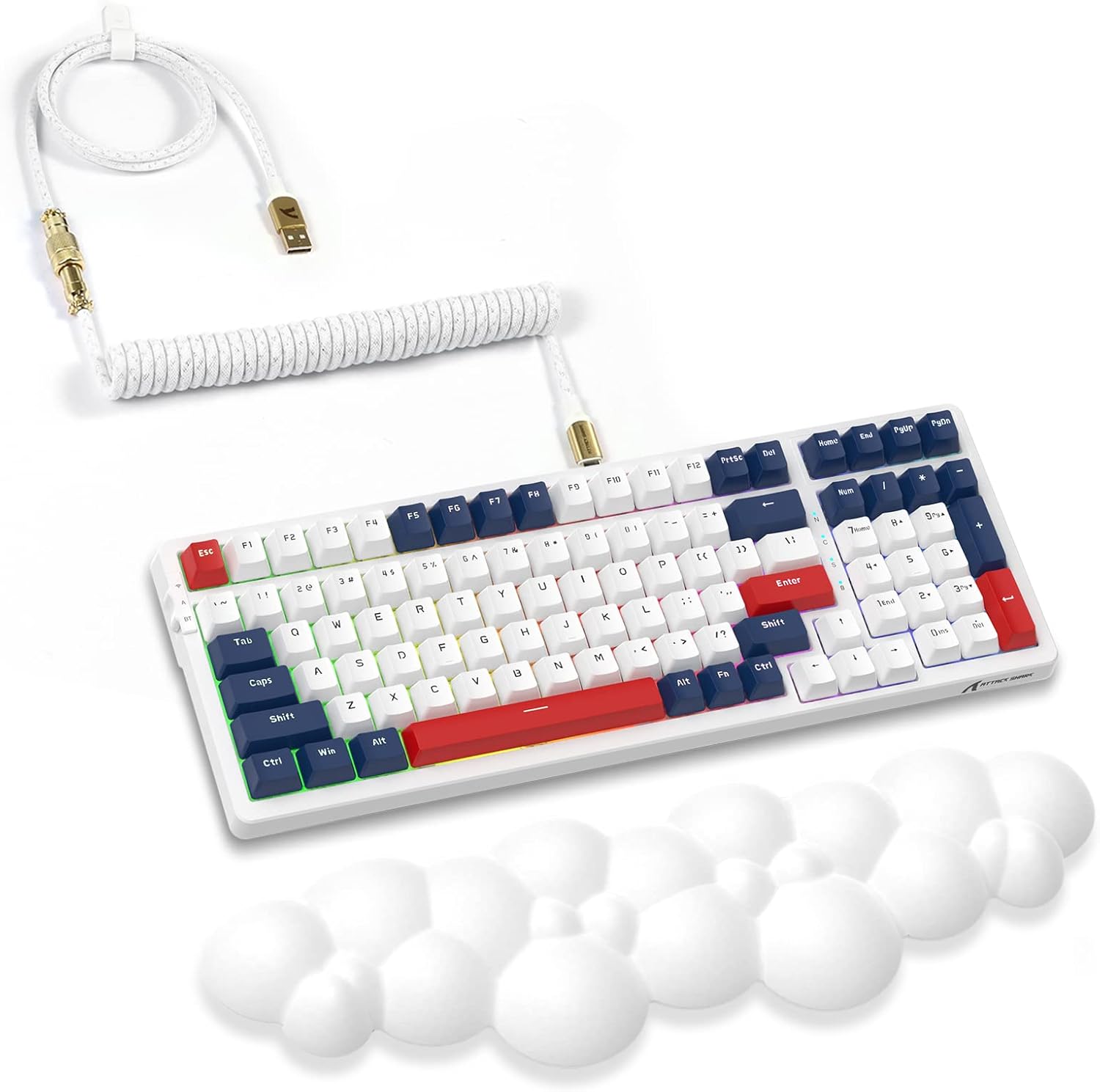
Image: The K98 mechanical keyboard shown with its included white coiled USB-C cable and the white cloud-shaped wrist rest.
3. คู่มือการติดตั้ง
3.1 การชาร์จเริ่มต้น
The keyboard comes with a built-in 3000mAh rechargeable battery. For optimal performance, it is recommended to fully charge the keyboard before first use.
- Connect the USB-C end of the provided coiled cable to the keyboard's USB-C port.
- ต่อปลายสายด้าน USB-A เข้ากับพอร์ต USB ที่มีไฟเลี้ยงบนคอมพิวเตอร์ของคุณ หรืออะแดปเตอร์ USB ที่เสียบกับผนัง
- The keyboard's indicator light will show charging status (refer to keyboard's specific LED indicators for details, usually red for charging, green for full).

Image: Close-up of the high-quality coiled cable, showing its Type-C plug, metal aviator connector, and standard USB-A connector.
3.2 การเชื่อมต่อคีย์บอร์ด
The K98 keyboard supports three connectivity modes:
3.2.1 โหมดไร้สาย 2.4G
- ค้นหาตัวรับสัญญาณ USB 2.4G (โดยปกติจะอยู่ในช่องเก็บของบนแป้นพิมพ์)
- เสียบตัวรับสัญญาณ USB 2.4G เข้ากับพอร์ต USB ที่ว่างอยู่บนคอมพิวเตอร์ของคุณ
- Switch the keyboard's mode switch (typically on the back or side) to the 2.4G position.
- The keyboard should automatically connect. If not, press the designated pairing key combination (refer to specific keyboard instructions, often Fn + 4 for 2.4G).
3.2.2 โหมดบลูทู ธ
The keyboard supports Bluetooth 5.0 and can connect to multiple devices.
- เลื่อนสวิตช์โหมดของแป้นพิมพ์ไปที่ตำแหน่งบลูทูธ
- Press and hold the Bluetooth pairing key combination (e.g., Fn + 1, Fn + 2, or Fn + 3) for 3-5 seconds until the indicator light flashes rapidly, indicating pairing mode.
- บนอุปกรณ์ของคุณ (คอมพิวเตอร์ แท็บเล็ต สมาร์ทโฟน) เปิดการตั้งค่าบลูทูธและค้นหาอุปกรณ์ใหม่
- Select "ATTACK SHARK K98" (or similar name) from the list of available devices to pair.
- เมื่อเชื่อมต่อแล้วไฟแสดงสถานะจะหยุดกะพริบ
3.2.3 โหมดใช้งานแบบมีสาย USB-C
- Connect the USB-C end of the provided coiled cable to the keyboard's USB-C port.
- เสียบปลายสาย USB-A เข้ากับพอร์ต USB บนคอมพิวเตอร์ของคุณ
- Switch the keyboard's mode switch to the Wired/USB position.
- The keyboard will be recognized as a standard USB keyboard and is ready for use.
3.3 Attaching the Cloud Wrist Rest
The included cloud-shaped wrist rest provides ergonomic support for comfortable long-term use.
- วางคีย์บอร์ดบนพื้นผิวเรียบ
- Position the cloud wrist rest directly in front of the keyboard, aligning its length with the keyboard's front edge.
- Ensure the non-slip base of the wrist rest is in contact with the desk surface for stability.

Image: Illustration showing the ergonomic benefits of the cloud wrist rest, demonstrating how it supports the wrist to relieve fatigue during typing. Also shows the memory foam material, ease of cleaning, cloud shape, and non-slip base.
4. คู่มือการใช้งาน
4.1 ปุ่มฟังก์ชันและปุ่มควบคุมมัลติมีเดีย
The K98 keyboard utilizes a 96% layout, integrating function keys and multimedia controls via the Fn key. Specific combinations may vary slightly, but common functions include:
- Fn + F1-F12: Standard F-key functions or multimedia controls (e.g., volume, play/pause, mute).
- Fn + Win: ปุ่มล็อค/ปลดล็อค Windows
- Fn + แบ็คสเปซ: Delete (if Backspace is dual-function).
- Fn + ปุ่มลูกศร: Backlight brightness/speed adjustment.
Refer to the keyboard's keycap legends or a dedicated function map for precise key combinations.
4.2 การควบคุมไฟแบ็คไลท์ RGB
The keyboard features 18+ RGB backlighting effects and 16.8 million customizable colors.
- ฟน + \|: สลับไปมาระหว่างโหมดแสงไฟ RGB ต่างๆ
- Fn + ลูกศรขึ้น/ลง: ปรับความสว่างของแบ็คไลท์
- กด Fn + ลูกศรซ้าย/ขวา: ปรับความเร็ว/ทิศทางของไฟแบ็คไลท์
- Fn + Ins/Home/PgUp/Del/End/PgDn: Specific lighting effect shortcuts (check keycaps).

Image: The K98 keyboard displaying its dynamic RGB backlight, illustrating various lighting effects and the ability to customize colors.
4.3 สวิตช์แบบ Hot-Swappable
The K98 features a hot-swappable PCB, allowing users to easily change mechanical switches without soldering. This enables customization of typing feel and sound.
- การถอดสวิตช์: ใช้เครื่องมือถอดสวิตช์ที่ให้มา จับที่คลิปด้านบนและด้านล่างของสวิตช์เบาๆ แล้วดึงขึ้นด้วยแรงที่สม่ำเสมอจนกว่าสวิตช์จะหลุดออกจากแผงวงจร
- การติดตั้งสวิตช์: จัดตำแหน่งขาของสวิตช์ใหม่ให้ตรงกับรูบนแผงวงจรพิมพ์ (PCB) ตรวจสอบให้แน่ใจว่าขาตรง ค่อยๆ กดสวิตช์ลงจนกระทั่งมีเสียงคลิกเข้าที่ อย่าฝืนกด หากมีแรงต้าน ให้ตรวจสอบการจัดตำแหน่งขา
The keyboard comes with red linear switches, known for their quiet operation and smooth keystroke.

ภาพ: ก. view of the K98 keyboard with several keycaps and switches removed, demonstrating the hot-swappable feature. A switch puller tool is also shown.

Image: Close-up of a red linear mechanical switch, detailing its quiet and linear feeling, operation force (45g±5g), actuation travel (4.00±0.4mm), and click lifespan (50M).
4.4 ซอฟต์แวร์ที่ตั้งโปรแกรมได้
The K98 keyboard supports programmable software for advanced customization of key assignments, macros, and RGB lighting effects. Please visit the official ATTACK SHARK webเว็บไซต์สำหรับดาวน์โหลดซอฟต์แวร์เวอร์ชั่นล่าสุดสำหรับระบบปฏิบัติการของคุณ
5. การบำรุงรักษา
5.1 การทำความสะอาดแป้นพิมพ์
การทำความสะอาดเป็นประจำจะช่วยรักษารูปลักษณ์และการทำงานของแป้นพิมพ์
- การกำจัดฝุ่น: ใช้กระป๋องลมเป่าฝุ่นและเศษสิ่งสกปรกออกจากช่องว่างระหว่างปุ่มกด
- การทำความสะอาดพื้นผิว: เช็ดปุ่มและพื้นผิวแป้นพิมพ์ด้วยผ้านุ่มๆ เช็ดเบาๆampผ้าที่ไม่เป็นขุย หลีกเลี่ยงความชื้นมากเกินไป
- การทำความสะอาดอย่างล้ำลึก (คีย์แคป): For thorough cleaning, keycaps can be removed using a keycap puller (not included, but often comes with switch pullers) and washed with mild soap and water. Ensure they are completely dry before reattaching.
5.2 การดูแลแบตเตอรี่
To prolong the life of the keyboard's 3000mAh battery:
- หลีกเลี่ยงการปล่อยแบตเตอรี่จนหมดบ่อยครั้ง
- อย่าให้แป้นพิมพ์สัมผัสกับอุณหภูมิที่สูงหรือต่ำเกินไป
- หากจะเก็บคีย์บอร์ดไว้เป็นเวลานาน ควรชาร์จแบตเตอรี่ให้ได้ประมาณ 50% ก่อนเก็บรักษา
6 การแก้ไขปัญหา
| ปัญหา | สาเหตุที่เป็นไปได้ | สารละลาย |
|---|---|---|
| แป้นพิมพ์ไม่ตอบสนองในโหมดไร้สาย | Low battery, incorrect mode selected, receiver not plugged in (2.4G), not paired (Bluetooth), interference. | Charge the keyboard. Ensure the mode switch is set correctly. Re-plug the 2.4G receiver. Re-pair Bluetooth. Move closer to the receiver/device. |
| ไฟแบ็คไลท์ RGB ไม่ทำงานหรือค้าง | Backlight turned off, software glitch, low battery. | Press Fn + \| to cycle modes. Adjust brightness with Fn + Arrow Up. Restart the keyboard. Ensure sufficient battery. |
| Specific keys not responding. | Switch not properly seated, faulty switch, software issue. | Gently press down on the keycap to ensure the switch is fully seated. If hot-swappable, remove and re-insert the switch. Try a different switch if available. Check for software conflicts. |
| แป้นพิมพ์หลุดการเชื่อมต่อบ่อยครั้ง | สัญญาณรบกวน ระยะห่างจากเครื่องรับ/อุปกรณ์ แบตเตอรี่เหลือน้อย | Reduce distance to receiver/device. Remove sources of interference (other wireless devices). Charge the keyboard. |
7. ข้อมูลจำเพาะ
| ยี่ห้อ | โจมตีฉลาม |
| แบบอย่าง | เค98 |
| เค้าโครง | 96% (100 คีย์) |
| การเชื่อมต่อ | Tri-Mode (2.4Ghz Wireless, Bluetooth 5.0, USB-C Wired) |
| ประเภทสวิตซ์ | Red Linear Mechanical Switches (Hot-swappable) |
| การแบ็คไลท์ | RGB (18+ effects, 16.8 million colors) |
| ความจุของแบตเตอรี่ | 3000mAh |
| อุปกรณ์ที่รองรับ | Computers (Mac, Windows) |
| น้ำหนักสินค้า | 3.3 ปอนด์ (ประมาณ 1.5 กก.) |
| ขนาดแพ็คเกจ | 17.13 x 6.46 x 2.48 นิ้ว (43.5 x 16.4 x 6.3 ซม.) |

Image: Detailed dimensions of the K98 keyboard (15.35 in length, 5.55 in width, 1.57 in height) and the coiled cable (39.37 in total length, 7.87 in coiled section, 0.79 in coil diameter, 1.97 in coil height).
8. การรับประกันและการสนับสนุน
8.1 ข้อมูลการรับประกัน
For detailed warranty terms and conditions, please refer to the warranty card included with your product or visit the official ATTACK SHARK webไซต์ การรับประกันโดยทั่วไปครอบคลุมถึงข้อบกพร่องในการผลิตและข้อบกพร่องของวัสดุภายใต้การใช้งานปกติ
8.2 การสนับสนุนลูกค้า
If you encounter any issues or have questions not covered in this manual, please contact ATTACK SHARK customer support through their official website or the retailer where the product was purchased. Provide your product model (K98) and a detailed description of the issue for faster assistance.
ร้านค้าอย่างเป็นทางการของ ATTACK SHARK: ร้าน ATTACK SHARK บน Amazon
Ask a question about this manual
Ask about setup, troubleshooting, compatibility, parts, safety, or missing instructions. Manuals+ will review the question and use this page’s manual context to help answer it.