
การแนะนำ
This manual provides essential information for the proper use and maintenance of your Bmax 14-inch Laptop, Model BMAX S14A. Please read this guide thoroughly before operating your device to ensure optimal performance and longevity. Keep this manual for future reference.
สินค้าเกินview
Familiarize yourself with the components and features of your Bmax laptop.
ส่วนประกอบของโน้ตบุ๊ก


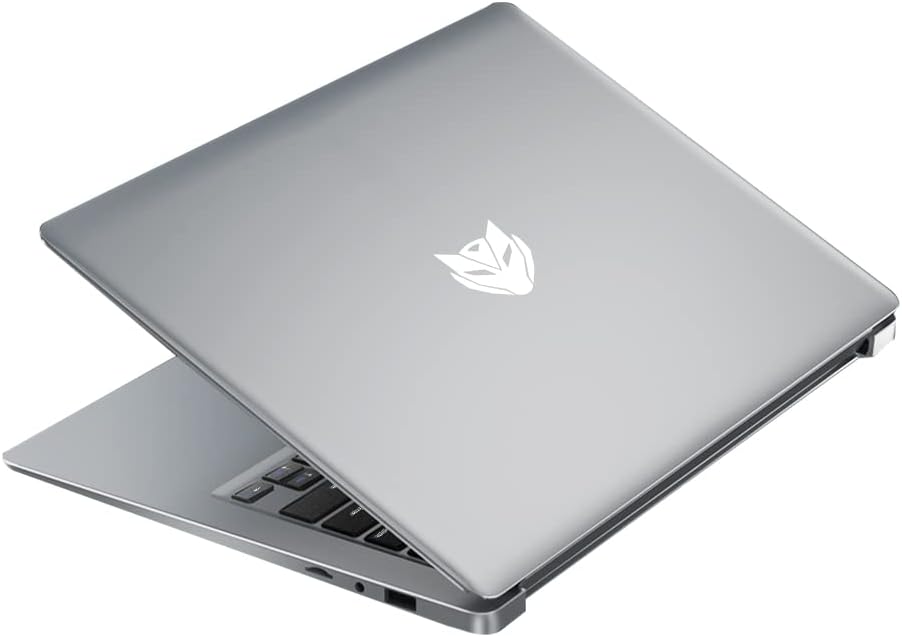
การตั้งค่า
เปิดเครื่องเบื้องต้น
- แกะ: ถอดแล็ปท็อปและอุปกรณ์เสริมทั้งหมดออกจากบรรจุภัณฑ์อย่างระมัดระวัง
- เชื่อมต่อพลังงาน: Plug the power adapter into the laptop's charging port and then into a wall outlet.
- เปิดเครื่อง: Open the laptop lid and press the power button located on the keyboard. The laptop will boot up and guide you through the initial Windows setup process.
การชาร์จแบตเตอรี่
For first-time use, it is recommended to fully charge the laptop battery. The charging indicator light will typically show orange or red while charging and turn white or off when fully charged. A full charge provides approximately 8 hours of battery life.

การเชื่อมต่ออุปกรณ์ต่อพ่วง
ใช้พอร์ตที่มีอยู่เพื่อเชื่อมต่ออุปกรณ์ภายนอก:
- พอร์ต USB: For mice, keyboards, external hard drives, and other USB devices.
- พอร์ต HDMI: To connect to an external monitor or TV.
- แจ็คเสียง: สำหรับหูฟังหรือลำโพงภายนอก
คำแนะนำการใช้งาน
เปิด/ปิดเครื่อง
- การเปิดเครื่อง: กดปุ่มเปิด/ปิด
- วิธีปิดเครื่อง: คลิกปุ่ม Start จากนั้นเลือก Power และเลือก 'Shut down'
- ในการรีสตาร์ท: คลิกปุ่ม Start จากนั้นคลิกปุ่ม Power และเลือก 'Restart'
- การนอนหลับ: ปิดฝาหรือคลิกปุ่มเริ่ม จากนั้นเลือกปุ่มเปิด/ปิด และเลือก 'พักเครื่อง'
การใช้ทัชแพด
The laptop features a precision touchpad supporting multi-touch gestures for enhanced navigation:


ฟังก์ชั่นคีย์บอร์ด
The keyboard includes standard keys and function keys (F1-F12) that can be activated with the 'Fn' key for special functions like adjusting brightness, volume, or toggling Wi-Fi.
การเชื่อมต่อกับ Wi-Fi
- คลิกไอคอน Wi-Fi ในถาดระบบ (โดยปกติจะอยู่ด้านล่างขวาของหน้าจอ)
- เลือกเครือข่ายที่คุณต้องการจากรายการ
- หากระบบถาม ให้ป้อนรหัสผ่านเครือข่าย แล้วคลิก 'เชื่อมต่อ'
Using External Displays (HDMI)
Connect an HDMI cable from your laptop's HDMI port to an external monitor or TV. The display settings can be adjusted in your operating system to extend, duplicate, or use only the external display.
การซ่อมบำรุง
การทำความสะอาด
- หน้าจอ: ใช้ผ้านุ่มไม่เป็นขุยเช็ดเล็กน้อยampล้างออกด้วยน้ำหรือน้ำยาทำความสะอาดหน้าจอ หลีกเลี่ยงสารเคมีรุนแรง
- แป้นพิมพ์และ Casing: Use a soft cloth. For dust, a can of compressed air can be used.
การดูแลแบตเตอรี่
- หลีกเลี่ยงการปล่อยแบตเตอรี่จนหมดบ่อยครั้ง
- อย่าวางแล็ปท็อปไว้ในที่ที่มีอุณหภูมิสูงหรือต่ำเกินไป
- หากเก็บแล็ปท็อปไว้เป็นเวลานาน ควรชาร์จแบตเตอรี่ให้เหลือประมาณ 50-60%
พื้นที่จัดเก็บ
Store the laptop in a cool, dry place away from direct sunlight and extreme temperatures. Use a protective sleeve or bag when transporting.
การอัพเดตซอฟต์แวร์
ตรวจสอบและติดตั้งการอัปเดตระบบปฏิบัติการและไดรเวอร์เป็นประจำเพื่อให้มั่นใจถึงประสิทธิภาพและความปลอดภัยที่เหมาะสมที่สุด
การแก้ไขปัญหา
This section addresses common issues you might encounter with your Bmax laptop.
- แล็ปท็อปไม่สามารถเปิดเครื่องได้: ตรวจสอบให้แน่ใจว่าอะแดปเตอร์แปลงไฟเสียบแน่นดีแล้ว และแบตเตอรี่มีประจุเพียงพอ ลองเสียบกับปลั๊กไฟอื่นดู
- หน้าจอว่างเปล่าหรือกระพริบ: Restart the laptop. If connected to an external monitor, try disconnecting it. Check display settings.
- ปัญหาการเชื่อมต่อ Wi-Fi: Ensure Wi-Fi is enabled. Restart your router and modem. Check if other devices can connect to the network.
- ประสิทธิภาพช้า: ปิดแอปพลิเคชันที่ไม่จำเป็น ตรวจสอบการอัปเดตที่ทำงานอยู่เบื้องหลัง ตรวจสอบให้แน่ใจว่ามีพื้นที่จัดเก็บข้อมูลว่างเพียงพอ
- ทัชแพดไม่ตอบสนอง: Ensure the touchpad is not disabled (check function keys). Restart the laptop.
- ไม่ชาร์จแบตเตอรี่: Verify the power adapter is working correctly. Check the charging port for debris.
หากปัญหายังคงมีอยู่ โปรดดูส่วนการรับประกันและการสนับสนุนเพื่อขอความช่วยเหลือเพิ่มเติม
ข้อมูลจำเพาะ
Detailed technical specifications for the Bmax 14-inch Laptop (Model BMAX S14A).
| คุณสมบัติ | ข้อมูลจำเพาะ |
|---|---|
| ขนาดหน้าจอ | 15.6 Inches (Note: Product title states 14", specifications indicate 15.6") |
| ความละเอียดหน้าจอ | 1920 x 1080 พิกเซล (ฟูลเอชดี) |
| โปรเซสเซอร์ | 1.1 GHz (Intel Celeron, 4 Processors) |
| แรม | 16 GB (DDR4 SDRAM) |
| ฮาร์ดไดรฟ์ | 256 GB SSD (Expandable up to 1TB) |
| น้ำหนักสินค้า | 2.64 ปอนด์ (1.2 กิโลกรัม) |
| ขนาดสินค้า | 12.9 x 8.5 x 0.9 นิ้ว |
| การเชื่อมต่อ | Bluetooth, HDMI, USB (3 Total), Wi-Fi (2.4G/5G) |
| แหล่งพลังงาน | Battery Powered (38WH) |
| อินพุตอินเทอร์เฟซมนุษย์ | ทัชแพด |
การรับประกันและการสนับสนุน
Your Bmax laptop comes with a 12-month repair period นับจากวันที่ซื้อ นอกจากนี้ ยังมี นโยบายการคืนสินค้าภายใน 30 วัน is available. For any technical assistance or inquiries, Bmax offers การสนับสนุนออนไลน์ตลอด 24 ชั่วโมง.
For further support or to access the Bmax brand store, please visit the official Bmax store on Amazon: Bmax Amazon Store.