
1. บทนำ
This manual provides essential information for the setup, operation, maintenance, and troubleshooting of your A4tech FX60H QWERTY Gaming Keyboard. Please read these instructions carefully to ensure optimal performance and longevity of your device.
The A4tech FX60H is a wired QWERTY keyboard featuring 12 multimedia navigation keys, two integrated USB ports, and a vibrant neon backlight. Its slim design with X-key scissor switches offers a comfortable and quiet typing experience.
2. การตั้งค่า
2.1 การเชื่อมต่อคีย์บอร์ด
- Unpack the A4tech FX60H keyboard and its USB cable.
- ค้นหาพอร์ต USB ที่ว่างบนคอมพิวเตอร์ของคุณ (พีซีหรือแล็ปท็อป)
- Insert the USB connector of the keyboard's cable into the computer's USB port.
- The keyboard is Plug & Play, meaning it should be automatically recognized by your operating system (Windows, Mac) without requiring additional driver installation.
- Wait for your operating system to confirm the device installation. The keyboard is now ready for use.

Figure 2.1: Connecting the A4tech FX60H keyboard via USB.
3. คู่มือการใช้งาน
3.1 ฟังก์ชันพื้นฐานของแป้นพิมพ์
The A4tech FX60H features a standard QWERTY layout for typing. All standard alphanumeric and symbol keys function as expected.
3.2 ปุ่มมัลติมีเดีย
The keyboard is equipped with 12 dedicated multimedia keys for quick access to various functions. These keys are typically located along the top row of the keyboard or integrated with function keys (F1-F12) and accessed via a 'Fn' key combination. Refer to the keycap legends for specific functions such as volume control, media playback, and web ทางลัดของเบราว์เซอร์
3.3 การควบคุมแสงไฟ LED
The A4tech FX60H features a multi-colored LED backlight. The intensity of the backlight can be adjusted, or it can be turned off completely. Specific keys or key combinations are used to cycle through brightness levels or toggle the backlight on/off. Consult the keyboard's keycap legends for the designated backlight control keys, often indicated by a sun or light bulb icon.
3.4 Integrated USB Ports
The keyboard includes two additional USB ports. These ports can be used to connect other low-power USB devices, such as a mouse, USB flash drive, or charging small accessories. Avoid connecting high-power devices to these ports to prevent potential issues.
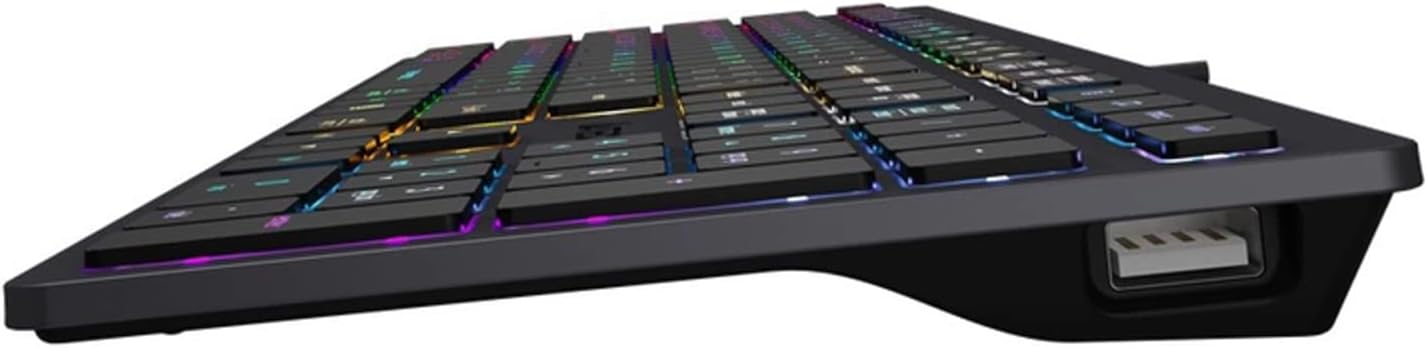
Figure 3.4: Integrated USB port on the A4tech FX60H keyboard.
4. การบำรุงรักษา
4.1 การทำความสะอาดแป้นพิมพ์
เพื่อรักษารูปลักษณ์และการทำงานของแป้นพิมพ์:
- ถอดแป้นพิมพ์ออกจากคอมพิวเตอร์ของคุณก่อนทำความสะอาด
- ใช้ผ้านุ่มไม่เป็นขุยเช็ดเล็กน้อยampชุบน้ำหรือน้ำยาทำความสะอาดอ่อนๆ เพื่อเช็ดปุ่มและพื้นผิว
- หลีกเลี่ยงการใช้สารเคมีรุนแรง น้ำยาทำความสะอาดที่มีฤทธิ์กัดกร่อน หรือการฉีดของเหลวลงบนแป้นพิมพ์โดยตรง
- ใช้ลมอัดเพื่อกำจัดฝุ่นละอองและเศษต่างๆ ออกจากระหว่างปุ่ม
4.2 Splash Protection
The A4tech FX60H keyboard features splash protection. While it is designed to withstand minor spills, it is not fully waterproof. In case of a liquid spill, immediately disconnect the keyboard, gently wipe away the liquid, and allow it to dry completely before reconnecting.
5 การแก้ไขปัญหา
5.1 แป้นพิมพ์ไม่ตอบสนอง
- ตรวจสอบให้แน่ใจว่าสาย USB เชื่อมต่อกับคีย์บอร์ดและคอมพิวเตอร์อย่างแน่นหนา
- ลองเชื่อมต่อคีย์บอร์ดกับพอร์ต USB อื่นบนคอมพิวเตอร์ของคุณ
- ทดสอบแป้นพิมพ์บนคอมพิวเตอร์เครื่องอื่นเพื่อตรวจสอบว่าปัญหาอยู่ที่แป้นพิมพ์หรือพอร์ต USB/ไดรเวอร์ของคอมพิวเตอร์
- รีสตาร์ทเครื่องคอมพิวเตอร์ของคุณ
5.2 ไฟแบ็คไลท์ไม่ทำงาน
- Check if the backlight has been turned off or set to the lowest brightness level using the dedicated backlight control keys.
- ตรวจสอบให้แน่ใจว่าแป้นพิมพ์เชื่อมต่ออย่างถูกต้องและได้รับพลังงาน
5.3 Multimedia Keys Not Functioning
- Ensure you are pressing the correct key combinations (e.g., 'Fn' key + F-key) if required for your specific multimedia functions.
- Verify that your operating system's media player or browser is active and supports the multimedia commands.
6. ข้อมูลจำเพาะ
| คุณสมบัติ | คำอธิบาย |
|---|---|
| ยี่ห้อ | เอ4เทค |
| ชื่อรุ่น | FX60H |
| เทคโนโลยีการเชื่อมต่อ | USB (แบบมีสาย) |
| ความยาวสายเคเบิล | 1.5 เมตร |
| ประเภทแป้นพิมพ์ | คีย์บอร์ด QWERTY |
| กลไกหลัก | X-structure (Scissor-Switch) |
| จังหวะที่สำคัญ | โปรต่ำfile (1.5 mm actuation point) |
| จำนวนคีย์มัลติมีเดีย | 12 |
| แสงไฟแบ็คไลท์ | Multi-colored LED (Neon Backlight), adjustable intensity |
| พอร์ต USB แบบบูรณาการ | พอร์ต USB 2 จำนวน 2.0 พอร์ต |
| ความเข้ากันได้ | วินโดวส์, แมค |
| คุณสมบัติพิเศษ | Splash protection, "Chocolate" design, Laser engraved key markings |
| วัสดุ | พลาสติก |
7. ข้อมูลการรับประกัน
The A4tech FX60H QWERTY Gaming Keyboard comes with a การรับประกันจากผู้ผลิต 2 ปี. Please retain your proof of purchase for warranty claims. For detailed terms and conditions, refer to the warranty documentation provided with your product or contact A4tech customer support.
8. การสนับสนุน
If you encounter issues not covered in this manual or require further assistance, please visit the official A4tech website for support resources, FAQs, and contact information for customer service.