
1. บทนำ
ขอบคุณสำหรับการซื้อasing the eppfun SK001 USB Speakerphone. This device is designed to provide clear and efficient audio conferencing for home offices, remote work, and small to medium-sized meeting rooms. It features 360° voice pickup, smart voice enhancement, and broad compatibility with popular conferencing platforms.
2. เนื้อหาบรรจุภัณฑ์
โปรดตรวจสอบว่าสินค้าทั้งหมดมีอยู่ในแพ็คเกจของคุณ:
- eppfun SK001 USB Speakerphone
- สาย USB-C ถึง USB-C
- สาย USB-A ถึง USB-C
- คู่มือการใช้งาน (เอกสารนี้)
3. สินค้าหมดview
The eppfun SK001 features intuitive controls for managing your calls and audio settings.

ภาพ: ด้านบน view of the eppfun SK001 speakerphone showing its control buttons. The buttons include microphone mute, microphone volume up/down, and speaker volume up/down.
ปุ่มควบคุม:
- ปุ่มปิดเสียงไมโครโฟน: Press to mute or unmute the microphone. An indicator light will show the mute status.
- Microphone Volume Up/Down: ปรับความไวในการรับสัญญาณของไมโครโฟน
- Speaker Volume Up/Down: Adjusts the speaker output volume.
พอร์ต:
- พอร์ต USB-C: For connecting to your computer using the provided USB cables.
4. การตั้งค่า
The eppfun SK001 is a plug-and-play device, requiring no driver installation for most operating systems.
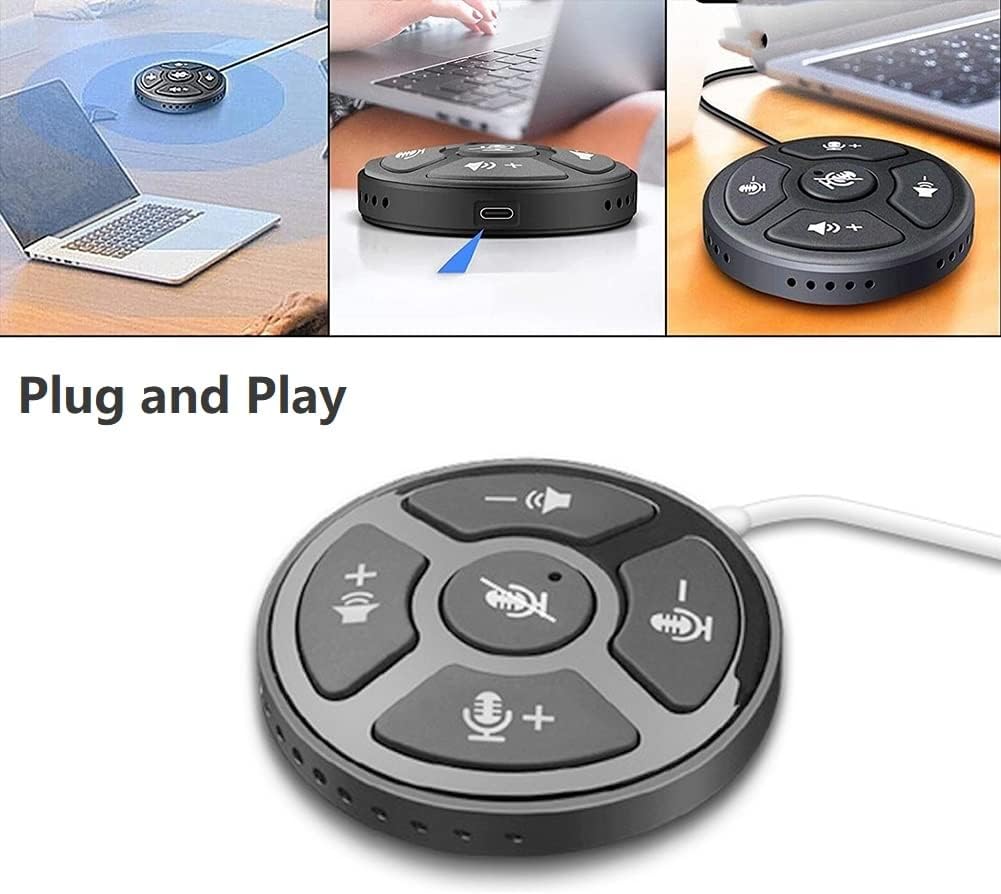
Image: A collage showing the eppfun SK001 speakerphone connected to a laptop via USB, highlighting its plug-and-play functionality.
- เชื่อมต่อลำโพงโทรศัพท์:
- Use the provided USB-C to USB-C cable or USB-A to USB-C cable.
- Connect one end of the cable to the USB-C port on the SK001 speakerphone.
- Connect the other end of the cable to an available USB port (USB-A or USB-C) on your computer (PC, laptop, or Mac).
- การจดจำระบบ: คอมพิวเตอร์ของคุณจะตรวจจับและติดตั้งไดรเวอร์ที่จำเป็นโดยอัตโนมัติ กระบวนการนี้อาจใช้เวลาสักครู่
- เลือกเป็นอุปกรณ์เสียง:
- Open your operating system's sound settings (e.g., Windows Sound Settings, macOS System Preferences > Sound).
- Select "eppfun SK001" as your default input (microphone) and output (speaker) device.
- In your conferencing software (e.g., Zoom, Microsoft Teams, Skype), navigate to its audio settings and select "eppfun SK001" for both microphone and speaker.
5. คู่มือการใช้งาน
Basic Call Management:
- การปรับระดับเสียง: Use the speaker volume up (+) and down (-) buttons on the device to control the playback volume.
- ปิดเสียงไมโครโฟน: Press the central microphone mute button to toggle the microphone on or off. A red indicator light typically signifies that the microphone is muted. This mute function is linked with Zoom Meeting certification.
- ความไวของไมโครโฟน: Use the microphone volume up (+) and down (-) buttons to adjust the microphone's input sensitivity.
คุณสมบัติหลัก:
- ระบบรับเสียงรอบทิศทาง 360°: The SK001 is equipped with high-performance microphones capable of capturing voices from all directions within a 5-meter radius, ideal for small to medium-sized conference rooms.
- Smart Voice Enhancement: Features echo cancellation, reverberation suppression, and noise reduction to ensure clear audio during calls.
- Zoom Meeting Certified: Guarantees high-quality calls and seamless integration with Zoom, including synchronized mute status.
6. การบำรุงรักษา
- การทำความสะอาด: Use a soft, dry cloth to clean the surface of the speakerphone. Do not use liquid cleaners or aerosols.
- พื้นที่จัดเก็บ: เก็บอุปกรณ์ไว้ในที่แห้งและเย็นเมื่อไม่ใช้งาน
- การจัดการ: ควรหลีกเลี่ยงการทำอุปกรณ์ตก หรือวางไว้ในที่ที่มีอุณหภูมิหรือความชื้นสูงเกินไป
7 การแก้ไขปัญหา
- ไม่มีเสียง / ไมโครโฟนใช้งานไม่ได้:
- Ensure the USB cable is securely connected to both the speakerphone and your computer.
- Verify that "eppfun SK001" is selected as the default audio input and output device in your computer's sound settings and within your conferencing application.
- Check if the microphone is muted on the device (red indicator light) or within your software.
- Adjust the volume levels on both the speakerphone and your computer.
- Try connecting the speakerphone to a different USB port or a different computer to rule out port or system issues.
- คุณภาพเสียงไม่ดี:
- Ensure the speakerphone is placed on a stable surface, away from obstructions.
- Confirm that the microphone sensitivity is appropriately set.
- Check for background noise in your environment. The device has noise reduction, but extreme noise can still affect quality.
- Verify your internet connection stability if experiencing issues during online calls.
- ไม่รู้จักอุปกรณ์:
- ถอดและเชื่อมต่อสาย USB ใหม่
- รีสตาร์ทเครื่องคอมพิวเตอร์ของคุณ
- ลองใช้พอร์ต USB อื่นบนคอมพิวเตอร์ของคุณ
- ตรวจสอบให้แน่ใจว่าระบบปฏิบัติการของคุณเป็นเวอร์ชันล่าสุด
8. ข้อมูลจำเพาะ
| คุณสมบัติ | รายละเอียด |
|---|---|
| หมายเลขรุ่น | สก001 |
| ยี่ห้อ | เอ็ปฟัน |
| เทคโนโลยีการเชื่อมต่อ | USB (USB-C, USB-A) |
| ปัจจัยรูปแบบไมโครโฟน | มินิ |
| รูปแบบขั้ว | Omnidirectional (360°) |
| ความไวเสียง | 30 เดซิเบล |
| Sound Pickup Range | สูงสุด 5 เมตร |
| แพลตฟอร์มฮาร์ดแวร์ | แล็ปท็อปพีซี |
| ระบบปฏิบัติการที่รองรับ | Windows XP/Vista/7/8/10/11, Mac OS |
| น้ำหนักสินค้า | 80 กรัม (2.82 ออนซ์) |
| ขนาดแพ็คเกจ | 6.1 x 4.72 x 1.3 นิ้ว |
9. การรับประกันและการสนับสนุน
The eppfun SK001 comes with a รับประกัน 12 เดือน นับจากวันที่ซื้อ การรับประกันนี้ครอบคลุมถึงข้อบกพร่องจากการผลิตและการทำงานผิดปกติภายใต้การใช้งานปกติ
For technical support, warranty claims, or any questions regarding your eppfun SK001 speakerphone, please contact eppfun customer service. Refer to the contact information provided on the eppfun official webเว็บไซต์หรือเอกสารการซื้อของคุณ
โปรดเก็บหลักฐานการซื้อไว้เพื่อวัตถุประสงค์การรับประกัน